
Appearance
New Project Wizard
The New Project Wizard guides you through creating a fully configured LED project in five steps. It launches automatically for new users, or you can open it from File > New Project.
Step 1: Project
Set up your project name and define your LED screens.
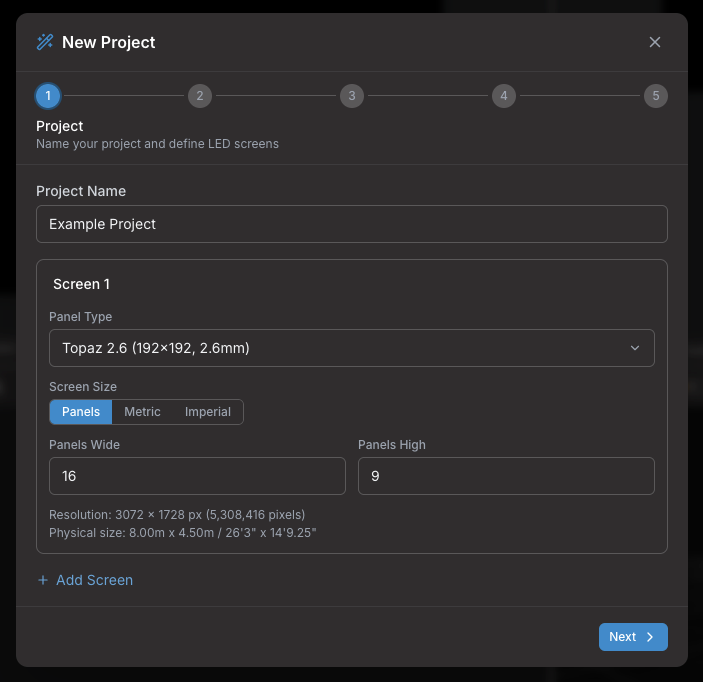
- Project Name — Give your project a descriptive name
- Screens — Add one or more screens, each with:
- Name — A label for the screen (e.g., "Main Wall", "Side Left")
- Panel Type — Select from the equipment library, searchable by brand or model
- Grid Size — How many panels wide and high
- Screen Size — Define the grid by panel count, or switch to Metric or Imperial to enter a target physical size and let the wizard calculate panel count
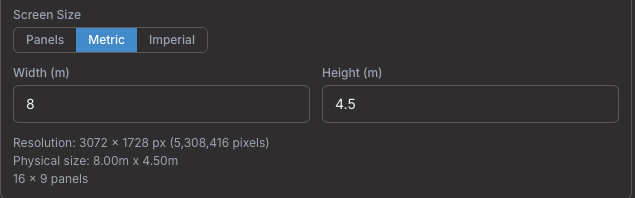
You can add multiple screens by clicking the + Add Screen button. Each screen can use a different panel type.
Step 2: Processing
Select your video processor, configure outputs, and review port assignment.
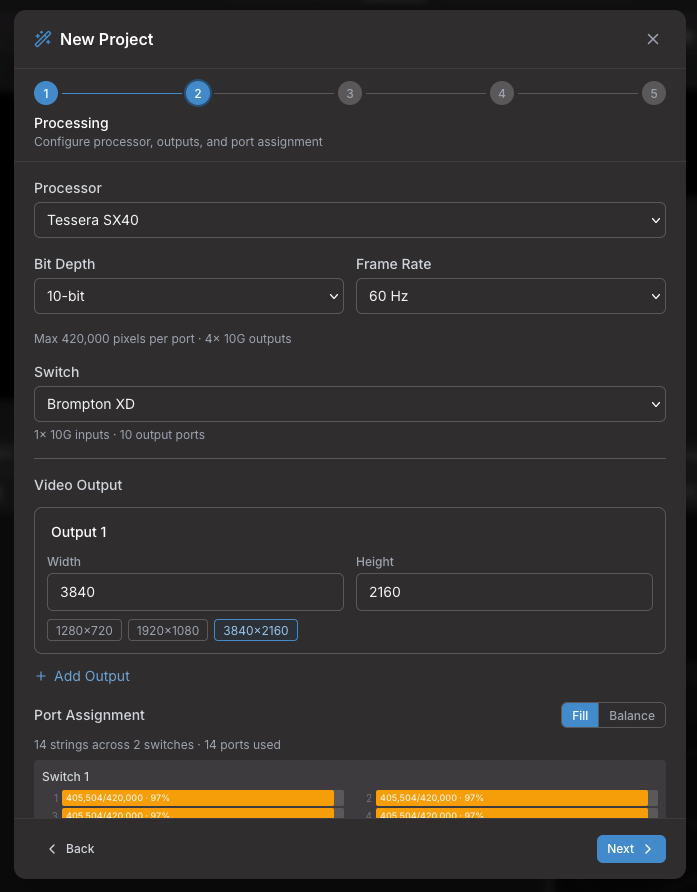
- Processor — Choose from supported models (Brompton, Colorlight, Megapixel, Novastar, etc.)
- Bit Depth — 8, 10, or 12-bit color (available options depend on the processor)
- Frame Rate — From 23.976 Hz up to 240 Hz (depends on processor and bit depth)
- Switch — If your processor has 10G trunk outputs, select a compatible fiber switch
- Video Output — Add one or more outputs with custom width/height or quick presets (1280×720, 1920×1080, 3840×2160)
- Port Assignment — How strings are distributed across ports:
- Fill — Assigns strings sequentially, filling each port/switch before moving to the next
- Balance — Distributes strings evenly across available ports for balanced load
If a screen's total pixel count exceeds a single processor's capacity, the wizard automatically creates multiple processors and distributes the screen across them using the selected assignment mode. The string utilization preview at the bottom shows how each port will be loaded so you can verify the configuration before proceeding.
Step 3: Power
Set power distribution parameters for your installation.
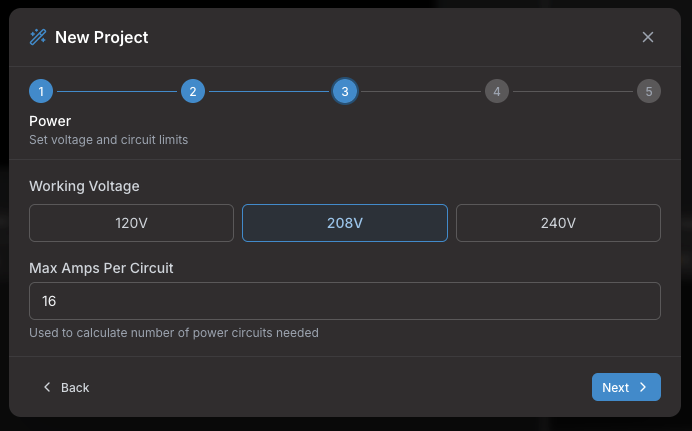
- Working Voltage — The AC voltage at the venue (120V, 208V, or 240V)
- Max Amps Per Circuit — The circuit breaker rating, used to calculate how many panels can share a power circuit
Step 4: Wiring
Configure how data and power cables route through your panels. Data Wiring and Power Wiring are configured independently — each has its own pattern, start corner, and direction.
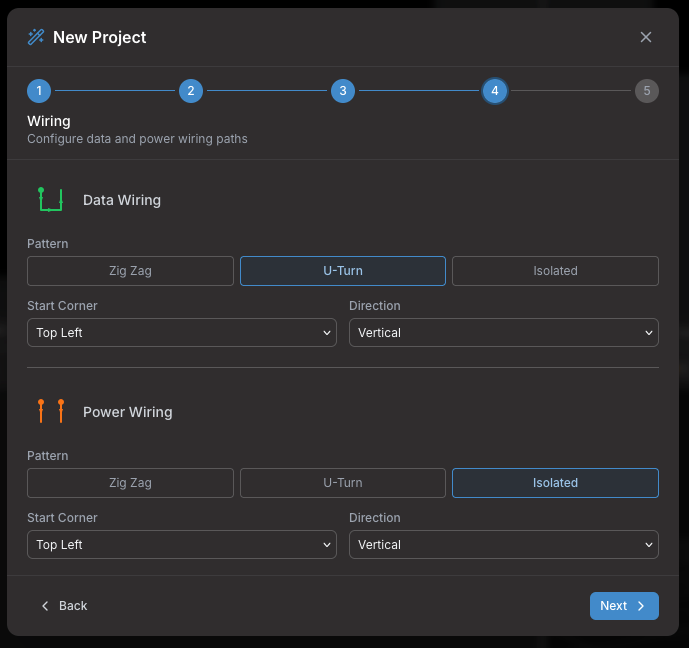
- Pattern — How cables connect between rows/columns:
- Zig Zag — Always goes the same direction, jumping back at the end of each row
- U-Turn — Alternates direction each row (snake pattern)
- Isolated — Each row or column is an independent string
- Start Corner — Where the first panel is: top-left, top-right, bottom-left, or bottom-right
- Direction — Whether the path runs horizontally (across rows) or vertically (down columns)
This gives 24 possible wiring combinations per path. Visual icons show the routing for each option.
Step 5: Test Pattern
Choose an initial test pattern for your surfaces.
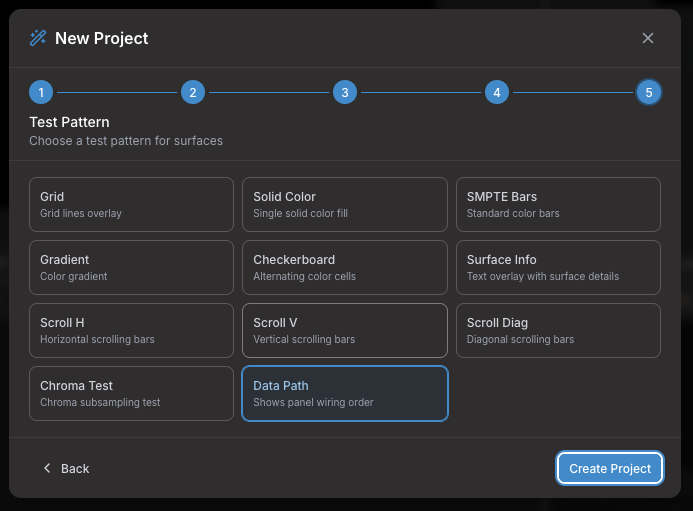
Available patterns include Grid, Solid Color, SMPTE Bars, Gradient, Checkerboard, Surface Info, Scroll H/V/Diag, Chroma Test, and Data Path. For solid color, pick a custom color. You can always change test patterns later in the Surfaces panel.
What Happens After
When you click Create Project, the wizard automatically:
- Creates the processor with your selected outputs and switch
- Adds screens with the correct panel type and grid dimensions
- Creates surfaces linked to each screen
- Assigns strings to processor ports using your chosen mode
- Auto-packs screens on the mapping canvas
- Positions multiple screens side-by-side in the 3D view
Everything is ready to work with immediately — you can fine-tune any setting afterwards using the sidebar panels, including adding half-panel edge rows and adjusting multi-processor distribution modes.