

Appearance
Welcome to LED.FYI
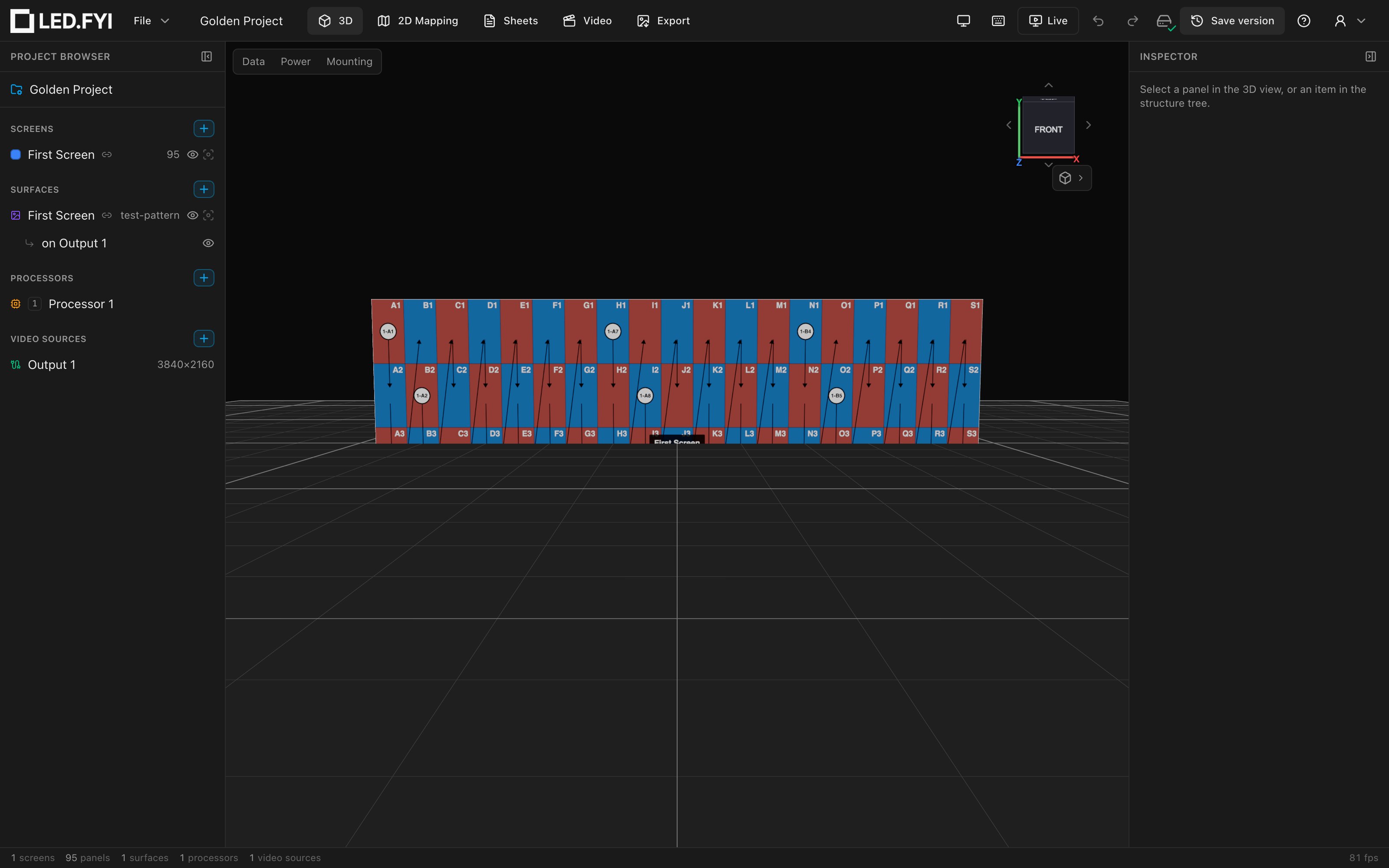
LED.FYI is a design tool for LED video walls. You lay out screens panel by panel, wire their data and power, feed them real video, and walk away with the paperwork: wiring drawings, PDFs, DXFs for CAD, cable labels, and a bill of materials. Everything lives in one project that you view through different workbenches, so the 3D visualization, the pixel map, and the drawings never disagree with each other.
The core concepts
Every LED.FYI project is built from a handful of entities. You'll see them as the four groups in the left sidebar:
| Concept | What it is |
|---|---|
| Screen | A physical wall of LED panels; its panel type, grid size, position, curve, and wiring all live here. See Screens & panels. |
| Panel | One LED cabinet inside a screen. Panels can be selected, overridden, swapped for half or blank panels, or given shapes. |
| Video source | A video raster at a fixed resolution: the signal you'd feed from a media server or graphics output. See Surfaces, placements & video sources. |
| Surface | A piece of content (a test pattern, media, or slices of a video source) placed onto video sources and linked to screens so the wall lights up. See Feeding screens video. |
| Processor | An LED processor canvas: the pixel space where your screens are mapped and from whose ports the data strings run. See Processors & outputs. |
| Strings | The daisy-chains that make the wall real: data strings from processor ports through panels, and power circuits with their breakers. See Wiring & power. |
One project, six tabs
The tabs in the top bar are views of the same project, not separate pages. Selections and edits carry across when you switch (keys 1–6):
| Tab | Key | What you do there |
|---|---|---|
| 3D | 1 | Visualize the wall physically: panels, content, wiring overlays, mounting. See The 3D workbench. |
| 2D Mapping | 2 | Arrange screens in processor pixel space and edit wiring. See The 2D Mapping workbench. |
| Sheets | 3 | Build the printable drawing set. See The Sheets workbench. |
| Video | 4 | Preview the real raster pipeline, one canvas per output. See The Video workbench. |
| 2D Overview | 6 | See every screen at once, laid flat with its live video, and switch panels on and off across them. See The 2D Overview workbench. |
| Export | 5 | Produce PNGs, PDFs, DXFs, labels, and the bill of materials. See Exporting from LED.FYI. |
An overview of all five design workbenches is at The five workbenches.
Three ways to start
After that, opening the app picks up where you left off: the cloud project you last had open, or your local project (see Projects & saving). On your very first visit the app opens a blank Untitled project on the 3D tab (or on 2D Mapping if your browser can't start 3D graphics); everything else works the same. From there:
- Run the wizard. File → New with wizard… walks you through screens, processing, power, wiring, and a test pattern, and creates a complete, wired, lit-up project in one go. See New project wizard. New to the app? Build your first wall walks through it step by step.
- Start blank. File → New… asks for a name and gives you an empty project to build up yourself, or just add a screen to the blank project you're already in.
- Open a file. File → Open… opens a
.ledprojproject file from your computer, including projects exported from LED.FYI V1. See Project files.
Signing in
In the web app at app.led.fyi, you sign in before you reach the editor; see Sign in & first run. There is also a desktop app for macOS, Windows, and Linux (download it from led.fyi/downloads) that keeps working offline once you've signed in. Share and AR links are the exception to the sign-in wall: they open a read-only view for anyone, no account needed. Linking your account to Spectacle is not an exception: it acts on your account, so it asks you to sign in first and then continues where it left off. That holds for either address Spectacle might open it at, the #/connect/spectacle one or the plain /connect/spectacle path.
Where to go next
- Interface overview: find your way around the window.
- Projects, saving & autosave: how your work is saved (spoiler: continuously).
- Build your first wall: a complete, numbered walkthrough from the wizard to a strung, powered wall.
- Adding & managing screens: start building a wall of your own.
- The command palette: press
⌘Kand search for any action in the app.