

Appearance
Cloud projects, history & autosave
Projects save themselves. Locally, the app autosaves your working document to the browser less than a second after every edit. On a paid plan, it also autosaves continuously to the cloud, giving you a multi-project library you can open from any device. On top of both sits the version system: named restore points you create with the Save version button.
How cloud autosave works
For a signed-in user on a paid plan, the open project saves to the cloud automatically:
- about 2.5 seconds after you stop editing, plus
- a 30-second backup sweep that catches anything missed (a failed write, coming back online).
A brand-new local project is promoted to a cloud project automatically on its first real edit; an untouched empty project is never uploaded. There is no "Save to cloud" item in the File menu anymore; autosave replaced it. (The palette's Save Now, also ⌘S, settles any pending autosave and confirms; Save as Copy to Cloud and Open from Cloud… are the cloud-specific entries.)
The top bar carries a small save indicator at all times, so you never have to open a menu to check: a cloud icon when the project is backed up, a drive icon when it's only in this browser, with a badge for how it's going (hover it for the detail). Every icon is listed in Reading the save status. The File-menu footer repeats the same state as a sentence:
| Footer text | Meaning |
|---|---|
Saving to cloud… | A push is in flight. |
Saved to cloud 12:34:56 | The cloud copy matches what you see. |
Offline (will sync when back online) | No connection; the next successful save catches up. Keep working. |
Cloud save failed (will retry) | The last push errored; autosave keeps retrying. Your work is still saved in this browser. |
Paused (changed somewhere else) | The project was saved from another tab or device. Cloud saving waits for your choice; see below. |
Saved in this browser only | You're signed in, but your plan has no cloud projects left for this one, so it is not backed up. |
Autosaved 12:34:56 | A project that isn't in the cloud (yet): the browser autosave heartbeat (see below). |
Not autosaved yet | A project that isn't in the cloud, with nothing autosaved this session. |
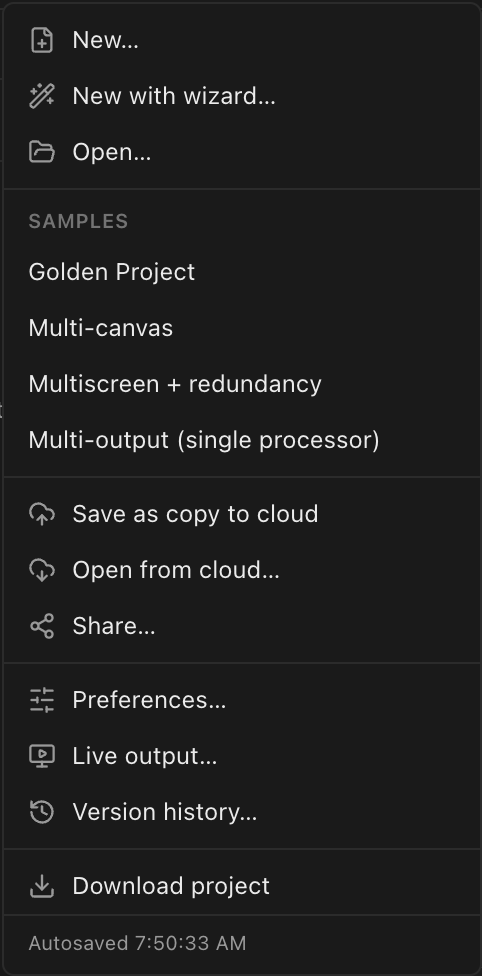
(The File menu for a project that isn't in the cloud yet, so the footer reads Autosaved …. Once the project is a cloud project it reads Saved to cloud … instead. The Samples group appears only for LED.FYI staff accounts.)
Free plan: saved in this browser only
Cloud autosave is a paid feature. A signed-in Free user (or a Pro user at their cloud-project quota) gets no cloud saving: work stays in the browser's local autosave only. The app says so the first time in a session that it would have saved to the cloud, with a Saved in this browser only notice: "Your plan does not include cloud projects, so this project is not backed up. Use File → Download project to keep a copy." After that, the top-bar indicator shows a drive with an amber warning, and the File-menu footer reads Saved in this browser only. See Plans & billing.
When the same project changes somewhere else
Cloud saves check that nobody else has saved the project since you opened it. If the same cloud project is edited in two places (two browser tabs, or two computers), the second save is refused instead of silently overwriting the first. Cloud saving pauses (the top-bar indicator turns red and the footer reads Paused (changed somewhere else)), and a This project changed somewhere else dialog asks how to continue. It can't be dismissed with Esc or a click outside: you have to pick one of three choices.
| Choice | What it does |
|---|---|
| Reload their version | Discards your unsaved edits and reopens the project as it was last saved elsewhere. |
| Save as a copy | Keeps both. Your edits go into a new cloud project named <name> (copy) and the app switches to it; the original keeps the other version. The copy counts against your cloud-project quota. |
| Overwrite with mine | Replaces the other version with yours (Overwrote cloud copy). Their changes since you opened the project are lost. |
Cloud autosave resumes as soon as you choose. If another save lands in the moment before yours, the dialog simply comes back; if the project was deleted elsewhere in the meantime, Overwrite with mine saves your version as a copy instead.
The same check protects you when you reopen a project. Edits this browser made that never reached the cloud (the tab closed within seconds of an edit, or you were offline) are normally restored on top when you next open the project, with a Restored your unsynced changes notice. But if the project was saved from somewhere else in the meantime, the cloud version wins and you see Unsynced changes could not be restored: "This project was changed somewhere else after your last save here, so it opened at the cloud version."
Local projects (signed out, offline, or Free)
Without the cloud, nothing is lost:
- The working document autosaves to the browser about 0.8 seconds after each edit, so a refresh, crash, or relaunch picks up exactly where you left off.
- The full version history of your local project is kept durably in the browser (it survives reloads and app restarts, including in the desktop app).
But there is only one local project at a time. Opening or creating another replaces it, which is why every replacing action (File → New…, Open…, a sample, a project link) first asks:
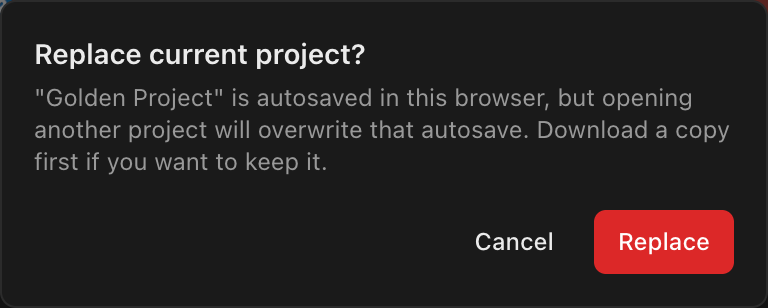
To keep local work before replacing it, use File → Download project to save a .ledproj file; see Project files. Cloud projects are the real multi-project store.
Opening a cloud project
File → Open from cloud… lists your cloud projects newest-first, each with its name and last-updated time. Picking one runs the same replace guard (if the project you're leaving is a synced cloud project, it's just a Switch projects? note, since nothing is lost), then opens the project at its live autosaved head (never an older snapshot) with its full version history attached, and confirms with an Opened from cloud notice. The empty state reads "No cloud projects yet. Use 'Save to cloud' first." (There is no Save to cloud item any more: a project on a paid plan goes to the cloud on its first edit.)
Projects from the old LED.FYI
If you had a paid plan when LED.FYI moved to this version, the projects you had saved in the old app were copied into your cloud list, and they sit in Open from cloud… like any other project. The first time you open one, it is converted to the current project format as it loads:
- The notice reads
Opened your project from led.fyi v1instead ofOpened from cloud. - If some equipment in it can't be matched to the current library, a warning reports
N unresolved equipment item(s). Those parts stay in the project as placeholders that still draw correctly; see Project files. - If the old file had problems the current format doesn't allow (for example a reference to something that had been deleted), they're fixed on the way in and a warning says so:
Repaired N problem(s) from the old file, naming the first one.
Once the converted project has been saved, the original file exactly as the old app saved it is still kept with your account, untouched. You don't see it in the app, but it's included when you export your data, so nothing about the original is lost if you edit the project here. The one-time welcome message that explains the move is described in Sign in & first run.
Save as copy to cloud
File → Save as copy to cloud forks the live document into a brand-new cloud project named <name> (copy), even when the current project is already cloud-bound, and switches the app onto the copy. A copy counts against your cloud-project quota like any new project. The item is disabled until you're signed in with a document open.
Deleting cloud projects (single & bulk)
Deletion lives in the same Open from cloud… dialog:
- Tick the checkbox on one or more rows. (Hovering a row also reveals a trash icon; clicking it selects that row and jumps straight to the confirmation step.)
- A footer appears with
N selected, Cancel (clears the selection), and Delete N…. - Confirm with the red Delete N button. The prompt reads "Delete N project(s)? They disappear from your cloud list on every device and free up your plan quota. Any share links stop working immediately and cannot be turned back on." (Cancel here steps back to the selection without clearing it.) The button shows
Deleting…while the delete runs, then the list refreshes.
The currently-open project can't be deleted from under itself: its row is tagged Currently open and both its checkbox and its trash icon are disabled. Open something else first.
Deleting revokes the project's share links
Deleting a project also kills every share link made from it, in the same moment: the #/s/<code> page stops opening, and the links' stored files are deleted from public storage: a Documentation share's PDF, and an AR share's face-texture images. Both had their own addresses, so a bookmarked or forwarded file address goes dead too. This is the point of deleting: it is the action you take when you want something to stop being visible, and a share is a frozen copy that would otherwise keep serving the whole design to anyone still holding the link.
It is one-way. Revoked links stay revoked, even in the rare case where support recovers a recently-deleted project, its old links do not come back and you would create fresh ones.
No undelete in the app
Deleting can't be undone from inside the app: the projects vanish from your cloud list on every device, your plan quota is freed immediately, and their share links are revoked for good. Keep a .ledproj download of anything you might want back. (The underlying data isn't destroyed on the spot, so support may be able to recover a very recent accidental deletion, but don't count on it.)
Named versions: save & restore
Autosave protects you from crashes and closed tabs; versions protect you from yourself. Autosave pushes the working head in place and never creates restore points; those are your manual saved versions.
Click Save version in the top bar (or press ⌘⇧S, or ⌘K → Save Version…) and name the snapshot:
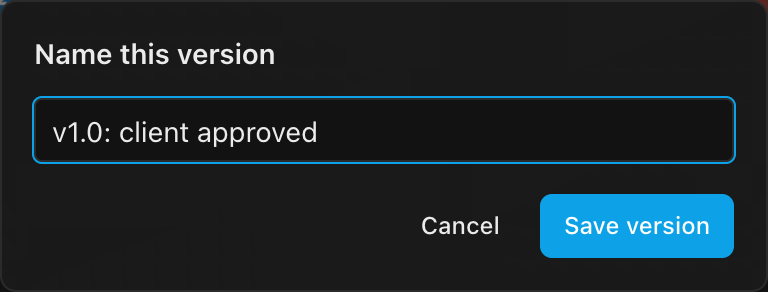
All versions appear in the Version history dialog (File → Version history…, or ⌘K → Version History…), newest first, with the tip tagged current and older rows timestamped:
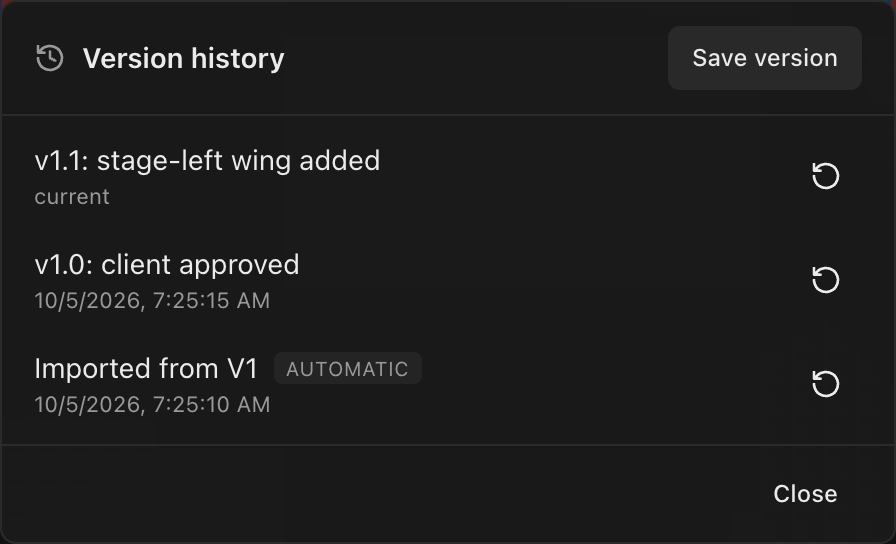
- Restore (the arrow on each row) loads that state as your new working document without rewinding history: the versions in between are kept, and your next saved version records the restored state as a new version. Nothing is ever destroyed by a restore.
- Edited next to the project name means "edited since your last saved version"; it is about versions, not safety; the save readout beside it is what tells you your work is stored.
- Versions work identically for local projects (stored in the browser) and cloud projects; while cloud-bound, saving a version also refreshes the cloud copy, and cloud versions are verified server-side: a corrupted write is rejected rather than stored.
See also Undo, redo & versions for how versions relate to the undo stack.
Project links & bookmarks
Every cloud project has a stable URL (https://app.led.fyi/#/p/<id>), and the address bar tracks whatever you have open, so bookmarks and the browser's Back/forward buttons switch projects (behind the same replace guard; declining restores the URL). Opening a project link while signed out shows the sign-in page first. Sign in there with your email and password and the project opens straight afterwards. Continue with Google, Continue with Apple and an emailed sign-in link bring you back to the app's start page rather than to the link, so open the project link again once you're in. #/ (or any unrecognized address) opens the cloud project you last had open, if there is one, and otherwise the local project; see Reopening where you left off. A few addresses are pages rather than projects (a share view, or the Spectacle linking page), and landing on one never disturbs the project you had open.
The same links work in the web app and the desktop app, which is exactly why project and share addresses keep the #/… form: everything after the # is handled inside the app, so one link resolves identically in a browser and in the offline desktop build. Two addresses are exceptions, both because something outside LED.FYI opens them: an AR share link, which has to be a plain /ar/<code> path for an iPhone to hand it to Spectacle, and the Spectacle linking page, which answers at the plain path /connect/spectacle as well as at its #/… address because that is what the iPhone app opens. Either form takes you to the same page.
Quotas
Cloud projects are capped per plan, counted account-wide: Free 0 (local-only), Pro 50, Studio unlimited. Deleting projects frees quota immediately. See Plans & billing.