

Appearance
Seeing & exporting your wiring
The one wiring computation renders on every surface the crew touches: the 2D map, the 3D view, the wall itself (test patterns), the exported PNGs, and the drawing set. Because they all read the same engine output, they can't disagree: what the wall shows is what the paperwork says.
2D overlays
In the 2D Mapping workbench, the wiring control bar's Show group toggles the read-only Data (blue) and Power (orange) overlays. Both default off, and both can show at once; power wires are offset slightly up-left from data wires so the two grammars don't sit on top of each other. Switch View from → Back to see both overlays mirrored, as the crew sees them from behind the wall (see Back view).
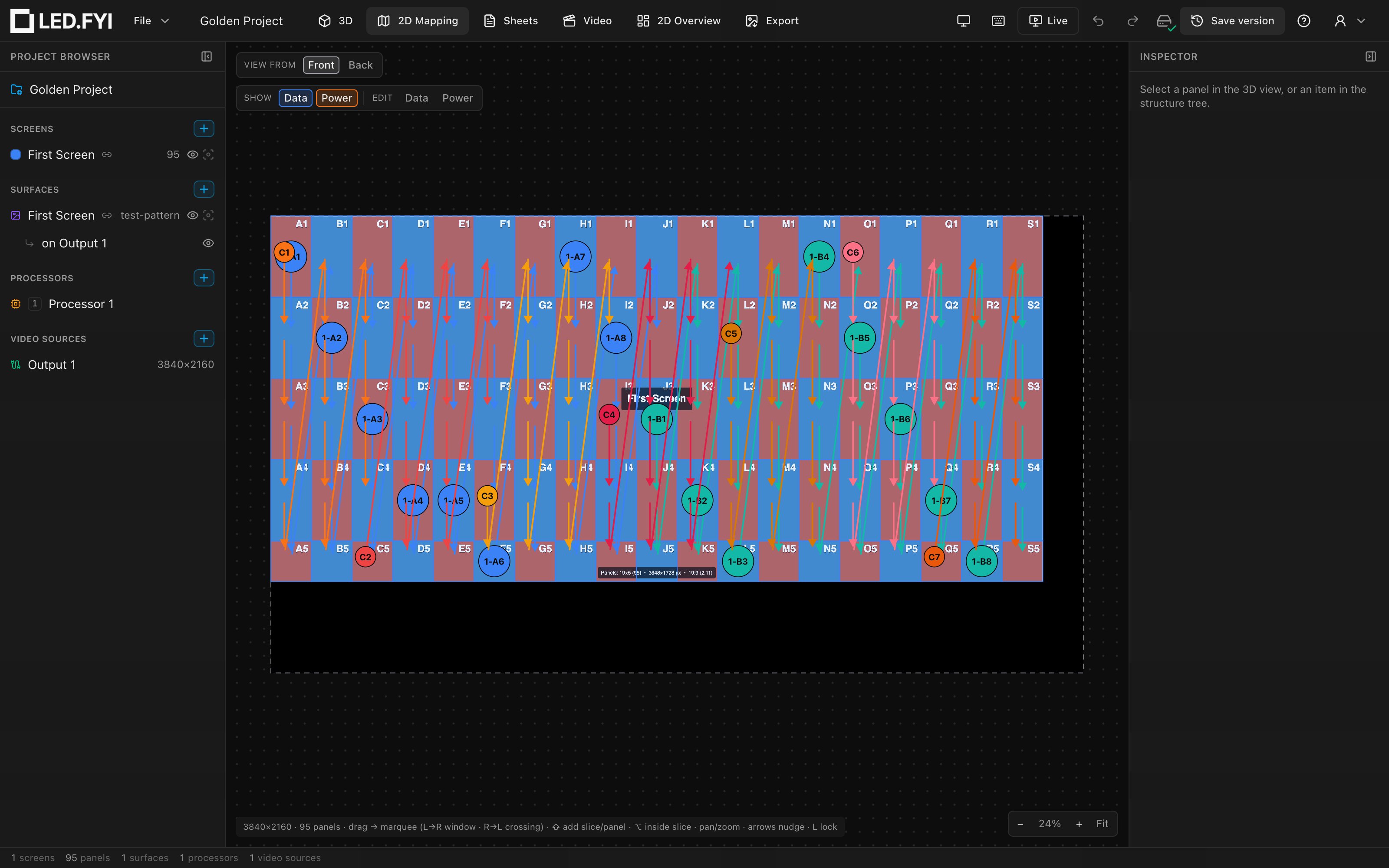
What you're looking at:
- Solid arrowed wires between panel centers, one color per string (cool palette, keyed to the trunk letter) or circuit (warm palette, keyed to the circuit number).
- A solid labeled circle at each string's first panel: the port label (
9-A1, tag + trunk letter + port) for data, the circuit label (C7) for power, filled in the run's own colour and ringed in your main colour. An unassigned string draws gray with itsS-number (or a small plain disc when there's no label to show). - A dashed labeled circle at the last panel of a backed-up data string: the backup port label, ringed in your backup colour. See Redundancy.
- A run drawn across a screen boundary is one cable, so it draws as one continuous chain in one color; it doesn't stop and restart at the seam, and it carries a single label.
While you're in a wire-edit mode, the other mode's overlay can still show, dimmed, for context. See Manual wiring and Wiring overlays & the wire editor.
View state, not project data
The overlay toggles (2D and 3D) and wire-edit mode are per-session view state; they aren't saved in the project and reset on reload.
3D overlays
The 3D workbench has the same two toggles: Data and Power pills in the top-left group, next to Mounting. The strings draw as solid polylines threading through the panels, with the same colors and labels as the 2D overlay by construction (one shared view-model). They sit just in front of the LED face, so they stay visible whatever the cabinet depth. Orbit behind the wall and the cabinets hide them, as they would on site. The overlays also render in the read-only client previs/share view, so a client link can show the wiring too. Runs sit with their panels: under the default solid floor, any hop below ground level is hidden along with that part of the wall; make the floor translucent or turn it off to see the whole run. Since the view opens from a standing eye height, the floor line a run vanishes under is in perspective from the start. That deck is a finite 25 m square, so the runs of a very wide wall can extend past its rim. Enlarge it with Floor size when they do.
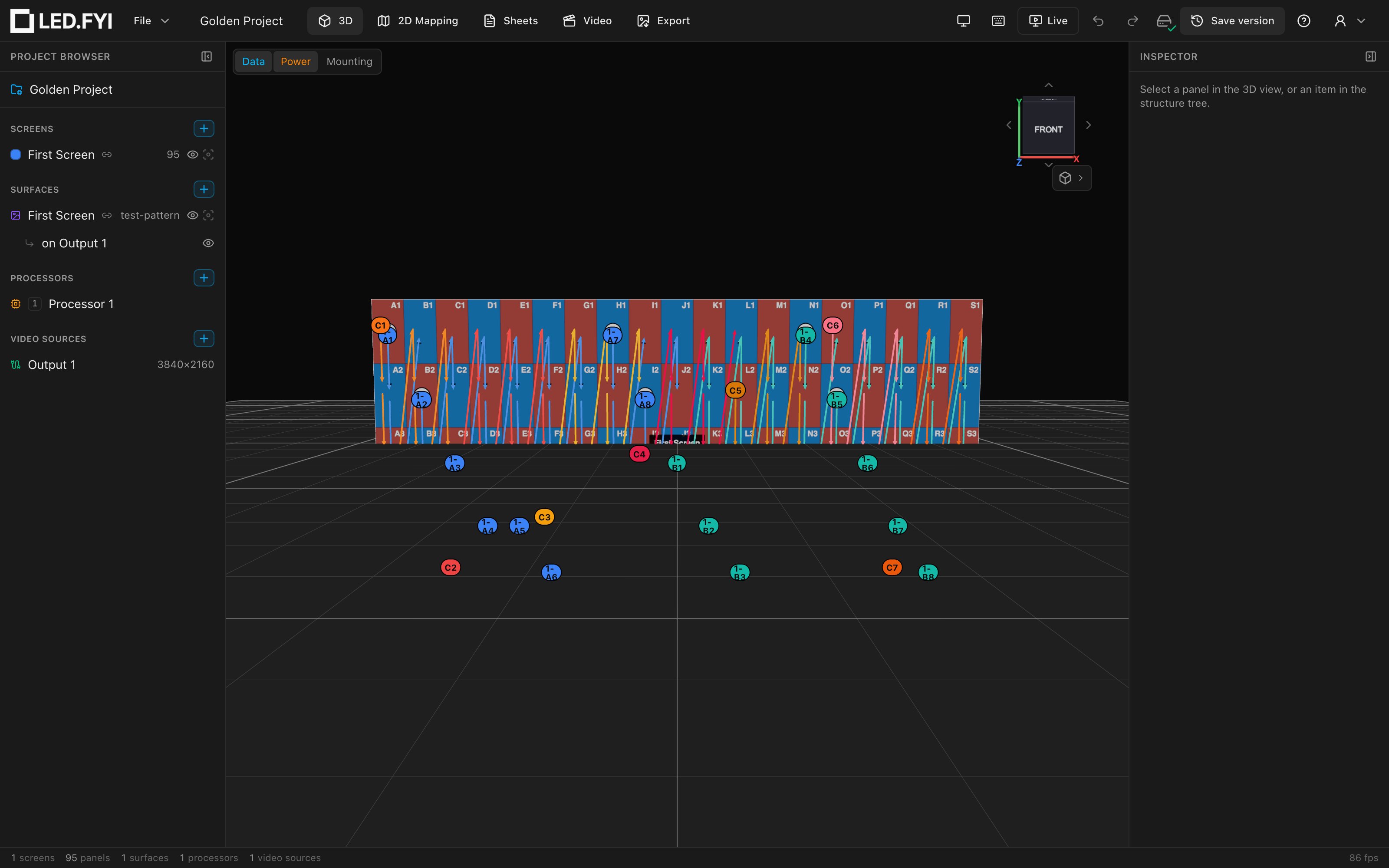
See Wiring & mounting overlays in 3D.
PNG exports carry content, not wiring
Once the wiring is designed, the cables it implies are counted for you: the bill of materials downloads as a spreadsheet with data, power and trunk cables grouped by type and length.
PNG exports are the pixels the hardware receives, never wiring drawn on top. That is a stated rule of the Export workbench's PNG tab, not an omission: the files go straight into a media server, so anything overlaid would end up on the wall. It goes for whatever you tick in that tab (one image, a few, or all of them, as one .zip or as separate files) and for the Download PNG button in the Screen inspector alike, including a screen split across several processors, which exports as one whole-wall image like any other.
For a wiring reference you can hand to a crew, use the drawing set or the Sheets workbench, which can carry labels and a legend, or the on-wall test patterns below.
Test patterns: wiring on the wall itself
Two test-pattern types put the wiring on the physical wall for verification during load-in. See Test patterns for test patterns in general.
Data path
The Data path pattern draws the panel grid (checkerboard, solid, or gradient background, optionally coloured by processor, video input or port, so a wall split across several processors shows the split), per-panel coordinates, panel/screen borders, an info overlay, scaling helpers, and the data path itself: arrows tracing the wiring order with string-start markers. Configure it in the Surface inspector; the Data path section offers:
| Option | What it does | Default |
|---|---|---|
| Show | Draw the wiring arrows at all. | on |
| Pattern / Start / Direction | The virtual path config (see linked vs unlinked below). | U-Turn / Top left / Horizontal |
| Color / Width | Arrow styling. | black / 2 px (1–10) |
| Numbers | A numbered chip at the start of each string. | on |
| Labels | Shown while Numbers is on. Port labels (A1…) prints each string's port label (1-A1), or its S-number while it has no port. Sequential (1, 2, 3) prints the string's project-wide number as plain digits. | Port labels |
| Px/string | The string-split limit for the virtual grid. Only shown when the surface is not linked to a screen. | 650,000 |
A run that crosses onto another screen is marked on the wall with the same link flags the drawings use (a pointed flag on the panel where the cable leaves, its matching notched twin where it arrives), each carrying the run's own cable label, so an installer can see the two halves belong together.
Linked vs virtual: when the surface is linked to a screen, the pattern shows the screen's real wiring: actual string membership, port labels (1-A1, 1-B3), and backup labels on last panels. The pattern's own Pattern/Start/Direction/Px-per-string fields are ignored (the Px/string field hides entirely). Unlinked, it draws a virtual grid from its own rows/columns/limit settings. The linked feed comes from the same engine output as the exports, so the wall matches the paperwork.
TIP
The new project wizard can seed every screen with a linked data-path pattern, so the wall is lit and verifiable the moment the project opens.
Power path
The Power path pattern is the power twin: the same grid renderer, but each run is colored by its panel's power circuit and labeled with the circuit label (C7), so an electrician can verify circuit grouping on the wall itself. It currently has no options form in the Inspector: it renders with its defaults plus the live circuit feed.
Wiring on your drawings
Five drawing-set blocks print the wiring. Add them to sheets in the Sheets workbench; each can scope to one screen or all screens, and prints to PDF and DXF from the same source:
| Block | What it shows |
|---|---|
| Data Wiring | The panel grid with each string's chain in its color: arrows per hop, the string label top-left and position number bottom-right in each cell, port labels at string starts, dashed backup chips, X marks at chain ends, a hollow hexagon tag naming the off-page panel wherever a chain crosses a match line, and link flags wherever a cable runs on to another screen |
| Power Wiring | The same grid grammar for circuits, in the warm palette, with watts/amps notes, OVER flags, and a red warning under the screen when its panels are calculated below their rated max wattage |
| Data Schedule | A lookup table you read from either end: from a port to the panels it feeds, or from a panel's wall position to its port. One row per data string, named by its S-number, in one table per processor with a header row for each switch. A run that crosses onto another screen is still one row. See the Data Schedule block for every column |
| Circuit Schedule | A table: Circuit · Panels · Watts · Amps · % of limit · Status. For a circuit shared with another screen, Panels and Watts are this screen's share while Amps and % read the whole circuit, which is what the breaker actually carries. The same red reduced-draw warning prints under the table |
| Block Diagram | The system-wide signal map: processors → switches → screens with each port labelled at its real speed (a modular processor's fitted output cards read 40G/5G, not a blanket 1G; a wired port takes the speed of the link it carries), cable names/types, and dashed [BKP] backup gear. Every block is outlined in your main or backup colour, and a processor you gave a colour of its own is outlined in that instead, with a matching tab in its header |
Where a run crosses a screen boundary, each screen's drawing shows only its own stretch, but the chain numbering carries straight on across the seam (…39, 40, then 41 on the next screen) rather than restarting, so the two halves read as one cable.
Data Wiring and Power Wiring can each be drawn from the front (the default) or from the back: mirrored left to right, as the crew wiring the wall from behind sees it, with every label still readable. Every wiring band carries a boxed VIEWED FROM FRONT OF SCREEN or VIEWED FROM BACK OF SCREEN tag saying which side it shows. Print both by placing two blocks, one set each way. See Front and back views.
Cells draw at the panel's true aspect ratio, and shaped corner panels draw as their real outline. Two corner panels stacked in one cell draw as two cells, one above the other. For block authoring (placing, scoping, and styling blocks), see the drawing blocks reference.
Wiring colours
Two different questions get two different answers, and the drawings keep them on two different pieces of ink.
Which run is this? The identity palettes
Account menu → Preferences… → Wiring sheet colours customizes the colour cycles used on the wiring sheets and exports: separate editable lists for Data string colours and Power circuit colours. Changing them recolors existing sheets and any new ones.
Colours are assigned per run across the whole project, not per screen, so a given cable is the same colour on every sheet it appears on (including both halves of one that crosses screens), and two different runs never share a colour just because they sit in the same position on their own screens.
The 2D/3D view overlays deliberately keep the built-in cool-data / warm-power identity palettes regardless; only the paperwork recolors.
Main or backup? The role pair
Below the palettes, Main and backup sets the two colours that say which runs and devices are the primary system and which are the redundant one. They paint the outlines: the ring around a string-start marker, the dashed ring around a backup-port marker, and the border of a device block on the System Diagram.
Unlike the identity palettes, this pair applies everywhere: the 2D map, the 3D view, the sheets, the PDF and the DXF all use it, so a backup reads as a backup on screen and on paper.
It starts as black (main) and grey (backup), which is what the drawings have always used. If you change it, note that colour is never the only signal: backup markers stay dashed and backup gear stays tagged [BKP], so a drawing photocopied in black-and-white still tells the two apart. The swatches offered in the picker are chosen to stay distinguishable under the common forms of colour blindness; there is deliberately no red/green pair on offer.
This particular processor
A processor can also be given a colour of its own. That one is saved in the project, not in your preferences, because it describes one box on one job, so everybody who opens the file sees the same colour.
Both preferences are stored app-wide (local-first, mirrored to your account when signed in), not in the project. See Preferences.