

Appearance
The 3D workbench
The 3D workbench is a real-time previsualization of every LED wall in your project: each panel is drawn at its true physical position and size, showing the exact pixels its processor would send it (and, from behind, the cabinet itself). Test patterns animate, video plays, and wiring and mounting hardware can be overlaid on the wall. It is the first tab and the default workbench when the app opens, unless your browser can't start 3D graphics, in which case the app opens on 2D Mapping and this tab shows what to fix instead.
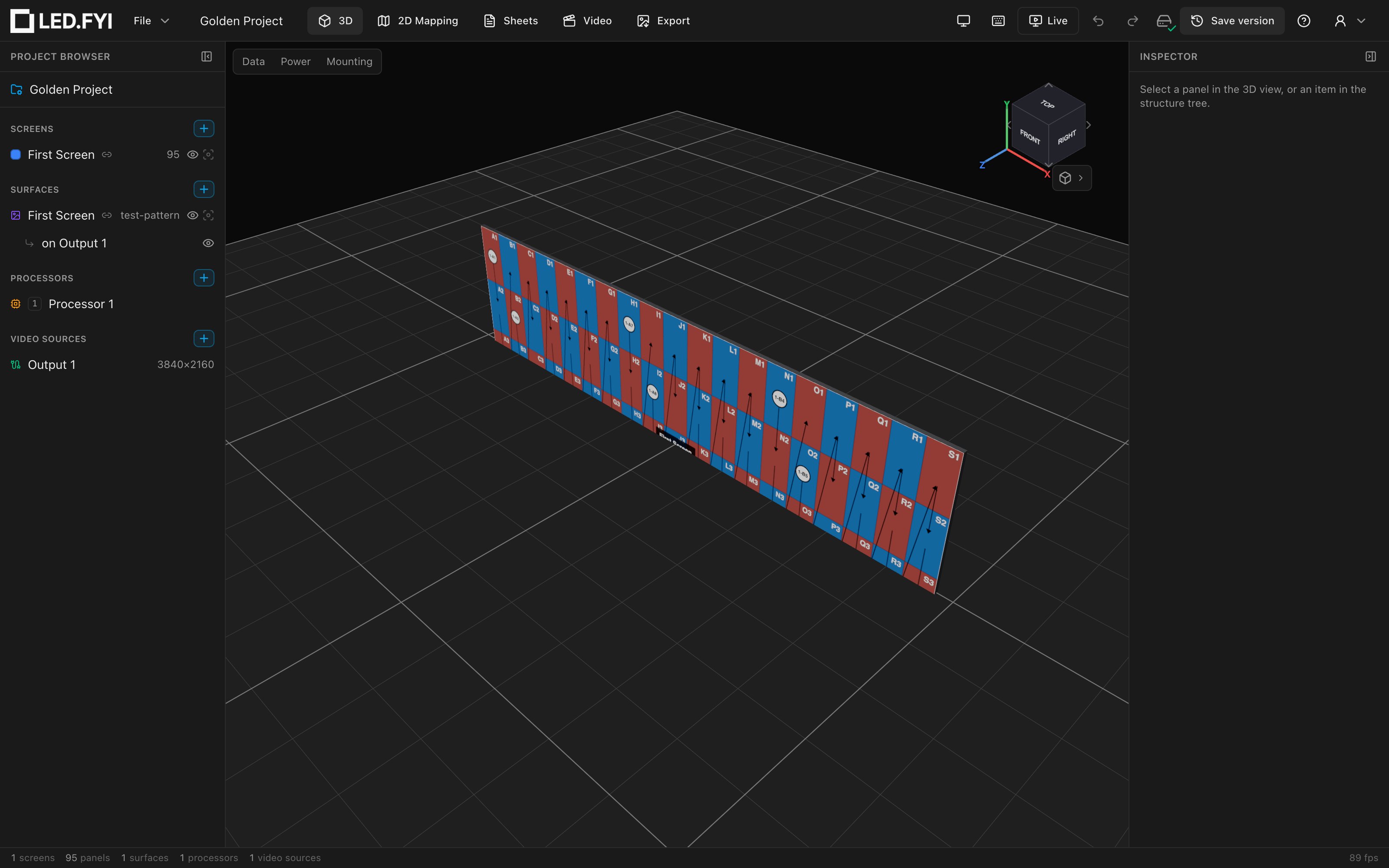
Too many walls in the way?
Every screen row in the left sidebar has a hide button (the eyeball) and an isolate button (the brackets) next to it. Hiding a screen takes its panels, its mounting hardware and its cables out of this view (and out of the camera's Fit framing), so you can work on the wall behind it; isolate does the same to every screen except the one you pressed. It is a view convenience only: a hidden screen is still on the drawings and in the parts list. See Show & hide screens.
Open it by clicking 3D in the top bar, pressing 1, or running Go to 3D from the command palette (⌘K).
INFO
The same 3D view (with all of its navigation, display and overlay controls, but nothing editable) is what clients see when you send them a share link. Everything on this page except selection and the move/rotate gizmo applies to share links too.
Navigating with the mouse
| Gesture | What it does |
|---|---|
| Left-drag | Orbit around the current look-at point |
| Right-drag | Pan |
| Scroll wheel | Zoom |
| Click a panel | Select that panel |
| ⇧-click a panel | Add / remove that panel from the selection |
| Double-click a panel | Select the panel's whole screen |
| Click empty space | Clear the selection |
Camera movement is smoothed (damped) and this is always on; there is no toggle. A drag longer than about 5 px never counts as a click, so orbiting around the wall can't accidentally change your selection.
Coming from V1?
There are no WASD/QE fly-through keys in V2; navigation is orbit/pan/zoom plus the presets below. There is also no dual/quad multi-view layout: one workbench fills the workspace, and the Live Output window (⌘⇧O) is the second-screen affordance.
When a project is opened or loaded, the camera takes up a standing view once, automatically: it sits about 1.5 m above the floor (roughly eye height), squarely in front of the wall, and far enough back that every screen is in frame. Because the eye is above the ground, the floor reads as a floor from the first moment rather than as a line seen edge-on. Edits never re-frame the camera: resizing a screen grid leaves the view exactly where you put it. If you get lost, press 0 (Zoom to fit).
The ViewCube
An Onshape-style navigation cube sits in the top-right of the canvas and tracks the camera live.
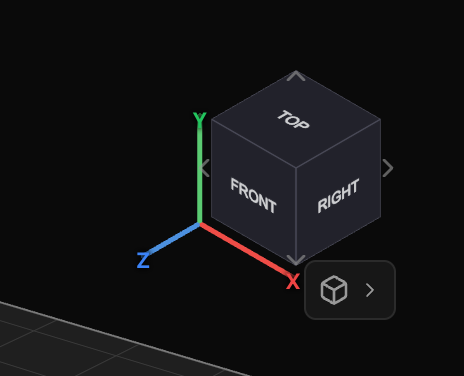
- Click a face, edge or corner of the cube to orient the camera to that direction.
- The X (red), Y (green) and Z (blue) corner axes show world orientation. The scene is Y-up: Y is the vertical axis, and the floor grid lies at height
0. - The four chevron arrows around the cube step-orbit the camera 45° per press: Rotate left / Rotate right orbit about the vertical axis; Tilt up / Tilt down tilt the view.
- Drag the cube itself to move the whole widget (cube, arrows and menu button) anywhere on the canvas. A plain click (no drag) still orients the camera. The position is clamped inside the canvas and resets to the top-right corner whenever you re-enter the 3D workbench; it is not saved.
The cube's face, label and edge colours follow the chosen Background look, so it stays legible on either backdrop. Clicks that land on the cube never select panels behind it.
Camera presets
Every preset frames the full wall. There are three ways to trigger them:
- Keyboard (only while the 3D workbench is active, never while typing in a field)
- The nav-cube menu (see below)
- The command palette (
⌘K): the commands are available whenever a 3D view is on screen
| View | Key | Menu | Command palette |
|---|---|---|---|
| Front | F | Front | Camera: Front |
| Back | B | Back | Camera: Back |
| Right (side) | S | Right | Camera: Right (Side) |
| Left | None | Left | Camera: Left |
| Top | T | Top | Camera: Top |
| Bottom | None | Bottom | Camera: Bottom |
| Isometric | I | Isometric | Camera: Isometric |
| Dimetric | None | Dimetric | Camera: Dimetric |
| Trimetric | None | Trimetric | Camera: Trimetric |
| Fit view | 0 | Zoom to fit | Camera: Fit view |
Fit view is the recovery move: it keeps your current view direction and only re-frames distance and zoom to the whole wall. The named presets look exactly along their axis (Front is a level, straight-on view), so they don't carry the slight downward tilt of the opening standing view; press 0 from the opening view to keep that angle and just re-fit.
The full list of 3D keys is also in the in-app cheat sheet: press ? and read the 3D view section (see Keyboard shortcuts).
The nav-cube menu
The cube-with-chevron button just below the ViewCube (tooltip View & display options) opens the one menu holding every camera and render option:
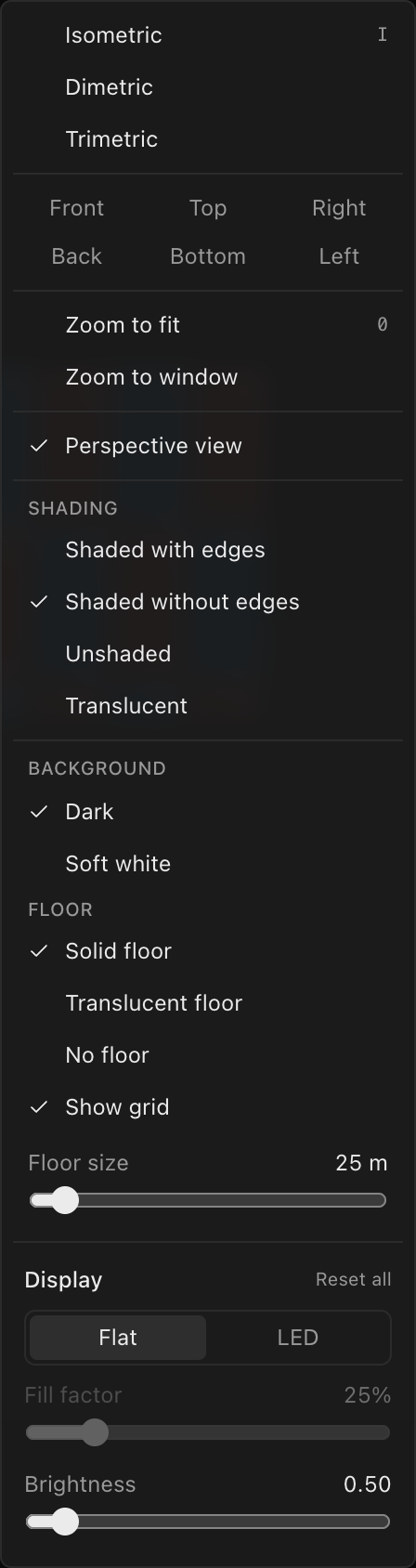
From top to bottom: the three axonometric views, a 3×2 grid of the six face views, Zoom to fit, Zoom to window, the Perspective view check, the Shading styles, the Background looks, the Floor choices with the Show grid check and the Floor size slider, and the Display section. The last four are covered on Render styles, LED look & backgrounds.
TIP
Menu items do not close the menu; you watch each change apply live in the canvas behind it. Click outside the menu or press Esc to close it. The one exception is Zoom to window, which closes the menu to hand you the crosshair.
Perspective vs. parallel projection
Press P (or tick Perspective view in the nav-cube menu, or run Camera: Perspective ↔ Parallel toggle from the palette) to switch between:
| Projection | What you get |
|---|---|
| Perspective (default) | A natural 45° field-of-view camera: the realistic previs look. |
| Parallel (orthographic) | No perspective foreshortening; with the Front/Top/Side presets, the view reads like a true elevation drawing. |
The flip is seamless: the new camera reproduces the same apparent view, so nothing jumps. The choice deliberately resets to perspective on every app load; it is transient camera state, not a saved preference.
Zoom to window
Pick Zoom to window from the nav-cube menu, then drag a dashed rectangle over the area you care about. On release the camera frames that rectangle. A hint chip ("Drag a box to zoom · Esc to cancel") shows while the mode is active; Esc or a tiny (under 8 px) drag cancels. It is a one-shot mode: after the drag you are back to normal navigation, and a magnification floor stops an accidental micro-drag from slamming the camera to a pinpoint.
Selecting panels and screens
Click a panel to select it; ⇧-click more panels to add them to the selection (⇧-clicking a selected panel takes it back out); double-click to select its whole screen; click empty space or press Esc to deselect (when no dialog is open; dialogs take Esc first). Selection is shared app-wide: the Inspector on the right shows the selected panel or screen, the status bar describes it, and the same selection carries into the 2D Mapping workbench.
Selected panels are highlighted with a half-transparent wash in their screen's colour; in the Unshaded render style they tint lighter instead. See Panel layout, selection & overrides for what you can do with a selection.
Moving and rotating: the gizmo
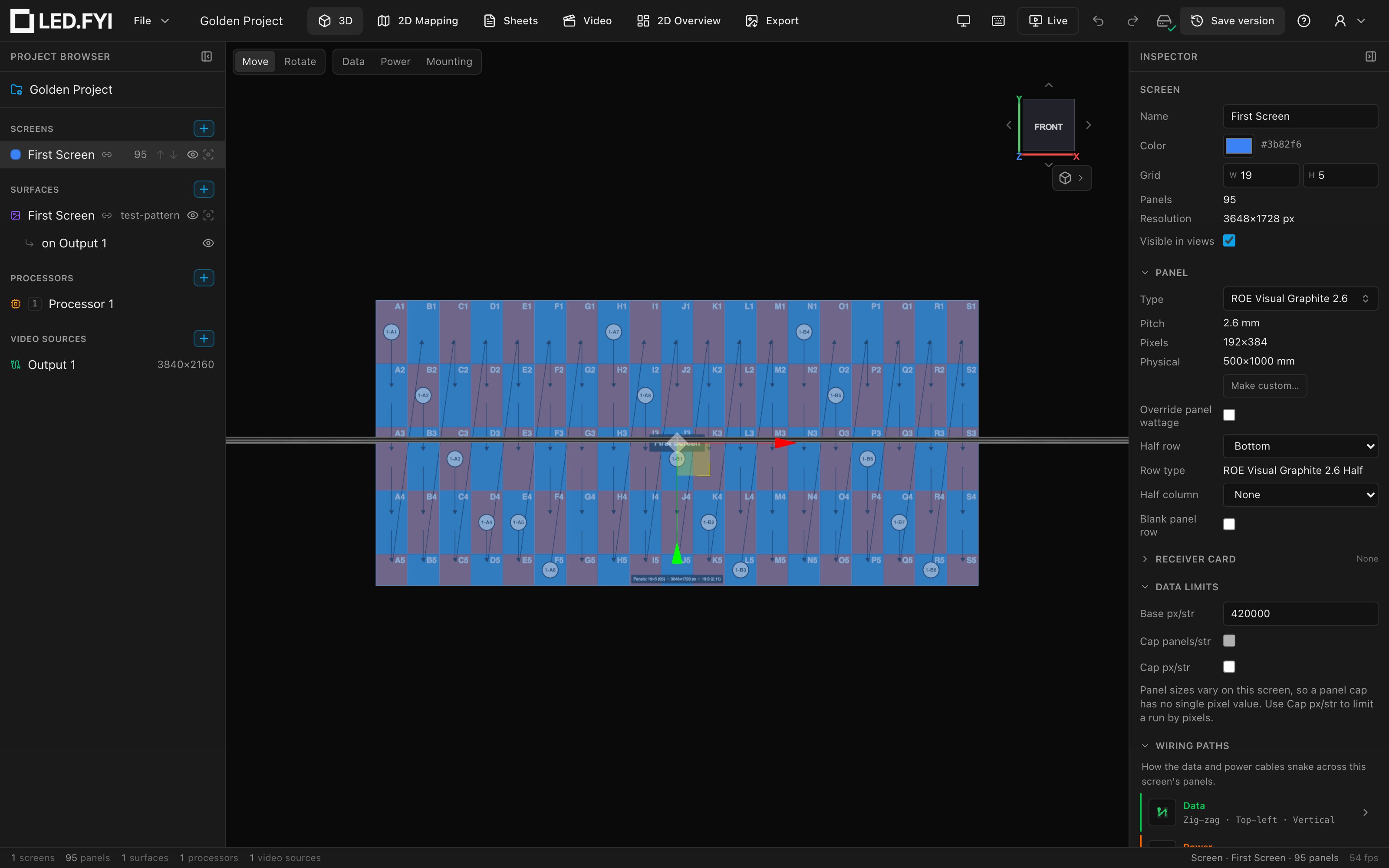
Select anything movable (one panel, several panels, or a whole screen) and a 3D transform gizmo appears at its centre, along with a Move / Rotate toggle at the top-left of the canvas:
| Mode | What dragging the gizmo does |
|---|---|
| Move (default) | Drags the selection along an axis, rounded to whole millimetres |
| Rotate | Spins the selection about its centre, on its own axes |
Press W for Move and E for Rotate instead of reaching for the toggle.
The Rotate rings ride the selection's own axes, not the world's: on a tilted wall the green ring turns it about its own up-axis, the red ring about its own bottom edge, and the blue ring about its face. That matches the Inspector's Rotation X/Y/Z fields, which follow the same convention (hover the ⓘ beside that row for the reminder). Move arrows stay on the world's axes, so a drag along X is always a drag along the room's X.
With several panels selected, the rings line up with the room instead, because a mixed group has no single "own" direction. Select one panel, or the whole screen, to rotate about its own axes.
What the gizmo pivots on, and carries, depends on what you selected:
| Selection | Pivot | What moves |
|---|---|---|
| A whole screen | The screen's centre | The screen and every panel in it, rigidly |
| One or several panels | The selected panels' centre | Only those panels |
Every panel follows live, orbiting is automatically suspended while you drag, and an entire drag collapses into one undo step.
Panels can leave the grid, on purpose
Dragging panels moves only those panels, so they can be pulled out of their screen's regular grid. That is how you hand-build a faceted, stepped or splayed wall. The screen itself stays where it is, so moving or rotating the whole screen afterwards still carries the strays along with it.
Nothing snaps a stray panel back, and the drawings, mounting and wiring all show it exactly where you left it. To put one back, type its numbers into the Inspector's Position fields.
A few deliberate limits:
- There is no scale handle: a panel's physical size always comes from its panel type.
- Panels are arranged in pixel space in the 2D Mapping workbench; the 3D gizmo arranges them in physical space. The two are independent.
- For exact numbers, use the Inspector's Position fields (3D position in mm, rotation in degrees) instead of dragging. See Adding & managing screens.
The floor and grid
A solid floor marks the ground plane (world height 0): a 25 m × 25 m square centred on the origin, with a visible rim and a 1 m / 5 m reference grid drawn on top of it and clipped to it. Both follow the Background look. The floor can be made translucent or switched off, the grid has its own show/hide check, and a Floor size slider enlarges the square for a big stage or stadium. All three live in the nav-cube menu; see The floor and grid.
WARNING
A brand-new screen is created centred on the world origin, so a fresh wall straddles the floor until you raise it; the app never moves a wall for you. With the default solid floor the half below ground is hidden, which is the cue to lift the wall: select the screen and raise its 3D Y position in the Inspector (or drag the gizmo's vertical axis). Switch the floor to Translucent or No floor if you'd rather see the whole wall while you work.
Distances in the project are millimetres; the 3D scene renders them at true scale.
Performance and the FPS readout
Panels are drawn with instanced rendering (a handful of GPU draw calls per processor canvas regardless of panel count), so walls with thousands of panels stay interactive. While the 3D workbench is active, a live frame-rate number (e.g. 60 fps) sits at the right edge of the status bar, refreshing about twice a second. It disappears when you switch workbenches; there is no toggle for it.