

Appearance
Switches & trunk cables
Processors with 10G trunk outputs (Brompton SX40, Megapixel HELIOS, Novastar MX-series…) don't feed panels directly; each trunk runs to a network switch that fans out into 1G panel ports. LED.FYI models the trunks, the switches, the physical trunk cable on each run, and the optional backup trunk.
Select a processor in the left rail: Inspector → Switches.
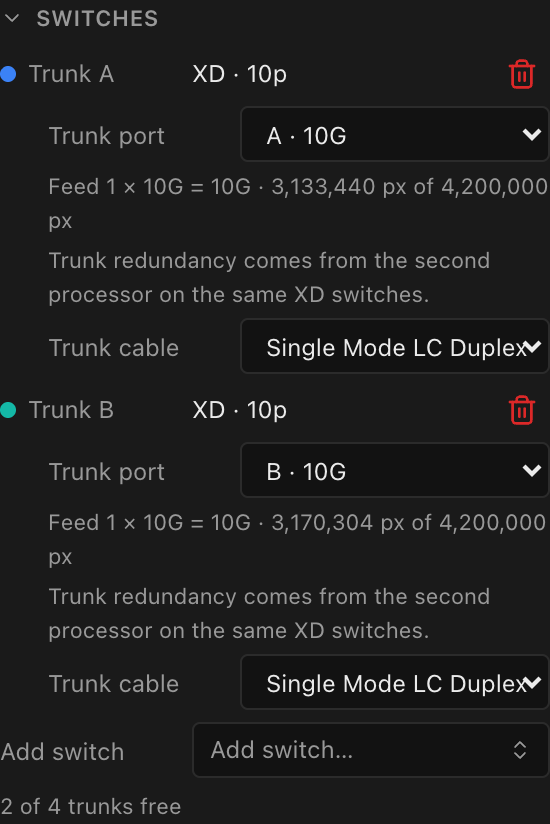
Trunks: the processor's 10G outputs
Each 10G output is a trunk, lettered A, B, C, D… in port order. The trunk letter is welded to a link color (Trunk A = blue, B = teal, C = violet, …) and both carry through everywhere: switch rows, port labels (9-A1, 9-B3: the processor's tag, then the trunk letter and port), overlay colors, sheets, and the cable CSV. See the design language and labels.
Adding and removing switches
Each switch row shows its trunk letter with the link-color dot, the switch model and downlink port count (e.g. CVT10-S · 10p), and a remove button.
- Add switch: a searchable equipment picker over the switch library, showing switches of the same brand as the selected processor plus any the processor's own library record explicitly pairs with (that allowlist is how a Megapixel HELIOS offers the ROE-branded EOS V2, which is the same Netgear box Megapixel sells as the M4250). The new switch attaches to the next free trunk. Switches the built-in compatibility pairings don't confirm for the selected processor are left out of the list entirely; you only see the ones known to work, plus any custom switch type already in your or your organization's library (custom/org equipment isn't covered by the pairings, so it always stays selectable). The same picker's + Create custom… row opens Request a switch for a model that's missing (platform admins get the custom switch form instead); if a picker has no compatible matches it reads No compatible switches. When every trunk is taken the picker is disabled and reads All trunks used.
- A second, independent filter applies once the processor and a candidate switch both publish port-level cable data: a candidate that could never physically connect (no shared connector/medium at all) is excluded the same way: a hard block at the moment of choice, not a warning discovered after adding it. See Choosing equipment.
- Trunk port: which processor output the switch plugs into. It lists the switch's current trunk and every free one, each with its speed (
A · 10G), and marks a trunk whose speed doesn't match the switch's uplink with⚠. Use it on a processor with mixed-speed outputs, so a 10G switch isn't left on a 40G port. It appears only when there is more than one trunk to choose from. - Remove switch (the trash button): deletes the switch. Any string assignments it fed become unassigned (their strings grey out to
S-numbers), and any redundancy backups pointing at it are cleared, including backups on another processor, e.g. a primary's strings backed up onto a switch on its designated backup processor.
A footer keeps the arithmetic honest: N of M trunks free. With no switches yet, the section prompts "No switches yet. Add one per 10G trunk to fan out to panel ports."
On a processor with no 10G trunks at all, this section instead explains: "Direct outputs: this processor has no 10G trunks; strings feed its 1G output ports directly (no switches)."
Downlink ports and per-port clamps
A switch's downlink ports are what strings get assigned to. Each downlink port's pixel ceiling is the processor's per-port capacity clamped to the switch type's own per-port maximum; whichever is lower wins, so a modest switch can be the limiting factor even on a big processor.
These same numbers give the switch an overall capacity: its downlink ports at their real speeds, capped by the bandwidth of the uplink feeding it (a 10G-fed switch can't pass more than 10G to its panels, however fast its downlinks are). The app uses that figure to flag when a switch is over-subscribed. See the trunk feed readout below. Auto-assign's Balance in String assignment splits strings into equal-count contiguous blocks across switches for redundancy rather than by capacity, so it does not automatically load a 10G switch heavier than a 1G one; assign those ports by hand if you want that.
Bonded trunks (two cables, one bigger feed)
Some distribution boxes take more than one trunk from the same processor and bond them into a single, wider feed. The Megapixel M4250-12M2XF (along with the RS12, its ruggedized twin, and the identical hardware ROE sells as the EOS V2 20G fibre / 2.5G copper distribution box) has two 10G uplink ports: run a cable into each and the switch is fed at 20G instead of 10G. Both cables are live and their bandwidth adds. All three are the same switch electrically, so they behave identically here.
This is what makes a big 2.5G wall fit behind one box. A Megapixel HELIOS at 10-bit/60 pushes 4,823,000 pixels down one 10G trunk: about 130 ROE Ruby 2.6 panels. Bond the second trunk and the same switch carries 9,646,000 pixels, 261 panels, across all twelve of its 2.5G ports. The per-port limit doesn't move (34 Ruby 2.6 panels on a 2.5G port either way); the trunk was the ceiling.
When the switch model supports it and a processor output is free, a Bonded trunk dropdown appears under the switch row. Pick the trunk letter to cable in; None removes it. Add one row per extra uplink the box can bond (two 10G ports ⇒ one extra).
A bonded trunk is not a backup trunk, and that distinction matters when you're pulling cable:
| Bonded trunk | Backup trunk | |
|---|---|---|
| Both cables live | Yes: traffic on both | No: the second one stands by |
| Bandwidth | Adds (2 × 10G = 20G) | Unchanged |
| What it buys | Capacity | Survives a cut cable |
| On the diagram | Solid line, its own letter | Dashed line, marked bkp |
They compete for the same physical uplink ports, so a two-port switch can have one or the other, not both. Pick capacity or resilience for that box. A box with separate backup ports (the Novastar CVT4K-S, 2 main + 2 backup) can have both.
Each bonded cable is a real part: it gets its own row in the cable-label CSV, counts as another Trunk cable (plus its transceiver modules) on the bill of materials, and draws as a second solid line into the switch on the System Diagram sheet. A trunk that's bonded to one switch is no longer offered as a free trunk for another.
Not every switch with two uplink ports can do this; it's a per-model capability from the equipment library, not something a spare port implies. The Megapixel M4200-10MG explicitly does not support dual links, so no picker appears on it.
Two cables, two halves: the split is fixed
The bonded pair is not one 20G pool. On the Megapixel wiring each uplink drives its own fixed block of copper ports:
| Uplink | Feeds | Budget |
|---|---|---|
| the switch's first trunk (Megapixel Port 13) | ports 1–6 | one 10G link |
| the bonded trunk (Port 14) | ports 7–12 | one 10G link |
So a wall that fits behind the box in total can still be over on one side, and the idle half cannot lend bandwidth to the busy one. Spread the strings across both halves and you get the full 20G; pile them onto ports 1–6 and you're still on a single 10G cable. LED.FYI prices each half separately for exactly this reason.
Three consequences worth knowing:
- The first trunk is the primary and it is not interchangeable. On Megapixel gear it also carries the switch's management traffic, which is why a box cabled only on its second uplink doesn't come up at all. LED.FYI can't express that mistake: a switch always has its primary trunk and the bonded one is strictly additional.
- Unplugging the second cable just reduces bandwidth. With one trunk connected all twelve ports still run; they simply share the one 10G link. That's why the split only appears once you've bonded a second trunk.
- Auto-assign fills ports in order, so a wall that needs fewer than seven ports lands entirely on the first half. That's what the hardware would do too. Move some strings onto ports 7–12 by hand to use the second cable.
Novastar CVT4K-S: ports 9–16 need the second trunk
The Novastar CVT4K-S splits its ports the same way, but more strictly. It has four 10G fiber trunk ports (two main and two backup) feeding sixteen 1G panel ports:
| Main trunk | Feeds |
|---|---|
| the switch's first trunk | ports 1–8 |
| the second trunk | ports 9–16 |
Unlike the Megapixel box, the first trunk does not cover the whole switch on its own: with a single trunk connected, ports 9–16 carry no data. LED.FYI enforces this:
- With one trunk, ports 9–16 can't take a string. In String assignment they're listed but greyed out: "No data: needs this switch's second trunk". Auto-assign (Fill / Balance) only uses ports 1–8, and backup-port pickers never offer 9–16.
- The switch row shows an amber ⚠ icon beside the model name. Hover over it, or tap it, to read "Ports 9–16 carry no data until this switch has a second trunk…". Pick a trunk under Second trunk and ports 9–16 come alive. (On the CVT4K-S the picker is called Second trunk rather than Bonded trunk: the two main trunks don't merge into one wider feed, each simply feeds its own half.)
- Each main trunk can have its own backup. The CVT4K-S has two backup inputs, so once the second trunk is connected a second backup picker appears: Backup trunk (A) and Backup trunk (B). On a Novastar VX2000, run A and B as the two main trunks, C as A's backup and D as B's backup, all four trunk ports in use. Each backup is a real cable: it gets its own dashed line on the System Diagram, its own row in the cable-label CSV (the second one reads Backup In (for B)), and counts as another trunk cable on the bill of materials. Removing the second trunk removes its backup too.
- A backup trunk doesn't light ports 9–16. It only stands by for its main trunk. On processors like the VX2000, where C backs A and D backs B, trunks C and D are backup copies only, so the Second trunk picker never offers them as a second main trunk.
- Older drawings pick this up when opened, and nothing moves. A project that added its CVT4K-S before this rule existed is updated to the four-port switch automatically the next time it opens. If it already has strings on ports 9–16 of a single-trunk CVT4K-S, they stay put, with a red ! icon beside the port's string picker. Hover over it, or tap it, to read "This port carries no data: its trunk isn't connected…". Add the second trunk, or move those strings to ports 1–8. The same happens if you remove the second trunk later.
The trunk feed readout
Under each switch is a summary of what its feed is worth and how much of it the assigned strings already spend. On a single trunk that's one line:
Feed 1 × 10G = 10G · 3,538,944 px of 4,823,000 px
Bond a second and it becomes a line per cable, each against its own budget:
Feed 2 × 10G = 20G · split per link Trunk A feeds A1–A6 · 8,000,000 px of 4,823,000 px · over Trunk B feeds A7–A12 · 0 px of 4,823,000 px
Any line that exceeds its budget turns red and adds · over, and a switch counts as over-subscribed when any of its halves is. Load riding a switch cascaded behind one of those ports counts against that port's half. If the processor publishes no per-trunk pixel figure for the bit depth and frame rate you've selected, the readout reports the link count and speed and stays quiet about capacity rather than guessing a number.
Trunk cable types
The physical cable on each processor→switch run (LC fiber, Cat6, …) is data-driven. Library entries carry it one of two ways, and the picker uses whichever a given processor/switch pair actually publishes:
- Port-level data (today the Brompton Tessera line, meaning SX40, XD, XD-T and XD-S, and the Novastar COEX line, meaning CX40 Pro, MX40 Pro, MX30, MX20, KU20, the MX-series output cards, and the CVT8-5G/CVT10-S/CVT4K-S switches; more brands as library data grows). Each device declares its ACTUAL physical ports: a fixed copper RJ45 jack, a fixed fiber jack, and/or a bare SFP/SFP+/QSFP+ fiber cage. The usable cable set is derived by pairing every port option on one end against every port option on the other and keeping whichever pairings share a medium and, for single-mode fiber specifically, a matching strand: a duplex connector (two fibers, one per direction, as on Brompton's whole line) and a simplex one (a single fiber, both directions over one strand, as in a WDM run like Megapixel HELIOS↔MX2450) both carry the same "single-mode fiber" medium but can't physically mate, so the picker only ever offers the strand the two ends actually share. This holds even when neither port is fixed (a bare cage feeding a bare cage, e.g. Megapixel HELIOS↔M4250/M4200, or a Novastar processor↔CVT8-5G/CVT10-S/CVT4K-S). The strand is then read off whichever transceiver modules could actually go in each cage, so an all-simplex cage (Megapixel) never offers a duplex cable, and vice versa.
- Curated list (everything else). The device declares a plain list of cable-type ids it supports; the usable set is the intersection of the processor's list and the switch's list.
Every Novastar processor with a built-in fiber trunk offers a choice of fiber type, not a fixed medium: CX40 Pro's 40G port and MX40 Pro/MX30/MX20/KU20's 10G port are each a bare QSFP+/SFP+ cage, so the trunk-cable dropdown lists both a multimode option (Multimode MPO, 8 Core at 40G / Multimode LC Duplex at 10G) and a single-mode option (Single Mode LC Duplex, the SAME catalog cable at both speeds, since the 10G-vs-40G split lives on the SFP/QSFP module, not the cable) against their CVT8-5G/CVT10-S/CVT4K-S partner switch, identical to the modular MX 1×40G / MX 4×10G output cards, and defaulting to single-mode per the LC-preference rule below until you pick otherwise.
Either way, the picker always shows a real, selected cable; there's no blank "Auto" placeholder to leave it on:
| Situation | What you see |
|---|---|
| Exactly one compatible type | The Trunk cable dropdown shows that one cable, already selected; nothing else to pick |
| Several compatible types | A Trunk cable dropdown lists every option; with nothing explicitly chosen it defaults to the LC fiber option (duplex preferred, then simplex, then copper, then MPO): a real, purchasable pick, never a placeholder. Choosing a different option (e.g. copper) stores that choice and it persists. |
| Both ends constrain but share nothing | No picker, just a warning: "No compatible trunk cable: this processor and switch share no cable type. Use a media converter." |
| Neither end declares any port/cable data | Nothing shows; the run is unconstrained (typical of older library entries); the bill of materials' Trunk cables row then falls back to the project-default label below |
The resolved (or explicitly chosen) cable name flows to the bill of materials and the Block Diagram sheet. A project-level fallback label (used only for the fully-unconstrained case above) lives in the Project inspector's BOM section (Trunk cable free-text field).
On a cascade, this compatibility now always compares a switch against the device it's actually plugged into (its parent switch, if it's fed by one) rather than the canvas's processor. (Earlier builds compared every switch on a canvas against the root processor, which could show the wrong compatible-cable list, or a false "no compatible cable" warning, on a switch two or more tiers deep.)
The SFP/SFP+ module picker
On a port-level pairing, once the trunk cable resolves (by the LC default above, or your explicit pick), it can reveal one or two more dropdowns right below it: one per end that's a bare fiber cage rather than a fixed jack:
- Module (feed): the transceiver installed at the feeding end (the processor, or the parent switch on a cascade).
- Module (switch): the transceiver installed in this switch's own uplink cage.
Each lists the catalog modules that physically fit that cage, labeled by job first (10 Gig · fiber (single-mode) · SFP+), not a terse part number, and, like the trunk-cable picker, always shows a real module selected, never a blank placeholder. It narrows to modules that actually mate with the resolved cable: matching connector AND fiber type, not connector alone. Connector names are matched by what they mean, not how they're spelled: RJ-45, RJ45 and rj 45 all count as the same connector (case, spaces and punctuation are ignored), so a module or cable you've typed into custom equipment with a slightly different spelling still shows up, while genuinely different connectors (LC vs. SC, RJ45 vs. MPO) never get confused. Two catalog modules can share the exact same connector yet carry different media (a Novastar 10G SFP+ comes in a multimode and a single-mode variant, both "LC duplex"); resolving to the single-mode cable selects the single-mode module on both ends, never a same-connector mismatch. When that narrowing leaves exactly one candidate it's already selected for you; if more than one genuinely still fits, pick between them directly. The chosen (or defaulted) modules become real parts on the bill of materials, automatically, with nothing to click.
Every candidate is also filtered to the same brand as the device its cage belongs to: a Brompton XD-S's cage only ever offers Brompton-branded modules, never a Novastar or Megapixel part, even though all three might physically fit the same SFP+ cage. This only kicks in when BOTH the module and the device declare a brand; older or undocumented library entries with no brand on record keep working exactly as before (every physically-fitting module stays offered).
Single-mode/multimode mismatch
Picking a multimode module on one end and a single-mode module on the other is a real, costly field mistake. LED.FYI warns rather than silently accepting it: "These two modules don't share a fiber type (single-mode vs. multimode), so they won't work together. Pick matching modules for both ends." The trunk itself isn't blocked (there may be a working copper fallback); fix it by picking matching modules on both ends.
A trunk that needs a single-fiber WDM pairing (one strand carrying both directions, e.g. a Megapixel HELIOS run) genuinely needs a DIFFERENT module at each end: a transmitter part at the feeding (upstream) end, its receiver mirror at the switch (downstream) end. The two show up as separate catalog entries and the picker itself keeps them straight: a transmitter module is only ever offered at the upstream Module (feed) row, a receiver only at the downstream Module (switch) row, so you can't accidentally pick the same part (or the wrong direction) for both ends.
Backup trunks (trunk redundancy)
Some processors can run a second 10G cable from a spare output into the same switch's backup uplink port, an active-standby link with no capacity effect. When available, a Backup trunk dropdown appears under the switch row; None clears it.
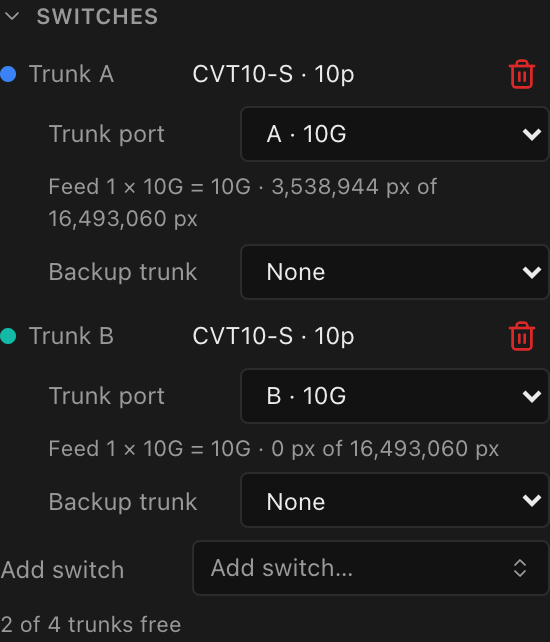
The picker only appears when all three conditions hold; it is pure equipment data, never forced:
- the processor's library record declares trunk-redundancy support,
- the switch type has at least 2 uplink ports (one for the primary trunk, one spare), and
- the paired spare trunk is free.
Which trunk backs which
The backup trunk is fixed by the processor, not a free-for-all: the dropdown offers only the one trunk the box actually pairs the switch's primary with:
| Processor | Backup trunk | Pairing |
|---|---|---|
| MX20 · MX30 · VX400 · VX600 · VX1000 | 2 trunks: B backs A | ab |
| MX40 Pro · MCTRL4K · UHD Jr · VX2000 | 4 trunks: C backs A, D backs B | ab-cd |
With ab a switch on trunk A is offered B; a switch on B has no picker; it is the backup. With ab-cd a switch on A is offered C and a switch on B is offered D (paired across the half, not the adjacent trunk); a switch on C or D has no picker. A consequence of the fixed ab-cd pairing: a fully-redundant 4-trunk box feeds two backed-up switches (A+C and B+D), not four.
Processors that can't run a backup trunk don't show the picker at all: the Novastar CX40 Pro and KU20, the modular MX2000 Pro / MX6000 Pro (their 10G comes from output cards, not spare-able outputs), the MCTRL 660 Pro and VX4S (no 10G output). The Brompton Tessera SQ200 and the Megapixel HELIOS don't offer it either. On a Brompton SX40, trunk redundancy comes from a second processor on the same XD switches instead (see Redundancy). The Novastar VX400 / VX600 / VX1000 / VX2000 carry the feature on their 10G optical trunk ports, and pair with the CVT10-S / CVT4K-S fiber converters.
Known limitation: VX fiber vs. copper capacity. On a VX box that has both 1G copper ports and 10G optical ports, the fiber is an alternative delivery to the copper, not additional: the two are treated as mutually exclusive, so adding the optical trunks does not increase the processor's pixel/output capacity. (Some models can, in hardware, also mirror specific 1G ports' data out an optical port at the same time, but which ports vary by model, so that simultaneous-mirror mode is not modelled in led.fyi.)
An invalid saved backup
If you open an older drawing whose backup trunk no longer fits the rules (a processor that no longer supports the backup trunk, or a pick that isn't the paired trunk), the app keeps it visible rather than silently dropping it: the dropdown shows the stored trunk marked (invalid) with an amber warning underneath, and choosing None clears it. Your data is never changed behind your back.
Backup trunks appear in the cable-label CSV under Backup trunk cables. This is one of the four redundancy tiers. See Redundancy.
Cascades
The wiring engine understands switch-to-switch cascades (a 40G core switch feeding 10G edge switches, or a 100G-then-10G distribution chain like Brompton SQ200 → QD-S → XD-S): cascaded switches order correctly, inherit the root trunk's letter and color, and compute like any other.
Add switch attaches a switch to a processor trunk. To build the next tier, use Add downstream switch under a switch whose downlinks are faster than the panels can take (a QD-S's 10G ports, say). Its picker reads "Cascade a switch (N port free)…" and offers only switches whose uplink matches this switch's downlink speed, so every tier steps down toward the panels. The new switch plugs into this switch's first free downlink port, and its row reads ← QD-S · A1: the model and port that feed it, shown in place of a Trunk port picker. A switch whose downlinks already feed panels shows no Add downstream switch.
Every cascade hop is a real trunk in its own right: its cable and SFP/SFP+ modules resolve through the same trunk cable types and module picker logic as a processor-fed trunk, labeled on the System Diagram sheet and listed on the bill of materials; a switch's downlink feeding the next tier is not a special case.
On a cascade, only the switches whose downlinks actually terminate at panels offer backup-port picks. An intermediate switch feeding the next tier (a 10G distribution box ahead of 1G panel switches, say) never lists its own ports as a backup candidate, even when they're free.
Gated states
On a canvas with no processor type, the Wiring area shows "Assign a processor type above to wire its outputs." On a modular processor with no output card fitted, the whole area (switches included) is gated behind a "No output card installed…" hint. See Modular processors.