

Appearance
Outputs, canvases & multi-output
A processor's canvas is the pixel space its output ports read from. On a simple rig it's just one video source, full frame. When a wall is bigger than one source (say a 7680×4320 header fed by four 4K outputs from the media server), you tile several video sources into one composite canvas and map panels anywhere across it, seamlessly.
Video sources in brief
A video source is a named raster of a fixed resolution: the picture your processor receives. Sources are created from the tree's Video Sources group (or ⌘K → Add Video Source) and edited in their own Inspector: resolution with 1080p/2K/4K/8K presets, a lock, and a background color, all documented with the Video workbench, where you also place the content (media, test patterns) that fills them.
From the processor side, the things to know:
- Adding sources is plan-limited (Free
1· Pro4· Studio unlimited); processors are not; see Plans & billing. - The last video source can't be deleted; deleting any other re-points its panels and placements to a survivor and clears it out of processor slots. A screen that was split across the deleted source has its video slices rebuilt from where its panels now sit, so no stale slice is left stacked on the surviving source.
- Each source has its own Download PNG: the full-resolution composited raster (PNG export).
- The Live Output window plays any one video source full-screen on a chosen display, the bridge from previz to a real processor input.
Canvas layouts
The Layout field in the Processor canvas section sets how many sources tile into the composite: 1x1, 2x1, 1x2, 2x2, 3x1, 1x3, 4x1 or 1x4 (columns × rows). A non-standard layout arriving from an import is kept in the list so the project still displays correctly. The field only appears while the processor's inputs tile (Stitched); a processor showing one input at a time has nothing to lay out; see Input modes.
Tiles fill the grid row-major (slot 1 is the top-left tile, counting across each row), and the composite resolution is the grid times the source resolution, so a 2x2 of 3840×2160 sources composes 7680×4320. All tiles share one resolution (the first bound source's), so build multi-output canvases from equal-resolution sources.
Binding a source per tile
On a processor whose inputs the app binds by tile (one with no model yet, or a model with no typed input ports, such as most Novastar boxes), the Video sources section shows one dropdown per tile, Tile 1 … Tile N:
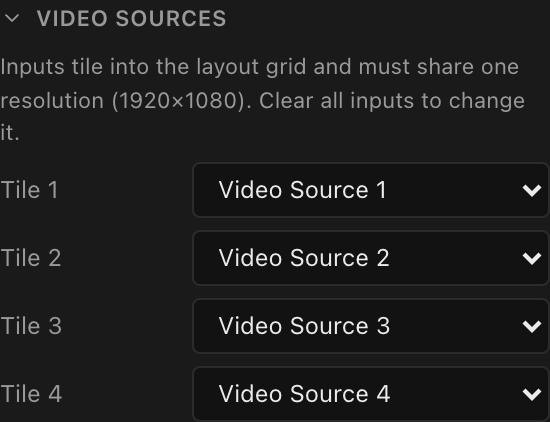
Each tile holds any video source in the project, or None for an intentionally dark tile. Once a tile has a source, the other tiles only offer sources of the same resolution; the first one bound sets it, and the hint above the tiles names it. (On a processor with physical input ports, a modular processor's cards, or a Brompton's built-in inputs, this section is Video input ports, one row per port instead; see Inputs & input modes.) If changing a tile would move a linked screen's picture onto a different source, the app asks first; see Re-patching an input that feeds a linked screen.
One source on two processors
A processor you add starts with an empty input, so it never quietly shares another processor's source. You can still set the same video source on two processors yourself (for example to split one feed to two boxes), and both then receive the identical picture. See One cable, one frame. If a picture turns up somewhere you didn't expect, check whether that source is set on more than one processor.
What a layout change does to your bindings
On a processor bound by tile, changing the layout resizes the tile list to the new tile count (extra tiles appear empty; surplus bindings drop). On a processor with physical input ports, source bindings belong to the ports, so a layout change never truncates them. Either way, if the processor feeds a linked screen the app asks first (Change the stitched input layout?) because re-tiling rebuilds how that screen is laid out across the inputs.
Panels can span tiles
Panels map anywhere in the composite: a screen can run straight across tile boundaries and still render as one seamless picture, including a panel that sits astride a seam and takes part of its image from each of two inputs. A surface fed to such a screen needs just one placement covering the whole composite; each input draws the part that lands on its tile (see Feeding screens video). Each panel is also labelled with the input tile covering its centre, which is what keeps wiring and paperwork grouped per real output.
The One processor, four 4K outputs tutorial builds exactly this: a 144-panel wall on a Megapixel Helios with four 4K sources in a 2x2 composite, and one surface placed across all four:
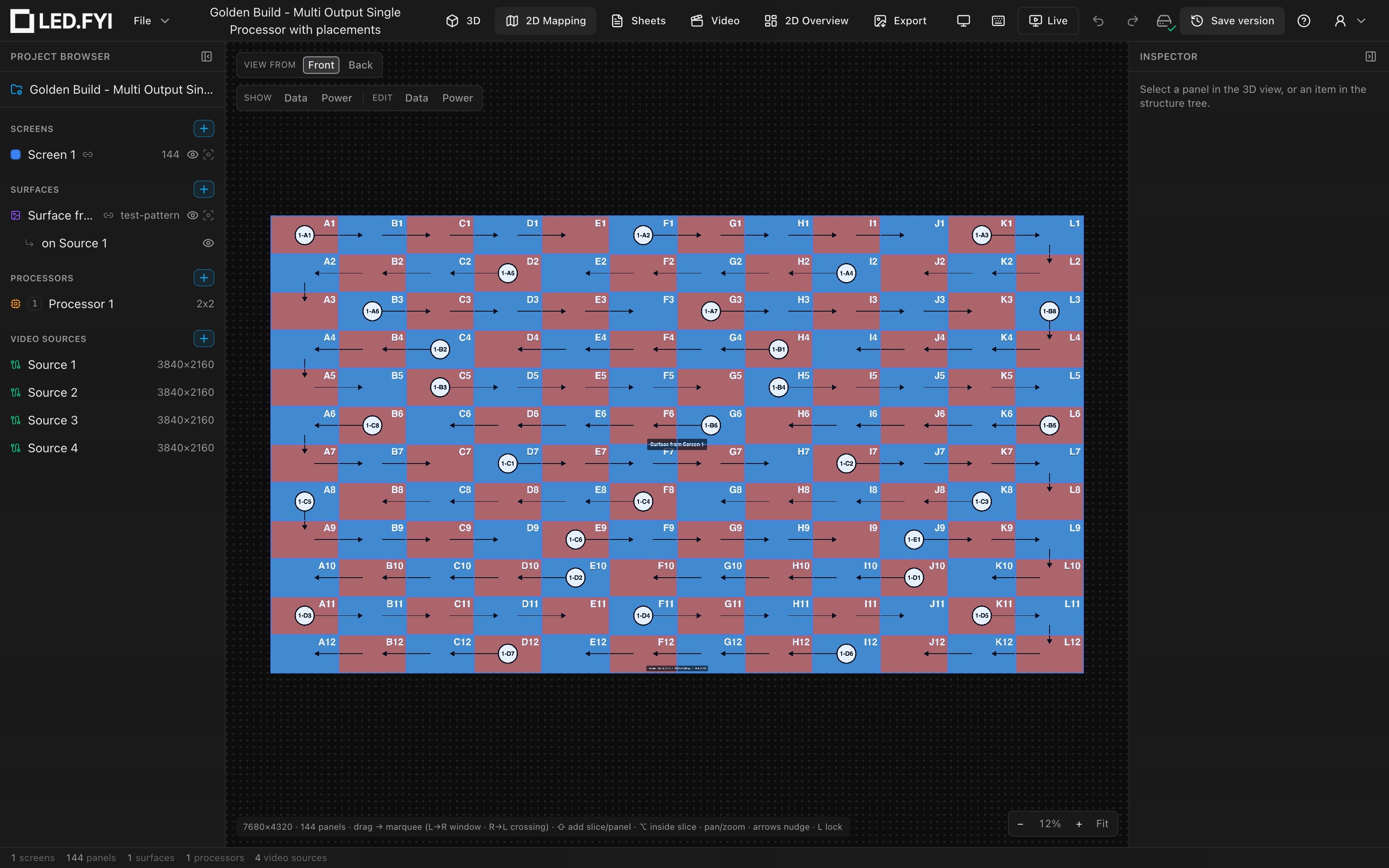
The 2D Mapping workbench is where you see the composite: the dashed boundary is the canvas, the live composited video shows inside it, and every panel is a draggable window onto those pixels (Arranging screens & panels in 2D). A panel positioned outside the boundary has no pixels to sample and renders black on the wall.
Authored in the Inspector, not the wizard
The new-project wizard only creates 1x1 canvases today; set up multi-output layouts afterwards from the processor's Inspector.
One canvas per processor, or several processors
A multi-output canvas scales one processor across several sources. When the processor itself runs out of capacity, the answer is more processors (one canvas each) and a screen split across them: see Multi-processor screens.
Giving a processor a colour
Once a rig has more than one processor, it helps to be able to say "the green one feeds stage left". The Colour row at the top of the Processor inspector, just under the name, does exactly that: pick a colour and this processor is drawn in it wherever a drawing depicts the box itself:
- its block on the System Diagram, outline and a matching tab in the block's header, and
- its canvas boundary in the 2D Mapping workbench.
Click the swatch for a colour picker, a row of suggested colours, and an Auto button that clears the choice again.
This one is saved in the project
Unlike the wiring colour preferences, a processor's colour describes one box on one job, so it travels with the file. Everybody who opens the project, and every drawing printed from it, shows the same colour. Give it to as many processors as you like: it is a property of each processor rather than a slot in a fixed-length palette, so nothing wraps around or collides once you pass a certain number of them.
Auto (the default, and how every existing project starts) leaves the processor drawn in the main or backup colour like any other device: a mirror processor in the backup colour, everything else in the main one.