

Appearance
Panel shapes
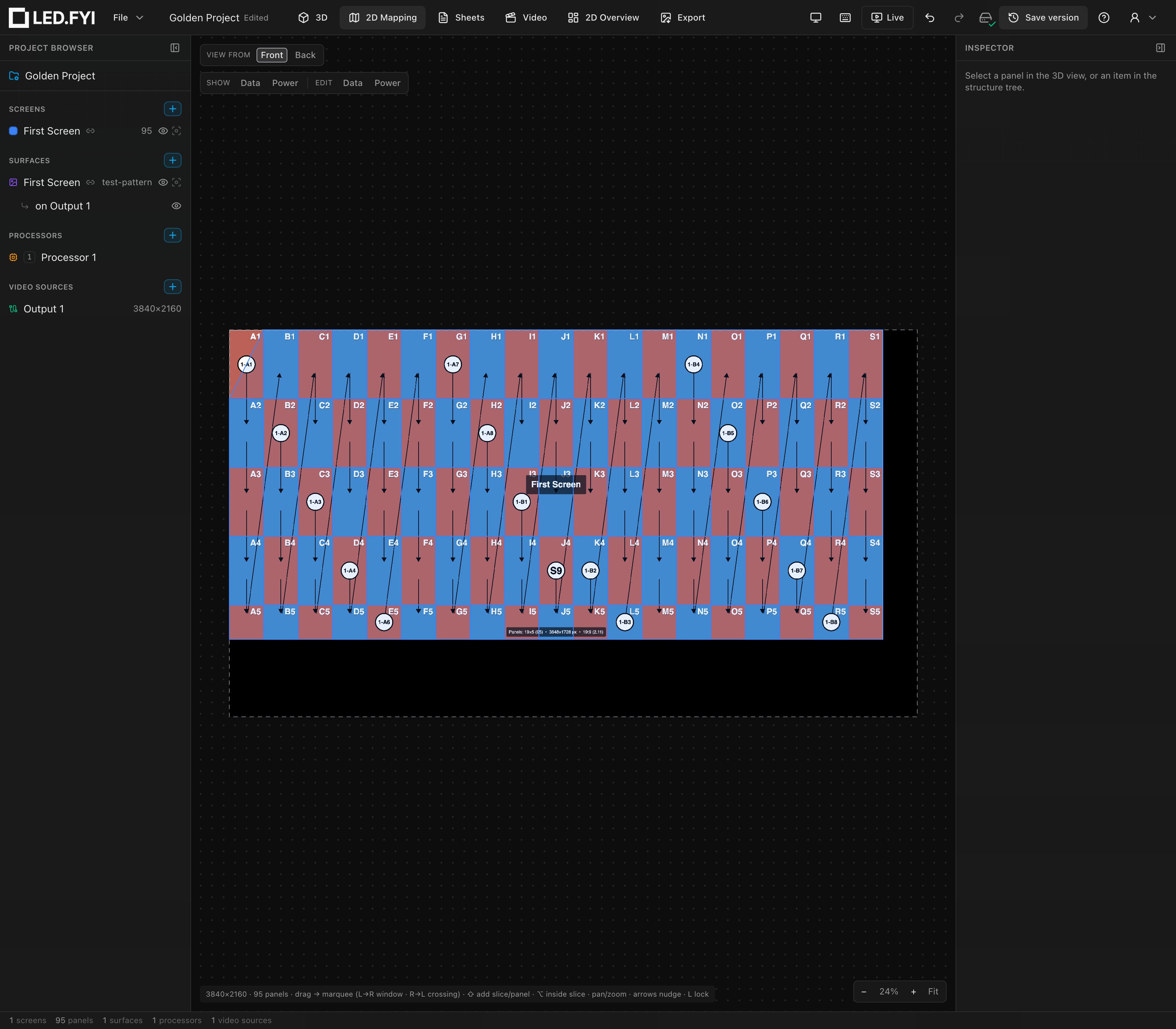
Some walls aren't rectangles. A single panel can be shaped into one of eight corner variants: four triangles (the panel face fills a right triangle, half the cell, with the square corner at the named corner) and four round corners (one corner rounded off at half-panel radius, keeping about 95% of the face). Shapes render identically in the 2D mapping clip, the 3D face, and the PDF/DXF drawing outlines.
Select a single panel and use Inspector → PANEL → Shape:
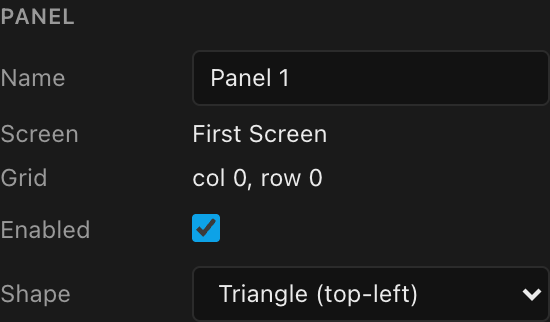
The eight variants
| Shape family | Variants | Face area |
|---|---|---|
| Triangle | top-left · top-right · bottom-left · bottom-right | half the cell |
| Round corner | top-left · top-right · bottom-left · bottom-right | ≈ 95% of the cell |
Two paths, depending on the panel type
How the Shape control behaves depends on where the screen's panel type comes from; a hint line under the dropdown tells you which case applies.
Library screens: swap to a real shaped product
On a screen typed from the library, shaping a panel swaps it to a real sibling shape product from the same product family (same cell size). The dropdown offers Full (revert to the screen's default panel) plus each shaped sibling that actually exists as a product. Hint: Shaped variants are real products in this family. Pixel, power & weight use their specs.
Because these are real products, all the numbers are the manufacturer's, with no estimating.
If the family has no same-size shaped pieces, the dropdown offers only Full and 90° corner (whole column) (see Corner panels), with the hint Library panel: this family has no shaped corner pieces to switch to. (Make the screen custom if you need a geometric mask anyway; see below.)
Custom or untyped screens: the generic mask
On a custom or untyped screen the dropdown offers the full geometric set (Rectangle plus all eight variants) as a mask painted on the cell:
- Pixels are estimated by the shape's area ratio, rounded up (conservative), and flagged as assumed.
- Power and weight are scaled by the same area ratio.
- If the shaped product publishes a measured pixel count, that exact value is used instead and nothing is assumed.
"Assumed" numbers appear on paperwork
Where a shape's pixel count is estimated rather than measured, the drawing sheets mark it as assumed. Swap to a real shaped product (library path) or author the measured count on a custom product to make it exact.
Where shapes show up
The shape drives the panel's clip in the 2D mapping view, the face mask in 3D, and the outlines on PDF drawings and DXF exports, all from the same geometry, so they can never disagree. In 3D a shaped panel is a plain prism of its outline; the cabinet detailing on the back is for rectangular panels only.
What can't be shaped, and what resets shapes
- The Shape menu also offers 90° corner (whole column). That isn't a cut shape: it bends the panel's whole column into corner panels. Panels in a corner column can't also be cut, so their menu offers only the corner or Flat (whole column).
- Blank (spacer) panels are always rectangular; their Shape row is read-only. See Half & blank panels.
- Automatic half and quarter edge panels (from the screen's half row/column settings) show a read-only shape; the screen manages those. These are not masks: a half or quarter panel is a real, smaller cabinet, so nothing is clipped and no area ratio applies. It is counted as its own product on the parts list and weight sheet; only where the screen names no half product does it fall back to half (or a quarter of) the full cabinet's spec, flagged as an estimate. See Half panels & blank panels.
- Shape overrides survive a grid resize.
- Changing the screen's base panel type (including switching to custom) flattens every per-panel shape override from the old family. Editing an already-custom spec in place keeps them. See Panel types.