

Appearance
Test patterns
LED.FYI ships 13 built-in, pixel-faithful test patterns for calibration, signal verification, and on-wall wiring documentation: a direct port of the V1 renderers. Pick one per surface: set Source to Test pattern, then choose from the Pattern dropdown (see the surface form). Animated patterns run live in every view, including the Live Output window, so you can drive real hardware with them.
Switching patterns seeds that pattern's defaults; each pattern's own controls appear below the picker as Pattern options (or, for Data path, a full set of sections).
The 13 patterns at a glance
| Pattern | What it's for | Options |
|---|---|---|
| Solid color | Uniform brightness, color, and dead-pixel checks. | Color |
| SMPTE bars | SMPTE RP 219-2002 HD color bars: signal chain and color verification. | Speed, Diagonal scroll |
| Scrolling (horizontal) | Moving stripes: motion, tearing, and refresh checks. | Speed |
| Scrolling (vertical) | Same, scrolling vertically. | Speed |
| Scrolling (diagonal) | 45° stripes: exercises both axes and panel seams at once. | Speed |
| Grid | Alignment: a white grid with a red center crosshair and circle. | None |
| Gradient | Animated full-spectrum sweep: banding and bit-depth checks. | Speed |
| Rainbow | The whole colour wheel across the entire surface, in four styles: rings from the centre, a horizontal or vertical sweep, or a ring of seven soft colour blobs. | Style, Blend, Speed, Panel borders |
| Surface info | Identifies the surface on the wall: name, size, aspect, alignment geometry. | Grid size |
| Checkerboard | Two-color checkerboard: 1:1 pixel mapping and scaling-artifact checks. | Cell size, colors, borders |
| Chroma subsampling | Reveals 4:2:2/4:2:0 chroma subsampling anywhere in the signal path. | None |
| Data path | The "panel map": a panel grid with data-string routing arrows, port labels, and info overlays. Fully configurable. | ~35 controls |
| Power path | The same grid tracing the power daisy-chains, colored by circuit. | none exposed yet |
Pattern options, pattern by pattern
Solid color: one Color picker. Default
#ff0000.SMPTE bars: full RP 219-2002 HD bars: 75%/100% BT.709 values, the chroma strip, Y-ramp, and PLUGE block. Diagonal scroll (default off) sets the whole pattern drifting diagonally at Speed (default
0.05), a moving version that also catches frame drops.Scrolling (horizontal / vertical / diagonal): white stripes over black, stripe width fixed at
20px (30px for diagonal). Speed defaults to0.03. Set Speed to0to freeze.Grid: white lines every
50px on black, plus a red crosshair and circle at center. No options.Gradient: an animated full-spectrum hue sweep. Speed defaults to
0.01.Rainbow: the colour wheel over the entire surface, red through yellow, green, cyan and blue to magenta. Pick a Style:
- Radial (from center) (default): rings from the centre of the surface out to its corners, so they cover it completely whatever its shape. The rings are true circles: if they look like ovals on the wall, the picture is being stretched somewhere in the chain.
- Horizontal sweep / Vertical sweep: one sweep left to right, or top to bottom.
- Color ring: seven soft blobs of colour (red, orange, yellow, green, blue, indigo, violet) set equally spaced in a ring out near the edges of the screen, red at the top and on round clockwise, melting into one another. The middle of the surface is a soft blur of all seven. The colours are mixed, never faded, so the whole surface stays at even strength: no dark area and no bright spot anywhere, not in the middle, not in the corners. The ring is fitted to the surface: a circle on a square wall, stretching into a wider oval the wider the wall gets and a taller one the taller it gets. Blend (
0.00–1.00, default0.65) sets how far the blobs melt together: lower gives firmer-edged blobs and a smaller blurred middle, higher melts everything into a softer, more pastel wash.
Every style stands still by default (Speed
0). Raise Speed to set it moving: the rings flow outward, the sweeps scroll, the blobs travel round their ring. In a desktop app from before this pattern existed, a Rainbow surface opens as the Gradient pattern instead; the project still opens normally.On a surface linked to a screen, every style also draws a 1 px line just inside the edge of each panel, so the cabinet seams read on the wall over a pattern that otherwise has no panel structure. The line covers exactly the panel's own outermost pixels: two neighbouring panels show a 2 px seam, one pixel each. Panel borders (default on) turns it off, and Color (default black) changes it; an unlinked surface has no panels, so it shows neither control.
Surface info: a labeled alignment slate: grid, outer border, corner-to-corner diagonals, concentric circles, red center crosshair, plus the surface's name,
W x H px, aspect ratio, corner pixel coordinates, and the grid pitch. One option: Grid size (default64px).Checkerboard: two-color checkerboard with optional per-cell borders. Cell W×H (default
64×64), Color 1 / Color 2 (default#bb6158/#428bca), Border width (default1px; set0to remove), and (when the border is above zero) Border 1 / Border 2 colors (default#333333/#AAAAAA).Chroma subsampling: three bands of 1-px alternating color lines (red/cyan, blue/yellow, magenta/green) with solid reference blocks and text. On a true 4:4:4 path the fine lines stay crisp; fringing or blur means something in the chain is subsampling chroma. No options.
The Data path pattern (full reference)
Data path draws a panel grid with the data-string routing over it: arrows tracing each string, a white circle at each string start, and optional coordinate and info overlays. Unlinked, it draws a configurable virtual grid; linked to a screen it draws the screen's real wiring. Every control lives in its own Inspector section, directly under the Surface section, and every edit is one undoable step.
Pattern grid
| Control | What it does | Default |
|---|---|---|
| Grid | Panel columns × rows of the virtual grid. | 8 × 4 |
| Panel px | Pixels per panel, W×H (min 8). | 128 × 128 |
Both are disabled when the surface is linked: Linked to a screen: grid and panel pixels follow the real wall.
Background
| Control | What it does | Default |
|---|---|---|
| Mode | How panel cells fill: Checkerboard · Solid · Gradient. | Checkerboard |
| Color by | Which panels share one colour scheme: Whole screen · Processor · Video input · Port · Each panel; see below. | Whole screen |
| Color 1 / Color 2 | The two cell colors. Color 2 is hidden where it has no say (Solid, and a Gradient by Port). With Color by splitting the wall, a grid of colour tiles takes their place; see below. | per screen; see below |
| Opacity 1 / Opacity 2 | Independent alpha per color (Opacity 2 hidden in Solid). | 1.00 / 1.00 |
Color by: see which processor, input or port drives each panel
On a big wall split across several processors or video signals, Color by paints each part of the wall in its own colours, so the split is visible on the wall itself, and in the 2D views, the 3D view, Live output and the exported pictures, which all draw the same pattern.
| Color by | Each of these gets its own colours |
|---|---|
| Whole screen | Nothing is split: the whole wall shares Color 1 / Color 2. This is how the pattern has always looked. |
| Processor | Each processor driving the screen. |
| Video input | Each video input of each processor: the four quadrants of an 8K wall fed by four 4K inputs, for example. |
| Port | Each data port's string of panels. |
| Each panel | Every cabinet restarts the fade (Gradient only; it means nothing to a flat Checkerboard / Solid). |
The colours start out automatic, and every one of them is yours to change. With Color by set to Processor, Video input or Port, the Color 1 / Color 2 pickers give way to a grid of colour tiles, one per processor, input or port, each showing that group's colours over a short name (P2 for processor 2, P1·3 for processor 1's third input, 1-A3 for a port; hover for the full name). Click a tile and its colour pickers appear just below the grid, so there is only ever one pair of pickers on screen however many groups the wall has; click the tile again to put them away. Reset colors puts the automatic colours back for the current Color by. Colours you set on a tile belong to that one surface, and they aren't part of My defaults; every new screen starts from the automatic colours.
The automatic colours: the first processor (or input, or port) wears the surface's own Color 1 / Color 2, and every one after it wears that same pair turned around the colour wheel, the same rotation that keeps successive screens apart. A processor keeps its place in the colour series from one screen to the next: it follows its number in the project, not where it happens to sit on a wall, so screens that share the same Color 1 / Color 2 show each processor in the same colours, and a port's colours follow the port, so re-patching the wiring moves the colour with it. Each Color by keeps its own set, so colours you gave the processors are still there after a look at Port and back. A panel that straddles two video inputs is coloured by the input its centre is on. Anything that needs the real wall (processors, inputs) needs a linked screen; on an unlinked surface only Port and Each panel have anything to split.
How each Mode uses the split:
- Checkerboard / Solid: each group is filled with its own colour pair (or its own single colour).
- Gradient: a smooth fade from Color 1 to Color 2 running corner to corner across each group, so it carries across the seams between panels. A cabinet mapped to the wrong place shows up as a break in the fade. By Port it works differently: each port gets one colour, bright at the panel the cable starts on and fading dark toward the end of the string, so you can read both which port a panel is on and which way the cable runs.
Panels that are turned off keep their red X, and a gap in the wall with no panel in it stays black.
Opening the project in an older desktop app
A desktop app from before this feature ignores Color by. It opens the project normally and draws the plain whole-screen background. Saving from that older app drops the setting.
A different colour pair per screen
Every new screen's Data path pattern starts on its own pair of checkerboard colours, so on a multi-screen project you can tell at a glance which wall you're looking at: in the 2D Mapping view, in Sheets, and on the wall itself. The first screen gets #bb6158 / #428bca, the second #edd15b / #27ae60, and each screen after that takes the next pair in a rotation designed to keep successive screens as far apart in hue as possible.
The colours are only a starting point: change either one on any surface and your choice sticks.
Make your look the starting point: My defaults
If you always end up turning the same things on (borders at a certain width, coordinates in a particular corner, the info overlay off), you can save that once instead of redoing it per screen. Set a Data path pattern up the way you like it, then use the My defaults row:
| Button | What it does |
|---|---|
| Save as my defaults | Captures this pattern's look and makes it the starting point for every new screen from now |
| Reset to app defaults | Forgets your saved look; new screens go back to the factory starting point |
Once saved, the row confirms it with "New screens start from your saved defaults."
What's captured is the look, not the screen. Border settings, coordinate readouts, the info overlay, the scaling helpers, the data-path display and the background mode, Color by and opacities all carry over. What deliberately does not carry over is anything identifying a particular screen (the grid size and that per-screen colour pair above), so every new screen still gets its own distinguishable colours on top of your look.
Follows your account
Your saved look is one of your preferences: it's kept in this browser, and when you're signed in it follows your account, so it's there on your laptop too, unlike the 3D display settings, which stay on one machine. Reset all preferences in the Preferences dialog forgets it.
Borders
| Control | What it does | Default |
|---|---|---|
| Panel borders | Lines between panels, with width (0–10 px) and color. | on, 1 px, #333333 |
| Screen border | Outer border around the grid, width (0–20 px) and color. | on, 2 px, #ffffff |
Coordinates
Per-panel grid-position labels (the B,3 in each cell).
| Control | What it does | Default |
|---|---|---|
| Show | Draw the labels at all. | on |
| Style | A,1 (letter, number) · 1,A · 1,1 (numbers) · A,A (letters). | A,1 |
| Position | Center · Top left · Top right · Bottom left · Bottom right. | Top right |
| Delimiter | Separator between the two parts, with Char: Comma · Period · Space · None. | off (Char: Comma) |
| Color | Label color. | #ffffff |
| Size | Font scale as a fraction of the panel size, 0.1–0.6. | 0.25 |
Info overlay
Centered readouts over the grid.
| Control | What it does | Default |
|---|---|---|
| Name | The surface's name. | on |
| Position | A (x, y) W × H readout of the surface placement's pixel origin and size on the output. Updates live as you drag the placement around the raster in the Video workbench. | off |
| Specs | The specs line, e.g. Panels: 12×7 (84) · 2304×1344 px · 12:7 (1.71). | on |
| Physical | The real-world size. Shows for a screen-linked surface, in your unit preference (e.g. 3.50 m × 2.25 m or 11′ 5.8″ × 7′ 4.6″). | off |
| Text | Overlay text color. | #ffffff |
| Backdrop | The box color behind the text. | #000000 |
| Backdrop α | Box opacity, 0–1. | 0.70 |
| Font scale | Text scale, 0.5–2. | 1.00 |
Scaling helpers
| Control | What it does | Default |
|---|---|---|
| Circle | Concentric-circle scaling overlay. | off |
| Diagonals | Corner-to-corner diagonals. | off |
| Color | Color for both (shown when either is on). | #888888 |
Data path
The routing visualization itself:

| Control | What it does | Default |
|---|---|---|
| Show | Draw the routing arrows and string-start circles at all. | on |
| Pattern | Virtual grid only (hidden when linked): routing shape: U-Turn (serpentine: each row turns back) · Zig-zag (every row runs the same way) · Isolated. The same names as the screen's wiring path picker. A linked screen uses its real wiring instead. | U-Turn |
| Start | Virtual grid only (hidden when linked): which corner the path starts in: Top left · Top right · Bottom left · Bottom right. A linked screen uses its real wiring instead. | Top left |
| Direction | Virtual grid only (hidden when linked): Horizontal (row-wise) or Vertical (column-wise). A linked screen uses its real wiring instead. | Horizontal |
| Color | Arrow color. | #000000 |
| Width | Arrow thickness, 1–10, scaled to the panel size. | 2 |
| Numbers | White circles at each string start. | on |
| Labels | Shown while Numbers is on. What the circles say: Port labels (A1…) (the topology port label, falling back to the string's project-wide S-number when it has no port) or Sequential (1, 2, 3), which always numbers, using that same S-number so the wall matches the paperwork. | Port labels |
| Px/string | Virtual grid only (hidden when linked): a new string starts whenever the running pixel total would exceed this, so even the unlinked pattern shows realistic string breaks. | 650,000 |
These colors are the pattern's own
The on-wall data/power pattern colors are deliberately independent of the app-wide wiring color preference; that preference governs the wiring sheet exports, not this pattern.
Linked screens: real wiring
Link the surface to a screen (see Linking surfaces to screens) and the pattern stops drawing a synthetic grid and starts drawing the screen:
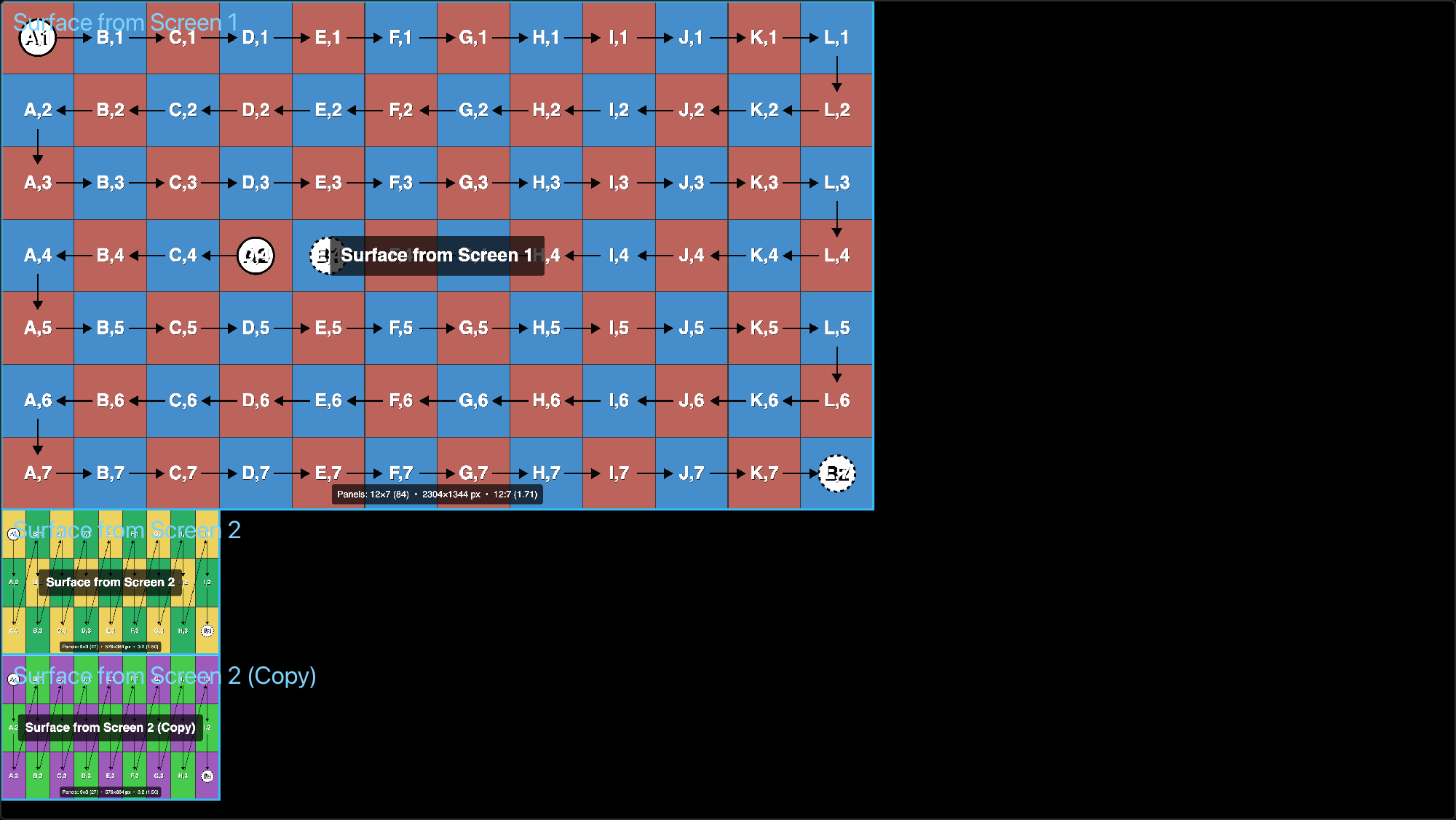
- The grid takes the screen's real panel counts and pixel sizes (mixed panel sizes per row/column are honored), and the Pattern grid section becomes read-only.
- The routing follows the screen's real data strings, with each start circle carrying the real port label (
A1,B2, …). - Strings with redundancy show a dashed circle at the far end carrying the backup port's label.
- A run that carries on onto another screen shows a link flag rather than a plain start circle: pointed on the panel where the cable leaves, notched where it arrives, each carrying the run's own cable label, so an installer can see the two halves are one cable.
- Disabled panels draw black with a red X.
- On a screen spanning several processors or canvases, runs are grouped per canvas; the path never jumps across a canvas boundary.
- The Pattern, Start, and Direction controls disappear; the routing shape comes from the screen's own wiring path, not the pattern.
- Px/string disappears; string breaks come from the real wiring engine.
This makes a linked data-path surface the on-wall equivalent of your wiring paperwork: the crew sees the panel map on the LED itself.
The Power path pattern
Power path reuses the same panel-grid renderer but traces the power daisy-chains instead of data:
- Each run is colored by its circuit, cycling a fixed 12-color high-contrast palette.
- Arrows are black; the start circles carry the circuit label (e.g.
C7). - Linked to a screen, it shows the screen's real power chains, circuits, and disabled panels. Unlinked, the virtual grid chains panels in path order and approximates circuits with the pixel-per-string breaks.
No options form yet
Power path currently exposes no controls in the Inspector; it renders with the defaults (an 8×4 grid of 128×128-px panels, circuit-colored). The project format already stores the full option set, so saved configurations are ready for when the form lands.
Pattern resolution & how patterns fill the surface
Each pattern has an intrinsic resolution: Data path and Power path derive theirs from the grid (columns × panel px wide, rows × panel px high); every other pattern is authored at 1920×1080.
Test patterns always fill the surface buffer (no letterboxing), with X and Y scaled independently. So an unlinked data-path grid whose aspect differs from the buffer stretches its cells. If you need pixel-true 1:1 cells, link the surface to a screen: the buffer then matches the screen's footprint exactly and nothing stretches.