

Appearance
Project files: save, open & V1 import
A LED.FYI project travels as a single .ledproj file. Download one to archive a design, hand it to a colleague, or move between machines. It reopens exactly as saved, on any copy of the app, with no library lookup needed.
The File menu
Everything project-file related lives in the File dropdown in the top bar.
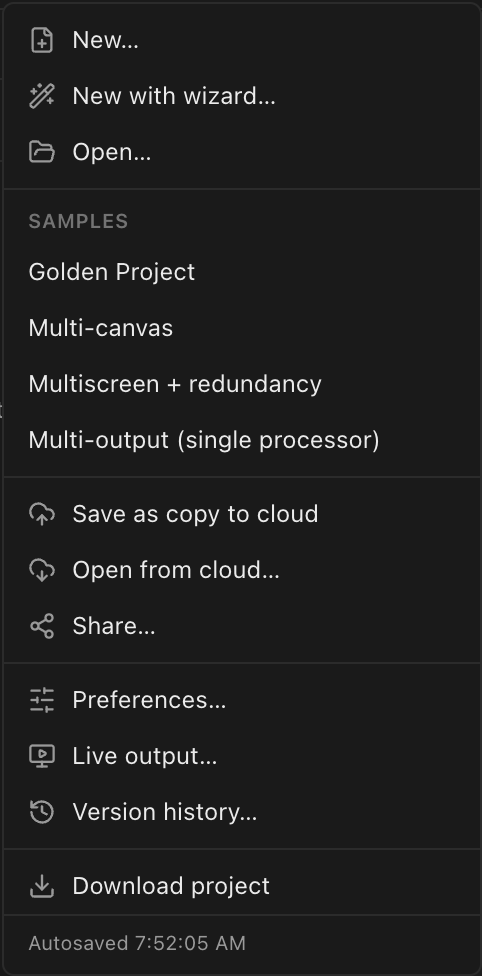
| Item | What it does |
|---|---|
| New… | Prompts for a name and starts a blank project |
| New with wizard… | Guided project setup; see the new project wizard |
| Open… | Opens a .ledproj (or plain JSON) file from disk |
| Save as copy to cloud | Cloud builds only, signed in: forks the live document into a separate cloud project |
| Open from cloud… | Cloud builds only, signed in: lists and opens your cloud projects |
| Share… | Cloud builds only, signed in: mints view-only share links |
| Preferences… | App-wide preferences |
| Live output… | Opens the full-screen Live Output window (⌘⇧O) |
| Version history… | Lists the project's saved versions, each with a restore button; see Undo, redo & versions |
| Download project | Saves the live document as a .ledproj file |
The footer of the menu is the save heartbeat: "Autosaved 14:32:05" (or "Not autosaved yet") for local projects, and the live cloud-sync status for cloud-bound ones. Live output…, Version history… and Download project are disabled while no project is open. The three cloud items are hidden entirely when no cloud backend is configured, and disabled until you sign in.
Downloading a project
File → Download project (also in the command palette as Download Project) saves the file as <project-name>.ledproj: the name lowercased, with anything that isn't a letter, digit, dash or underscore replaced by -. In the browser it lands in your downloads; in the desktop app a native Save dialog lets you choose the folder and name.
The Project downloaded notice appears only once the file is actually written. Cancel the desktop dialog and nothing is saved or announced. If the file can't be written (most often because the same .ledproj is open in another program on Windows, or the folder is read-only), you get a plain explanation with a Save as… button instead (see When a file can't be written).
What's inside the file:
- Pretty-printed JSON. The file is human-readable and diff-friendly if you keep projects in version control.
- Self-describing. It embeds its schema version and a snapshot of every equipment record the project uses (panel types, processors, switches), so it reopens byte-faithfully even on a machine that has never seen that equipment. This is why a project never depends on the equipment library being reachable, or up to date, when you open it.
- Round-trip exact. Download → Open reproduces the document precisely.
The project file counts as an export format, available on every plan tier.
Opening projects
File → Open… accepts .ledproj and plain JSON files. The app detects what kind of file you handed it by its structure, with no version guessing:
| File | What happens |
|---|---|
| A V2 save | Opens as-is. A file from an older V2 build is silently upgraded to the current format first (see below). |
| A V1 project | Runs the full V1→V2 migration automatically: geometry, wiring, redundancy, curving and presets all convert, and equipment references resolve against the equipment library. |
| A legacy v5.0-era file | Rejected with an error; that ancient format is out of scope. |
If some of a V1 project's equipment can't be matched in the library, a warning reports "N unresolved equipment item(s)". The project still opens, with those parts carried as snapshot-only placeholders.
Older saves may get smaller when you open them
The upgrade an older V2 file gets on open is usually invisible, with one exception you can see: files saved before the title-block logo was stored once per project carried a full copy of it on every sheet. Opening such a file consolidates those copies, so the project's next download, autosave or share is markedly smaller; the drawings themselves are unchanged. Nothing is written until you save.
Half rows: totals differ from what V1 printed
A wall with a half row or column now counts those cabinets as halves on the parts list and weight estimate: a 19 × 5 wall with a half bottom row weighs ~750 kg of panels, not the ~817 kg the old figure showed. The wall hasn't changed; the old number counted 19 half cabinets as full ones. Re-check any rigging plot or quote built from a pre-correction total.
The Replace guard
Every action that replaces the open document (New, the wizard, Open…, Open from cloud…) first shows a confirmation:
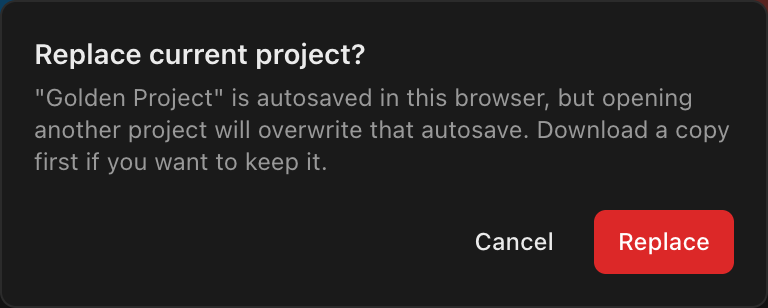
One autosave slot
Your current project is autosaved in this browser, but the autosave slot is single: opening another project overwrites it. If the current design matters, Download project first, then click Replace.
A cloud project that has finished syncing isn't at risk, so it gets a calm Switch projects? note instead; you can reopen it any time from File → Open from cloud, no download needed.
Local autosave & versions
While you work, the app continuously autosaves: the working document goes to browser storage, and a durable revision history is kept that survives reloads: closing the tab and coming back restores your project at its latest state, with the project's committed versions intact. The File-menu footer shows the last autosave time.
Autosave is not the same as a named version. The top-bar Save version button snapshots a named restore point into the project's revision history; see Undo, redo & versions.
Cloud save, open & autosave
In a cloud-connected build, once a project is bound to the cloud it autosaves there continuously. There is deliberately no manual "Save to cloud" menu item any more. The File-menu footer reports the state live: "Saving to cloud…", "Saved to cloud 14:32", "Offline (will sync when back online)", or "Cloud save failed (will retry)".
- Save as copy to cloud creates an explicit, separate cloud project from the live document.
- Open from cloud… lists your cloud projects newest-first with their last-updated time; picking one runs the Replace guard, then opens it.
- The same dialog also deletes cloud projects: tick one or more rows (or click a row's trash icon), then confirm in the footer. Deleting frees your plan quota immediately. The currently open project can't be deleted from under itself; open something else first.
Cloud project count is plan-capped: free 0, Pro 50, Studio unlimited. Full details (history, conflict behavior, quotas) are on Cloud projects, history & autosave.