

Appearance
The command palette (⌘K)
Every action in LED.FYI is a named command, and the command palette lists all of them in one searchable overlay. The same commands drive the File menu, the top-bar buttons, the sidebar + buttons, and the keyboard, so whichever way you trigger an action, it behaves identically. When you can't remember where a button lives, press ⌘K and type what you want.
Opening and closing
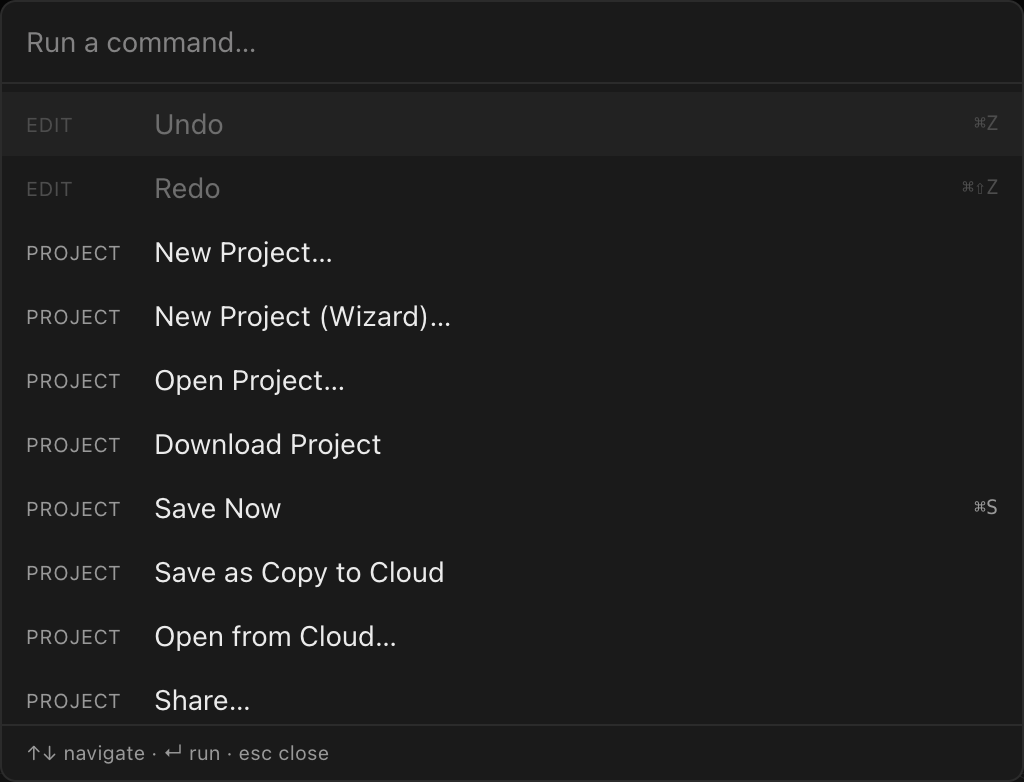
Press ⌘K (Ctrl+K on Windows/Linux) anywhere in the app; it works even while you're typing in a field. Press ⌘K again, press Esc, or click outside the palette to close it. The palette always opens fresh: the search box is empty and the highlight is back on the first row.
Each row shows three things: the command's category tag on the left, its title, and (when it has one) its keyboard shortcut on the right. The footer reminds you of the palette's own keys: ↑↓ navigate · ↵ run · esc close.
Mac glyphs everywhere
Shortcut hints are always drawn with Mac glyphs (⌘ ⇧), even on Windows and Linux, but Ctrl works identically wherever you see ⌘. See Keyboard shortcuts.
Searching and running
Type to filter the list. The search matches the command title in your UI language and in English, the command's internal id, and the category name, so if you've switched the app to German or Spanish (see Languages), your English muscle-memory queries still find everything.
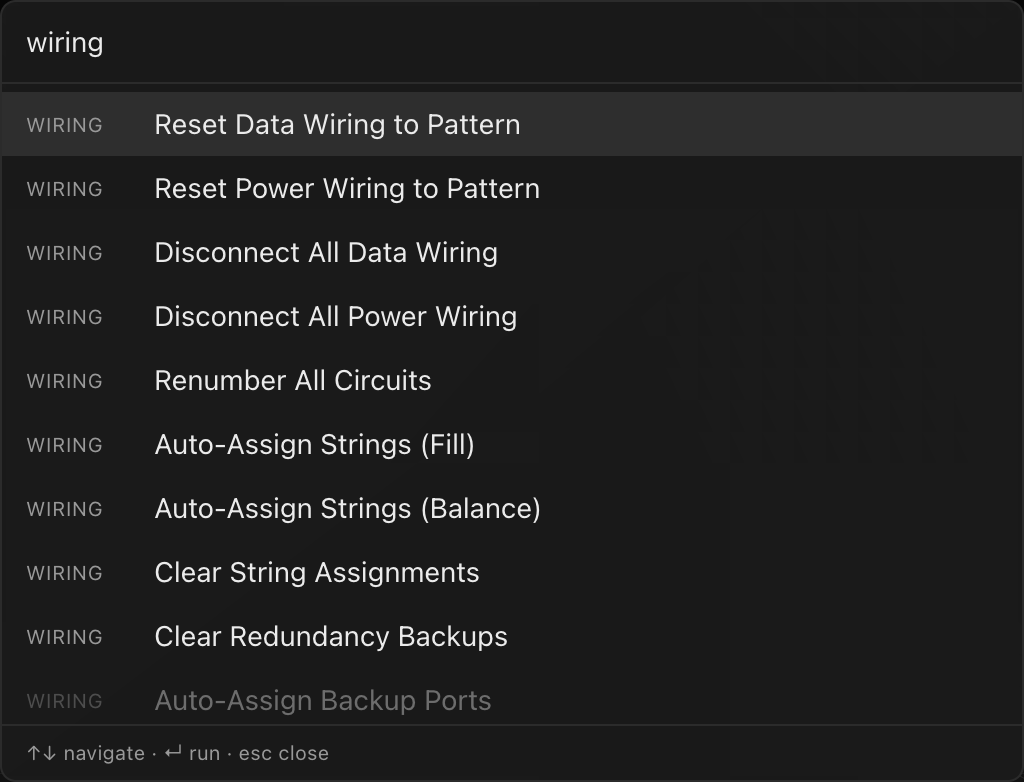
Run the highlighted command with Enter, or click any row. ↑/↓ move the highlight, hovering with the mouse moves it too, and typing resets it to the first match.
Grayed-out and hidden commands
Grayed rows (dimmed to 40%) are commands that can't run right now: their precondition isn't met for the current selection or view. Examples: Undo with nothing to undo, Delete Screen with no screen selected, Delete Video Source when only one video source remains, or any Camera: command while the 3D workbench isn't showing. Enter and clicking do nothing on a grayed row, and a keyboard shortcut for a grayed command is ignored the same way (⌘Z with nothing to undo does nothing); change the selection (or switch workbench) and it lights up.
Some commands are hidden entirely rather than grayed:
| Hidden command | When |
|---|---|
| Save as Copy to Cloud, Open from Cloud…, Share…, Equipment Library…, Account settings, Plan & billing, Team, Review equipment submissions | In offline builds (no cloud configured) these don't appear at all; see Working offline. Save Now stays: it confirms the local autosave there. |
| Review equipment submissions | Also hidden unless your account is an equipment moderator |
While you're editing a drawing template, the Project and Version commands (New, Open, Save version, history, cloud save and share…) don't run; you get a Finish editing the template first notice instead. Save or discard the template, and they work again.
Commands that ask first
A handful of commands need input or a safety confirmation, so picking them opens a small dialog before anything happens. Cancelling the dialog (Esc, the Cancel button, or confirming with an empty value) aborts the command entirely.
- Text prompts: Rename Project… (pre-filled with the current name), Save Version… (asks for a version name), and New Project… (pre-filled with
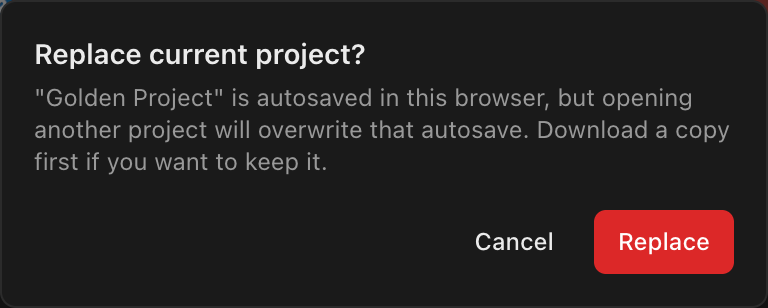
Untitled project).Enterconfirms,Escor clicking outside cancels. - The Replace guard: every command that replaces the open document (New Project…, New Project (Wizard)…, Open Project…, Open from Cloud…, and opening a bundled sample) first asks Replace current project?, because the browser keeps a single autosave slot and loading another project will overwrite it. Click Replace to proceed or Cancel to keep working. A cloud project that has finished syncing gets a calm Switch projects? note instead, because it can be reopened from the cloud. See Projects, saving & autosave.
- Sign-in gate: Equipment Library… requires you to be signed in (a toast explains why if you're not).
The full command catalog
Everything the palette can run, by category. "Needs" describes when the command is available (otherwise it shows grayed).
Edit
| Command | Key | What it does |
|---|---|---|
| Undo | ⌘Z | Reverses the most recent document edit. Needs something to undo. See Undo, redo & versions. |
| Redo | ⌘⇧Z | Re-applies the most recently undone edit. Needs something to redo. |
| Rename Project… | Prompts for a new project name (you can also click the project name in the top bar). | |
| Cycle Screen Color | Steps the resolved screen's accent color through the built-in 8-color palette (sky → orange → violet → green → pink → yellow → cyan → rose). | |
| Toggle Panel Enabled | Enables/disables the selected panel(s) as a group: if any selected panel is disabled, all are enabled; otherwise all are disabled. Needs a panel or multi-panel selection. See Panel layout, selection & overrides. |
Version
| Command | Key | What it does |
|---|---|---|
| Save Version… | ⌘⇧S | Prompts Name this version and records the current state as a durable named version. This is a named restore point, not "saving the file"; autosave is continuous. See Undo, redo & versions. |
| Version History… | Opens the list of saved versions, where you can restore one. Same as File → Version history…. See Browsing and restoring versions. |
Project
| Command | Key | What it does |
|---|---|---|
| New Project… | Replace guard, then a name prompt (Create confirms) → a blank project. | |
| New Project (Wizard)… | Opens the guided 5-step new project wizard. | |
| Open Project… | Replace guard, then a file picker for a .ledproj project file. | |
| Download Project | Downloads the current project as a .ledproj file. | |
| Save Now | ⌘S | Settles any pending autosave (and the cloud save, on a cloud project), then confirms with All changes saved to the cloud or All changes saved in this browser. Nothing opens: it exists so the save reflex gets an answer rather than a dialog. See Cloud projects. |
| Save as Copy to Cloud | Forks the current project into a new, separate cloud project. | |
| Open from Cloud… | Replace guard, then the cloud project picker. | |
| Share… | Opens the share-links dialog (links, QR, AR). See Sharing projects. |
Library
| Command | What it does |
|---|---|
| Equipment Library… | Opens the equipment library dialog: your personal gear, your organization's library, and the community library. Requires sign-in. |
| Review equipment submissions | Opens the community moderation queue. Moderators only. |
Screen
| Command | What it does |
|---|---|
| Add Screen | Creates a screen and selects it. New screens take the next color in the 8-color palette. See Adding & managing screens. |
| Add Screen from Surface | Creates a screen already linked to a surface, so it lights up immediately. Needs at least one surface. See Feeding screens video. |
| Duplicate Screen | Copies the resolved screen and selects the copy. |
| Delete Screen | Removes the selected screen. Needs a screen selected. |
| Auto-Pack Screens | Bin-packs all screens on the resolved processor canvas so none overlap. Needs at least two screens. See Arranging screens & panels in 2D. |
Ungroup Video Slice (⌘U) | Dissolves a video slice you cut: its separate picture goes and its panels rejoin the screen's automatic split. On a screen that sits on one processor, the panels also snap back into the screen's normal layout. Needs a slice's panels selected. See Cutting a screen's picture into slices. |
Surface
| Command | What it does |
|---|---|
| Add Surface | Creates a surface and immediately places it on the first video source that has no placement yet (else the first). See Surfaces, placements & video sources. |
| Add Surface from Screen | Creates a surface pre-linked to a screen, defaulting to the data-path test pattern so the screen renders right away. Needs at least one screen. |
| Duplicate Surface | Copies the selected surface. |
| Delete Surface | Removes the selected surface. |
| Delete Surface Placement | Removes the selected placement (the surface itself survives). Needs a placement selected. |
| Place Surface on Video Source | Adds a placement of the selected surface on a video source (the one you pick in the UI, else the first). |
| Auto-Pack Surfaces on Video Source | Packs the placements on the resolved video source so none overlap. Needs at least two placements. |
Video Source
| Command | What it does |
|---|---|
| Add Video Source | Creates a video source (output raster). See Outputs, canvases & multi-output. |
| Delete Video Source | Removes the selected video source. Needs one selected and at least two to exist; the last video source can never be deleted (it's the render target everything points at). |
| Add Processor Canvas | Creates a processor canvas. |
| Duplicate Processor Canvas | Copies the selected canvas. |
| Delete Processor Canvas | Removes the selected canvas. The last canvas can never be deleted. |
Wiring
The first four act on the resolved screen, Renumber All Circuits on the whole project, and the rest on the resolved processor canvas (see how commands resolve their target below).
| Command | What it does |
|---|---|
| Reset Data Wiring to Pattern | Discards manual data wiring on the screen and regenerates it from the screen's wiring pattern. See Manual wiring. |
| Reset Power Wiring to Pattern | Same, for power wiring. |
| Disconnect All Data Wiring | Clears every data connection on the screen. |
| Disconnect All Power Wiring | Clears every power connection on the screen. |
| Renumber All Circuits | Clears every circuit number and start number pinned by hand, so the whole project's power circuits count from C1 again, in order. String sizes and combines are untouched. A confirmation first says how many pins it will clear; one undo puts them back. Needs at least one screen. See Power. |
| Auto-Assign Strings (Fill) | Packs the canvas's strings onto processor ports in order. See String-to-port assignment. |
| Auto-Assign Strings (Balance) | Spreads the strings across the available ports to level the pixel load, weighing each switch's bandwidth. |
| Clear String Assignments | Unassigns every string on the canvas. |
| Auto-Assign Backup Ports | Turns the processor's Auto backup setting on: Mirror 1:1 (same switch letter + port, or same 1G output number, on the designated backup processor) when a backup processor is designated, else First available. This re-plans every backup on the canvas. Refused, with nothing changed, when it can't cover every string. See Redundancy → Auto backup. |
| Clear Redundancy Backups | Removes all backup (redundant) links on the canvas and turns its Auto backup setting off. See Redundancy. |
Per-string manual port pickers and switch add/remove live in the Inspector, not in the palette.
Sheets
| Command | What it does |
|---|---|
| Add Sheet | Appends a sheet to the drawing set. The standard drawing set itself is already there from the moment a project exists; see The Sheets workbench. |
| Delete Sheet | Removes the resolved sheet. |
| Reset Sheet Layout | Regenerates the resolved sheet's block layout. |
| Delete Sheet Object | Removes the selected block (locked blocks refuse). Also bound to Del/Backspace in the Sheets workbench. Deleting a block re-selects its sheet so the Inspector doesn't go blank. |
| Bring to Front / Send to Back / Bring Forward / Send Backward | Reorder the selected block in the sheet's stacking order. See Drawing blocks reference. |
View
| Command | Key | What it does |
|---|---|---|
| Go to 3D / 2D Mapping / Sheets / Video / Export | 1–5 | Switch the active workbench (bare digits; browsers reserve ⌘1–⌘4 for their own tabs). See The five workbenches. |
| Go to 2D Overview | 6 | Switch to the board that shows every screen at once. See The 2D Overview workbench. |
| Auto-arrange the 2D Overview | None | Discards every position you have set on the 2D Overview board and lays the screens out again in project order, with room for every title bar. Undoable. Runnable only once something on the board has been moved. |
| Live output… | ⌘⇧O | Opens the Live Output dialog: pick a video source and pop out a full-screen output window. Needs at least one video source. See The Live Output window. |
| Camera: Front | F | Snap the 3D camera to the front view. All Camera: commands are runnable only while a 3D view is on screen, grayed everywhere else. See The 3D workbench. |
| Camera: Back | B | Snap to the back view. |
| Camera: Right (Side) | S | Snap to the right (side) view. |
| Camera: Left | None | Snap to the left view. No key: palette or ViewCube menu only. |
| Camera: Top | T | Snap to the top view. |
| Camera: Bottom | None | Snap to the bottom view. No key. |
| Camera: Isometric | I | Snap to the isometric view. |
| Camera: Dimetric | None | Snap to the dimetric view. No key. |
| Camera: Trimetric | None | Snap to the trimetric view. No key. |
| Camera: Fit view | 0 | Reframes the camera to fit the content, keeping the current view direction. |
| Camera: Perspective ↔ Parallel toggle | P | Flips between perspective and parallel (orthographic) projection, preserving the framing. Not saved: every app load starts in perspective. |
The camera keys F/B/S/T/I/0/P only work while the 3D workbench is active; the palette entries work from anywhere a 3D view is mounted.
Account
| Command | What it does |
|---|---|
| Account settings | Opens your profile dialog. Cloud builds only. See Your account & profile. |
| Plan & billing | Opens the plan & billing dialog. Cloud builds only. See Plans & billing. |
| Team | Opens the team dialog. Cloud builds only. See Teams & roles. |
| Preferences | Opens the app Preferences dialog. Always available, online or offline. |
How commands pick their target
Screen-, canvas-, and sheet-scoped commands resolve their target leniently, so they stay usable without a precise selection:
- Screen-scoped (Cycle Screen Color, Duplicate Screen, the wiring resets): the selected screen → the selected panel's screen → the first screen in the project.
- Canvas-scoped (Auto-Pack Screens, the string-assignment commands): the selected canvas → the selected panel's or screen's canvas → the first canvas.
- Sheet-scoped (Delete Sheet, Reset Sheet Layout): the selected sheet → the selected block's sheet → the drawing set's first sheet.
Delete commands are stricter: they require the thing itself to be explicitly selected, so you never delete something you weren't looking at.
Plan capacity gates
Add and Duplicate commands for screens, surfaces, and video sources check your plan's capacity before running (the free tier allows 1 screen, 1 surface, and 1 video source). Duplicating checks the same gate as adding, so it isn't a cap workaround. See Plans & billing.
The same commands, everywhere
You'll meet these exact commands outside the palette too, with the same names and the same behavior:
- File menu: the project commands plus the bundled samples.
- Top bar: undo/redo arrows, the live save readout, the Save version button, the project name (click to rename), and the Live button.
- Left sidebar: the + buttons on each group run Add Screen, Add Surface, Add Processor Canvas, Add Video Source, and the linked …from Surface / …from Screen variants.
- Inspector: the wiring actions and delete buttons.
- Keyboard: every key listed above; the complete map is in Keyboard shortcuts.