

Appearance
New project wizard
File → New with wizard… collects your whole configuration up front (screens, processing, power, wiring, test pattern) and creates one complete, wired, lit-up project in a single step. Use it when you know the wall you're building; use File → New… when you'd rather start empty and build up in the editor.
A step rail across the top (1. Screens → 5. Test pattern) lets you jump between steps in any order; Back/Next walk them in sequence. Nothing is created until you press Create project on the last step. Closing the wizard (X, Esc, or a click on the backdrop) once you've filled anything in first asks Discard this new project?, so a stray click can't silently throw away what you've typed. Discard closes it, Cancel keeps you in the wizard. An untouched wizard closes straight away.
Step 1: Screens
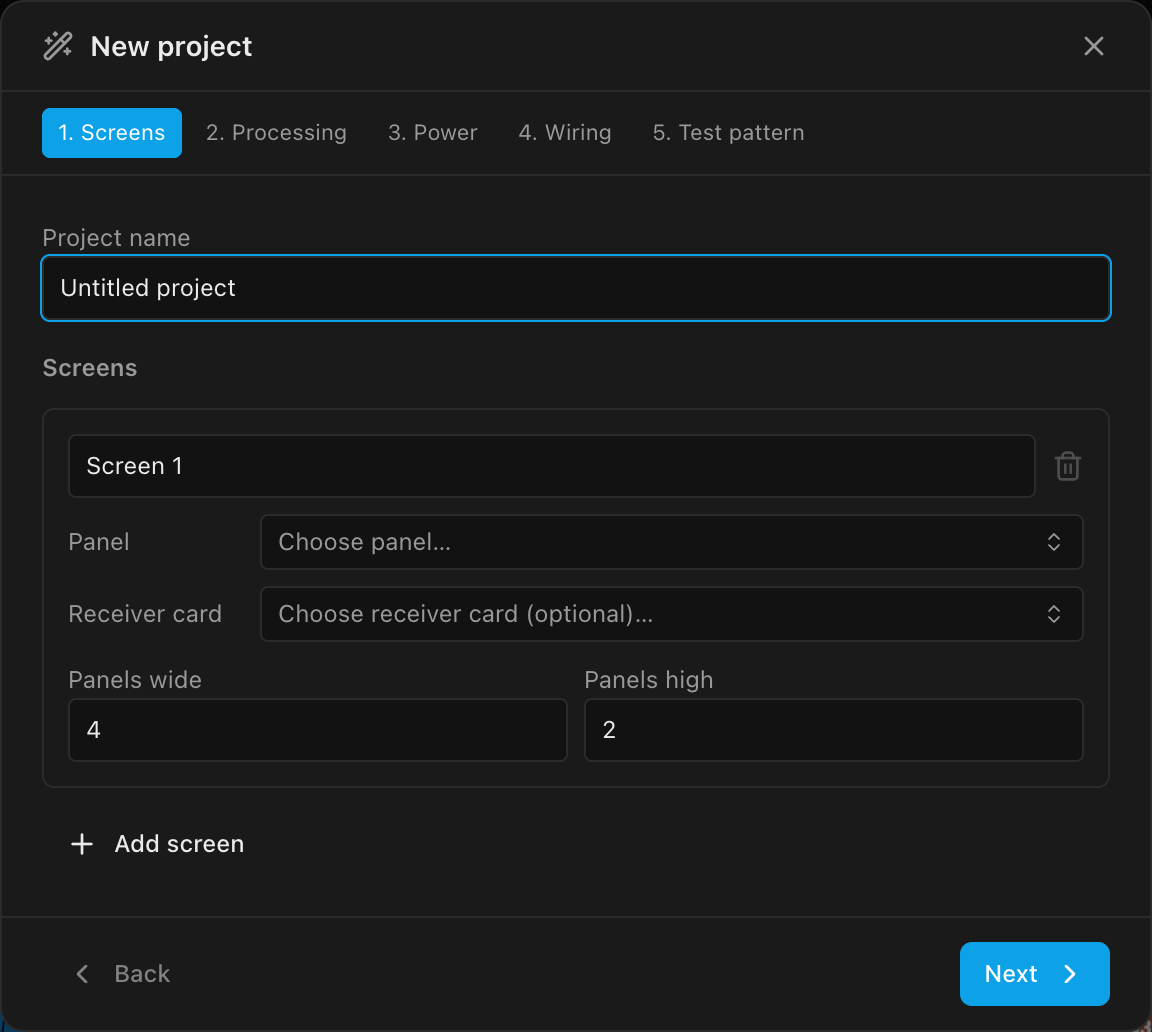
| Field | What it does | Default |
|---|---|---|
| Project name | The project's name. | Untitled project |
| Screen name | One card per screen; the name becomes the screen's name in the project. | Screen 1 |
| Panel | The panel type, from the searchable equipment picker (see Panel types). Optional: leave it empty and the screen is built with a generic default panel you can swap later. | none chosen |
| Receiver card | The receiver card installed in this screen's panels, from the same picker (None (clear selection) at the top of the list removes it again). Optional and per screen. Once chosen, the Processing step steers you to processors of the same brand; see Matching the receiver card. | none chosen |
| Panels wide | Grid width in panels, minimum 1. | 4 |
| Panels high | Grid height in panels, minimum 1. | 2 |
+ Add screen adds another card (named Screen 2, Screen 3, …, each with a distinct color); the trash button removes one, but at least one screen always remains.
Step 2: Processing
| Field | What it does | Default |
|---|---|---|
| Processor | Optionally pick a processor model from the equipment picker (see Choosing a processor). Left empty, the project uses a generic processor. The wizard's pickers have no + Create custom… row; to request a model that isn't listed, see Requesting equipment. With a receiver card chosen on the Screens step, the list is narrowed to that card's brand; see Matching the receiver card. | none (generic) |
| Video source width (px) | Resolution of the project's video source, minimum 1. | 1920 |
| Video source height (px) | As above. | 1080 |
| Presets | One-click standard sizes: 1080p (1920×1080) · 2K (DCI, 2048×1080) · 4K (3840×2160) · 8K (7680×4320). Each button fills in both numbers; hover one for its exact size. The button matching the current numbers is highlighted. Same list as the Video source inspector. | None |
| Bit depth | The color depth the processor runs (8-bit, 10-bit, …). Shown only once you've picked a processor, and offers only the depths that model publishes. | lowest offered |
| Frame rate | The refresh rate (24 Hz, 60 Hz, …), restricted to the rates the chosen processor publishes at the selected bit depth, so changing bit depth can change what's on offer. Shown alongside Bit depth. | lowest offered |
| Canvas layout | The processor canvas layout. Currently 1x1 is the only offered option; the wizard wires exactly one output. Multi-tile layouts are configured afterward; see Outputs, canvases & multi-output. | 1x1 |
Bit depth and frame rate together are the canvas's operating point, and they set how many pixels each processor port can carry: the same pair you'd otherwise set afterward in the canvas inspector's Signal section. Because only combinations the chosen processor actually publishes are offered, the wizard can't hand you a setting the box can't run. With no processor picked there's no published table, so the two fields stay hidden and the project opens on the default operating point. See Choosing a processor.
Check the defaults
Both fields start at the lowest value on offer, typically 8-bit at the lowest published frame rate, such as 24 Hz. The operating point decides how many pixels each port carries, and so how many panels go on each data string: a Brompton Tessera SX40 at 8-bit / 24 Hz carries roughly three times the pixels per port that it does at 10-bit / 60 Hz. Set the pair you'll actually run the show at before you press Create project.
Matching the receiver card
A receiver card only works with a processor of the same brand (a Novastar card needs a Novastar processor, Brompton needs Brompton), so once you've chosen a card on the Screens step the Processor picker lists only that brand, and a note under it says so. Click Show all processors to lift the filter, and Only … processors to put it back. Two things make sure you're never stuck with an empty list:
- If the library has no processor of that brand, every processor is listed and the note says why.
- If your screens carry cards from different brands, every processor is listed and the note names the brands, so you can decide which screen to change.
If the processor you've picked doesn't match the card (say you chose the processor first, then went back and picked a card of another brand), an amber line under the picker says so. The wizard still lets you continue, but the two won't work together; pick a matching processor or a matching card.
With a card chosen, Bit depth and Frame rate offer only the combinations that both the processor and the card publish, because an installed card is what sets the canvas's operating point (the hint under the two fields says so). If the two share no combination at all, the fields fall back to everything the processor publishes rather than disappearing.
INFO
The Panel picker lists the whole library with no filtering. The Receiver card picker is narrowed to the cards a panel declares compatible, when it declares any (most don't yet). The switch-compatibility filtering described in Choosing equipment only applies to the Add switch picker in the inspector, which isn't part of the wizard.
Step 3: Power
| Field | What it does | Default |
|---|---|---|
| Working voltage (V) | The venue AC voltage used for the power and circuit math, minimum 1. | 220 |
| Circuit amps (A) | The project-wide circuit limit. Every screen starts at it, and a screen's amps per string can only go lower. Minimum 1. | 16 |
Both values apply to every screen the wizard creates; you can fine-tune each screen later in the inspector; see Per-screen power & string limits.
Step 4: Wiring
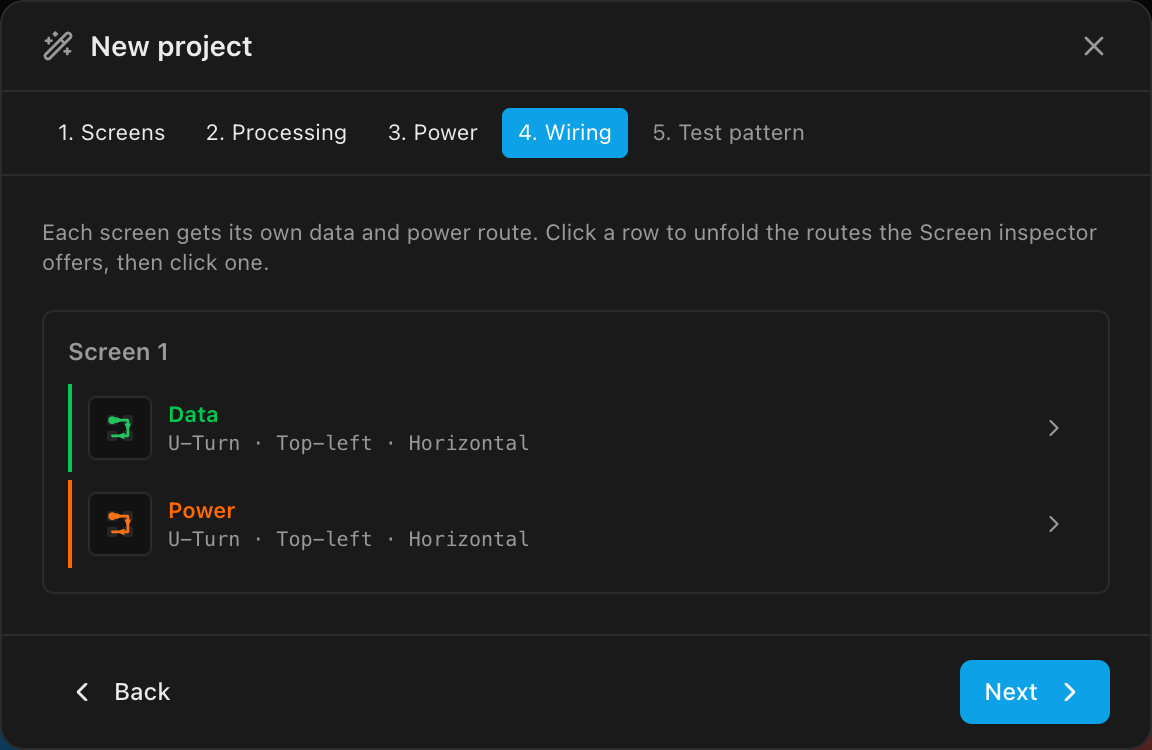
The Wiring step is the Screen inspector's Wiring paths picker, shown once per screen, so a three-screen project can be wired three different ways from the start, and what you pick here looks exactly like what the inspector shows afterward. Each screen card has a green Data row and an orange Power row that read that screen's current route as pattern · start corner · direction. Click a row and the full grid of 24 routes unfolds in place: three pattern groups, each with a horizontal runs and a vertical runs row of four start-corner icons; click an icon to pick it (its tooltip names the route, e.g. Top-left · Vertical · Zig-zag), and Done folds the grid again.
| Route element | Options | Default |
|---|---|---|
| Pattern | U-Turn · Zig-zag · Isolated: the three groups of the grid | U-Turn |
| Start corner | Top-left · Top-right · Bottom-left · Bottom-right: the four icons | Top-left |
| Direction | Horizontal · Vertical: the two rows in each group | Horizontal |
Every screen starts at U-Turn · Top-left · Horizontal for both data and power. What the patterns mean, and how to reroute individual strings afterward, is covered in Data path & string splitting and Power: strings, circuits & buffers.
Step 5: Test pattern
| Field | Options | Default |
|---|---|---|
| Test pattern | Data path · Solid colour (with a color picker, default red) · Grid · SMPTE bars · No test pattern | Data path |
With any pattern chosen, each screen gets a linked surface showing it, so the wall is lit the moment the project opens. No test pattern skips the surfaces entirely.
Data path starts from your own saved look if you've used Save as my defaults on a Data path pattern, and each screen still gets its own checkerboard colors so neighboring screens stay distinguishable. The full pattern catalog (13 patterns) is available per surface afterward; see Test patterns and the Data path pattern.
Create project
Create project runs the replace guard first (the wizard replaces your open project just like any other New), then builds and opens the project.
Once you've saved a drawing set template, the last step also shows a Drawings choice beside Create project: The built-in drawings, or one of your saved sets. It's set in advance to your New projects start with choice.
INFO
The wizard checks your plan before it builds anything: the total number of screens against your screen cap, and the largest screen's panel count against your panels-per-screen cap. A free-tier account can't create a wizard project past either limit; you get the upgrade prompt instead, and nothing is replaced. See Plans & billing.
What the wizard builds
One complete project, ready to work in:
- A video source at your chosen resolution and a processor canvas (with your chosen processor model applied, if you picked one, at the bit depth and frame rate you selected).
- One screen per card: named, colored, at its panel grid, with its receiver card installed (if you chose one), your power settings and its own data/power routes applied, and automatically arranged on the canvas so screens don't overlap.
- A linked surface per screen carrying the test pattern, placed so everything renders immediately.
- Its drawings: the built-in set of sheets, or the drawing set template you chose (see Drawing templates).
What the wizard doesn't ask
Everything else is tuned afterward in the inspector: switches and trunks (Switches & trunk cables), redundancy (Redundancy), mounting (Mounting & rigging), and physical screen positioning (Arranging screens).