

Appearance
Drawing templates
Every company has its own way of laying out a drawing packet: which sheets go in, which drawings sit on each, the notes that always appear. Save it once as a template and reuse it in any project.
There are four kinds of template:
| Template | What it holds | Save it from |
|---|---|---|
| Drawing set | Every sheet in the set: paper, title block, blocks and notes | ⋯ at the top of the Drawings list → Save drawing set as template… |
| Sheet | One sheet's layout: its blocks, their sizes and settings, its notes | Inspector → Template → Save sheet as template…, with the sheet selected |
| Block | One block with its settings (views, dimensions, labels…) and size | Save block as template…, with the block selected |
| Title block | A title block layout | The title block designer |
Saving asks for a name and confirms with a message. If you've reached the limit (10 drawing sets, 30 sheets, 30 title blocks, 50 blocks), nothing is saved and the message tells you to remove one first.
The Templates library
All your templates live in one place: the Templates library. Open it from ⋯ → Templates library… at the top of the Drawings list, + → Browse templates…, or Preferences → Drawing templates → Open the Templates library.
The library has a tab for each kind (Drawing sets · Sheets · Blocks · Title blocks) and a search box. Every template is a card with a real picture of it: the template drawn on a sample wall (one plain screen on one processor), by the same engine that draws your sheets and PDFs. Each card has the same actions:
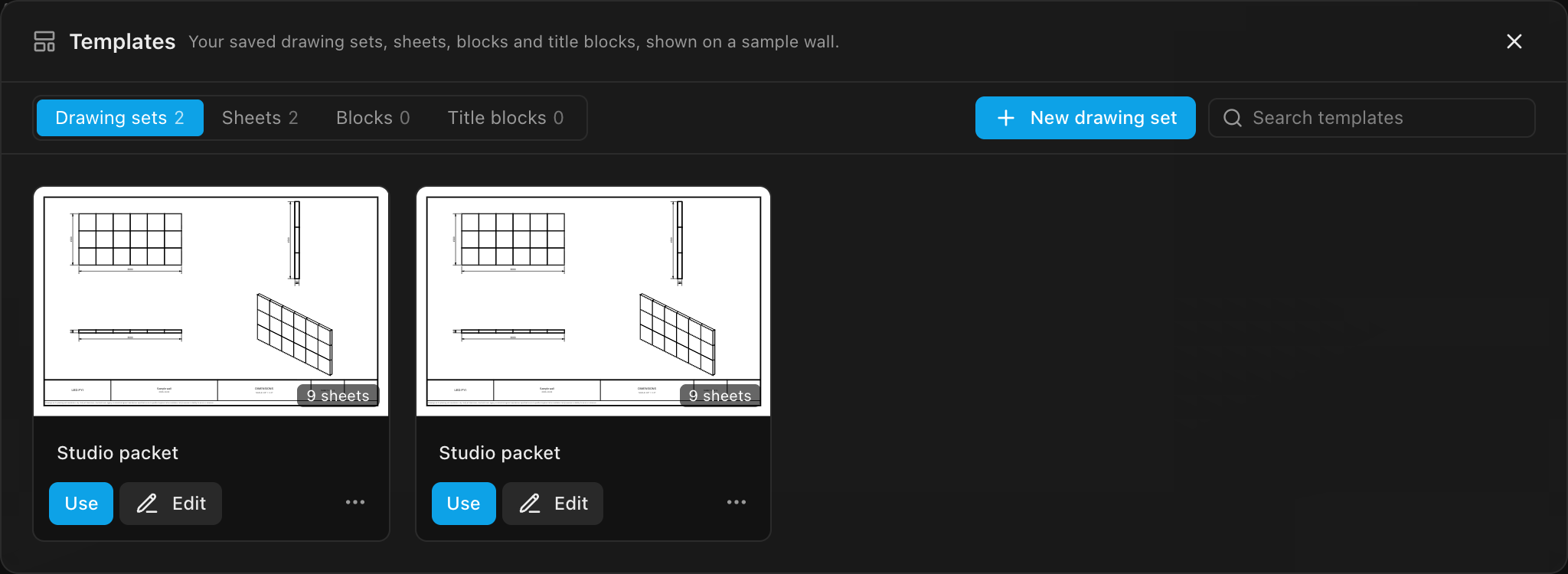
| Action | What it does |
|---|---|
| Use | Puts it in the open project. A drawing set offers Add its sheets to this project or Replace this project's drawings… (with a confirmation; you can undo it). A sheet is added to the drawings, a block is inserted on the selected sheet, and a title block goes on every sheet |
| Edit | Opens the template itself for editing (see below). Clicking the picture does the same |
| The name | Click it to rename |
| ⋯ → Duplicate | A copy named "… copy" |
| ⋯ → Start new projects with this | Drawing sets only; marks it with a New projects badge |
| ⋯ → Version history | Earlier versions of the template (when signed in; see below) |
| ⋯ → Delete | Asks you to confirm, then deletes it, with an Undo in the notification as well. Projects that used it keep their copy |
Making a template from scratch
You don't need a project to make a template. In the library, the New … button next to the search box (New drawing set, New sheet, New block or New title block, depending on the tab) asks for a name, and for a block, which kind of block. It then opens the template on the sample wall to build:
| New… | Starts as |
|---|---|
| Drawing set | The built-in drawings: add, remove and rearrange sheets to make it yours |
| Sheet | A blank sheet: insert blocks and notes |
| Block | The block you chose, at a standard size: set it up in the Inspector |
| Title block | The standard title block: open Edit title block… in the Inspector to design it; its Save saves the template and returns you to your project |
The bar across the top reads New sheet template "…" · Cancel · Create template. Create template adds it to the library; Cancel leaves nothing behind.
Editing a template
Edit opens the template on its own, in the normal Sheets editor, on the sample wall, so you can see exactly what it will produce. A bar across the top says what you're editing:
Editing sheet template “Wiring pair” · Discard · Save template
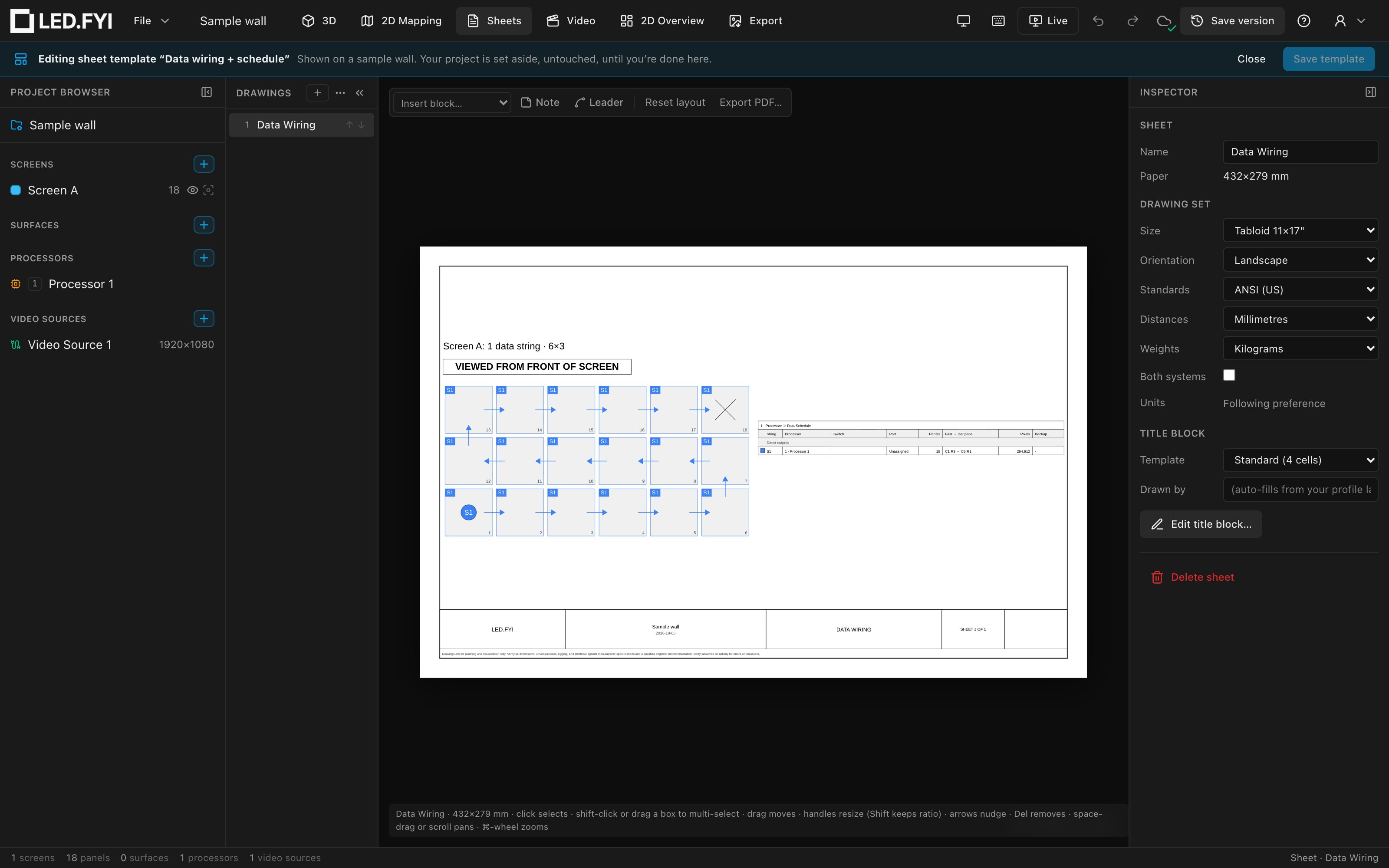
Change anything you like: move and resize blocks, change their settings, edit notes, add or remove sheets (for a drawing set), or open Edit title block…. Then:
- Save template saves your changes into the template and takes you back to your project.
- Discard (or Close, if you haven't changed anything) takes you back without saving, after a confirmation if you'd made changes.
Your project is set aside, untouched, while you edit. Nothing about it is saved, synced or changed, and it comes back exactly as you left it. Things that would leave or replace the project, like File → New or Save version, are paused until you've saved or discarded.
Choosing drawings for a new project
Once you have a saved drawing set, File → New… and the last step of the New project wizard offer a Drawings choice: The built-in drawings, or any of your drawing sets. It starts on your New projects start with choice, which you set in Preferences → Drawing templates or with ⋯ → Start new projects with this in the library.
This is the one "new projects start with" setting. Your drawing set carries its own title blocks, so to standardise the title block on every new project, put it on the sheets of your drawing set template.
Based on a template
A sheet, block or drawing set that came from a template (or that you've just saved as one) remembers it. For a sheet or block, the Inspector shows a small panel:
🔗 Based on “Wiring pair” · edited
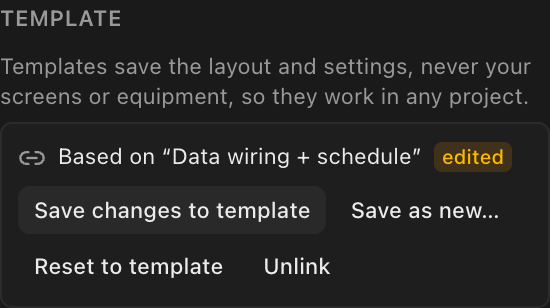
- edited appears as soon as this copy differs from the saved template.
- Save changes to template replaces the saved template with this version, after a confirmation. It's greyed out until there's something to save, so a quick one-off tweak can't overwrite your standard by accident.
- Reset to template throws away this copy's changes and uses the saved template again (you can undo it). A reset block keeps its place on the sheet.
- Save as new… saves this version as a separate template and links to that one instead.
- Unlink stops tracking the template; this copy becomes a one-off.
For the whole drawing set, the same choices are in the ⋯ menu at the top of the Drawings list.
Projects that already used a template keep their own copy. Changing, renaming or deleting a template never changes drawings you've already issued. Title blocks are the exception: a title block template is one shared title block, and every project that uses it follows your latest version, logo included (see Title block templates).
What a template keeps, and what it leaves behind
A template holds the layout and settings. It never holds anything that belongs to the project, so it works in any job:
- Screens and processors. A block you narrowed to one screen (or one processor's raster map) shows all screens when the template is used, as the built-in sheets do. Use the block's Split buttons afterwards if you want one per screen.
- Paginated pages. A block that was paginated comes back as one whole block. Paginate again in the new project.
- Raster Map sheets. The per-processor Raster Map sheets in a saved drawing set become a single Raster Map sheet. The project you use the template in splits it per processor automatically, for its processors.
- Notes stay; leaders don't. Typed notes (general notes, a client approval box…) are kept. Leaders, which point at a particular spot on a drawing, are left out.
- Branding follows the title block. A sheet or drawing set template doesn't carry a logo of its own. When its sheets use one of your title block templates, the project gets that title block's logo and company name; otherwise the logo and company name are the project's own. A custom title block layout does travel with sheet and drawing-set templates.
Adding sheets and blocks
The + button in the Drawings list opens a menu:
- Blank sheet: an empty sheet.
- Built-in sheets: any of the standard sheets (Dimensions, Raster Map, Data Wiring…) laid out exactly as a new project lays them out. Handy when you've deleted one and want it back.
- My sheet templates: your saved sheets.
- Browse templates…: opens the library.
An added sheet joins the set: it takes the set's paper size, title block, units and branding, and the template's blocks and notes are resized to fit that paper.
Insert block… lists the built-in blocks under Blocks and your templates under My block templates. A block template lands with its saved size and settings, offset slightly so repeated inserts don't hide each other.
Menus work from the keyboard: the arrow keys move between items, and Esc closes the menu.
Saved to your account, with version history
When you're signed in, each template is saved to your account on its own, so you can work on two computers at once without one overwriting the other's templates, and they're on every computer you sign in on. Your browser keeps a copy too, so templates keep working offline, and changes made offline go up when you reconnect.
Every time a template's content changes (not just its name), the previous version is kept: ⋯ → Version history in the library lists the last 10 with their dates, and Restore brings one back. The version it replaces is kept too, so restoring is never a dead end.
Your templates are safe
Templates are your content, not settings: Reset all preferences leaves them alone. And when an app update changes how drawings are stored, your saved templates are upgraded along with your projects, never lost.