

Appearance
Keyboard shortcuts
The complete keymap: a handful of global keys that work everywhere, plus per-workbench keys and mouse gestures. Press ? at any time (or click the keyboard icon in the top bar) to open the in-app cheat-sheet.
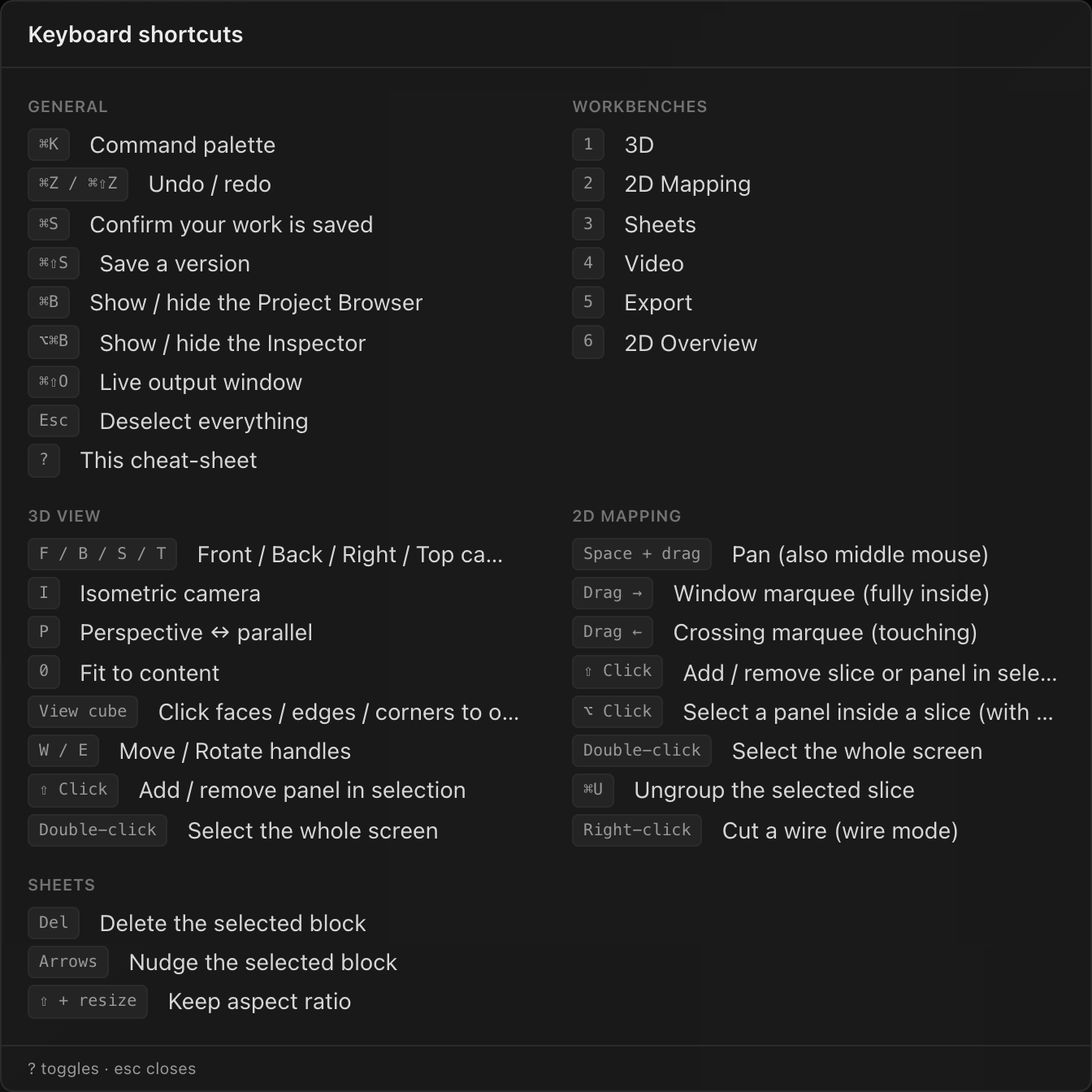
Reading this page
⌘meansCmdon macOS andCtrlon Windows/Linux. The app accepts both modifiers everywhere, but all on-screen hints (palette rows, tooltips, the cheat-sheet) are drawn with the Mac glyphs⌘and⇧.- Letter and digit keys are suppressed while you type. While the focus is in any text field, number field, or dropdown, the single-key shortcuts (
1–6,?, the 3D camera letters,Esc-to-deselect),⌘Zand⌘Udo nothing, so typing "3" into a field never switches workbenches. Six shortcuts deliberately bypass this guard and work even mid-typing:⌘K,⌘B,⌥⌘B,⌘⇧O, and both save chords (⌘S,⌘⇧S): hitting save mid-sentence is exactly when the reflex fires.
Global
| Key | Action |
|---|---|
⌘K | Open/close the command palette. Works even while typing in a field. |
⌘B | Show/hide the Project sidebar (the left rail). Works even while typing. |
⌥⌘B | Show/hide the Inspector (the right-hand panel). Works even while typing. |
⌘⇧O | Open Live Output. Works even while typing. |
⌘Z | Undo the latest edit. |
⌘⇧Z | Redo. |
⌘S | Confirm your work is saved: settles any pending autosave and reports All changes saved…. Nothing opens; autosave is continuous. |
⌘⇧S | Save a version: opens the Name this version prompt. See Undo, redo & versions. |
1 – 6 | Switch workbench: 1 3D · 2 2D Mapping · 3 Sheets · 4 Video · 5 Export · 6 2D Overview. Bare digits, no modifier; browsers reserve ⌘1–⌘9 for their own tabs. (2D Overview sits after Video in the tab strip but takes 6, so Export keeps the 5 it has always had.) |
? | Open/close the shortcuts cheat-sheet. |
Esc | Back out of things, in layers; see below. |
Enter | In confirm dialogs and prompts: confirm. |
What Escape does
Esc means different things depending on what's open, in this priority order:
- An overlay is open (a dialog, the palette, the cheat-sheet, a prompt) → closes that overlay. Nothing else happens.
- A workbench mode is active (the 2D wire editor, split mode, the Sheets note tool, 3D zoom-to-window) → cancels the mode, and the same press also clears the selection, so one
Escbacks out of everything. In the 2D wire editor specifically, the firstEscdrops the chain you're mid-way through connecting and keeps you in wire mode; the nextEscexits the mode. - Otherwise → clears the selection, same as clicking empty canvas. With nothing selected and nothing open,
Escdoes nothing.
3D workbench
These bare-letter keys work only while the 3D workbench is active (press 1 first), so the letters stay free everywhere else. The same views are available from the ViewCube widget in the viewport corner and from the command palette wherever a 3D view is showing.
| Key | Action |
|---|---|
F | Front view |
B | Back view |
S | Right (side) view |
T | Top view |
I | Isometric view |
0 | Fit view: reframe to the content, keeping the current view direction |
P | Toggle perspective ↔ parallel projection (keeps the framing; resets to perspective on every app load) |
W | Move mode for the transform gizmo (the default) |
E | Rotate mode for the transform gizmo |
Left, Bottom, Dimetric, and Trimetric views have no key; reach them from the ViewCube's cube-icon menu or the palette. The ViewCube itself is all mouse: click its faces, edges, and corners to orient, use the surrounding arrows for 45° orbit steps, and pick zoom to window from its menu to drag a rubber-band rectangle the camera frames to (Esc cancels the tool). See The 3D workbench.
Selection in the 3D view uses the same mouse grammar as 2D Mapping: click a panel to select it, ⇧-click to add or remove one, double-click to select its whole screen, Esc to clear. Whatever you select (one panel, several, or a screen) gets the gizmo, and W / E choose what dragging it does. See Moving and rotating: the gizmo.
2D Mapping workbench
Keys act on the selected panel(s); gestures work anywhere on the canvas. See Arranging screens & panels in 2D.
| Key / gesture | Action |
|---|---|
← ↑ → ↓ | Nudge the selected panels by 1 composite pixel, in the direction the arrow points on screen, including in Back view. Locked or disabled panels stay put. A burst of nudges is one undo step. |
⇧ + arrows | Nudge by 10 pixels. |
L | Toggle the mapping-position lock on the selected panels. It's a group toggle: if any is unlocked, all lock; otherwise all unlock. |
Space + drag | Pan the canvas (middle-mouse drag also pans). |
| Drag → (left-to-right) | Window marquee: selects panels fully inside the box (drawn solid). |
| Drag ← (right-to-left) | Crossing marquee: selects every panel the box touches (drawn dashed). The two marquee directions follow the CAD convention. |
⇧ + click | Add/remove from the selection: the whole slice when the panel belongs to a video slice you cut, otherwise that one panel. |
⌥ + click | Select just the panel under the cursor, reaching inside a slice or a selected screen. Add ⇧ (⌥⇧-click) to add or remove one panel of a slice. |
| Double-click | Select the panel's whole screen. |
⌘U | Ungroup the selected video slice; its panels rejoin the rest of the screen. |
| Click a wire | (wire mode) Cut that connection; segments redden on hover. See Manual wiring. |
| Right-click | Open the panel context menu. It acts on the whole selection when that already covers the panel under the cursor (a marquee set, a slice group, or the whole screen after a double-click), and ⌥+right-click reaches the single panel inside. (wire mode) Drop the chain you're mid-way through connecting, staying in wire mode. |
Esc | (wire mode) First press drops the armed chain, second press exits wire mode. Outside a mode: clear the selection. |
2D Overview workbench
Mouse-driven, like 2D Mapping. See The 2D Overview workbench.
| Key / gesture | Action |
|---|---|
Click / ⇧ + click | Select a panel / add or remove one. |
| Drag → (left-to-right) | Select panels fully inside the box, across several screens if it spans them. |
| Drag ← (right-to-left) | Select every panel the box touches. |
| Double-click a picture | Select the whole screen. |
| Drag a title bar | Move that screen's tile on the board. |
| Double-click a title bar | Open that screen in 2D Mapping. |
Space + drag, middle-mouse drag | Pan the board (plain scroll pans too). |
⌘ + scroll (Ctrl on Windows) | Zoom toward the pointer. |
Esc | Clear the selection. |
Sheets workbench
Keys act on the selected block on the paper. See The Sheets workbench.
| Key / gesture | Action |
|---|---|
Del / Backspace | Delete the selected block. Locked blocks refuse. |
← ↑ → ↓ | Nudge the selected block by 1 mm on paper. Locked blocks don't move; a burst of nudges is one undo step. |
⇧ + arrows | Nudge by 10 mm. |
⇧ while resizing | Keep the aspect ratio. Scaled drawing blocks are always aspect-locked and resize from their corners only; ⇧ matters for free annotation blocks. |
Space + drag | Pan the sheet. |
Esc | Deselect the block; also cancels the note-placement tool. See Notes, leaders & block styling. |
Live Output window
These work inside the popped-out output window (top-bar Live button or ⌘⇧O → pick an output → open). See The Live Output window.
| Key | Action |
|---|---|
F or F11 | Toggle fullscreen (double-clicking the window or clicking its on-screen hint also works). |
S | Toggle the FPS counter overlay (off by default). |
Esc | Close the window when it's not fullscreen. When fullscreen, Esc exits fullscreen first; that's the browser's own behavior. |
Command palette & dialogs
| Key | Action |
|---|---|
↑ / ↓ | Move the highlight in the palette. |
Enter | Run the highlighted command; in prompts and confirm dialogs, confirm. |
Esc | Close the palette / cancel the dialog. Clicking outside does the same. |
Small menus (the Drawings list's + and ⋯, and the Templates library's Use and ⋯) work from the keyboard too: the first item is highlighted when the menu opens, ↑ / ↓ move between items (wrapping around), Home / End jump to the first and last, Enter picks, and Esc closes the menu and returns focus to its button.
Where did the fly camera go?
If you're coming from V1: the WASD fly camera is gone. V2's 3D view uses orbit controls plus the camera preset keys and the ViewCube above. See Render styles, LED look & backgrounds for the rest of the 3D view's controls.