

Appearance
Adding & managing screens
A screen is a grid of LED panels attached to a processor. This page covers creating screens, naming and coloring them, resizing the panel grid, moving them in 2D and 3D, and duplicating or deleting them.
Creating a screen
In the left sidebar, click the + button next to the SCREENS group header:
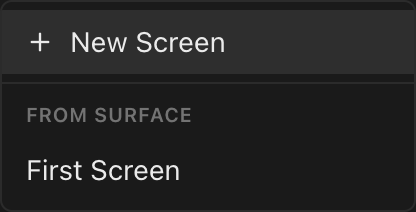
| Item | What it does |
|---|---|
| New Screen | Creates a blank screen with the defaults below and selects it. |
| From Surface | Lists your surfaces; picking one creates the screen and links that surface to it, so its content immediately feeds the new wall. Hidden when the project has no surfaces. See Feeding screens video. |
Both actions are also in the command palette (⌘K) as Add Screen and Add Screen from Surface. And the guided File → New with wizard… flow starts at a Screens step where you add one or more screen drafts, each with a name, grid size (default 4×2), a panel type and, optionally, the receiver card installed in its panels, before picking a processor; see New project wizard.
A new screen is placed automatically so it doesn't overlap anything you already have. It is packed into free space in the 2D mapping view, and lined up beside the existing walls in 3D. It takes the next color from the built-in palette and a name: the first screen in a project is simply Screen, and each one after it continues the numbered family (Screen 2, Screen 3, …).
New-screen defaults
| Setting | Default |
|---|---|
| Grid | 4 × 4 panels |
| Panel type | None (untyped): 128×128 px, 500×500 mm, 80 mm deep per panel |
| Data & power path | U-Turn, starting top-left, running horizontally |
| Power strings | 220 V; amps per string start at the project's Circuit amps (16 A in a new project) |
| Pixels per string | 650,000 |
| Mounting | None |
Pick a real product right away in Inspector → Panel → Type; see Panel types.
Plan limits
In cloud-connected builds the number of screens per project is gated by your plan: Free allows 1, Pro 12, Studio unlimited. The gate applies to Duplicate as well as add. See Plans & billing. Offline builds have no caps.
Name, color & the screen read-outs
Select a screen (click its row in the left sidebar, click any of its panels twice, or click it in 3D) and the Inspector opens with the SCREEN section:
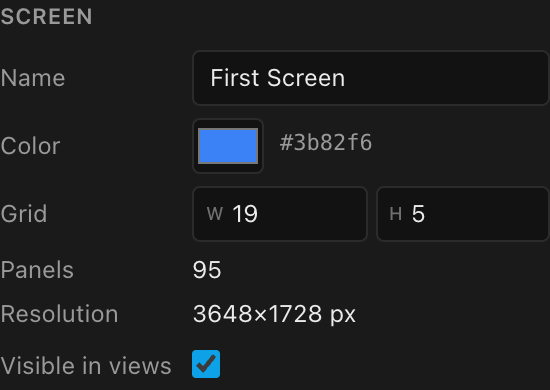
| Field | What it does |
|---|---|
| Name | The screen's label everywhere: views, left rail, paperwork. Names are kept unique across the project: a duplicate gets a number suffix. A blank name is ignored. |
| Color | The screen's identity color, used in the 2D mapping view, the left-rail swatch, the 3D selection tint, and on sheets. Any hex color. ⌘K → Cycle Screen Color steps through the palette. |
| Grid | Panels wide × high; see below. |
| Panels | Read-only: how many panels the grid holds (blank spacer panels are not counted; they're reported in the Panel section). |
| Resolution | Read-only: the screen's total pixel footprint. Half-panel edge rows/columns are accounted for: each half edge removes half a panel of pixels, so half rows on both edges take a whole panel of height off. |
| Visible in views | Uncheck to temporarily take this screen out of the 3D and 2D mapping views; see Show & hide screens below. It does not remove the screen from the project. |
Show & hide screens
When a project has several walls they can end up stacked on top of each other, and the one you want to work on is behind the one you don't. Every screen row in the left sidebar carries two buttons. Think mute and solo on a sound desk:
| Button | What it does |
|---|---|
| Hide (the eyeball) | Hides just this screen. Click again to bring it back. A hidden row goes dim and its eyeball shows struck through. |
| Isolate (the brackets) | Hides every other screen, leaving only this one. The button turns amber while it is the one showing; click it again to bring everybody back. |
While anything is hidden the SCREENS header shows an amber N hidden button. Click it to show every screen again.
⌥-clicking (Alt-clicking) the eyeball still isolates, if you prefer the keyboard hand; it does exactly what the isolate button does.
The hide switch is also in the Inspector as Visible in views, so you can hide the screen you already have selected without going back to the sidebar.
Surfaces have the same pair of buttons and the same amber N hidden reset in their own SURFACES header. Isolating works within a group: isolating a screen hides other screens, isolating a surface hides other surfaces. The two never reach across into each other. See the Project Browser.
What hiding does (and does not) change
Hiding is a view convenience, not a design change. A hidden screen is still completely part of the project.
| Hiding a screen removes it from… | Hiding a screen changes nothing in… |
|---|---|
| the 3D workbench: its panels, its mounting hardware, and its cables in the wiring overlay | drawings and the exported PDF/DXF: every sheet still shows every screen |
| the 2D mapping view | the bill of materials, weight estimate and cable lengths |
| the camera's Fit framing, which now frames only what you can see | all wiring and power figures: strings, circuits, labels |
| the processor canvas and the video signal: outputs and surfaces are untouched |
A hidden screen is still on the drawings and the parts list
This is deliberate: you still have to buy, rig and truck that wall. If you print a drawing set with a screen hidden, that screen is still on every sheet, and it is still in the BOM. Hiding it only gets it out of your way on screen. To leave a wall out of the build, delete it, or disable its panels.
Hiding is stored with the project, so it survives saving and reopening, and it travels with the file to whoever you send it to. It is an ordinary edit, so undo reverses it.
Grid dimensions
Grid W / H set how many panels wide and high the screen is. Editing either regenerates the panel grid live, in one undoable step. Surviving cells keep their hand-work:
- panel identity, lock flags, and manual data/power wiring
- enabled/disabled state (for cells that stay the same kind: LED vs. blank)
- manual processor pins (see Multi-processor screens)
- per-panel shape overrides (see Panel shapes)
- on locked panels: whatever each lock holds (Lock map the mapping position, Lock 2D the 2D position, Lock 3D the 3D position and angle), plus any size and wattage overrides
- the screen's own rotation: a tilted or angled wall comes back at the same angle, just wider or taller. The same goes for changing the panel type or the curve
New cells get fresh defaults; removed cells drop out, and any wiring that referenced them is cleaned up. If a surface is linked, its placement resizes to the new footprint automatically.
Overrides on unlocked panels don't survive a resize
Per-panel pixel/physical/wattage overrides are only carried across a grid resize on panels with at least one position lock (or a shape override). If you've hand-tuned a panel, set a lock on it; see Panel layout.
Which edge grows?
Columns are added and removed on the right, rows at the bottom. To extend a wall upward, resize it and then move the screen up in the Position section.
A screen cut into slices can't be resized
If you have cut the screen's picture into slices, Grid is disabled, with the note This screen is cut into slices, so its layout is locked. Clear the slices to change its size, half-panels, or panel type. The slices are pinned to the panel seams a resize would move. Ungroup them first (select a slice and press ⌘U).
Your plan limits how many panels one screen may have: Free 32, Pro 300, Studio unlimited (see Plans & billing). It's a firm limit, not a suggestion: a resize that would push a screen past it is refused and offers the upgrade, and a project containing an over-limit screen won't open. You can always make an over-limit screen smaller, so a screen is never stuck. Blank (spacer) panels don't count toward it. The limit counts LED panels, which is the Panels figure shown right under the grid fields.
Position & rotation
The POSITION section moves the whole screen rigidly: every panel translates with it and the relative layout is preserved:
| Field | Space |
|---|---|
2D X/Y (px) | Where the screen samples in the processor's composite space, the 2D mapping view. Moving the screen here keeps a linked surface placement (or its slices) in sync. |
3D X/Y/Z (mm) | Where the wall stands in the world, as the 3D workbench shows. |
Rotation X/Y/Z (°) | Whole-screen rotation in degrees; panels rigidly follow. The three angles apply in order: X tilts about the world's left-right axis, Y then spins about the screen's own up-axis (as tilted by X), Z then rolls about its face. Hover the ⓘ beside the row for this reminder. The 3D rotate gizmo's rings follow the same screen-own axes. The angle survives a grid resize, so you can keep sizing the wall after you've angled it. |
In the 3D workbench a selected screen also gets a Move / Rotate gizmo for dragging it directly; see The 3D workbench.
To tidy up overlapping screens in mapping space, ⌘K → Auto-Pack Screens packs every screen on the processor canvas into free space without overlaps (it leaves the layout untouched if they can't all fit). See Arranging screens & panels in 2D.
Duplicate & delete
At the bottom of the screen inspector sit Duplicate and Delete (also ⌘K → Duplicate Screen / Delete Screen).
- Duplicate clones the screen and all its panels. Manual wiring is remapped onto the new panels so the copy is fully self-contained, and the copy is nudged sideways so it doesn't sit on top of the original. The copy is named
<name> copyand selected. A surface link is not copied: a link is one-to-one, so the copy starts unlinked. The copy is always visible, even if you duplicated a hidden screen. It's selected the moment it's made, and a new screen you can't see would just look broken. - Delete removes the screen and its panels after a confirmation dialog (
"<name>" will be removed. You can undo this.). Any placement that fed the screen loses its link; hand-picked slice placements belonging to the screen are removed with it. Any cable you drew between it and another screen goes with it, and the app tells you how many. It's the same thing that happens to a hand-drawn wire when the panel it points at disappears.
Both are ordinary edits; undo brings everything back.