

Appearance
Fields & numeric input
Every field in the right-hand Inspector follows one commit contract, so once you've learned how one number field behaves, you've learned them all. The short version: stepping applies instantly, typing applies when you're done.
Number fields
Number fields are everywhere: positions, sizes, counts, offsets, wattages. They accept two kinds of input, with different timing:
| Input | When it applies |
|---|---|
Stepper gestures: the ↑/↓ arrow keys, or the mouse wheel over a focused field | Live. The 3D view or drawing redraws the instant the value steps, even while you hold the key. Each field steps by its own increment. |
| Typing | Buffered. Nothing applies (and nothing snaps back) until you press Enter or leave the field. |
The buffering is what makes retyping painless: you can clear the field completely, type a partial number like - or 1., and the app just waits. Then:
Enter: commits the value (and leaves the field).- Clicking away / tabbing away: commits a valid value; an empty or half-typed draft is discarded and the field silently restores the previous value.
Escape: throws away your draft immediately and restores the live value.
Type a number outside a field's limits (amps per string above the project's Circuit amps, say) and the app keeps the nearest value it allows. When you leave the field, the box shows the value that was actually kept, never the number that was refused.
No spinner arrows
The browser's native up/down spinner arrows are hidden on purpose (they ate the space the compact fields need). Stepping still works; use the ↑/↓ keys or scroll the mouse wheel with the field focused.
Fields carry their own minimum, maximum, and step size where the property has real limits (a panel count can't go below 1, an opacity can't exceed 100%), and many show a small unit tag after the box (mm, px, °, W) telling you exactly what you're editing. Dimension fields are always millimetres, whatever your unit preference; see Units of measurement.
Large read-outs, such as pixel counts, use the number format of your app language: 2,073,600 px in English, 2.073.600 px in German. See Languages & translations.
Tuple fields: X/Y, X/Y/Z, W/H
Related numbers are grouped into compact tuple fields with a small axis tag (X, Y, Z, W, H) tucked inside each box's border. Two-value tuples share the row with their label; three-value tuples (positions, rotations) put the label on its own line so the cells stay readable.
Every field row keeps a fixed-width label column. A label too long for it wraps onto a second line instead of being cut off with an ellipsis, so a written-out name like Override panel wattage always reads in full. Hover any label to see it on one line. Read-only values wrap the same way.
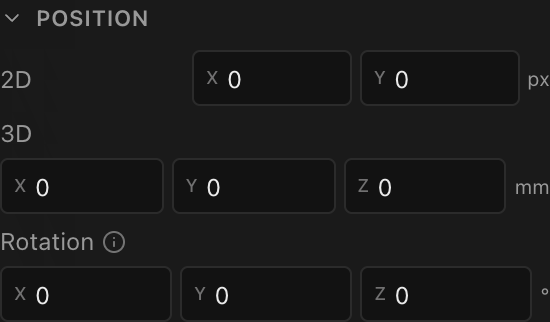
Each cell is a full number field in its own right (independent live stepping, buffered typing, Enter/Escape, min/max), so you can retype X without disturbing Y.
Text fields
Text fields (names, prefixes, notes) commit when you press Enter or leave the field, and Escape restores the live value. One visit to the field is one edit, however much you retype in between.
Everything else commits immediately
| Control | Behavior |
|---|---|
| Checkboxes / toggles | Apply on click. |
| Dropdowns | Apply on selection. |
| Color pickers | Apply as you pick; the hex value is shown beside the swatch. |
| Sliders | Apply live as you drag, with a numeric readout beside the track. |
Mixed values in multi-selection
When several selected items disagree on a field (say you marquee-selected a dozen panels in 2D Mapping and some are locked, some not), the field shows the Mixed state instead of picking a side:
- number and text fields show a
Mixedplaceholder, - checkboxes render indeterminate (a dash),
- dropdowns show a
Mixedentry, - color fields and sliders show
Mixed/-readouts.
Committing a value into a Mixed field applies it to all selected items at once. That's the intended bulk-edit gesture: select many, type once.
How field edits land in undo
Every committed field change is a normal document edit, so ⌘Z reverses it; see Undo, redo & versions. The granularity is tuned to feel right:
- A run of stepper ticks in one field is one undo step, not one per tick.
- Consecutive commits to the same field merge into one step; editing a different field starts a new one.
- Committing an unchanged value creates no undo step at all.
Watching a value "revert"?
If you type a number and it appears to be ignored, you probably left the field with an incomplete draft (empty, -, 1.). The field discards those and restores the previous value rather than guessing. Retype the number and press Enter.