

Appearance
Live content & test patterns on the wall
The 3D wall doesn't show a mock-up: every panel displays its exact slice of the per-processor-canvas composite, the same pixels the processor would actually output. Test patterns animate live, video plays and images show, and per-surface logo overlays draw on top. This page covers what you see on the wall and the full option set of the two wiring-aware patterns.
The content pipeline
Content reaches a panel through the chain configured in the Video workbench:
- A surface provides pixels: a test pattern, an image or a video.
- Its placements put it on one or more video sources (outputs).
- Each output is tiled into its processor canvas composite.
- Each panel samples its mapped slice of that composite: in 3D, in 2D Mapping, in the Live Output window and in exports alike.
A video source is one cable carrying one frame: if the same source feeds two processors, both walls show the identical picture, including any regions of a hand-sliced screen that were arranged on one of them. See One cable, one frame.
One shared clock drives every animated pattern and video across all workbenches, at full rate; nothing pauses when you switch views. Projects with no animated content render once and stay put (no wasted GPU work).
What panel states look like
| Panel state | Rendered as |
|---|---|
| Enabled, mapped inside the composite | Its live slice of the composite |
| Mapped beyond the composite edge | Black: there are no source pixels there. That's the truth of the mapping, not a bug. |
| Disabled | Dim grey and semi-transparent |
| Blank / spacer panel | A solid black box: structure without electronics |
Media is session-only
Image and video files are not stored in the project file. After a reload, surfaces that used them render nothing until the media is re-added (Media sources). Test patterns are part of the project and always persist.
TIP
In the LED render mode, the composite renders at native pixel resolution, so one composite pixel is one physical LED, so what you see up close is the wall's true pixel grid.
Test patterns on the wall
Thirteen procedural patterns can drive a surface: Solid color, SMPTE bars, three Scrolling patterns, Grid, Gradient, Rainbow, Surface info, Checkerboard, Chroma subsampling, Data path and Power path. Select the surface (in the Video workbench or the left sidebar), set Inspector → Surface → Source to Test pattern, and pick the type from the Pattern dropdown. Each pattern's options appear in the Inspector below; every edit is a single undo step.
Whatever the pattern draws on the surface is what the 3D wall shows, pixel for pixel. Every pattern and every option (including the Data path panel map, its Color by processor / video input / port colours, and the real wiring a linked surface draws) is documented once, in Test patterns.
The Power path pattern
The power twin of the data path: it draws each power daisy-chain's routing over the panel grid. On a linked surface it uses the real power topology: actual chains, chain order and circuit labels; unlinked, it draws the virtual grid.
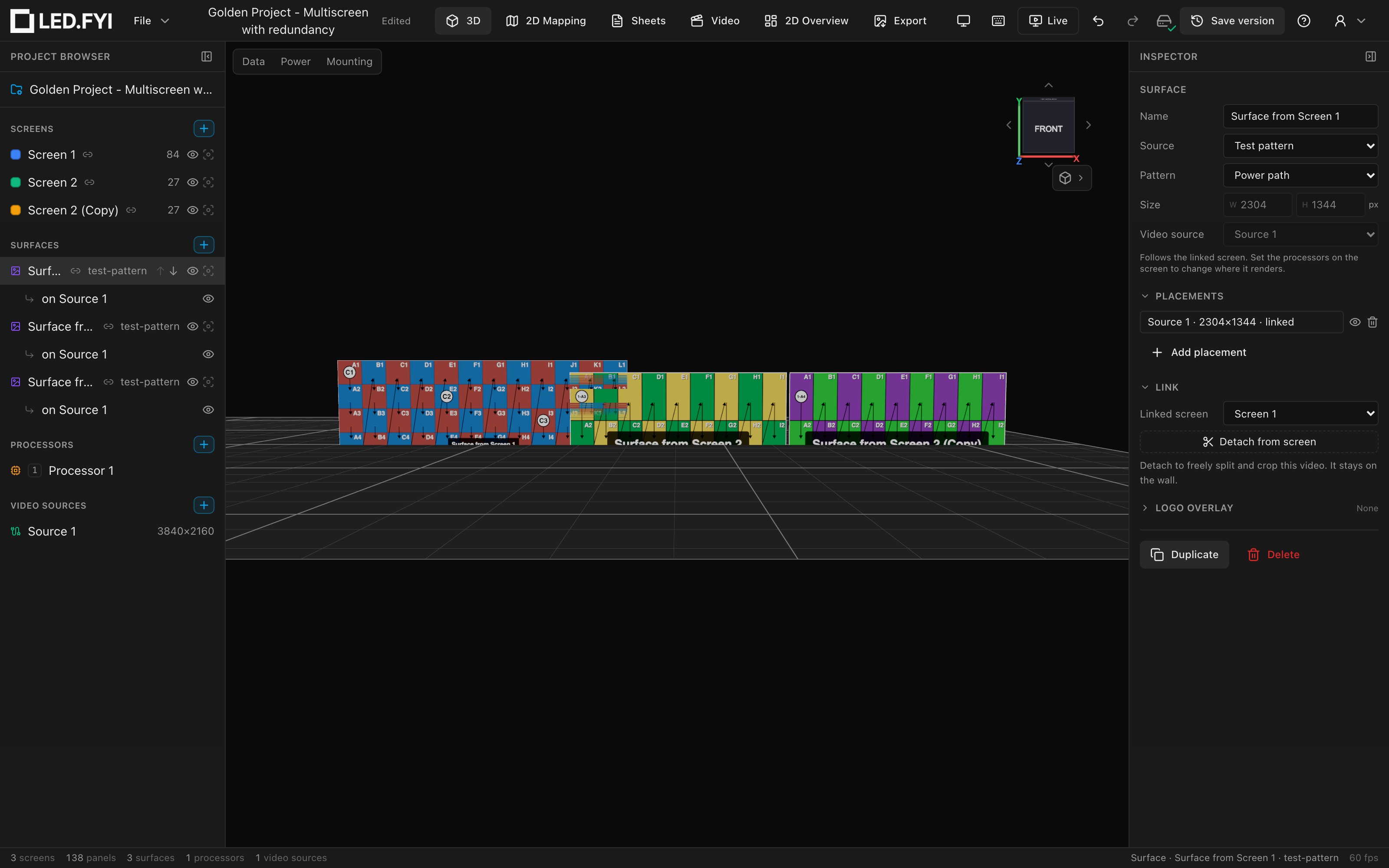
How to read it: routing arrows are drawn black; each chain starts with a small dot coloured from a fixed built-in 12-colour high-contrast palette (cycled by circuit), and a white chip carries the circuit label (e.g. C7). There is no per-option form for this pattern in the Inspector; pick it from the Pattern dropdown and it renders with these built-ins.
INFO
The on-wall power palette is deliberately not the app-wide wiring colour preference; that preference governs the wiring sheets exports only. A per-surface colour override is a recorded future follow-up.
Physically true rendering
A few things the 3D wall gets physically right, automatically:
- Panel depth. Panels render as real cabinets using the panel type's physical depth from the equipment library. Content shows on the front face only; the sides and the back are the cabinet itself (frame, hub, lock levers); see The back of a panel. Types with no depth on file draw at a nominal 80 mm, so Top/Side/parallel views always read like true elevations.
- Panel shapes. The eight corner panel-shape variants (triangles and rounded corners) render as true shaped prisms, sampling their content exactly as the full rectangle would; the shape masks it. Blank spacer panels always render rectangular.
- Curved screens. Screens with curving configured render genuinely curved: every panel at its own computed position and angle, with content and wiring overlays following the curve.
Everything on this page is also what a client sees in a read-only share link: same compositor, same patterns, same animation.