

Appearance
Wiring overlays & the wire editor
The 2D Mapping workbench can draw the project's data strings and power daisy-chains directly over the panels, and let you re-wire them by hand with a connect-by-hover editor. This page covers the mapping view's controls; the underlying concepts live in the Wiring & power section: data path & string splitting, string-to-port assignment, redundancy, and labels.
Showing the overlays
The wiring toolbar sits at the top-left of the view. The two Show pills toggle the read-only overlays independently:
| Pill | Accent | Draws | Default |
|---|---|---|---|
| Show → Data | Blue | Every data string as solid arrowed wires, panel to panel in path order, with port/cable chips | Off |
| Show → Power | Orange | Every power daisy-chain in warm per-circuit colors, with circuit chips | Off |
Both toggles are session-only view state; they reset when you reload or switch projects. Wire, arrow, and chip sizes scale with the panels, so the overlay reads the same at any zoom. Disabled panels and spacer panels never appear in any string.
Power wire anchors are offset up-and-left from the data anchors, so you can read both overlays together without them sitting on top of each other.
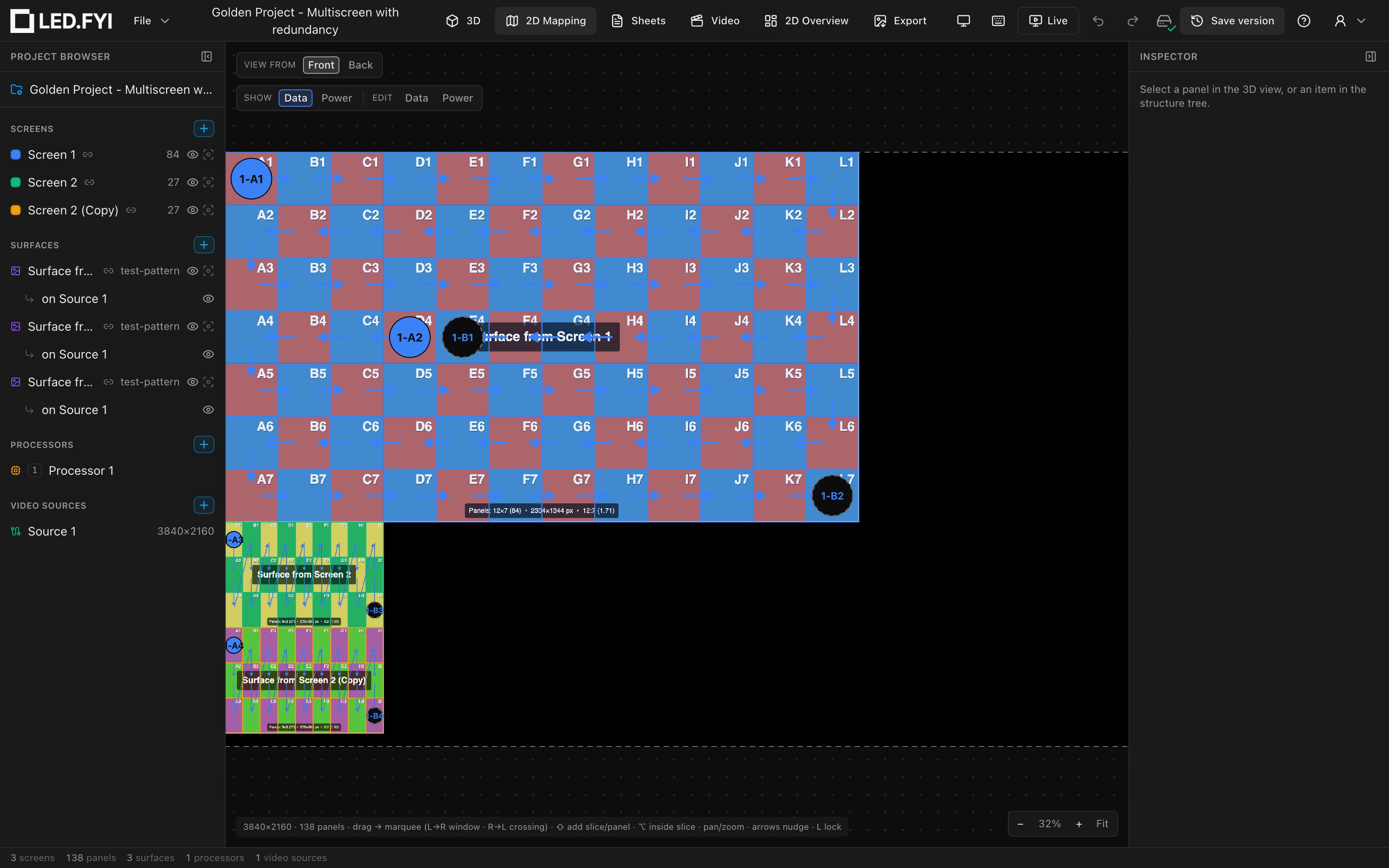
Reading the data overlay
The overlay follows the app-wide wiring design language: solid = primary feed, dashed = backup. A chip's fill is the run's own colour and its ring is your main or backup colour, so the chip says which cable it is and which system it belongs to at once.
| Marker | Meaning |
|---|---|
| Solid circle chip on a string's first panel | The string's primary port/cable label (for example 9-A1: processor tag, trunk letter, port number) |
| Dashed circle chip on a redundant string's last panel | The backup port label: the redundant feed into the far end |
| Small plain dot on the first panel | A string with no label to show yet |
| Arrows between panels | The signal path, in panel order |
A run drawn across a screen boundary is one cable, so it draws as one continuous chain in one colour with a single label; it doesn't stop and restart at the seam.
Colors carry meaning too:
| String style | Color | When |
|---|---|---|
| Routed through a network switch | A cool per-trunk link color | The string's port is assigned to a switch; every string on the same trunk shares the color |
| Plugged directly into a processor output | Neutral gray, with its port label | Direct assignment, no switch |
| Unassigned (no port yet) | Gray, with the string's project-wide S1/S2/… number, the same number String assignment lists it under | Before auto-assign, or after Clear String Assignments |
The trunk letter and cool color appear only once a port is actually assigned. Port assignment itself (Fill/Balance auto-assign, the per-string pickers, switches, redundancy) is authored in the Processor inspector; see String-to-port assignment. Running Clear String Assignments visibly greys the overlay and renumbers the strings.
Fixed palette
The overlay colors are the app's fixed identity palette. The user-customizable wiring colors in Preferences affect the wiring sheets exports only.
The power overlay's chips and colors are covered in Power circuits in the mapping view, which is also where you right-click a chain's head chip to re-assign its circuit label from the labels your project's scheme produces.
Port rectangles
On a processor that uses rectangle loading (the NovaStar MCTRL 660 Pro and MCTRL4K), each port is charged for the whole rectangle around its string's panels, gaps included. Port rectangles draws those rectangles so you can see what each port is carrying.
Turn them on either way:
- the Port rectangles pill in the toolbar at the top-left of the view (it only appears when the processor you're looking at uses rectangle loading), or
- View port rectangles in Inspector → String assignment, which also switches you to this workbench.
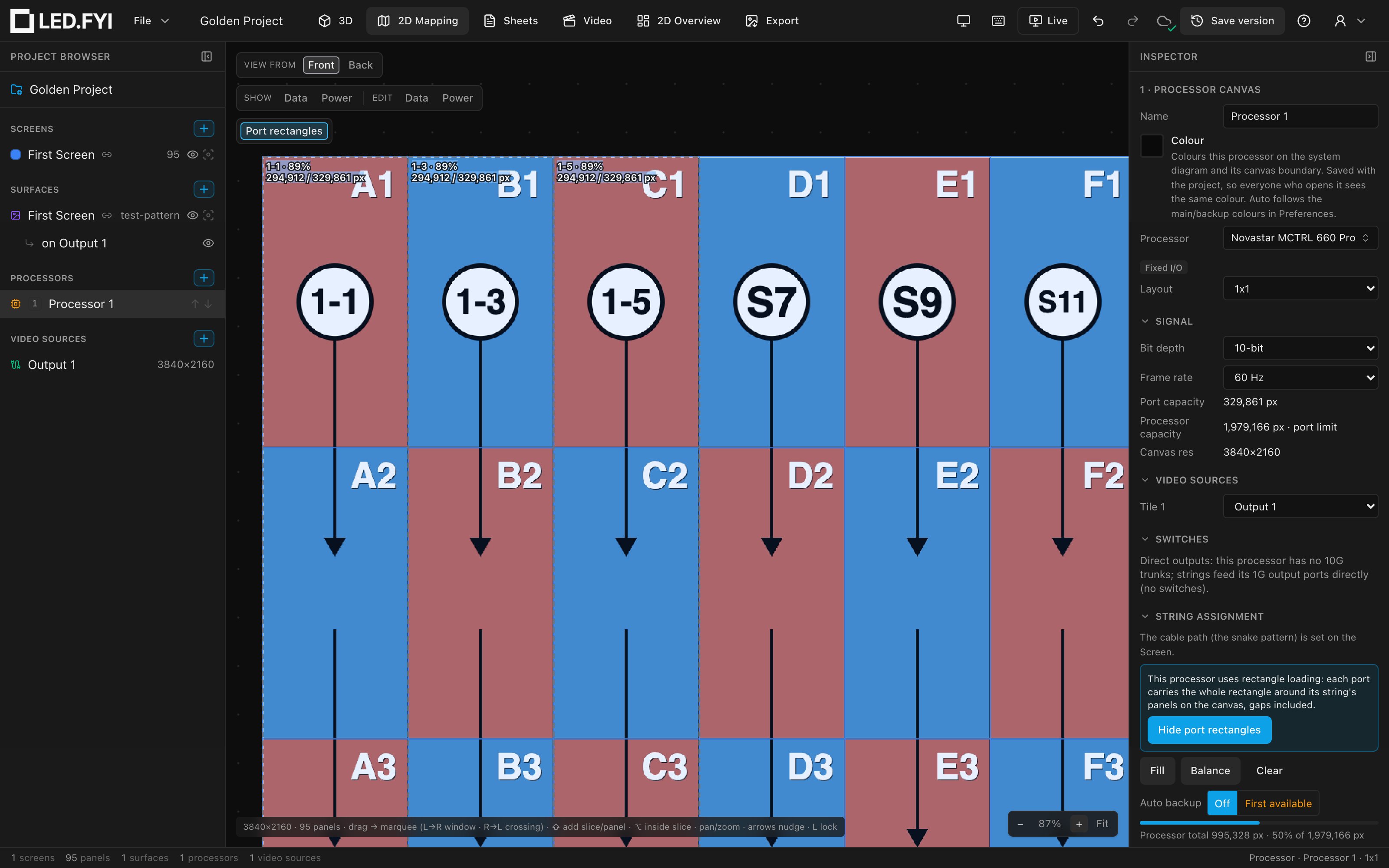
Each port that has a string gets:
| Part | What it shows |
|---|---|
| A dashed, animated outline | The rectangle the port is charged for, in the string's own colour |
| A label in the top corner | The port, the rectangle's pixels against the port's limit, and the percentage: 1-3 · 294,912 / 329,861 px (89%) |
| A red outline and tint | The rectangle is over the port's limit |
The rectangles follow the panels live: drag a panel and its port's box grows or shrinks as you move, before you let go, so you can see a port go over before you commit. When you drop it, the strings re-split if they need to and the rectangles redraw to match.
On a narrow box the label shortens to fit: first to two lines (1-3 · 89% over 294,912 / 329,861 px), then to just the percentage. Zoom in to read the full figures.
The setting is remembered on this computer (it's a view preference, not part of the project) and is off until you turn it on. Ports with no string have no rectangle. Anyone who has asked their system to reduce motion gets still outlines instead of animated ones.
What you see is what exports
The overlay geometry is shared with the 3D view and the drawing sheets, so the arrows, chips and labels can never disagree between them. (PNG exports carry plain content; no wiring is drawn into them.)
Editing wiring by hand
The Edit pills (Edit → Data, Edit → Power) enter interactive wire mode. The two are mutually exclusive; click the active pill again, or the ✕ button, to exit. Entering a mode fades the panel tints and replaces the panels with nodes:
| Node shape | Meaning |
|---|---|
| Triangle | A string start (no incoming connection) |
| Square | A string end, and the currently armed node |
| Circle | Mid-chain (or an isolated single-panel string) |
The editor works the same in Back view, where the canvas is mirrored the way the crew sees it from behind the wall. Arming, sweeping and cutting all follow the mouse, and every chip stays readable.
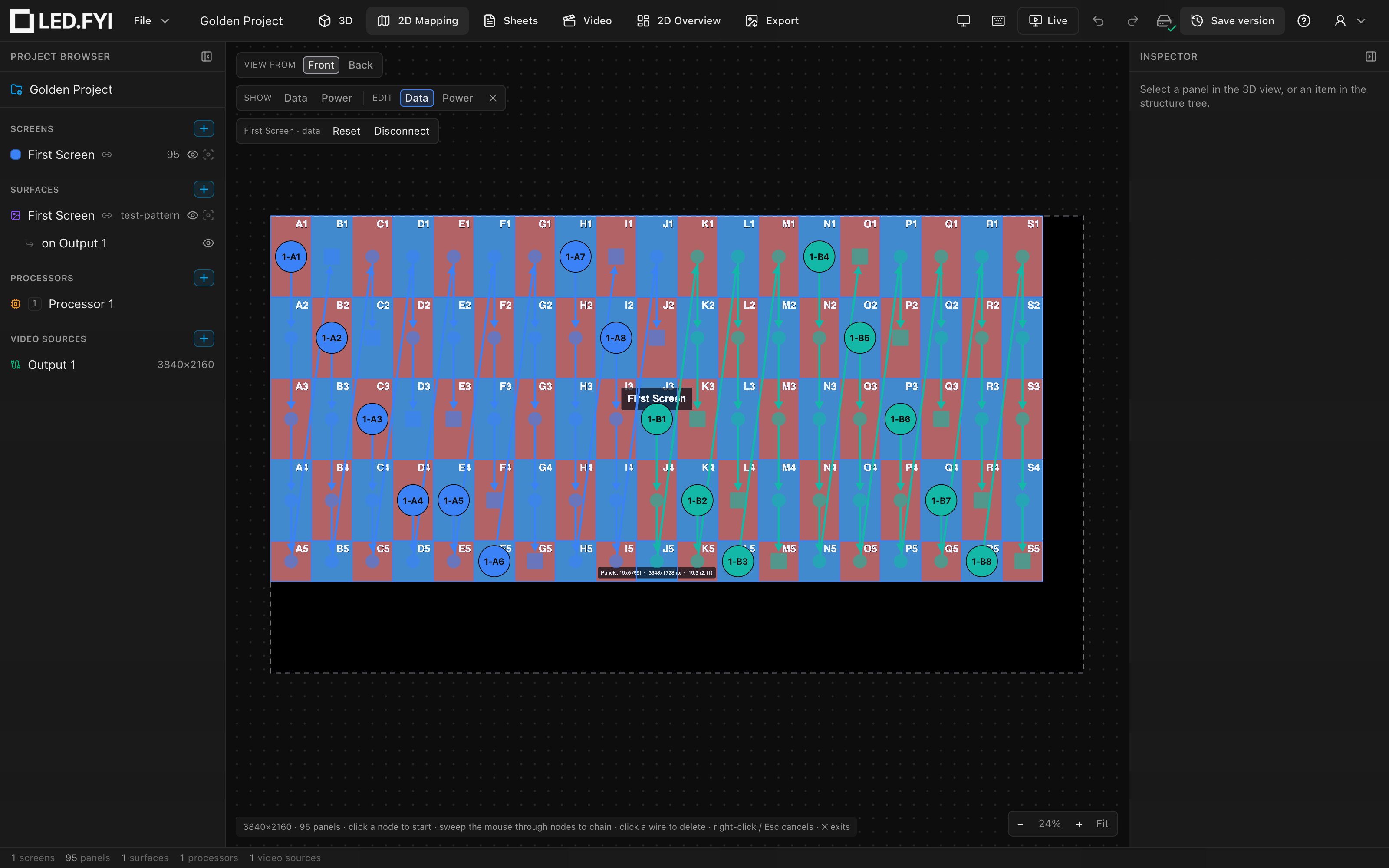
Connect by hover
- Click a node to arm it. The node grows and gets a white outline; a dashed rubber-band preview follows your cursor from it.
- Sweep the mouse through valid target nodes to chain them. No clicking needed: each node you pass through is connected and becomes the new chain end. Every hop is one undoable step.
- Click a wire segment to cut it. Segments redden as you hover them; the cut is one undo step.
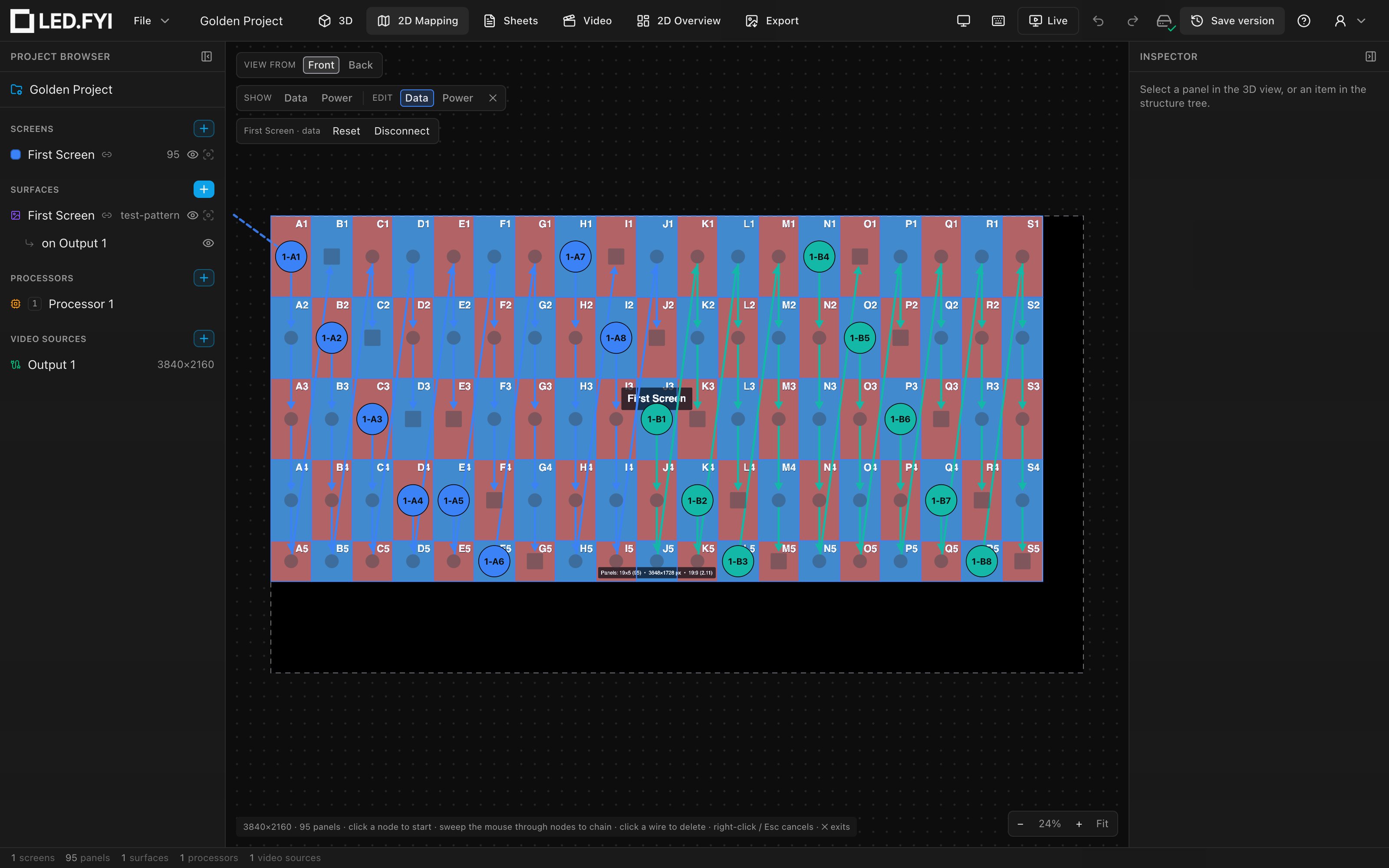
Valid targets light up with a white ring; invalid ones grey out. A target is valid only when it is:
- a string start (a node with no incoming connection),
- enabled,
- not already part of the chain you are drawing (no loops), and
- if it sits on another screen, one whose panels run the same receiver card; see running one cable across two screens.
A target on another screen is allowed on purpose: that's how you run one cable out of the last panel of one screen and into the first panel of the next. Click a greyed-out cross-screen node and the app tells you which receiver card is on each side.
Re-wiring a mid-chain panel
Only free string-starts accept a connection. To re-route a panel that is currently mid-chain, first cut its incoming wire (click that segment), or run Disconnect so every panel becomes a free start, and then chain onto it.
To let go without connecting: click the armed node again, click empty surface, right-click, or press Esc; all of these de-arm the current chain but keep you in wire mode. Press Esc again (or click ✕) to exit the mode. While you edit one mode, the other overlay (if shown) stays visible but dimmed for context.
Manual wires are stored as per-panel overrides layered on top of the screen's automatic path, and a cut is explicit: the chain deliberately ends there. See Manual wiring for how overrides interact with the engine.
The wire-mode toolbar
A second toolbar row appears while a wire mode is active. It is scoped to the screen(s) whose panels are on the processor canvas you are looking at, never to a screen elsewhere in the project. With one screen on the canvas, its name is shown at the left and the buttons act on it directly (their tooltips name it too). With several, the label reads "N screens on this processor" and the buttons become Reset… / Disconnect…: they open a small picker listing every screen on the canvas with its count of hand-drawn links and cuts, so you can tick some, all, or none before Apply. The selected screen is pre-ticked when it is one of them, otherwise all are; a multi-screen action is one undo step.
| Control | What it does |
|---|---|
| Reset | Deletes every manual wire override on that screen for the active mode, back to the pure automatic pattern |
| Disconnect | Cuts everything: every enabled panel becomes its own isolated one-panel string |
Reset is also in the Screen inspector
When a screen carries hand-drawn wiring, the inspector's Wiring paths row says so: "Hand-drawn wiring overrides this pattern: N links, M cuts", and offers Reset to automatic wiring right next to the pattern picker. That is the quickest way back to the automatic pattern; you never need to enter wire mode for it. See Manual wiring.
The pattern itself is set in the inspector
This toolbar is only for the manual, per-panel overrides. The automatic path (pattern, start corner and direction) is chosen from the Screen inspector's Wiring paths picker: two rows (Data in green, Power in orange) showing the current method, unfolding into a grid of all 24 routes when you click one. The new project wizard's Wiring step shows the same picker. See Data path, which also covers why U-Turn and Zig-zag are easy to mix up.
Data and power each carry their own independent path settings per screen. Manual wire overrides survive a pattern change: they stay layered on top of the new pattern; Reset is what clears them.
Also in the command palette
Reset Data Wiring to Pattern, Reset Power Wiring to Pattern, Disconnect All Data Wiring, and Disconnect All Power Wiring run from ⌘K without entering wire mode, scoped to the selected screen, the selected panels' screens, or, with a processor selected, every screen on that processor.