

Appearance
Undo, redo & versions
LED.FYI keeps two histories of your project, on purpose. Undo is the fine-grained one: every edit you make, reversible one step at a time with ⌘Z, alive for the current session. Versions are the durable one: named snapshots you create deliberately with ⌘⇧S and can restore days later. Undo never rewinds a version, and saving a version never touches your undo history.
Undo & redo
⌘Z undoes, ⌘⇧Z redoes. The top bar has matching arrow buttons (tooltips Undo (⌘Z) / Redo (⌘⇧Z)) that disable when there's nothing left in that direction, and both commands are in the command palette. Pressing ⌘Z or ⌘⇧Z when there is nothing in that direction simply does nothing.

Undo covers every document edit, from every surface. An Inspector field change, a panel drag in 2D, a screen move in 3D, a wiring command from the palette, a sheet-block nudge: each becomes one entry in the same app-wide history. There are no per-workbench undo stacks.
One gesture = one undo step
Continuous gestures coalesce into a single history entry, so one ⌘Z reverses the whole thing, not one pixel of it:
- a full drag (moving/rotating a screen in 3D, dragging panels in 2D, moving a sheet block),
- a burst of arrow-key nudges in 2D Mapping or Sheets,
- a run of stepper ticks or a typing burst in one Inspector field,
- a slider scrub.
Consecutive edits to the same field merge; as soon as you edit something else, the next edit starts a fresh step.
A few more rules worth knowing:
- Edits that change nothing never enter history. Committing the same value a field already had doesn't burn an undo step.
- A new edit discards the redo trail. Undo is linear: undo three steps, make a fresh edit, and those three redos are gone for good.
- Multi-part operations are all-or-nothing. If a compound operation fails partway, everything it touched is rolled back; you never undo half of one.
- Selection cleans up after itself. If undo or redo removes the entity you had selected, the selection silently clears. The Inspector switching back to the project view after
⌘Zis expected, not a bug.
What undo does not cover
Undo tracks the document, nothing else. These are never undo steps:
| Not undoable | Why |
|---|---|
| Saving a version | Versions are permanent by design; see below. |
| Restoring a version | Restore is itself a forward move (see below); to "undo" a restore, restore the version you came from. |
| Cloud saves & autosave | Persistence, not editing. See Projects, saving & autosave. |
| Preferences, theme | App settings, not project content. |
| Saving, renaming or deleting a drawing template | Your templates aren't part of the project. Deleting one offers Undo in its notification instead. |
| Camera moves, workbench switches, selection changes, sidebar toggles | View state: changing what you look at isn't an edit. |
Undo and drawing templates
Using a template in a project (adding a saved sheet, inserting a saved block, applying a drawing set, Reset to template) is an ordinary edit, so one ⌘Z takes it back. While you're editing a template, ⌘Z undoes your changes to the template; when you leave the editor, your project's own undo history is back exactly as it was.
History lifetime
Undo history is per editing session and per document. Opening another project, creating a new one, importing a file, or restoring a version starts a fresh, empty history. It is not saved with the project.
Versions: the durable history
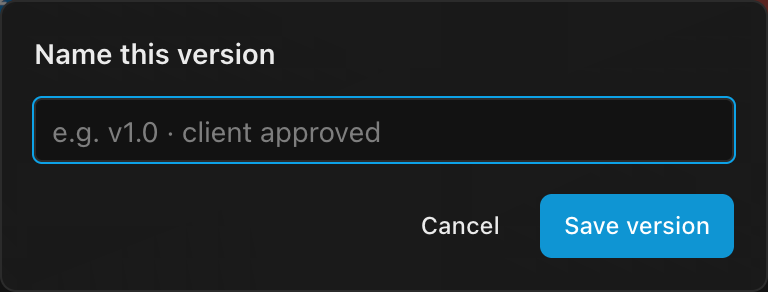
Press ⌘⇧S (or click Save version in the top bar, or run Save Version… from the palette) to snapshot the current state as a named version. A prompt asks you to name it, something like v1.0 · client approved, and a toast confirms Version saved. Cancelling the prompt (Esc or Cancel) saves nothing; confirming with an empty name asks you for one instead.
What ⌘S does
⌘S is not how you save; your project is already autosaved continuously, locally on every edit and to the cloud when the project is cloud-bound (see Cloud projects, history & autosave). Pressing it simply settles any pending autosave and confirms: All changes saved…. Nothing opens.
Saving a version is the deliberate act of marking a moment (a photo of the project you can always come back to), so it takes the deliberate chord, ⌘⇧S.
Browsing and restoring versions
Open File → Version history… (or ⌘K → Version History…). Versions are listed newest first, with the current one tagged current and each row carrying a restore button (tooltip Restore this version (as a new edit)). Esc or a click outside closes it.
Versions the app records for you (the first cloud save, a new project, a restored autosave, a V1 import) are tagged AUTOMATIC so the list reads as your restore points rather than the app's bookkeeping. They're still restorable like any other.
Why it isn't a permanent panel
Version history used to sit pinned to the bottom of the Project sidebar. That column is the app's busiest surface and versions are a rarely-used feature, so it was spending prime space on a rare action. Every comparable tool opens version history on demand instead: Onshape, Figma and Google Docs all do, and VS Code keeps source control in a separate view rather than inside the file tree.
Restoring loads that version's content as your current working state; nothing is deleted. The newer versions all stay in the list, and the restored content shows up as Edited until you save it as a version. So a "rollback" is really a forward move: restore v1.0, save it as v1.2 (reverted to approved layout), and the full trail survives. If you restore the wrong thing, just restore the version you were on.
Two consequences of restore worth knowing:
- Restore re-baselines undo. The undo history starts fresh from the restored state; you can't
⌘Z"past" a restore. Anything not yet captured in a version at the moment you restore is gone, so save a version first if the current state matters. - Undo never reaches versions.
⌘Zwalks back your edits within the session; it will never rewind you past a saved version or make one disappear.
The "Edited" marker
The word Edited next to the project name (tooltip Edited since your last saved version) means: the current content differs from the last saved version. It compares the actual content, not whether you touched anything, so if you make an edit and then undo your way back to exactly the version's state, the marker disappears again.
It has nothing to do with whether your work is safe. Autosave runs continuously regardless; this only tracks whether there's anything a Save version would capture. Where your work actually stands is the save readout beside it.
Why a word and not a dot
This used to be a small coloured dot labelled "unsaved changes", which read as a warning that work was at risk, when it never was. Apple's interface guidelines make the point directly: under autosave, that kind of marker "implies that people need to take action to avoid losing their work". Naming the state plainly avoids the false alarm.