

Appearance
The Video workbench
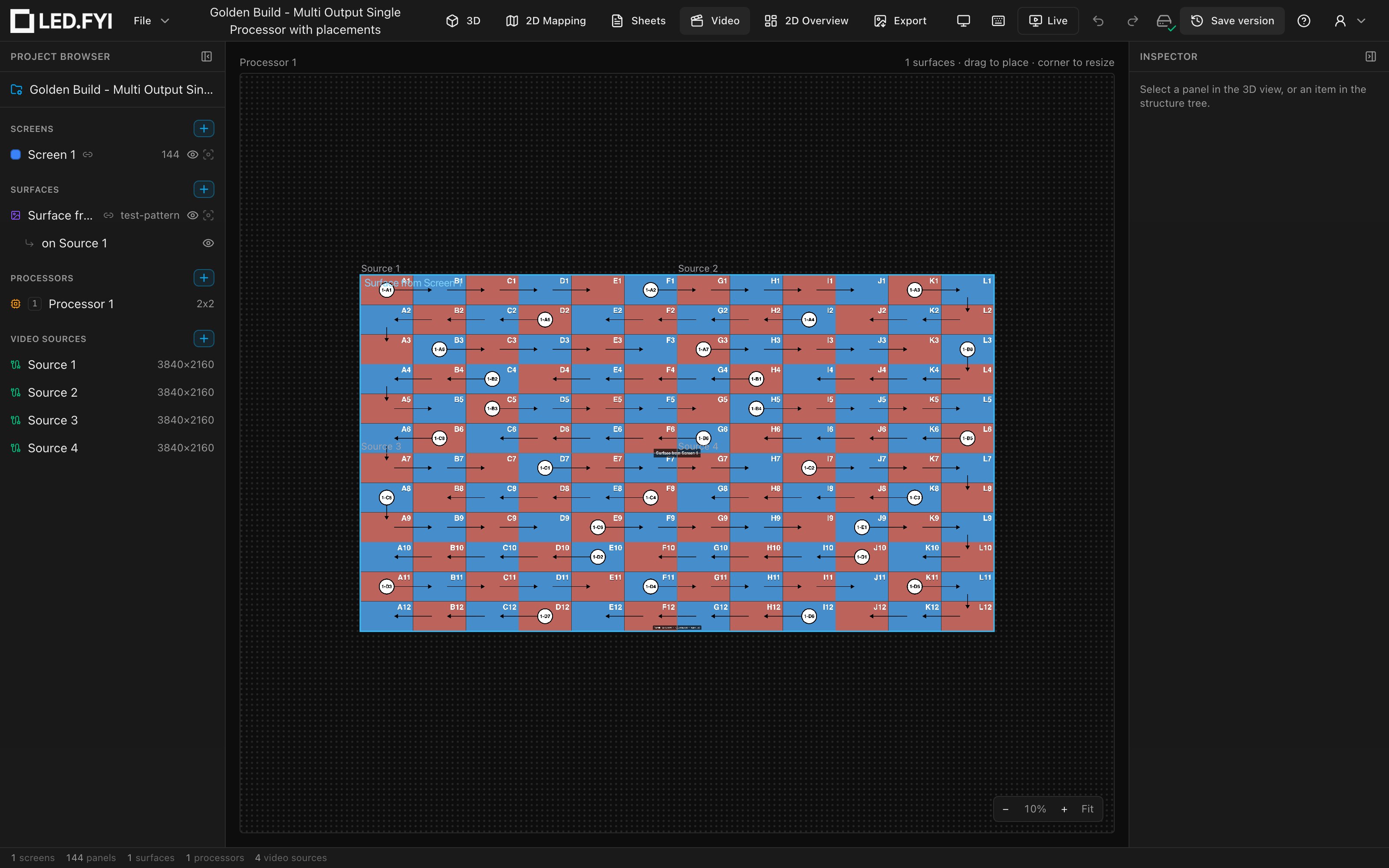
The Video workbench is the output side of your design: it previews, per processor, the exact pixels the LED processor would receive, and it's also where you place content: every surface placement is a rectangle you can drag, resize, and split directly on the output. Switch to it with the Video tab in the top bar or by pressing 4.
What you're looking at
The workbench shows video sources grouped by the processor they feed, one canvas per processor:
- A canvas switcher at the top-left names every processor canvas in the project, plus an Unassigned entry whenever a video source isn't bound to any processor input yet (below). It is the same control as on the 2D Mapping workbench; see Switching processor canvases. With a single processor and nothing unassigned there's nothing to switch between, so it doesn't appear.
- The active canvas follows your selection: select a processor, a screen, or a panel anywhere in the app and the workbench jumps to the processor that drives it. A screen split across several processors goes to the first processor that holds some of its panels (or, if the canvas you're already looking at holds some, the view stays put). Select a video source in the left sidebar and it jumps to the canvas that shows it (its processor's, or Unassigned) and frames that source.
- On a processor's canvas, its whole composite sits on an infinite dot-grid workspace, with a dashed outline marking where the output ends and off-raster canvas begins. Each input source is drawn as a tile at its real stitched position, labelled with the source's name: a
2x2layout shows four tiles butted together, a1x1shows one. Tile and placement labels keep a readable on-screen size at any zoom: framing a 4K canvas at 16% doesn't shrink the names to a smudge, and zooming to 400% doesn't blow them up over the picture. - The picture inside is the real composite: the same pixels shown on the 3D wall, in the 2D mapping view, in the Live Output window, and in PNG exports. Animated test patterns and playing video render live, and the preview keeps hard pixel edges (no smoothing), so zoomed-in patterns stay crisp.
- The caption above the canvas reads the canvas's name on the left and
N surfaces · drag to place · corner to resizeon the right, with a split hint added while a placement is selected.
A processor with no source bound to any of its inputs shows This canvas has no video inputs.; a project with no video sources at all shows This project has no outputs. Add one from the left sidebar's VIDEO SOURCES group (see Surfaces, placements & video sources).
Switching processor canvases
The switcher at the top-left is the same control as the 2D Mapping workbench's, so a processor is found the same way in both views:
- With up to six entries it is a row of pills; click one to show that processor's canvas.
- With seven or more (a show with nine processors and their nine backups has 18), it collapses to a compact control: a drop-down naming the active canvas (open it to pick any canvas; inside it the arrow keys step and typing a name jumps), ◀ / ▶ buttons that go to the previous / next canvas in tree order (they grey out at the ends rather than wrapping), and an
n of Nposition counter.
Picking a canvas either way switches to it, frames it, and selects the processor in the project browser. The Unassigned entry, when there is one, is always the last item (the last pill, or the last line of the drop-down), so it counts toward N and is reached exactly like a processor.
Unassigned sources
A video source that no processor input is bound to still needs somewhere to live, so it goes on the Unassigned canvas: the group of sources feeding nothing yet, picked from the switcher like any processor. It's the same workspace as a processor's canvas, not a separate kind of view:
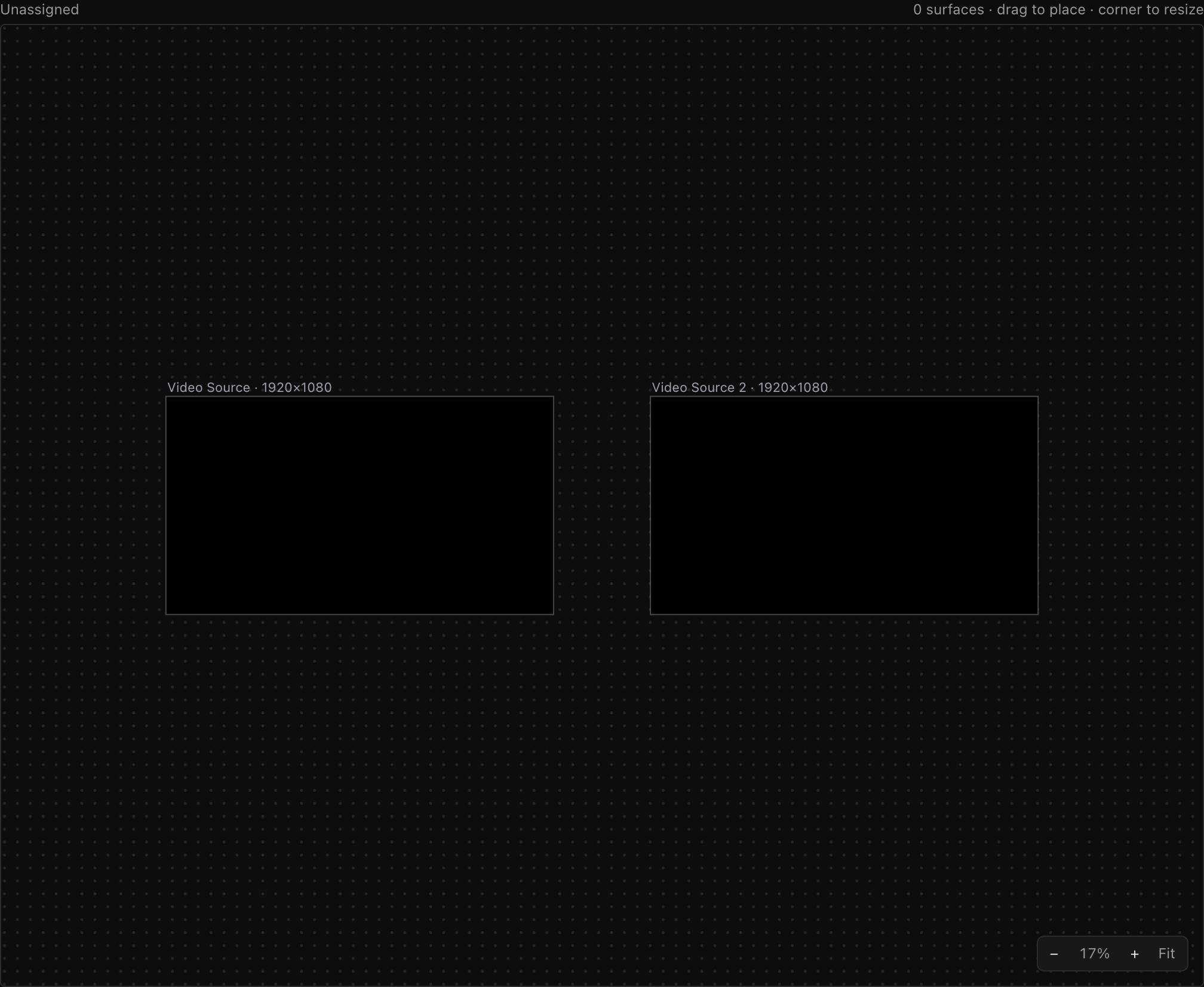
- The sources are laid out on one shelf (up to three across, then a new row, each row only as tall as its tallest source) with a deliberately wide gap between them and no dashed composite outline, because nothing stitches them together.
- Every tile is labelled
<source name> · W×H, so loose sources of different sizes are easy to tell apart. The hint above readsThese video sources aren't bound to a processor input yet. - Everything you can do on a processor's canvas works here (drag, resize, snap, split, the right-click menu, one zoom control for the lot), and you can drag a placement from one loose source onto another to move it there (see Dragging to another video source).
- Where a source sits on the shelf is presentation only. Nothing about it is saved, and placements keep their own source's pixel coordinates exactly as they would on a processor tile.
To take a source off the Unassigned canvas, bind it to a processor input in that processor's Inspector; see Inputs & input modes.
Navigating
The output sits on the same infinite pan/zoom surface as the 2D Mapping workbench, and the gestures match it exactly:
| Gesture | What it does |
|---|---|
| Scroll wheel / two-finger scroll | Pans (both axes) |
⌘/Ctrl + scroll, or trackpad pinch | Zooms toward the cursor |
Middle-mouse drag, or Space + left-drag | Pans (the CAD idiom) |
| Left-drag on a placement | Moves it; see the next section |
Space + left-drag pans from anywhere, including from on top of a placement, so you never have to hunt for empty canvas first. It's the gesture to reach for on a stitched multi-input canvas, where the full canvas is usually wider than the view. While the cursor is over the canvas, Space is the pan modifier and nothing else. Move off the canvas and it goes back to scrolling the page and activating whatever button has focus.
The zoom percentage and a Fit button sit at the bottom-right of the canvas; Fit re-frames the whole canvas and every placement on it.
Selecting, moving & resizing placements
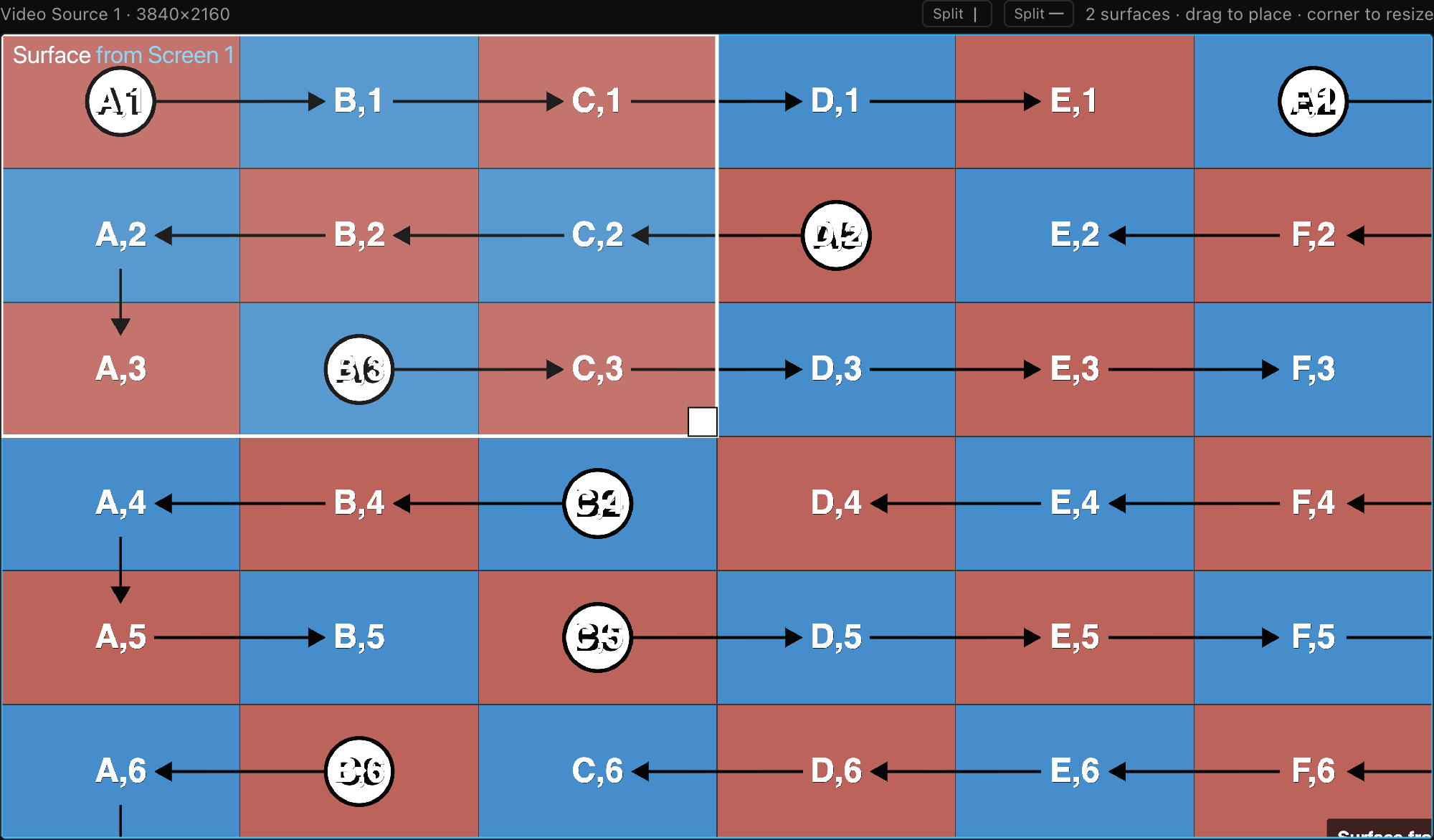
Every placement on the output is drawn as an outlined rectangle labelled with its surface's name:
| Action | How |
|---|---|
| Select | Click a rectangle. It highlights white and its form opens in the Inspector (see the placement form). |
| Deselect | Click empty canvas (or press Escape). |
| Move | Drag the rectangle body. Positions commit in whole pixels, as one undoable edit on release. |
| Resize | Drag the white corner handle (bottom-right). It appears only on the selected placement, and only when the placement is visible and not linked to a screen. Minimum size is 1×1 px. |
A few behaviors worth knowing:
- Snapping & alignment guides. As you drag or resize a placement, its edges gently snap to the edges of the frame it lives in and to the other placements in that frame, just like moving panels on the 2D Mapping canvas. On a stitched canvas the frame is the whole composite and the input seams count as edges too. A thin cyan guide line shows what it locked onto. Hold Alt while dragging to turn snapping off for fine freehand placement.
- Hidden placements draw as a faint dashed outline. You can still click one to select it (to edit it in the Inspector), but it can't be dragged until it's shown again.
- Linked placements (a placement 1:1-linked to a screen) have no resize handle; the screen's pixel footprint drives their size. Drag a whole-screen-linked placement and the screen's panel mapping moves with it: the panels sample from wherever the picture sits.
- Bound slices (the per-panel-group placements of a screen that spans several processors or inputs) move together with their panels: drag a slice and its panel group moves in the mapping (locked or disabled panels stay put). Dragging never moves a slice to another processor. To do that, pick another source in the slice's Video source dropdown in the Inspector (see Surface placements), or right-click its panels in the 2D Mapping workbench and use Assign to processor. See Multi-processor screens.
- A region that spans several inputs reads as one object. On a stitched canvas a screen's picture may be stored as one piece per input, but clicking any piece selects the whole region and outlines it as one. There is no way to grab a single piece, because they only ever move together.
Splitting a placement
Splitting cuts one placement into two along a vertical or horizontal line: the classic way to feed one wall from two processor outputs, or to fold a too-wide banner into stacked halves. Both the on-output rectangle and the crop of the surface split proportionally, so each half keeps showing exactly the pixels it showed before. The halves are then independent placements: drag each to its own position or onto a different video source.
- Select the placement. Two amber scissors buttons appear on it, one on its top edge (a left/right cut) and one on its left edge (a top/bottom cut); the caption reads
click a scissors to split · right-click for options. Right-clicking the placement offers the same two cuts as Split into left / right and Split into top / bottom. - Click a scissors. A dashed cut line appears at the placement's midpoint and follows the pointer; the caption switches to
click to cut · esc cancels. - Click to cut.
Esccancels.
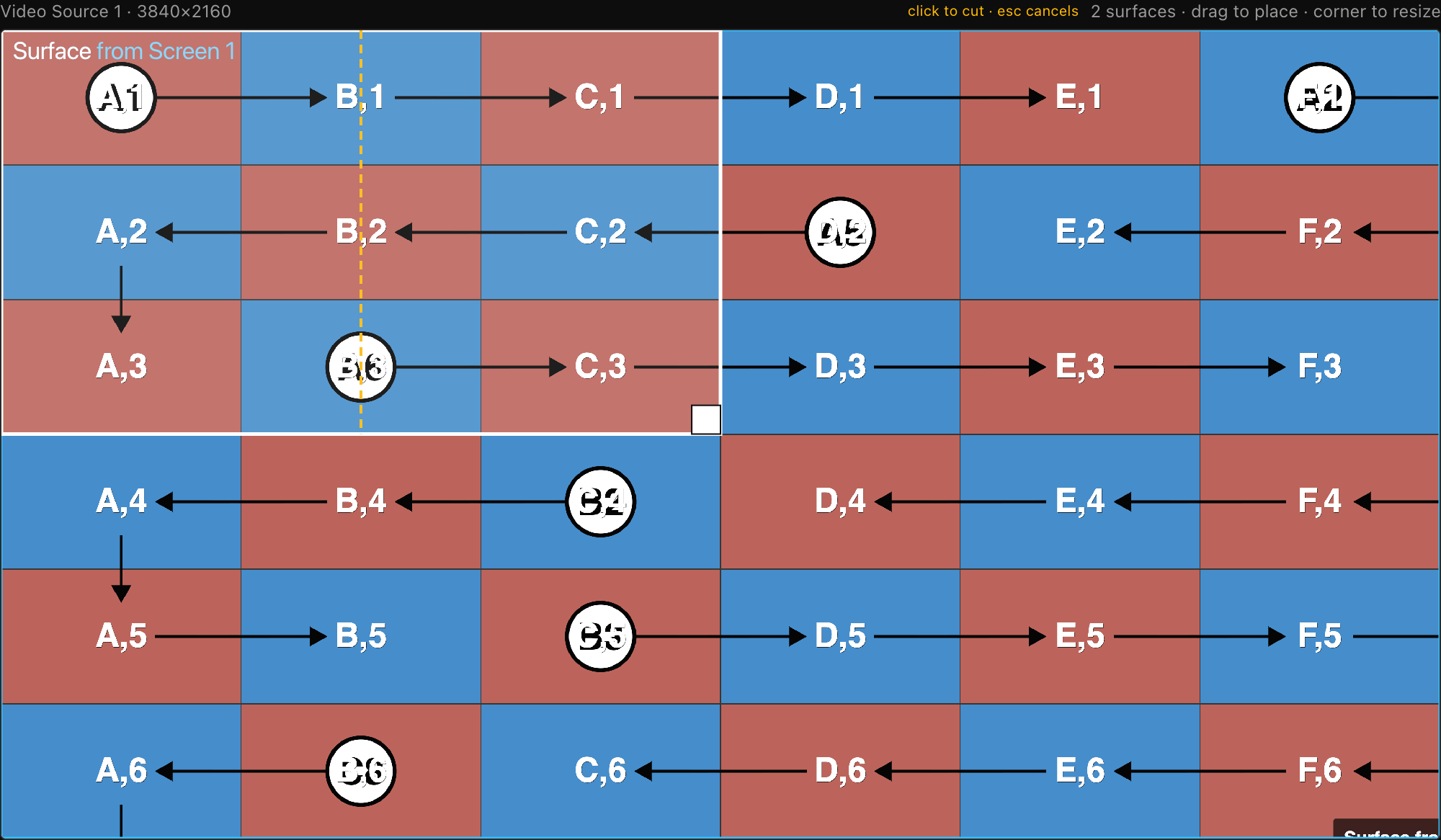
- The line always stays inside the placement; it can't reach the outer edges, so you can't create a zero-width sliver.
- It snaps to every panel edge on that canvas and to the placement's midpoint (snap range is 1% of the source dimension, at least
4px). It draws amber when free and emerald when snapped. Snapping to a panel edge is how you cut exactly on a panel boundary. On a stitched canvas every panel on the composite counts, not just those on one input, because the picture is continuous across the seams. - The cut is one undoable step.
Splitting a linked placement
A placement linked to a screen splits too, but only along the screen's panel grid. The line locks to the nearest full-span panel seam (a seam no panel straddles, so both sides come out as whole-panel rectangles), and a scissors is only offered for an axis that has such a seam. The caption reads click a scissors to split on panel seams · right-click for options. The result is two linked regions: each side becomes its own video slice that follows its own panels; nothing detaches from the screen. Cutting is the only way to make a slice. See Cutting a screen's picture into slices.
The right-click menu on a linked placement adds Detach from screen, which breaks the link: the placement becomes a free rectangle you can resize and split however you like.
Dragging to another video source
Drag an unlinked placement's body over a different source's tile (on the Unassigned canvas, that's a neighbouring loose source) and a ghost label follows the cursor naming the target (for example → Video Source 2). Release to move the placement onto that source:
- It lands centered at the drop point, clamped fully inside the target source.
- If the landing spot would overlap an existing placement, it's re-packed into free space automatically.
- Linked placements and bound slices never re-home this way; they follow their screen's panels. A bound slice changes processor from its Inspector Video source dropdown instead.
The same move is available numerically: select the placement and change its Video source dropdown in the Inspector.
Not on a stitched canvas
On a processor that stitches several inputs into one canvas there is nothing to re-home to: a free placement there is one picture across the whole composite, so dragging it across a seam simply moves it and no ghost appears. Which inputs end up carrying it is worked out for you. See On a stitched canvas, a placement covers the whole wall.
Auto-packing placements
⌘K → Auto-Pack Surfaces on Video Source rearranges every visible placement on one output into non-overlapping positions (the same bin-packing engine that packs screens). It acts on the selected video source, the selected placement's video source, or the first one; it's available once the project has at least two placements, and commits as one undoable step. Bound slices stay put (their panels position them); a whole-screen-linked placement that moves drags its screen's mapping along.
On a stitched canvas it packs into the whole composite rather than the one input you invoked it from, so pictures deliberately laid across the wall are tidied up across the wall, not swept into a single corner of it.
What the pixels mean
Every view of an output (this workbench, the 3D wall, the 2D mapping, Live Output, and PNG export) executes the same draw plan per video source:
- Fill the background: the output's background color at its background opacity (black, fully opaque, by default).
- Draw each visible placement in z-index order (higher z on top). Each placement crops its surface's pixel buffer by its crop rectangle and stretches that crop into its on-output rectangle.
- Hidden placements are skipped entirely.
- A surface's logo overlay draws last, on top of its content.
A video source is one cable carrying one frame. Feed the same source to two processors and both receive the identical picture, including any regions of a hand-sliced screen that were arranged on one of them; nothing is drawn on one box and left off the other. (The one exception is a canvas in the rare layered input mode, where a source is scaled into a window rather than tiled: placements arranged on such a canvas stay with that processor.)
Media scales into the surface buffer once, via the surface's scale mode; test patterns always fill the buffer. Background opacity below 1.00 renders true transparency: a PNG export of that output comes out transparent wherever no surface covers it.
How outputs then tile into a processor's composite (side-by-side, 2×2, and so on) is configured on the processor, not here; see Outputs, canvases & multi-output and Inputs & input modes.