

Appearance
Preferences
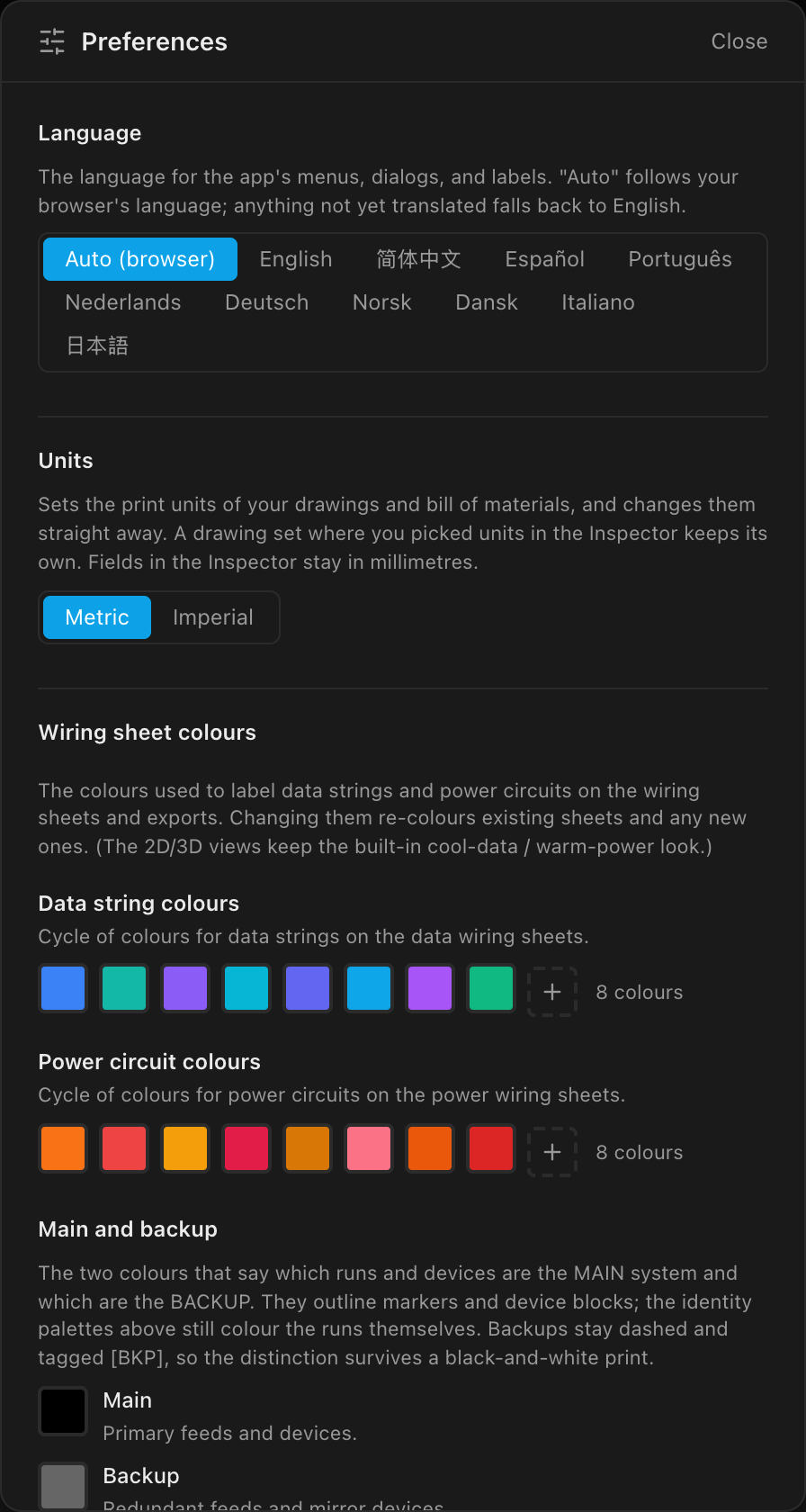
The Preferences dialog holds the app-wide settings that are about you, not about any one project: the UI language, your preferred unit system, the colours used to label wiring on your sheets, and the cable lengths you keep in stock. None of them ever change a saved project; two people opening the same file each see their own preferences applied.
Opening Preferences
| Where | When it's available |
|---|---|
| File → Preferences… | Always, including offline builds and while signed out. |
| Account menu (top-right) → Preferences… | Cloud-connected builds (the account menu only exists there). |
Command palette → Preferences | Always. |
There is no Save button: every change applies immediately, live, as you make it. Close (or clicking outside the dialog) just dismisses it.
Language
Which language the app's menus, dialogs and labels use. Auto (browser), the default, follows your browser's language; anything not yet translated falls back to English. The ten languages are always listed in their own names (English · 简体中文 · Español · Português · Nederlands · Deutsch · Norsk · Dansk · Italiano · 日本語), whatever language you're currently reading.
The switch is instant, with no reload. Full details, including exactly what does and doesn't translate, are on Languages & translations.
Units
Your preferred measurement system:
| Option | Meaning | Default |
|---|---|---|
| Metric | millimetres · metres · kg | ✓ |
| Imperial | inches · feet · lb |
This sets the print units of your drawings, datasheets and bill of materials, and changes them straight away: flip it with the Sheets workbench open and the drawing re-letters. A drawing set where somebody picked units in the Inspector keeps its own, so a packet you have already issued is never re-united under you. It deliberately does not change the Inspector: dimension fields, and X/Y/Z positions in particular, are millimetres in both systems so a shared file reads the same to everyone. See Units of measurement.
Wiring sheet colours
Two ordered colour cycles that label wiring on the generated drawing sheets and their exports:
- Data string colours: the colours that identify data strings on the Data Wiring sheets. Default: the app's eight cool-tone colours (blue → teal → violet → cyan → indigo → sky → purple → emerald).
- Power circuit colours: the colours that identify power circuits on the Power Wiring sheets. Default: the app's eight warm-tone colours (orange → red → amber → rose → bronze → pink → burnt orange → crimson).
String 1 gets colour 1, string 2 colour 2, and so on; with more strings than colours the cycle wraps around (with an 8-colour palette, string 9 reuses colour 1). Changing a palette re-colours every existing and future sheet live: in the Sheets workbench preview, the drawings PDF and the DXF export.
These palettes affect sheets and exports only
The wiring overlays in the 3D and 2D Mapping workbenches, and the on-wall data-path / power-path test patterns, keep the app's built-in cool-data / warm-power design language no matter what you set here. (Main and backup, below, is the exception; that pair applies on screen too.)
Editing a palette
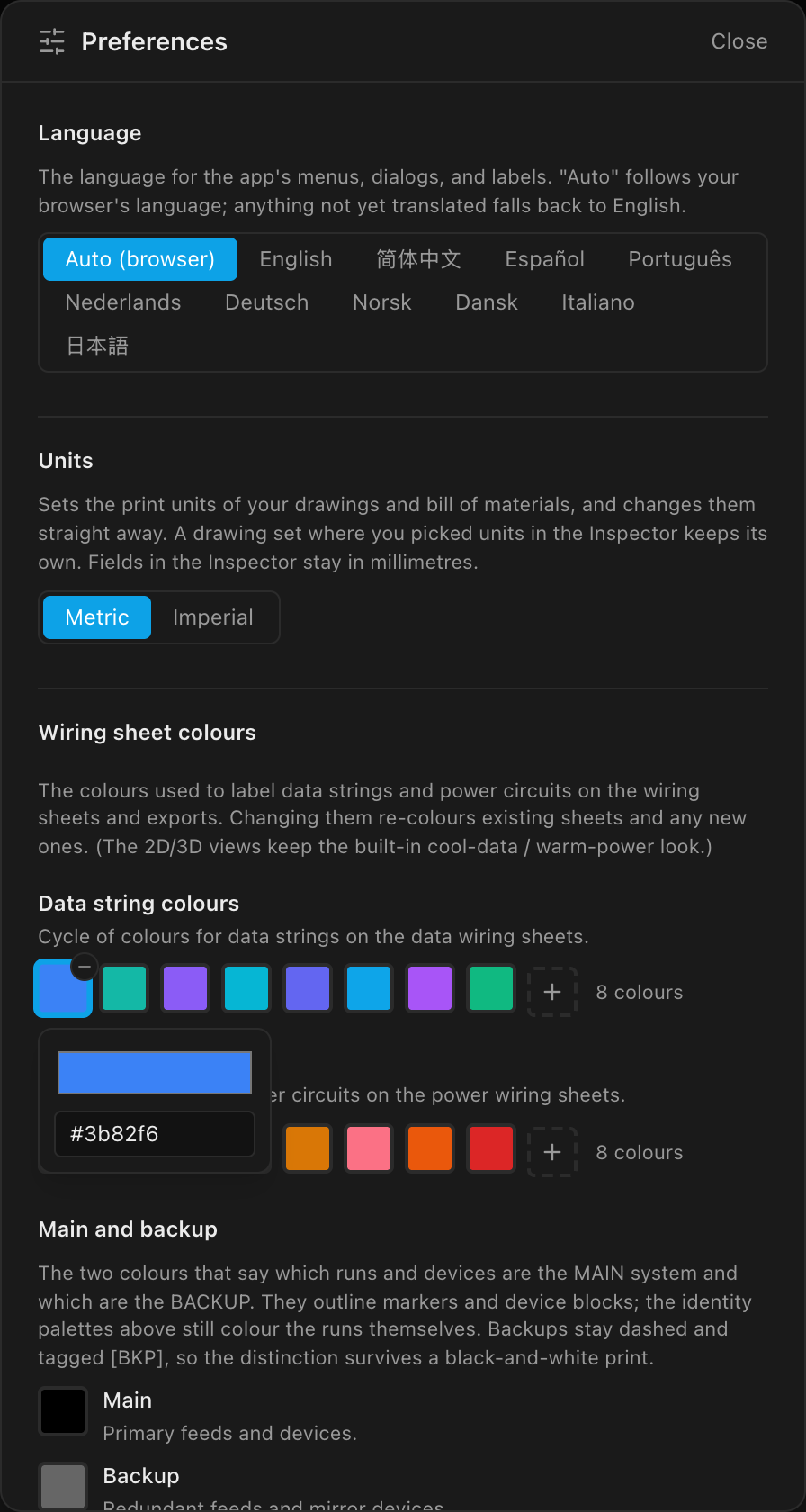
- Click a swatch to open its picker: a native colour picker plus a hex text field. The hex field only commits a complete
#rrggbbvalue; half-typed entries are ignored rather than corrupting the palette. - Hover a swatch to reveal its remove (
−) button. - The dashed
+tile appends a colour, pre-seeded from the default palette. - A palette holds between
2and12colours; the count is shown next to the swatches, and the add/remove affordances disappear at the limits. - A Reset link appears next to a palette's title only once it differs from the defaults; click it to restore that palette's design-language colours.
Main and backup
The palettes above say which run something is. This pair says whether it is part of the main system or the backup one. That's a different question, so it is carried on a different piece of ink: the outline rather than the fill.
- Main: the ring around a string-start marker, and the border of a primary device block on the System Diagram. Default: black.
- Backup: the dashed ring around a backup-port marker, and the border of a mirror device's block. Default: grey.
Unlike the palettes, this pair applies on every surface: the 2D Mapping and 3D overlays as well as the sheets, the PDF and the DXF. A backup that reads as a backup on paper should read as one on screen.
Click either swatch for the same picker the palettes use, plus a row of suggested colours and an Auto button that puts the slot back to its default.
Colour is never the only signal
Backup markers stay dashed and backup gear stays tagged [BKP] whatever colours you pick, so a drawing printed or photocopied in black-and-white still tells main from backup. The suggested swatches are the colour-universal set; they stay distinguishable under the common forms of colour blindness, and there is deliberately no red/green pair among them.
To colour one particular processor rather than a role, see giving a processor a colour. That one is saved in the project, because it describes a specific box on a specific job.
Cable stock presets
A cable stock preset is a named list of the cable lengths you actually own (Data, Power and Trunk) that any project can apply, so the bill of materials picks a stocked length for each run instead of printing the measured distance. This section is where you build and tidy that library without a project open:
- Add preset adds an empty card. Type a name in its top box (
Name this stock list). - Type each family's lengths in millimetres, separated by commas, for example
500, 1000, 2000, 5000. When you leave the box, the list is sorted, duplicates go, and anything that isn't a whole number of millimetres is dropped. The card's header counts the lengths it holds. - The trash button deletes a preset straight away.
- You can keep up to
50presets. Until you add one, the section readsNo presets yet.
Editing or deleting a preset here never changes a project that already applied it: a project keeps its own copy of the lengths. Applying presets to a project, and pulling a changed preset back into one, is covered in Cable stock & lengths.
Drawing templates
One setting: which drawing set new projects start with: The built-in drawings, or one of your saved drawing sets. Open the Templates library takes you to the templates themselves; how they work is covered in Drawing templates.
Updates
Desktop app only. Check for updates when LED.FYI opens (on by default) lets the app look for a new version each time it opens. It only looks: a new version is downloaded when you click Download and installed when you click Restart, never on its own. Turn it off and the app never contacts the update server by itself; Check for Updates… in the menu still works. This setting is kept on this computer only, so a show laptop can have it off while your office machine keeps it on. See Keeping the app up to date.
Reset all preferences
The Reset all preferences button at the bottom of the dialog returns everything (language, units, both palettes and the main/backup pair) to the out-of-the-box defaults in one click, and deletes your cable stock presets. Your saved drawing templates are content, not settings, so they (and your new-project drawing set) are kept.
Reset deletes your saved lists, without asking
There is no confirmation. Besides every cable stock preset, the reset also forgets the Data path look you saved as My defaults, which isn't shown in this dialog at all. Projects that already applied a preset keep their lengths. When you're signed in, the reset is copied to your account too, so your other devices pick it up the next time they open the app.
Where preferences live
Preferences are local-first: the copy in your browser is authoritative, so everything on this page works fully offline and signed out.
When you're signed in on a cloud-connected build, they additionally mirror to your account:
- On sign-in, if your account already has saved preferences, this device adopts them. If the account has none yet, it's seeded from this device's settings.
- Afterwards, every change you make pushes up to the account within about a second, so your language, units, colours, cable stock presets and drawing templates, plus the Data path look you saved as My defaults, follow you to any machine you sign in on.
Signing in on a new device
Because the account's saved preferences win on sign-in, a fresh device's local choices are replaced by the account's the moment you sign in. In offline/unconfigured builds nothing ever syncs.
Not in this dialog
The light/dark theme and the 3D display settings (render style, LED look, background) are deliberately per-machine: they're set from the top bar and the 3D view respectively, and never sync to your account. The desktop app's Updates setting is per-machine too, and Reset all preferences leaves it alone.
First-run setup
New accounts on cloud-connected builds are asked the same questions once, in a four-step welcome tour: units, wiring colours, and a first project name (default My first wall). Skipping (or pressing Esc) marks the tour done forever, on every device; every answer can be changed here later. The tour is walked through step-by-step in Sign in & first run.