

Appearance
Build your first wall
This tutorial walks through the canonical starter build: one screen, one processor, one output. You'll end up with a 9.5 m × 4.5 m wall of ROE Visual Graphite 2.6 panels (19 wide × 5 high, with a half-panel bottom row), driven by a Brompton Tessera SX40 at 10-bit / 60 Hz through two Brompton XD switches, fully strung, powered, and lit with a data-path test pattern.
Everything here works offline and uses only the built-in equipment library. Expect 10–15 minutes.
WARNING
Creating a new project replaces whatever is open. If the current project only exists in this browser and you want to keep it, run File → Download project first; see the replace guard.
Part 1: Create the project with the wizard
The new-project wizard collects the whole configuration up front and hands you a wired, lit wall in one step.
Click File → New with wizard…. The five-step wizard opens (
1. Screens→5. Test pattern).Set Project name to
My first wall, and rename the screen card fromScreen 1toFirst Screen.Click the Panel picker (Choose panel…), type
Graphitein the search box, and pick Graphite 2.6 (under the ROE Visual brand heading, not one of the Half, Round Corner or Triangle variants listed beside it). The picker closes and the trigger now readsROE Visual Graphite 2.6.Leave Receiver card empty (this build installs no card), and set Panels wide to
19and Panels high to5.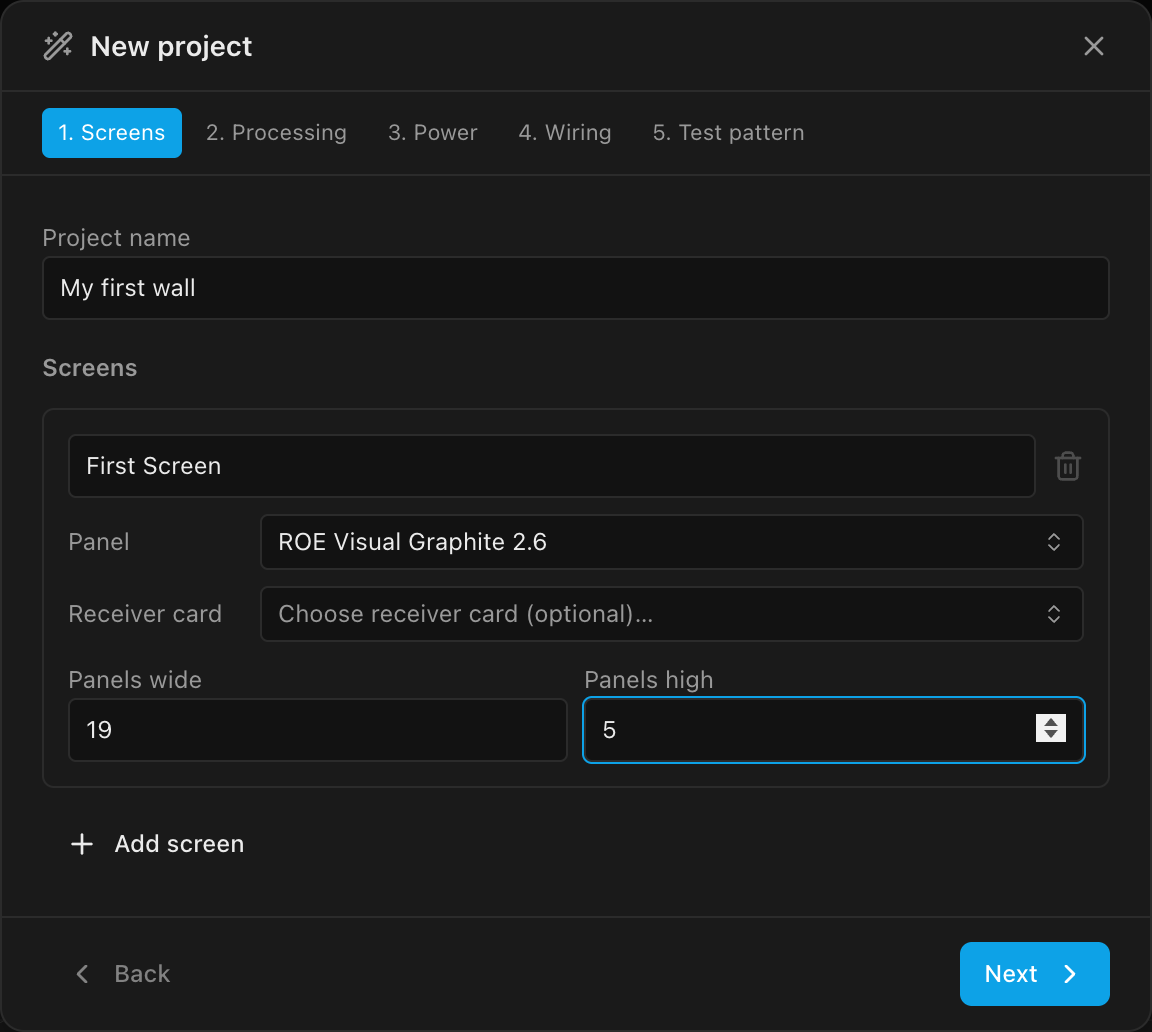
Click Next. On the Processing step:
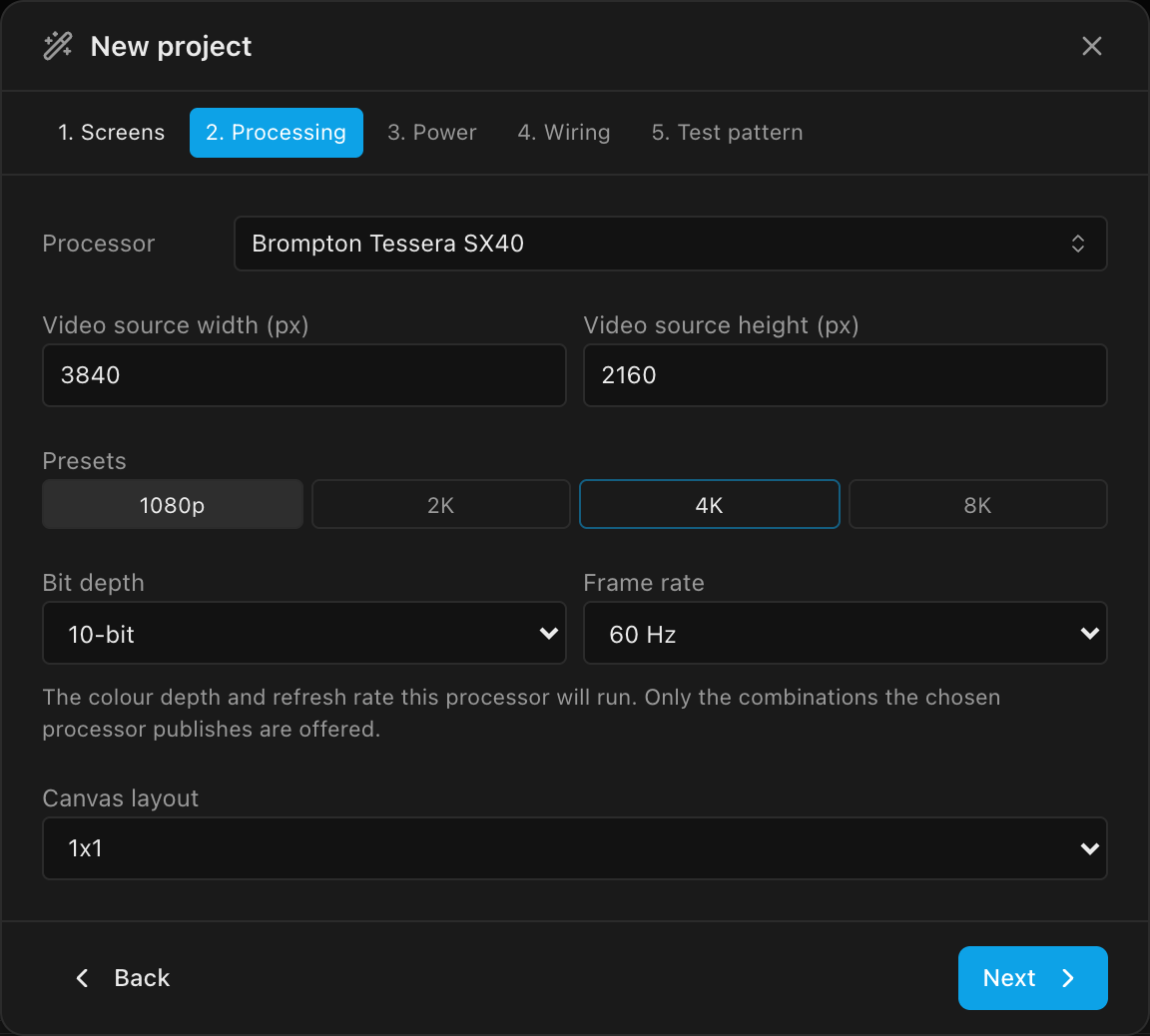
- In the Processor picker, search
SX40and pick Tessera SX40. - Under Presets, click 4K. Video source width (px) and Video source height (px) fill in as
3840×2160. - Bit depth and Frame rate appear once the SX40 is picked. Set Bit depth to
10-bitand Frame rate to60 Hz. Don't skip this: they start at the lowest values on offer (8-bit/24 Hz), and the pair decides how many pixels each data string may carry (Part 3 below shows the difference). - Leave Canvas layout at
1x1.
- In the Processor picker, search
Click Next. On the Power step, set Working voltage (V) to
208and leave Circuit amps (A) at16. That is the project-wide circuit limit: every screen starts at 208 V / 16 A, and a screen's amps per string can only go lower.Click Next. The Wiring step shows the Screen inspector's route picker for the First Screen card. Click the green Data row to unfold the grid and, in the Zig-zag group's vertical runs row, click the top-left icon (its tooltip reads
Top-left · Vertical · Zig-zag); click Done, then do the same on the orange Power row. Both rows now readZig-zag · Top-left · Vertical: the cabling will run down each column and start the next column from the top, without snaking back up.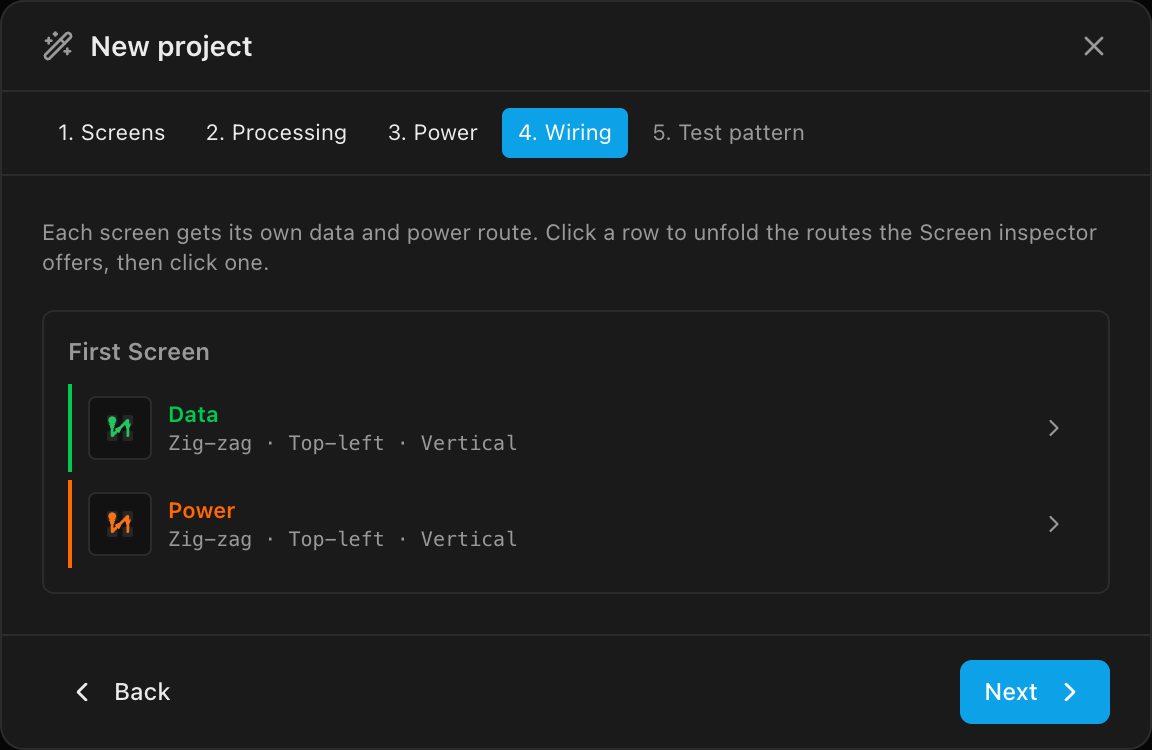
Click Next. The Test pattern step already defaults to
Data path, which is exactly what this build wants: each screen gets a linked surface showing its own cabling as on-wall content. Click Create project and confirm Replace when asked.
You should see: the 3D workbench with a lit 19 × 5 wall, and the status bar counting 1 screens, 95 panels, 1 surfaces, 1 processors and 1 video sources. The tree shows First Screen (95) under Screens, a linked First Screen surface (test-pattern) under Surfaces with its on Video Source 1 placement, Processor 1 with its 1 tag under Processors, and Video Source 1 (3840×2160) under Video Sources.
Part 2: Give the wall a half-panel bottom row
A half-height bottom row is a common trick to hit a target height (here: 4 × 1000 mm rows + one 500 mm row = 4.5 m).
Click First Screen in the tree. The Inspector opens on the screen.
In the Panel section, set Half row to
Bottom.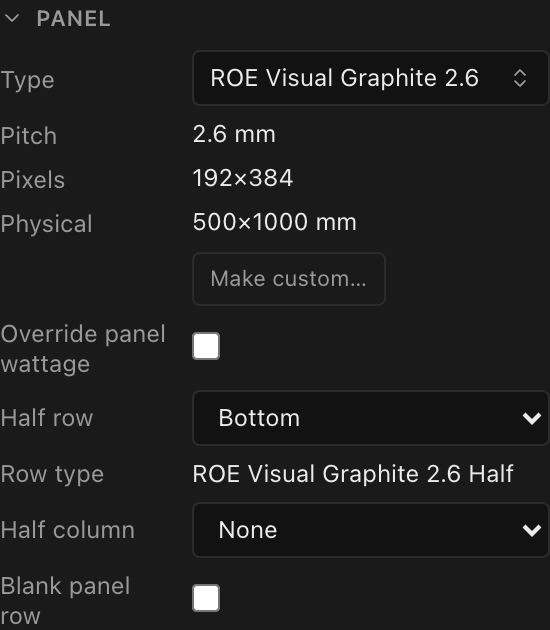
You should see: a Row type line appears reading ROE Visual Graphite 2.6 Half: the app auto-matched the half-height partner from the equipment library, so the bottom row's pixels (192 × 192), size (500 × 500 mm), wattage, and weight all follow the real part. In the Screen section, Resolution now reads 3648×1728 px (it was 3648×1920 px with a full bottom row), and in 3D the bottom row is visibly shorter. The panel count stays 95: 76 full panels plus 19 halves.
Part 3: Check the power and the per-string pixel budget
Every data string has a pixel budget: the most pixels one cable run may carry before a new string starts. Once a processor model is chosen, the processor sets that budget: its per-port capacity at the canvas's bit depth and frame rate. For the SX40 at 10-bit / 60 Hz that's 420,000 px per 1G tile link, which is why step 5 set that pair.
Still on First Screen, scroll to the Power section and confirm Voltage is
208 Vand Max A/str is16 A; the wizard set both, and the line under them readsProject circuit limit: 16 A.Scroll down to Wiring (computed), under Results.
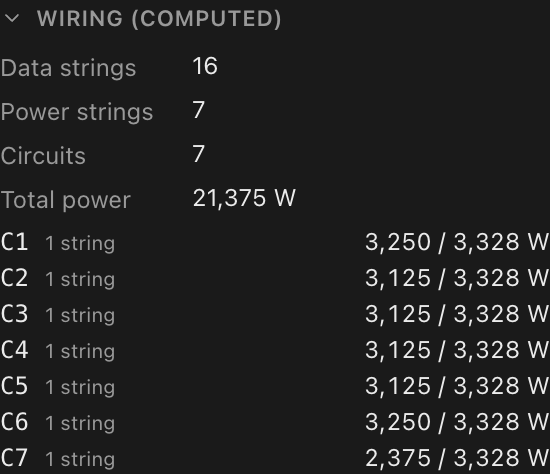
You should see: Data strings 16, Power strings 7, Circuits 7, and Total power 21,375 W, with each circuit's load shown against its 3,328 W (208 V × 16 A) limit.
Why 16 strings?
A full Graphite 2.6 panel is 192 × 384 = 73,728 px and a half is 36,864 px. Under the SX40's 420,000 px budget a string maxes out at six panels: five full plus one half is 405,504 px, while six full (442,368) would bust it. 95 panels at six-per-string gives 15 strings of 6 and one of 5: 16 data strings. (Before the half row, only five full panels fit per string, so the same wall needed 19.) Had you left the wizard at 8-bit / 24 Hz, each tile link would carry 1,312,500 px and the wall would need only 5 much longer strings.
Want shorter strings than the processor allows?
The Data limits section (under Receiver card) is where you tighten the budget: tick Cap px/str and enter a lower Px/str, and the wall re-strings live. Its Base px/str field only governs a screen whose processor has no model chosen. See Data path & string splitting.
- Optional tidy-up: click Video Source 1 in the tree and rename it to
Output 1in the Name field, so the drawings and pickers read like your real output patch.
Part 4: Fan out through two switches
The SX40 has four 10G trunk outputs, but panels take 1G lines. A network switch per trunk turns one 10G feed into ten 1G panel ports.
Click Processor 1 in the tree. The Inspector header reads
1 · Processor canvas, Processor showsBrompton Tessera SX40, and the Signal section shows the10-bit/60 Hzyou chose in the wizard, with Per tile link (1G) reading420,000 px, the per-string budget from Part 3. Leave both as they are.Under Video input ports you'll also see "Source exceeds the port bandwidth." below the video source on Input 1. It's a check on the incoming 4K feed at this signal setting and doesn't change anything this tutorial builds; see Inputs & input modes.
In the Switches section, click Add switch…, search
XD, and pick XD (Brompton). The switch lands on Trunk A.Click Add switch… again and add a second XD. It takes Trunk B.
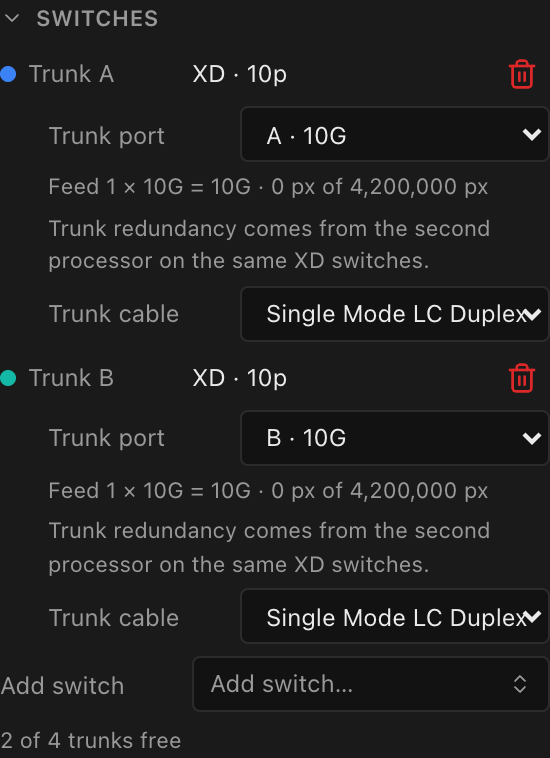
You should see: a Trunk A row and a Trunk B row, each reading XD · 10p, with its Trunk port (A · 10G, B · 10G) and Trunk cable pickers, and the note 2 of 4 trunks free beneath (the SX40's other two 10G outputs are still open).
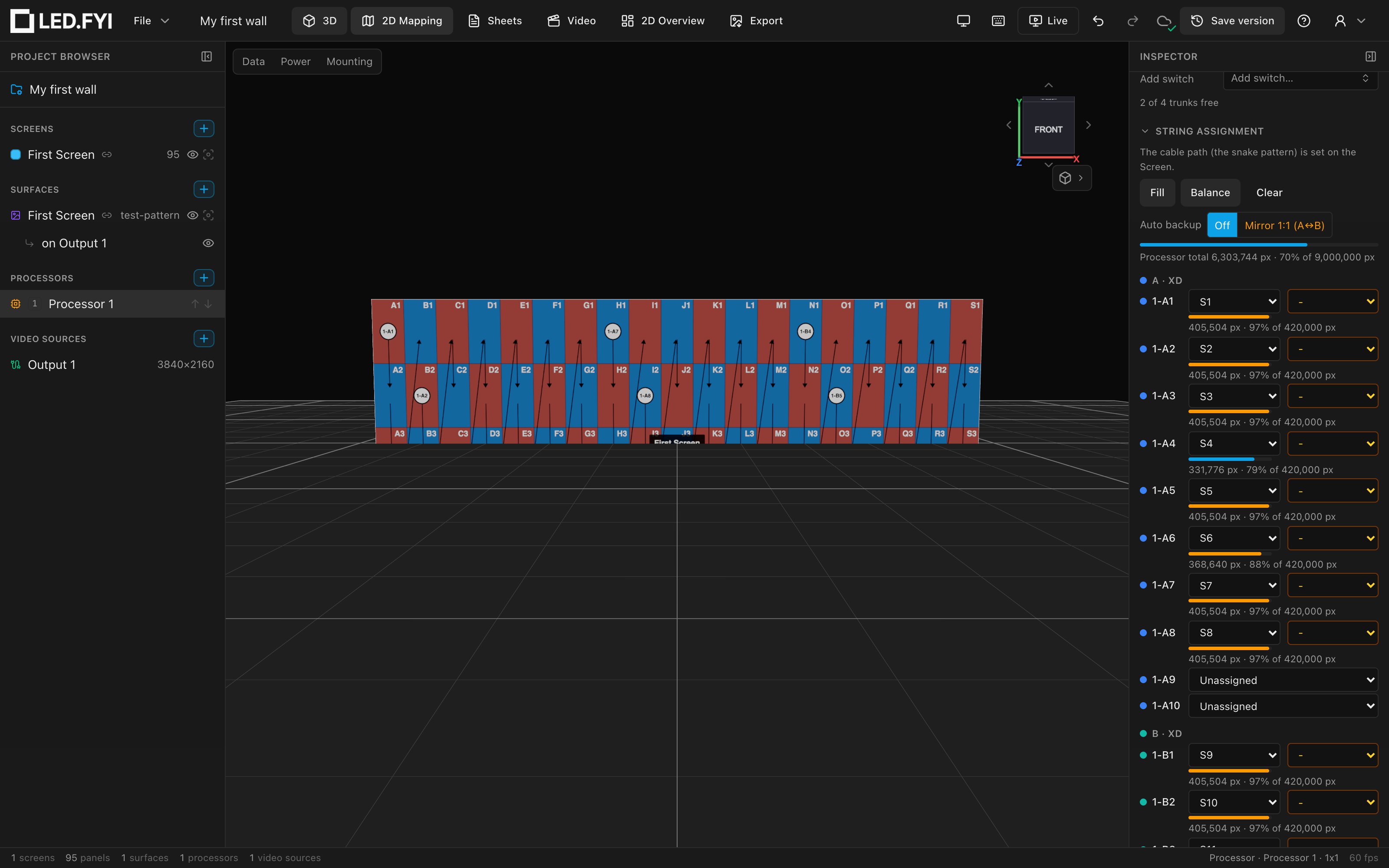
In the String assignment section, click Balance.
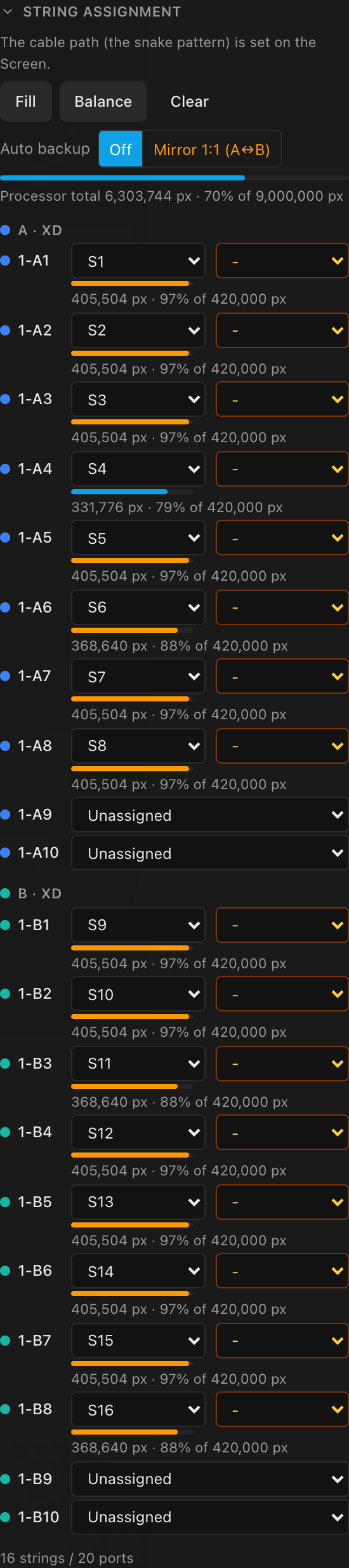
You should see: 16 strings / 20 ports at the bottom of the list. The ports are grouped under A · XD and B · XD, and every port label starts with the processor's tag 1: strings S1–S8 sit on ports 1-A1–1-A8, and S9–S16 on 1-B1–1-B8. Each assigned port shows its load against the tile link (mostly 405,504 px · 97% of 420,000 px), while 1-A9, 1-A10, 1-B9 and 1-B10 stay Unassigned.
Fill vs. Balance
Fill packs the first switch full before touching the next (here: S1–S10 on 1-A1–1-A10, and S11–S16 on 1-B1–1-B6). Balance evens out the strings' pixel load and then splits them into equal-count, unbroken blocks (here 8 + 8), so each switch feeds one continuous stretch of the wall and losing a switch takes out the smallest possible slice. Clear removes all assignments. Individual ports can always be reassigned per string afterward; see String assignment.
Part 5: Review what you built
Open the 2D Mapping workbench (tab bar, top). The wall's 95 panels sit at the top-left of the 3840 × 2160 output (the screen-linked surface is placed at
(0,0), full source, no crop), and the data-path test pattern draws the Zig-zag arrows running down each column, with each string's port label (1-A1,1-A2, …) in a circle where the string starts.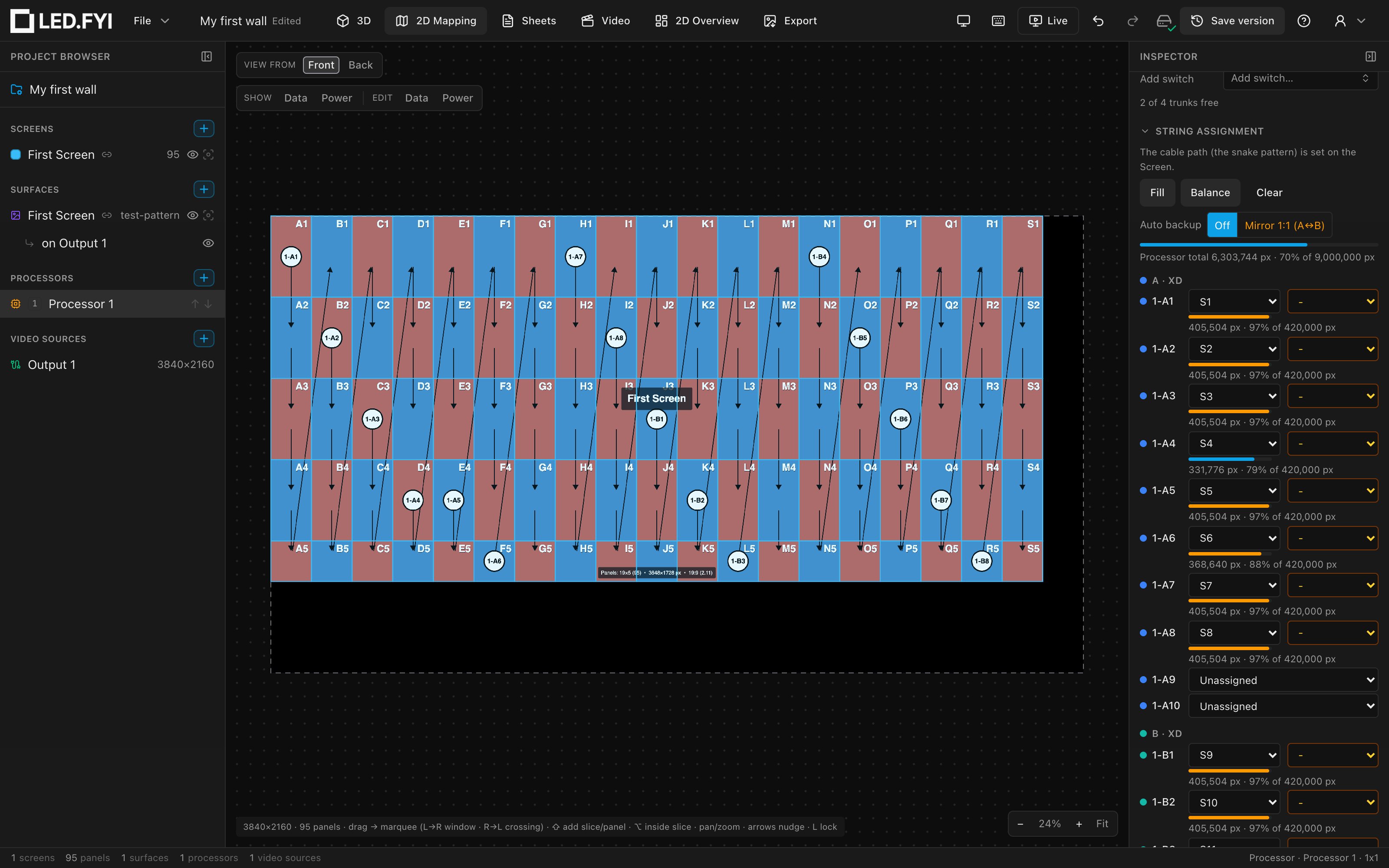
Switch back to the 3D workbench. The wall renders lit with the data-path test pattern: every panel shows its own string run, so a glance at the (virtual or real) wall verifies the cabling.
The paperwork is already live too: the Sheets workbench can generate elevation and wiring drawings from this project, and the Export workbench has the PDF drawing set, DXF, cable labels, and bill of materials; see Drawings (PDF) and Bill of materials.
What you built
| Piece | Value |
|---|---|
| Screen | First Screen, 19 × 5: 76 × Graphite 2.6 + 19 × Graphite 2.6 Half (bottom row) |
| Wall | 9.5 m wide × 4.5 m tall · 3648×1728 px |
| Processor | Brompton Tessera SX40 · 10-bit / 60 Hz (420,000 px per 1G tile link) · 1x1 canvas |
| Video source | Output 1 · 3840×2160 · screen-linked surface with a data-path test pattern |
| Data | 16 strings (max 6 panels each) · Zig-zag, top-left, vertical |
| Network | 2 × Brompton XD on Trunks A and B · strings balanced 8 + 8 onto ports 1-A1–1-A8 / 1-B1–1-B8 |
| Power | 208 V / 16 A per string and circuit · 7 power strings · 7 circuits · 21,375 W total |
Where to go next
- Next tutorial: Split one screen across two processors: what to do when a wall outgrows a single processor canvas.
- Deepen any step you just took:
- Half & blank panels: half rows/columns and spacer rows.
- Per-screen power settings: voltage, amp limits, caps, and safety buffers.
- Choosing a processor: bit depth, frame rate, and what they do to port capacity.
- Switches & trunks and String assignment: the fan-out you built, in full.
- Test patterns: the data-path pattern and its eleven siblings.
- Seeing your wiring: the overlays you saw in 2D Mapping and 3D.