

Appearance
PNG export
PNG export gives you pixel-exact, full-native-resolution images of your content: the file an operator loads into a media server or a processor. These are not screenshots of the viewport: each PNG is cropped from the same full-resolution composite the app renders internally, so it is independent of zoom level and identical to what the hardware would receive, including whatever test pattern or video frame is playing.
The PNG tab is the top row of the Export workbench's Documents rail. It shows two groups of live thumbnails (video sources and screens), and ticking a thumbnail is how you include it in the download.
Per video source: what your processor receives
One tile per video source (processor output), at the output's native resolution (e.g. 3840 × 2160). This is the full raster the processor is fed, with every screen region composited into place.
- A video source that isn't assigned to any processor canvas has nothing to render and is omitted (the Inspector's Download PNG button warns "This output is not assigned to a canvas").
- On a canvas in switched input mode, only the active source renders; inactive sources have no tile to export. See Inputs & input modes.
Per screen: the wall's own pixels
One tile per screen, at the wall's own resolution (e.g. 2304 × 1344), covering the footprint of the screen's panels. It already accounts for the reduced pixel footprint of half panels on the edges. Screens with no mappable panels are omitted.
Screens split across several processors
A screen split across more than one processor exports exactly like any other: one PNG, the size of the whole wall. How many processors drive it is a fact about the rig, not about the file. The image is the wall, whole, with nothing in it to show where the split falls, and its filename names the screen just as an unsplit screen's does.
The tile says so plainly: the bundled Multi-canvas sample shows 5120 × 2048 · 2 processors, and its preview is the whole 20×8 wall, not the half that lives on either processor.
Behind the scenes each panel's pixels are taken from whichever processor drives that panel and placed where that panel sits on the wall. The panel is the smallest piece the mapping knows about, so the pieces fit together exactly: nothing is drawn twice and nothing is left out. A split screen and an unsplit screen of the same wall produce the same image, pixel for pixel.
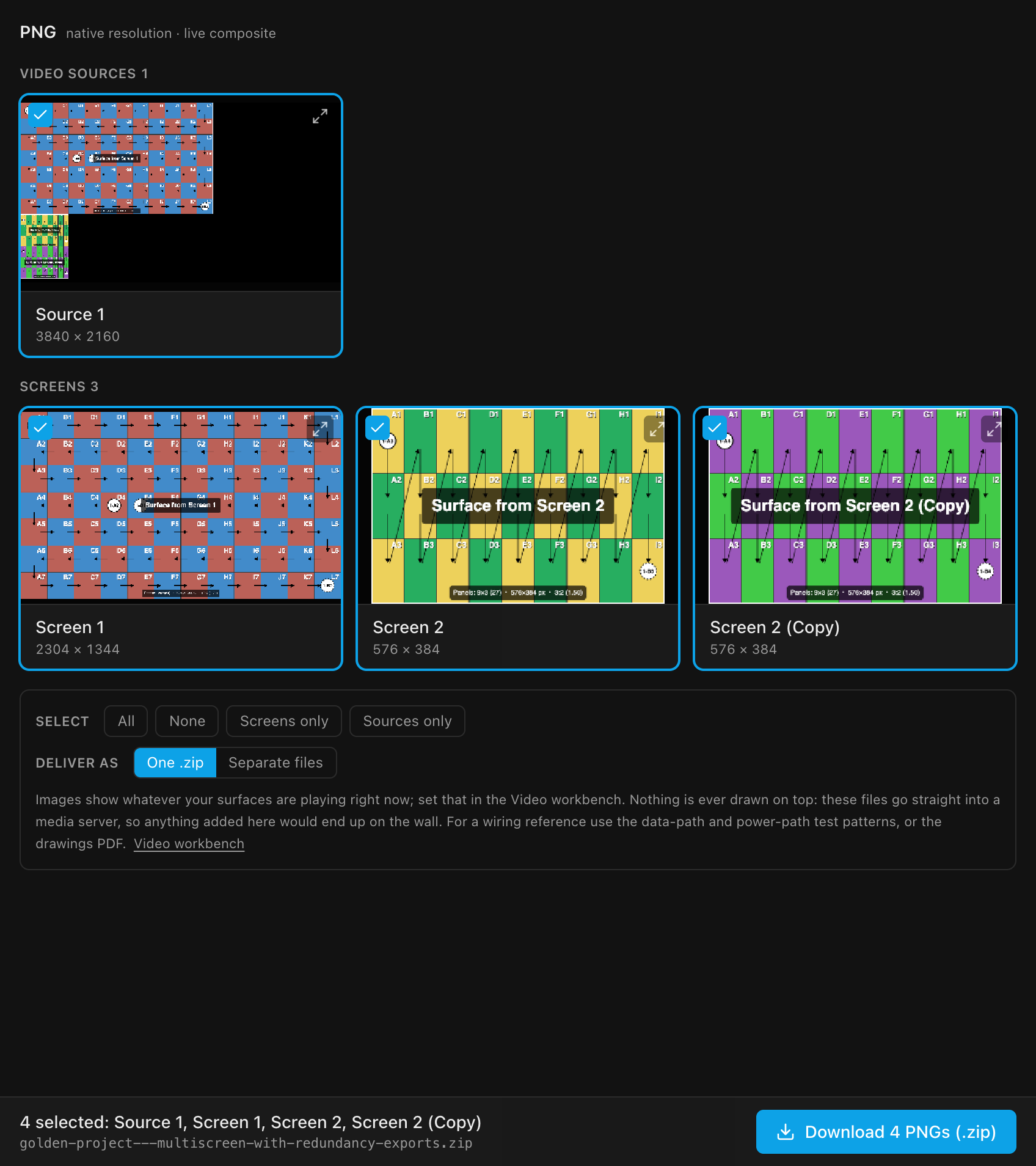
Picking a few, not one or all
| Control | What it does |
|---|---|
| Clicking a tile | Ticks or unticks it and selects that video source or screen in the Inspector |
| All / None | Tick or clear every exportable tile |
| Screens only / Sources only | Jump straight to one of the two groups |
| Expand button (top right of a tile) | Fullscreen preview of the exact crop; Esc or a click outside closes it |
| Deliver as: One .zip / Separate files | One archive, or the PNGs saved one after another |
The pinned bar names what you're about to get ("3 selected: Source 1, Screen 1, Screen 2") plus the archive name, and the button says Download 3 PNGs (.zip). That button gets you the images on their own; Download package across the top puts the same files under images/ in one archive alongside every other format you've ticked.
Single images are still one click away from elsewhere: select a screen or video source in the left rail and use the Inspector's Download PNG button.
Exporting a subset was a V1 feature V2 had lost
Earlier V2 builds could only export one tile at a time or every tile at once. Ticking three of four and getting a single archive is back.
How big is too big
A whole-wall PNG can be enormous, and there is a ceiling: a browser cannot make an image wider or taller than 16,384 pixels, which is a wall about 64 panels across at a 256-pixel panel. Past that the tile can't be ticked and says so, and the honest fallback is to export the video sources: each one is a normal 4K-ish image, and between them they carry every pixel.
Below that ceiling but still very large (over about 40 megapixels, say a wall 10240 × 4096), the tile warns you. The export still runs; it just wants a lot of memory while it does, and some image viewers won't open the result. For scale, the 20×8 Multi-canvas sample is a 10-megapixel, ~800 KB PNG.
Nothing is ever drawn on these images
PNG exports are always plain content: the pixels the hardware receives, with nothing overlaid. That is a deliberate rule of this tab, not a missing feature: these files go straight into a media server, so anything added here would end up on the wall.
Wiring already travels two other ways, and the tab says so:
- On the wall: the data-path and power-path test patterns live in the content itself, so they do appear in an exported PNG when a surface is playing one.
- On paper: the drawings PDF, which can carry labels and a legend.
The Raster Map sheet block works the same way: it can show each canvas's picture (the same pixels these PNG exports produce) with tile/placement outlines drawn on top, but that overlay only ever exists on the printed sheet. It is a separate copy generated for the PDF, never a modification of the picture itself; this tab's plain export is exactly as described above.
To trace wiring inside the app, use the 2D Mapping overlays.
Filenames
| Export | Pattern | Example |
|---|---|---|
| Video source | <project>-output-<name>-WxH.png | golden-project-output-source-1-3840x2160.png |
| Screen | <project>-screen-<name>-WxH.png | golden-project-screen-first-screen-3648x1728.png |
| Split screen | the same: the file names the screen, never a processor | golden-project-multi-canvas-screen-screen-1-5120x2048.png |
| ZIP bundle | <project>-exports.zip | golden-project-exports.zip |
Names are lowercased with anything that isn't a letter, digit, dash or underscore replaced by -. Duplicate names inside a ZIP get -2, -3… suffixes.
The "Images exported" notice appears only once the file is written. Cancel a save dialog and nothing is announced; if a file can't be written (on the desktop app, typically an image still open in another program), the app says why and offers Save as…; separate-file delivery stops at that file, with the ones before it already saved. See Where the file goes.
INFO
PNG export is available on every plan tier.