

Appearance
Multi-processor screens
When one screen is bigger than one processor can drive (more pixels than its canvas, more strings than its ports), you split it across several processors while keeping it one screen: one grid, one wiring plan, one entry on your paperwork. You make the split yourself, in two moves: cut the screen's picture into slices in the Video workbench, then hand a slice's panels to another processor in the 2D Mapping workbench (which also has a Back view for checking each processor's canvas the way the crew sees it from behind).
Keep it one screen
Don't model an oversized wall as several separate screens just to spread the load; you'd lose the single grid, the shared wiring paths and the clean paperwork. Split the one screen instead.
When a screen's pixel footprint outgrows its processor's canvas, its Inspector warns you with an amber Larger than one processor notice stating both sizes, for example "This screen (5,120×2,048 px) is wider than its processor canvas (3,840×2,160 px). Add another processor, cut the screen's picture in Video, then move a slice with Assign to processor in 2D Mapping." Those two moves are the split, described next. The notice goes away once the screen is split across processors.
Splitting a screen across processors
Before you start, the project needs a second processor with its own video source, and the screen needs a linked surface. The new-project wizard's test pattern links one for you; otherwise use Add Surface ▸ From Screen (see Feeding screens video). Then:
- Cut the picture. Open the Video workbench, click the processor that drives the screen in the left sidebar, and click the screen's placement to select it. Click the amber scissors on its top edge for a left/right cut (or the one on its left edge for a top/bottom cut), move the dashed line to where you want the split, and click. The cut can only land on a full-span panel seam (a line no panel straddles), so both sides are whole panels. Pick a seam where each side fits a processor's canvas. The screen now has two
Slice · N panelsrows under it in the sidebar. See Splitting a linked placement. - Assign one slice to the other processor. Open 2D Mapping and click any panel of the slice that belongs on the other processor; a plain click selects the whole slice. Right-click it and pick the processor under Assign to processor.
The slice's panels move to that processor's canvas (landing at its top-left corner when they don't fit where they were), and the slice's placement follows onto the video source that processor is fed by. Its crop doesn't change, so the right pixels still reach the right panels and there is nothing to re-line-up by hand. Split a big screen across two processors walks through the whole thing on a 160-panel wall.
The screen's Processors section
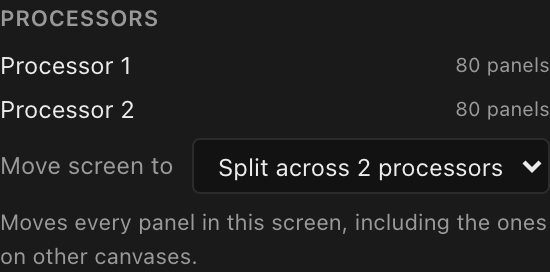
Select the screen. Once the project has two or more processors (or the screen carries manual pins), its Inspector shows a Processors section: a read-out of where the screen's panels live (one row for each processor that holds some of them, with the panel count) and, with two or more processors, a Move screen to picker.
| Control | What it does |
|---|---|
| Processor rows | A read-out: one row per processor the screen currently occupies, with how many of its panels live there (e.g. 80 panels). |
| Move screen to | Moves the whole screen (every panel, including the ones on a canvas you aren't looking at) onto the processor you pick. One undo step. |
| Manual pins | The panels you hand-assigned with Assign to processor, each with a ✕ that clears the pin. See Manual pins below. |
The section has no split controls of its own; the split is made with the cut and Assign to processor described above.
Moving a whole screen to another processor
Move screen to is for "this whole screen belongs on that processor", for example to put a second screen on the first's processor so a data cable can run between them (see the note under Manual pins). Pick the target and every panel moves there together: the panels are re-based onto the new canvas (landing at its top-left corner when they don't fit where they were), the screen's origin and a whole-screen linked placement travel with them, each panel's video source is re-anchored to the input that covers it, and any manual pins are cleared: the screen is on one processor, so there is nothing left to pin. A screen that already sits on one processor moves straight away, no questions asked.
On a screen that is split (its panels on several processors), the picker reads "Split across N processors" instead of a processor name, and choosing a target asks first:
Move the whole screen onto one processor? This screen is split across several processors: Processor 1 (80), Processor 2 (80). Moving it puts all 160 panels back on one processor, Processor 2. That reverses the Assign to processor that split it and clears the screen's manual pins. A cut you made in the Video workbench stays, so you can assign a slice again. You can undo this.
Cancel leaves everything exactly as it was. Move all panels collapses the split: the reverse of step 2 of Splitting a screen. The cut from step 1 survives (its slices are simply both on the same processor now), so to split the screen again you only need to assign a slice. Either way it is one undo step, so it is safe to try.
Whichever way you collapse a split (Move all panels here, or Assign to processor on the other half in the 2D map), the screen lays itself out again as one grid on the target canvas, every panel back in its own row and column, at the top-left corner when the whole grid does not fit. A screen was usually split because it is bigger than one processor's canvas, so expect the amber Larger than one processor notice to return; that is your cue to cut and assign again.
The screen's linked picture travels with it every time: collapse onto one processor, move the whole screen to the other, move it back: the placement always feeds from the processor the panels are on, so the wall shows its content after each move. (A project saved while an older build had left the picture on the wrong processor's output is put right the next time it is opened.)
Deleting a processor a split screen uses
Deleting one of a split screen's processors never leaves its panels piled on top of each other. The deleted processor's panels move to a processor the screen still uses (the one holding the part of the wall they border) and are laid out beside the panels already there, never on them:
- Down to one processor (a screen split across two, one of them deleted): the screen lays itself out again as one grid, exactly like collapsing it with Move screen to: every panel back in its own row and column, at the top-left corner when the whole grid does not fit, the manual pins cleared, and the amber Larger than one processor notice back when the screen is bigger than the processor left.
- Still split (three or more processors, one deleted): the deleted processor's slice joins the slice it borders on the wall, on that slice's processor, laid out beside it in wall order. The pair is parked at the canvas's top-left corner when it doesn't fit where it is, the other processors' slices don't move, and the moved panels are pinned to their new processor. The notice doesn't check a split screen, so look at that processor in 2D Mapping: if the joined slice now runs past the canvas edge, cut and assign again.
Either way it is one undo step.
Manual pins: hand-placing panels
Assign to processor works on any selection, not just a whole slice: for a corner column that must stay on the local processor, or a rented unit that takes exactly one string. In the 2D Mapping workbench select the panel (or a multi-selection), right-click, and pick a target under Assign to processor. The panel's current processor is tagged current.
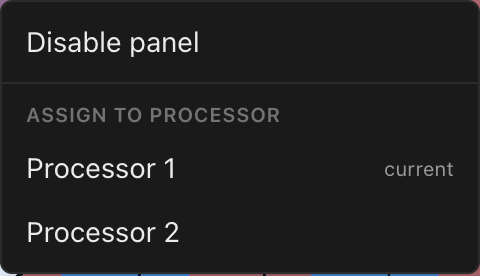
Assigning moves the panels to that processor, re-anchors their video source, and records each panel as a manual pin on the screen.
If the panels wouldn't fit where they were on the new canvas, they're re-based to its top-left corner. If that processor already drives another part of the same screen (sending one column of the right half back to the left half's processor, say), they're laid out beside that part in wall order instead, so they never land on top of it. The joined block moves to the top-left corner when it doesn't fit on the canvas where it lands. When that moves a whole screen, the screen's origin (and a whole-screen linked placement, which is pinned to it) travels with the panels, so the picture lands on the panels rather than a screen-height away. It will overlap whatever else that processor's feed already carries there; that's faithful to the rig, and the fix is a different source on one of the processors; see When a processor's input changes.
Data cables can't cross processors: assign first
A data cable comes out of one processor output, so panels can only be wired together when the same processor drives them. That's why the 2D map shows one canvas at a time: what you can reach is what you're allowed to chain. To run a cable from one screen into the next when they're on different processors, put the second screen on the first's processor (select it and use Move screen to in its Processors section), then draw the cable.
If a run's downstream panels are driven by another processor (a screen split across two), drawing the bridge pulls them onto the origin's processor and tells you how many moved, which re-lays that canvas and its port assignments. Power has no such rule: a power run starts at a breaker, which knows nothing about processors, so a power cable can cross freely.
Pinned panels are listed under Manual pins at the bottom of the screen's Processors section; each row names the panel and its pinned processor. Every panel you move with Assign to processor is pinned, so after splitting a wall in half, half its panels are listed here.
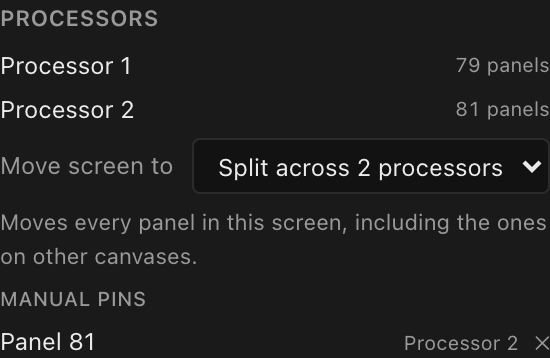
- The ✕ on a row clears that pin. Clearing does not move the panel; it keeps its current processor.
- Pins clear themselves automatically when the whole screen ends up back on a single processor, including when you use Move screen to above.
- Deleting a processor moves its panels, and their pins, to a processor the screen still uses; see Deleting a processor a split screen uses. Pins don't steer that move or anything else; they're a record of what you placed by hand.
Growing a split screen
Adding rows or columns to a split screen keeps every panel you assigned on its processor. The new panels go onto a processor that already drives part of the screen, never onto a processor the screen has since left, even if that is the one it was first built on. Move them afterwards with Assign to processor if they belong on a different one.
A screen whose picture you cut can't be resized
A screen cut into slices (the usual first step of a split) has its Grid, half rows and columns, and panel Type locked, because the slices are pinned to its panel seams. Ungroup the slices (select one in 2D Mapping and press ⌘U, or Ungroup slice in its Video slice section) to resize it, then cut and assign again. A split made with Assign to processor alone, without a cut, can be resized freely.
Everything else that needs "the screen's processor" reads it from where the panels actually are too: the receiver cards offered and the automatic Max pixels per string in the screen's Inspector, the per-string pixel limit its wiring uses, the Larger than one processor notice, and where a duplicate of the screen is placed. A project saved by an older build, whose screen still remembers the processor it started on, is read the same way; there is nothing in the file to fix.
Navigating a split screen
- 2D Mapping shows one processor's canvas at a time. With two or more processors, a canvas switcher appears top-left: a row of pills, or past six processors a compact drop-down with ◀ / ▶ arrows (see Switching processor canvases). Picking a canvas also selects that processor. The view follows your tree selection too: selecting a panel jumps to its canvas, and selecting a split screen lands on a processor that actually holds its panels: the one you are already viewing if it hosts part of the screen, else the first of the screen's processors in browser order. The Video workbench uses the same switcher and follows the same rule.
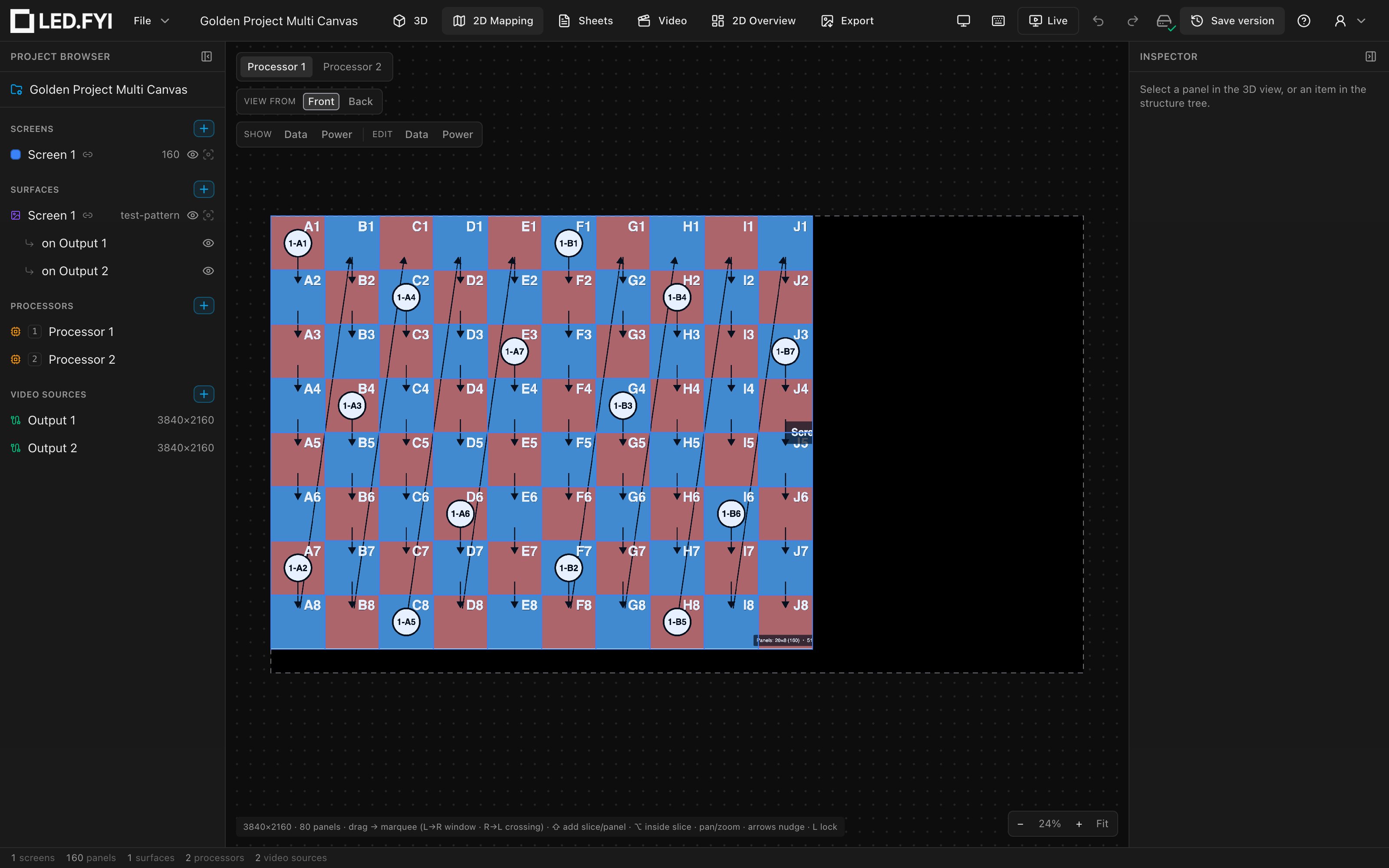
- 3D needs no navigation: a split screen renders as one continuous wall, each panel sampling its own processor's composite, so content stays correct straight across the split. The worked example (160 panels, two processors, an 80/80 split) shows it.
Per-screen PNG export
The screen's Download PNG button works on a split screen and gives you one image of the whole wall: the panels driven by each processor are placed where they sit on the wall, so the file looks the same as it would if one processor drove the lot. Per-video-source PNG download is still there alongside it. See PNG export.
Backup (mirror) processors
The third tier of redundancy is a full processor mirror: a second unit cabled to take over if the primary dies. You designate it on the primary: select the primary processor, unfold its Redundancy section (folded by default) and pick the mirror in Backup proc. (the dropdown offers None or any other processor that isn't already another primary's mirror). The section only appears when the primary's model supports processor redundancy.
The mirror is badged everywhere so it can't be mistaken for a live unit:
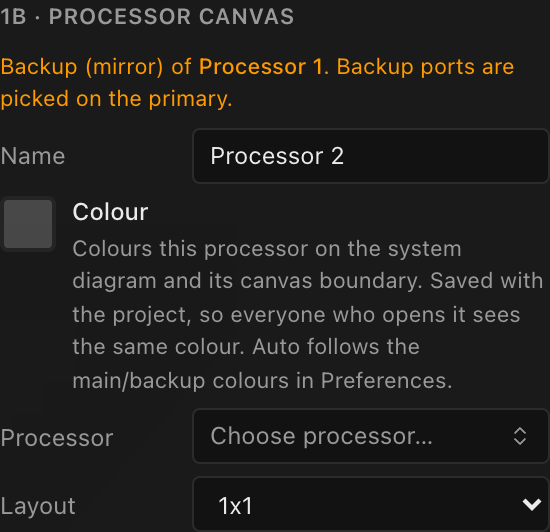
- its tag badge in the tree reads its primary's number plus
B(e.g.9B) instead of a separate pill; hover it to see the primary's name; - the amber note "Backup (mirror) of <primary>. Backup ports are picked on the primary." tops its Inspector;
- its own wiring controls collapse to a read-only Backup processor explainer; all backup port picking happens on the primary, covered in Redundancy. If the primary's switches are cascaded (one switch feeding another), that picker only offers ports on the panel-facing tier; see backup ports per string.
Duplicating a mirror clears the backup role on the copy: a duplicate is a fresh, unwired processor.