

Appearance
Bill of materials
The bill of materials is a live, automatically computed parts list for the whole project: panels, processing, switches, every cable, and mounting hardware. You never build it by hand; it updates as you design. One computation feeds every surface it appears on, so they can never disagree:
| Where | How to get there |
|---|---|
| Inspector | Click the project name (the root row) in the left rail → BOM (computed) section |
| Spreadsheet download | The Bill of materials tab of the Export workbench; see below |
| Printable sheet block | Add a Bill of Materials block in the Sheets workbench |
| Documentation share page | Shown to anyone opening a docs share link or scanning a printed PDF's QR |
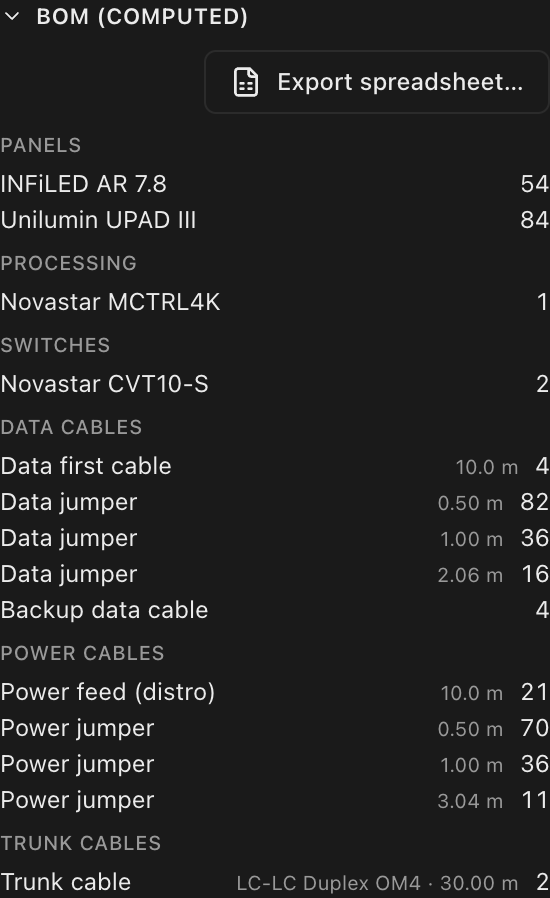
Rows are Item / Qty, with a Detail column carrying lengths, cable types or SKUs. A section only appears when it has something to count, and a project whose wiring inputs are incomplete degrades gracefully to equipment counts only.
Lengths read the same on every one of them, because they all take the units from the same place: the drawing set's print units, whether the set is following your Units preference or has been pinned to its own. On a set reading inches the Inspector's list says 3.28 ft exactly where the printed sheet and the downloaded spreadsheet do.
Download it as a spreadsheet
You could always read the parts list, and you could get it printed inside a PDF. What you couldn't do was open it in Excel or Google Sheets, which is what anyone quoting or ordering from it actually needs. Now you can.
Open the Bill of materials tab in the Export workbench, the last row of the Documents rail, under the cable labels it sits next to as the other spreadsheet. There is a shortcut straight to it from where you are usually reading the list: the Inspector's BOM (computed) section has an Export spreadsheet… button at the top.
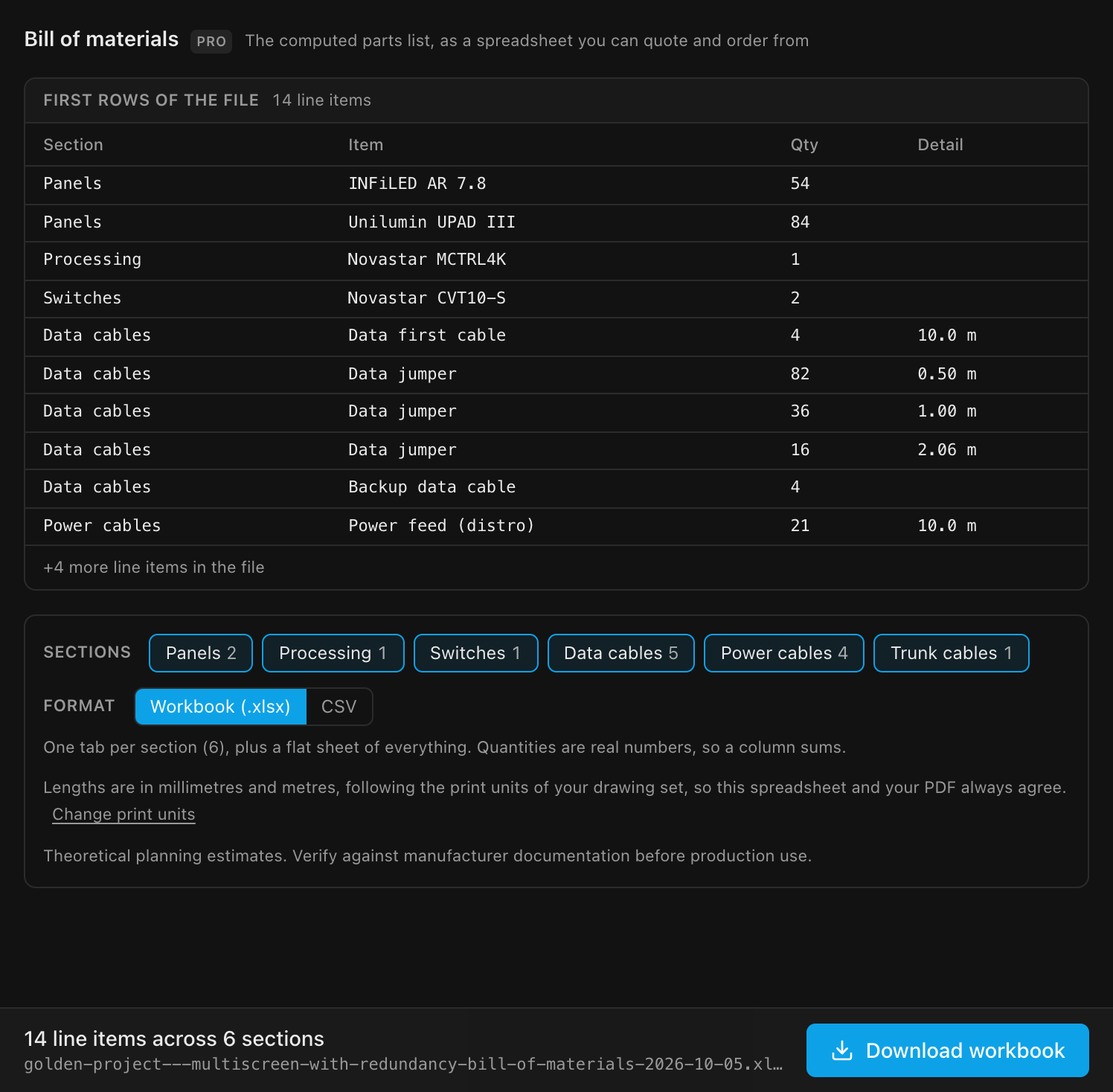
The tab opens on the first rows of the actual file (the same four columns, the same values) with a chip per section carrying its own line-item count, so "Mounting hardware 34" is checkable against what you expected.
Workbook or CSV
| Format | What you get |
|---|---|
| Workbook (.xlsx) | One tab per section (Panels · Processing · Switches · Data/Power/Trunk cables · Transceivers · Mounting hardware), plus a flat Bill of materials sheet holding everything |
| CSV | The flat sheet alone: Section, Item, Qty, Detail. Opens in anything |
The workbook is the default, because a parts list has sections and a CSV can only show them as header rows wedged between the data, which stops it being a table you can sort or filter. In the workbook, quantities are real numbers, so selecting a Qty column gives you a sum; the header row is frozen and filterable on every tab; columns are sized to their contents. A final About tab names the project, the day the file was made, the units it is in (resolved by the same rule the cells were, so the caption can't contradict the numbers under it), and the estimate caveat, so the file still says what it is once it has left the app and landed in someone's inbox.
Download package across the top of the workbench puts the same file under bill-of-materials/ alongside everything else you've ticked.
The "Bill of materials exported" notice appears only once the file is actually on disk. If it can't be written (on the desktop app, typically because the previous copy is still open in Excel), the app says why and offers Save as…; see Where the file goes.
The numbers are the same numbers
The spreadsheet is not a second calculation. It is the same computation the Inspector displays and the printed Bill of Materials block prints, arranged into cells, so a row can't say 60 panels on screen and 59 in the file. Nothing is recomputed, rounded again or "helpfully" adjusted on the way out, and a test pins all three renderings against each other on the golden projects, in both unit systems.
That is also why there is no units control on the export. Lengths follow the print units of your drawing set, the same answer the PDF reads, so the spreadsheet and the drawing in the same packet can never disagree. On a metric set a cable row reads 1.00 m; on an imperial one the same row reads 3.28 ft and a mounting bar reads 19-11/16". The tab tells you which it resolved, with a link to where it's set.
That answer moves with your Units preference while the set is still following it (flip Metric → Imperial and the preview, the file and the drawing beside them all re-unit together), and stops moving the moment somebody pins the set in the Drawings inspector, which is what keeps an already-issued packet printing what it was issued in.
Cable lengths are shown as the BOM shows them: the stocked length the cable-length engine picked (or the one you overrode it with), not the raw measurement, because that is the length you will actually order. There is deliberately no second "measured" column: a purchasing document with two disagreeing length columns is worse than one with the number you'll buy.
Like the cable-label CSV, the spreadsheet is a Pro export.
What's counted, section by section
Panels
Counted by resolved panel type and effective shape: a corner panel masked to a triangle or rounded shape gets its own line, separate from the full rectangles of the same model. Blank (spacer) panels get their own line too, prefixed "Blank panel ·", since they're structure without electronics. 90° corner panels are listed apart as well, with a "· 90° corner" suffix, so corners are ordered as corners.
Disabled panels are not counted. Disabling a panel says no panel exists in that cell, so there is nothing there to buy: a 10 × 10 wall with a four-panel pillar cutout orders 96, not 100. That matches the weight estimate and the mounting hardware on the same sheets, which have always ignored the holes. Blank panels are the opposite case and stay counted: they're real cabinets you install.
A half row or half column is a different cabinet, so it gets its own line at its own quantity, e.g. ROE Visual Graphite 2.6 · 76 and ROE Visual Graphite 2.6 Half · 19, never 95 of the full SKU. The same goes for the corner (quarter) cabinets where a half row meets a half column: name one under the screen's Corner type and it is ordered by its own SKU. Where the screen has no half or corner product to name, the line falls back to the full model with a shape suffix: ROE Visual Graphite 2.6 · Half (horizontal), ROE Visual Graphite 2.6 · Quarter, so those cabinets still stand apart from the full ones on the order.
Processing
Every processor canvas is a physical box, so each counts as one unit of its model. A mirror (backup) processor is simply another unit of the same model. There is no separate "(backup)" line, because main-vs-backup is a wiring concern, not a parts count.
A modular processor (a chassis with input/output cards fitted into its slots) lists those cards as their own parts, since each card is separately purchased. Cards appear after the chassis: fitted input cards first, then output cards, each counted by model. An input card's Detail column summarizes its video inputs by transport and quantity, e.g. 4× HDMI 2.0, 2× 12G-SDI, so the pick list captures the exact input mix, not just the card model.
Switches
One unit per switch configured on any processor, counted by model.
Data cables
Derived from the exact same per-cable enumeration as the cable label CSV, so the BOM and the printed label set always agree.
Every length printed on a BOM row follows the drawing set's distance units, in the shape that suits what the number is for. A cable length is a purchasing quantity (you order it off a reel in whole units), so it prints as metres on a metric set and decimal feet on an imperial one: 1.00 m becomes 3.28 ft, and the trunk-length assumption 30.00 m becomes 98.43 ft. A mounting-hardware length further down is something a fabricator cuts or drills to a rule, so an imperial set prints it as fractional inches to the nearest 1/16" (19-11/16", the mark on the tape) rather than a decimal. A set that has been pinned in the Drawings inspector owns those units, so re-issuing that packet prints the same numbers it printed the first time, whatever anyone's app preference says today; an un-pinned set follows the reader's preference.
- Data first cable: one per assigned string, with the configured first-cable length as its Detail (see BOM settings below).
- Data jumper: grouped by length (e.g.
0.50 m,1.00 m), one row per distinct length. A run drawn across a screen boundary is one cable, so the jumper spanning the gap is counted once, at its real length. - Backup data cable: one per backed-up string.
Power cables
- Power feed (distro): one per circuit, with the first-cable length as Detail.
- Power jumper: grouped by length, like data jumpers.
- Power accessories: the two-fers, three-fers and duplex outlets that combined circuits physically need: a circuit sharing two strings needs a two-fer, three needs a three-fer, one per combined circuit. They're listed here, among the power cables, rather than as their own section. A splitter is a power-distribution part, not a category of its own.
Each row names the real product where the equipment library has one for that fan-out (for example Generic True1 Two-fer 20A or Generic True1 Three-fer 20A); with nothing suitable in the library it falls back to a plain Two-fer (2-way splitter) / Three-fer (3-way splitter) line so the part is never silently dropped from the pick list. A project that doesn't combine any circuits has no accessory rows at all. A circuit combined across two screens needs a splitter exactly like one combined within a screen, and gets one row, not one per screen.
Trunk cables
Trunks are counted physically: one per switch, plus backup trunks, not from the CSV rows (the CSV lists a shared trunk under every screen it serves, which is right for pick lists but wrong for purchasing). This includes cascade trunks (a switch feeding another switch, e.g. a Brompton QD-S → XD-S 10G hop off the SQ200's 100G run into the QD-S): every tier in the chain gets its own trunk-cable row, resolved against the device it's actually plugged into (its parent switch, not the canvas processor), exactly like a processor-fed trunk. Rows are grouped by resolved trunk cable type: a per-switch explicit cable pick wins, otherwise the same cable the picker shows selected by default. When several cables are physically compatible and nothing's been explicitly picked, the picker (and this BOM row) default to the LC fiber option, so the row always names a real, purchasable cable, never a placeholder. Only a trunk with no link-media data on either end at all (undocumented/legacy equipment) falls back to the project default from BOM settings, below. A backup or redundant trunk is the same cable type as the primary into that switch, so it adds to that type's count rather than getting a "backup" line. The bundled trunk-cable catalog uses plain, Title Case names with the mode spelled out (Cat6A, Single Mode LC Duplex, Multimode LC Duplex, Single Mode LC Simplex, Multimode MPO, 8 Core, 100G FIBER); this table and the cable dropdown both show that full name. The System Diagram sheet shows a shorter tag for the SAME resolved cable instead (e.g. "LC Duplex SM" for Single Mode LC Duplex) so a trunk line stays legible on a schematic. Note the single-mode LC-duplex cable is now ONE catalog entry regardless of whether the trunk runs at 10G or 40G; that split lives on the SFP/QSFP module plugged into it, not the cable.
Each trunk row's Detail names the cable type and a run length, e.g. Single Mode LC Duplex · 30.00 m (98.43 ft on an imperial set). Trunks can't be measured (processors and switches aren't placed in space), so every trunk carries the same assumption: 30 m plus any service loop, or your own stocked trunk length when you have one. See Cable stock & lengths.
Transceiver modules
When a trunk end is a bare SFP/SFP+ cage, the module the picker shows selected (your explicit pick, or its own default when nothing's been chosen) is a real, separately-purchased part. It appears here as its own line, one unit per resolved end (a duplex fiber run with the same module both ends counts as qty 2 of that one part; a single-fiber WDM run needing two DIFFERENT mirror modules lists each as its own line, qty 1). This covers cascade trunks too, e.g. a Brompton QD-S → XD-S link matched on a "dual simplex LC" module lists that module at qty 2 (one per end), the same as any processor-fed trunk. The BOM resolves each end through the exact same engine path the per-end module picker does, so the two can never disagree. The Detail column carries the SKU when the catalog entry publishes one (no price; the BOM display is qty, name and SKU only).
Some processors drive panel strings directly off their own SFP cages, with no switch at all, e.g. a Megapixel HELIOS fitted with the "8× 1G Copper" output bank feeds up to 8 panel strings straight off 8 swappable 1G copper SFP modules. When a processor's direct (panel-facing) output ports are this kind of swappable cage, this section lists one module per assigned panel string (6 strings assigned lands 6 units of that module), resolved the same unambiguous-module rule as a trunk end (only when the catalog has exactly one module fitting that cage; a genuinely ambiguous cage lists nothing rather than guess). A processor fitted with the equivalent fiber output bank instead feeds its strings through a switch, so it never picks up a copper module here.
Mounting hardware
Everything the mounting engine selects for each screen, merged by description across screens. Where a part's description names a length (1w hanging bar (500 mm), Vertical truss segment (2000 mm)), that length prints in the set's distance units too. An imperial set reads 1w hanging bar (19-11/16"): fractional inches, to the nearest 1/16", because this is a part somebody cuts to a rule rather than a length ordered off a reel. It stays in inches however long the part is (2w hanging bar (39-3/8"), not 3' 3-3/8"), so a column of parts never changes shape halfway down. The 1w is a count of panel widths, not a length, and never converts. The Detail column carries the SKU for branded kits; generic mounting systems have no SKU data and leave it blank. A wall with corner panels adds a 90° corner hanging bar or 90° corner stacking bar line, one per corner column. See Mounting in 3D and on your paperwork.
BOM settings
Two project-level inputs flow into the BOM's cable rows. Select the project root row in the left rail → Inspector → Bill of materials section:
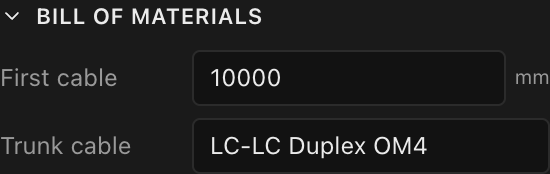
| Setting | What it does | Default |
|---|---|---|
| First cable | The assumed home-run length for every first cable (switch/distro → first panel). Entered in mm (like every Inspector field, in both unit systems) and printed as e.g. 10.0 m (or 32.8 ft on an imperial set) on the Data-first and Power-feed rows | 10000 mm (10 m) |
| Trunk cable | Free-text default trunk cable type, used when a switch has no explicit per-trunk cable pick | LC-LC Duplex OM4 |
Both are stored in the project document, so they travel with the .ledproj file.
Weight estimate
A companion to the BOM: a per-screen weight table (Item / Qty / Each / Total) placeable as a Weight estimate sheet block, with a subtotal per screen and a grand total when several screens stack.
- LED panels are grouped by type and shape. A half or quarter panel weighs what its own product weighs, including a corner cabinet named under Corner type; where the screen names no half or corner product, half of the full cabinet (a quarter panel, a quarter), flagged as an estimate. A masked corner panel's weight is scaled down by its area ratio.
- Blank (spacer) panels get their own line at full structural weight (no electronics to subtract).
- 90° corner panels get their own line. With a corner product named on the screen, that's the product itself at its own weight, counting every corner (a column of stacked corners counts two per cell). Without one, it's the flat panel marked as a corner (e.g.
ROE Visual Graphite 2.6 · 90° corner) at the flat panel's weight, flagged as an estimate. - Cables get one estimated row each for data and power, showing the cable count, the total run, and the weight. See Cable weight below.
- Mounting hardware rows come from the mounting engine. Branded kits contribute real weights; generic mounting systems have no weight data. They render
-and are excluded from totals. - Weights honor the sheet's weight units (kg or lb), inherited from your preference or pinned on the set; see Paper sizes, standards, units & scale.
Cable weight
Cable is real hanging weight, so the estimate includes it. The run length is measured from your actual design rather than assumed:
- Panel-to-panel jumpers use the true centre-to-centre distance between the two panels each cable connects, so a vertical hop, a horizontal hop and a column-wrap diagonal are each counted at their own length, and moving a panel by hand changes the number.
- Home runs (the "first" cable from a switch or processor port to a string's first panel, the distro feed to each power circuit, and each backup-data feed) have no length that can be derived from the layout, so they use the First cable setting above (10 m by default). Change that setting and the weight follows.
The two rows use fixed cable profiles, printed as a footnote under the table:
| Row | Profile | Weight |
|---|---|---|
| Data cables (Cat5e) | Cat5e | 0.044 kg per metre |
| Power cables (14/3 AWG) | 14/3 AWG | 0.132 kg per metre |
Both figures already carry a 10% safety margin over the bare cable mass (0.040 and 0.120 kg/m), so the number errs high rather than low. The footnote states the same two figures in the set's own units: 0.044 kg/m on a metric sheet, 0.03 lb/ft on one pinned to pounds and inches.
Because the per-cable weight is tiny (one Cat5e jumper is roughly 20 g, which rounds to nothing at the table's precision), cable rows show - in the Each column and put the real figure in Total. The run itself prints in the sheet's distance units: metres on a metric sheet, decimal feet on an imperial one.
Processor-to-switch trunk cables are excluded. They generally run to a rack rather than hanging on the screen, and their medium varies per trunk (fiber vs copper), so counting them at a single assumed profile would be a guess rather than an estimate.
TIP
Cable weight is small next to the panels (a few percent of a screen's total), but it is not nothing, and it is the part most often forgotten when sizing rigging. Panel weights still come from the manufacturer spec; only the cable rows are profile-based estimates.
What changed from V1
- No "Redundancy" section. The BOM is a pure parts inventory: mirror processors, backup switches, backup trunks and backup data cables are counted as ordinary units of the same part.
- Cable weights are measured, not assumed. V1 estimated every jumper at one nominal length (the panel's longest side) for the whole screen. V2 sums each cable's true centre-to-centre run, so the figure tracks your actual layout. V1's cable profiles and its 10% safety margin are kept, so totals stay comparable.
WARNING
All BOM and weight figures are theoretical planning estimates, the same caveat the PDF export's disclaimer makes you acknowledge. Verify against manufacturer documentation before production use.