

Appearance
Render styles, LED look & backgrounds
How the 3D wall looks (panel shading, the physical-LED close-up rendering, brightness, and the scene backdrop) is controlled from the nav-cube menu's Shading, Background and Display sections.
These are display preferences, not project data
Everything on this page is saved per machine (in your browser), never in the project file. Changing them doesn't modify the project, doesn't mark it unsaved, and teammates opening the same project see their own settings. The same controls are available in read-only share links, where each viewer's own settings apply. App light/dark theme is separate. See Theme & appearance.
Shading: the four render styles
Nav-cube menu → Shading. How the panels themselves draw:
| Style | What you see | Default |
|---|---|---|
| Shaded with edges | Live LED imagery plus a thin outline around every panel, so the panel grid reads on top of the content, at any zoom. | |
| Shaded without edges | Clean LED imagery, no outlines. | ✓ |
| Unshaded | No imagery: every screen renders as a flat slab of its assigned screen colour. The classic solid look. | |
| Translucent | See-through panels at 45% opacity, so you can read wiring, mounting structure and screens behind other screens. |
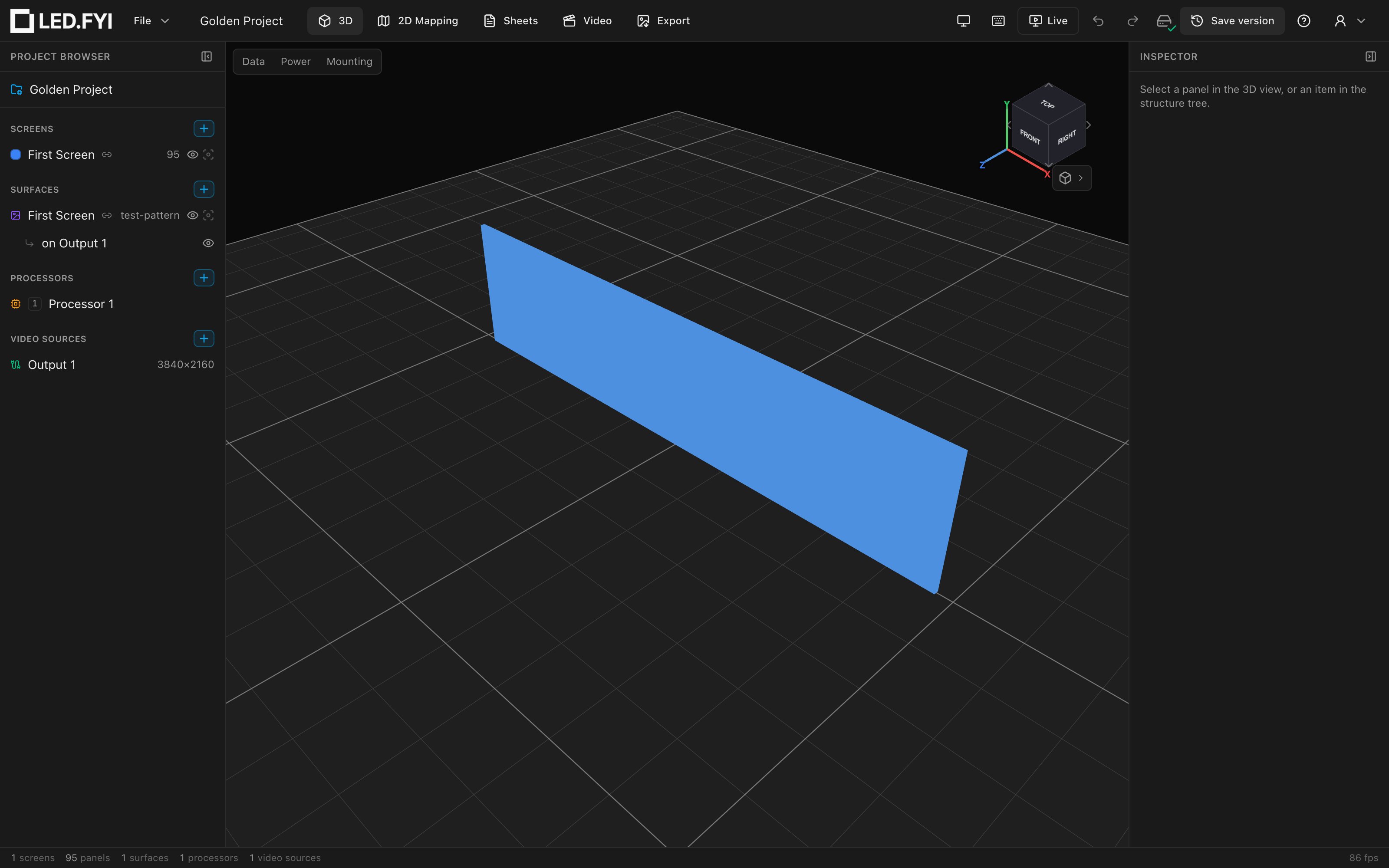
Selection highlighting adapts to the style: in the two shaded styles and Translucent, selected panels get a half-transparent wash in the screen colour over their content; in Unshaded they tint lighter.
The back of a panel
Orbit behind the wall (or press B for the Back view) and every panel is drawn as the cabinet it is, not a flat slab: a dark, lightly textured die-cast frame (a raised rim and a web of ribs around a recessed field) with the power/data hub in the centre carrying the LED.FYI mark, two side lock levers in the brand orange, and a lock pin at each corner. The cabinet keeps its real proportions on every panel format: the rim is the same 22 mm on a 500 mm and a 1000 mm panel, the hub scales with the panel within sensible limits, and the corner pins stay round on a 500 × 1000. Its depth is the panel type's real depth from the equipment library.
Panel types without a depth on file
Most library types don't record a cabinet depth. Those panels used to render as a zero-thickness sheet; the 3D view now draws them as a nominal 80 mm cabinet so they have a back to show. That is a display assumption only. Drawings, weight estimates and mounting counts keep using the value in the project (or none).
The cabinet detailing is for rectangular panels, including half and quarter formats; the eight corner-cut shapes render as plain shaped prisms. A 90° corner panel is drawn as one bent cabinet: each half carries the frame and ribs, mitred down the inside of the fold, with one hub across the inside corner. It shows in the two shaded styles and in Translucent; Unshaded keeps its flat colour slab.
Display: Flat vs. LED
Nav-cube menu → Display. The Flat / LED toggle picks how the wall's pixels are rendered:
| Mode | What you see | Default |
|---|---|---|
| Flat | The solid poster-image look: content drawn edge-to-edge across each panel. | ✓ |
| LED | Every composite pixel is drawn as a small lit LED die centred in its cell, surrounded by black. One content pixel = one physical LED, so panel seams read as black gaps and the wall looks like real LED up close. |
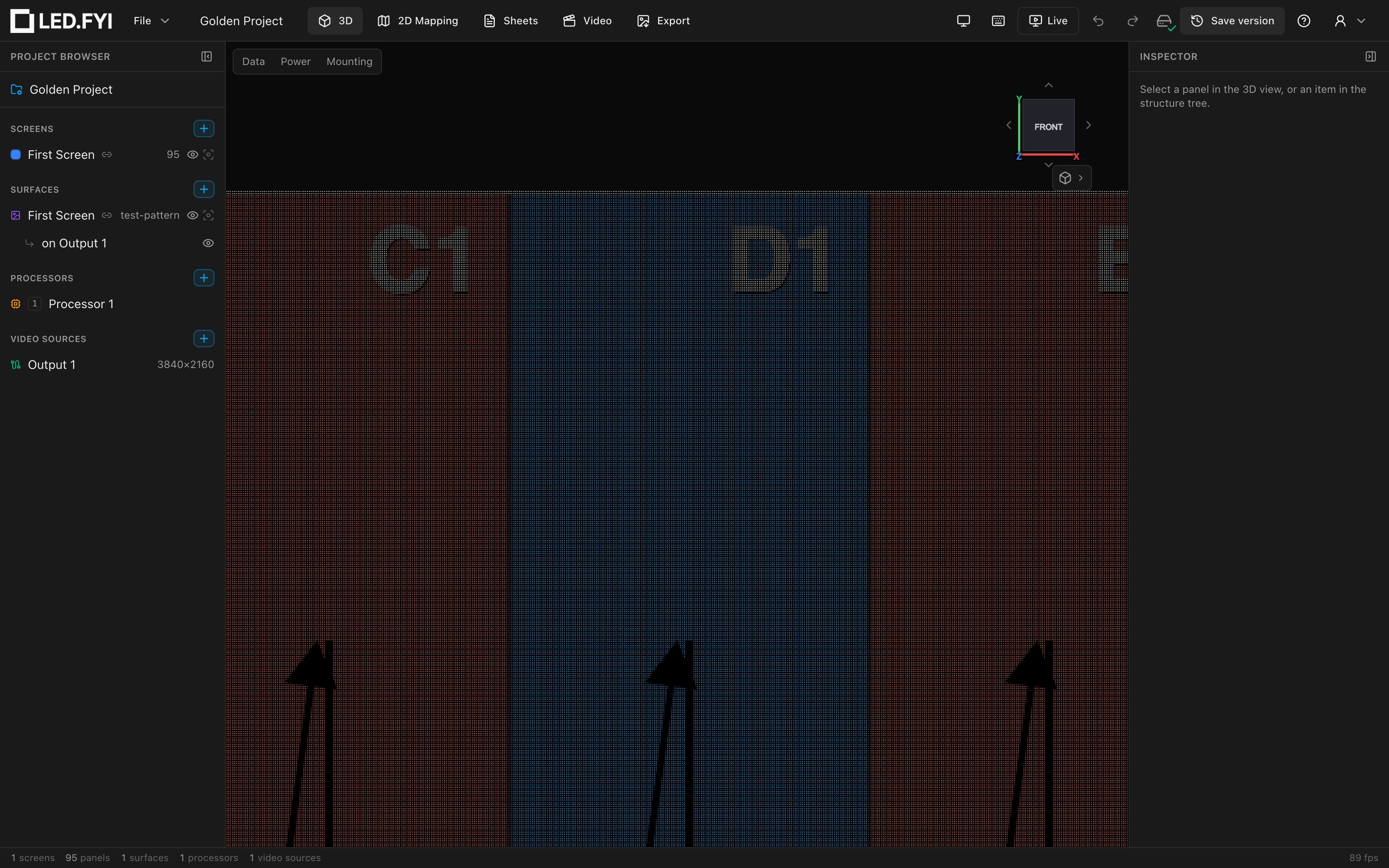
In LED mode the wall converges cleanly to the flat image as you pull back: the die grid is rendered with an analytic filter, so there is no moiré or shimmering at any distance. Over-bright close-up dies are clipped hue-preservingly, so LEDs stay coloured rather than washing out to white.
Fill factor
Display → Fill factor sets the lit die's size as a fraction of the pixel pitch, shown as a percentage.
| Setting | Range | Step | Default |
|---|---|---|---|
| Fill factor | 10%–100% | 1% | 25% |
Fill factor changes dot size only, never wall brightness. The die is energy-conserving: a smaller dot emits proportionally brighter, so the wall reads the same total brightness at any fill. At around 100% the dot grid blends back into the smooth flat image. The slider is disabled (dimmed) while in Flat mode.
Brightness
Display → Brightness is an emissive gain on the wall's emitted light: a "screen brightness" handle.
| Setting | Range | Step | Default |
|---|---|---|---|
| Brightness | 0.20–4.00 | 0.05 | 0.50 |
It applies in both Flat and LED modes and means the same thing in each. Only lit content is boosted; the black gaps between LEDs and the panel sides stay dark.
Resetting
- Once a slider is moved off its default, a small circular-arrow reset button appears next to its value; click it to restore that one handle. (It never shows on a disabled slider, e.g. Fill factor in Flat mode.)
- Reset all, at the top of the Display section, restores every display preference on this page (render mode, shading style, background, floor, grid, floor size, fill factor and brightness) to the defaults.
Background: dark vs. soft white
Nav-cube menu → Background switches the whole scene chrome:
| Look | What you get | Default |
|---|---|---|
| Dark | A near-black studio backdrop: the original look. | ✓ |
| Soft white | A soft studio white: bright, but deliberately not glaring pure white. |
One choice changes the backdrop colour, the floor-grid line colours and the ViewCube palette together, so the cube stays legible on either backdrop. The LED panels themselves render identically in both looks.
Coming from V1?
There are no sky/HDRI environment presets in V2, just these two studio looks.
The floor and grid
Nav-cube menu → Floor picks how the ground surface itself is drawn:
| Floor | What you see |
|---|---|
| Solid floor | An opaque deck (the default). Nothing below ground level shows through it. |
| Translucent floor | A see-through deck: the ground still reads, but anything sitting below it stays visible, dimmed. |
| No floor | Just the grid lines, with the backdrop showing through: the look from before September 2026. |
The floor is a flat deck in a tone that stands clearly apart from both the backdrop and the grid lines. It is a square, 25 m × 25 m out of the box, centred on the world origin (where new screens are placed), with a heavier line along its rim so its edge always reads: against the backdrop, through a translucent deck, or as the boundary of the bare grid. When a project opens, the camera stands about 1.5 m above this deck looking slightly down at the wall (see the opening view), so the floor is in perspective from the first moment rather than seen edge-on.
Floor size
Nav-cube menu → Floor size (the slider just under the floor choices) sets the square's side length. The deck never grows on its own to fit a project. For a large stage, an arena floor or a stadium bowl, this slider is how you make it bigger.
| Setting | Range | Step | Default |
|---|---|---|---|
| Floor size | 5 m–300 m | 1 m | 25 m |
The value reads in your display units: metres, or whole feet (82 ft for the default) with the imperial preference; the slider moves in one-metre steps either way. Like every control on this page it is a personal preference saved in your browser, so it carries across projects and reloads. A circular-arrow reset appears next to the value once it's off 25 m; Reset all in the Display section restores it too. The row is dimmed when there is nothing to size: No floor with Show grid off.
A wall wider than the floor
The opening camera stands far enough back to frame the whole wall, so for a wall much wider than about 8 m it ends up standing just outside the default square, looking at the wall on a 25 m platform in the void. That is the cue to enlarge the floor: 50 m or 100 m puts the ground back under your feet.
Nav-cube menu → Show grid turns the reference grid lines on and off, independently of the floor. It's on by default.
The grid is drawn to real-world scale, so you can read distances off it without measuring: a fine line every 1 m, and a brighter, heavier section line every 5 m (0, 5, 10, 15…). It sits at floor level (world height 0) and is clipped to the floor square; on a large floor the lines fade out with distance from the camera.
A new screen is added centred on the origin, so a fresh wall straddles the floor plane until you raise it. That's deliberate: the app never silently moves your wall for you. Set the screen's 3D Y position (in Adding & managing screens) to stand it on the deck, or leave it if the design really is a floor screen. With the Solid floor the below-ground half of a straddling wall is hidden, the reminder to raise it; pick Translucent floor or No floor to keep the whole wall in view while you decide.
The grid stays visible from below as well as above, so orbiting under the wall (checking a hang, or looking at a ceiling screen) doesn't make the ground reference disappear. The solid floor is solid from below too: dip the camera under the ground and you see its underside, with the grid drawn on it. To look up through the deck at a hang, switch to Translucent floor or No floor.
TIP
This setting is a personal preference, not project data, like the render styles and colour sets. It persists across projects and doesn't travel with a share link.