

Appearance
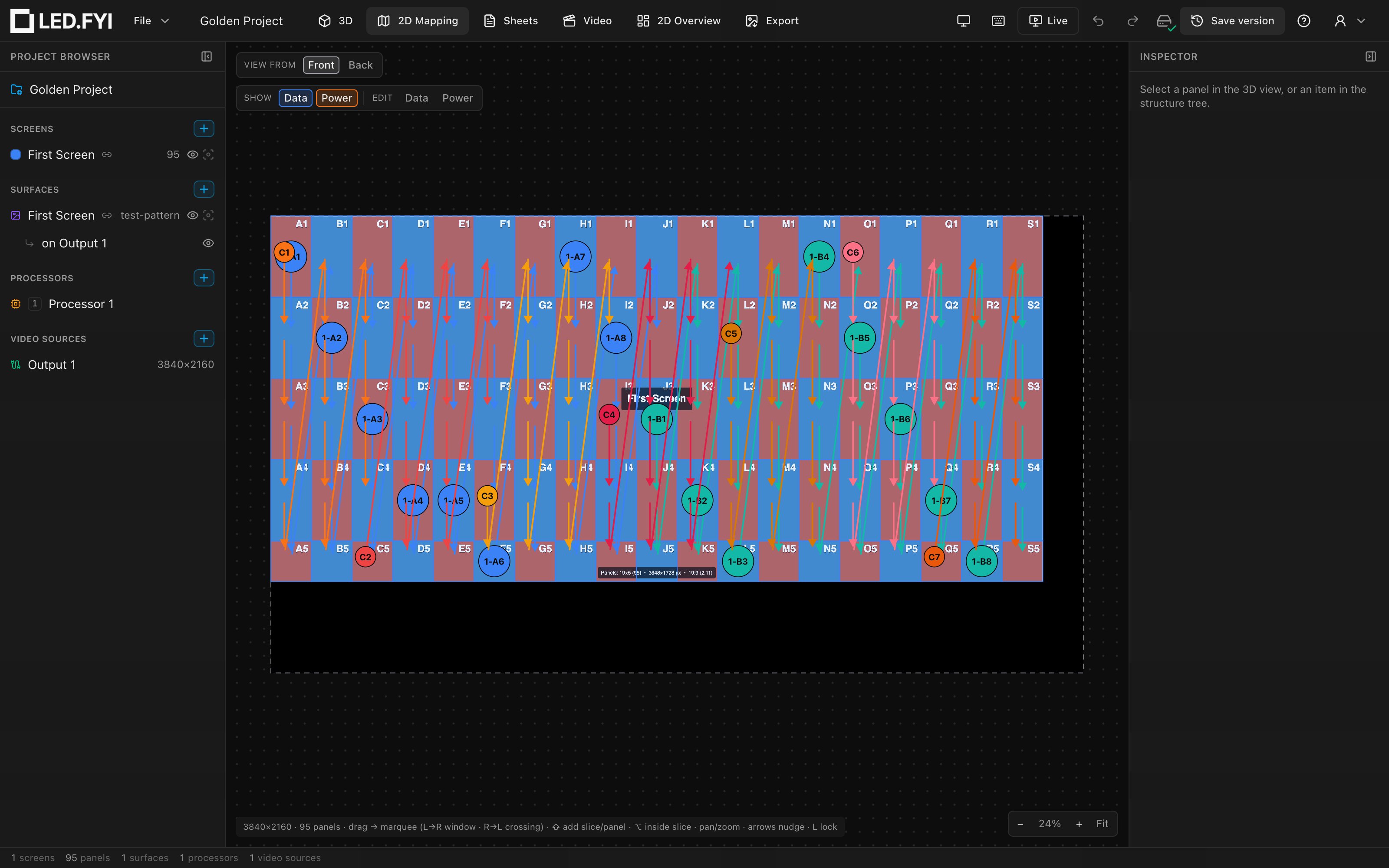
Wiring & power overview
LED.FYI plans the complete signal and power path for your wall: data cables are chained into strings and assigned to processor or switch ports, power cables are chained into runs and grouped into circuits with W = V × A budgets, and redundancy can be layered on top, from a single backup port up to a full mirror processor. Everything recomputes live as you edit: move a panel, change a limit, or swap a processor and every string, circuit, label, and capacity readout updates instantly. There is never a "recalculate" button to press.
How LED.FYI models wiring
- Data: each screen has a data path, the route the data chain takes through the panel grid. The engine walks that path and automatically breaks it into strings whenever the next panel would exceed the per-string pixel limit. Each string is then assigned to a physical output port, either directly on the processor or through switches on the processor's 10G trunks.
- Power: each screen also has an independent power path. The engine chains panels into power strings, splitting whenever the next panel would exceed the watt budget (working voltage × max amps), and then groups strings into circuits against a per-circuit amp limit.
- Redundancy: four tiers of per-string backup ports, backup trunks, backup switches (future), and full processor mirrors, driven entirely by what the selected equipment actually supports.
Both paths can be rewired by hand, panel by panel, directly on the 2D map. Manual overrides coexist with the automatic pattern: only the connections you explicitly change are affected, including running one cable straight from one screen into the next, which the automatic pattern never does on its own.
The wiring design language
One visual grammar is used everywhere wiring is drawn: the 2D and 3D overlays, on-wall test patterns and drawing sheets:
| Mark | Meaning |
|---|---|
| Solid line / labeled circle | A primary feed (the string's port label, or the circuit label, sits in the solid chip at the string's first panel) |
| Dashed labeled circle | A redundant backup feed, drawn at the last panel of a backed-up string |
| X mark | End of chain on drawing sheets: the cable genuinely stops here (a string with a backup loops back instead of dead-ending, so it gets the dashed backup chip; a run that carries on onto another screen gets a link flag) |
| Link flag, pointed | The cable leaves this screen for another, named beneath the flag. See running one cable across two screens |
| Link flag, notched | The cable arrives here from another screen. The point and the notch are each other's negative, so the two halves visibly belong to one cable |
| Cool colors (blue, teal, violet…) | Data strings: an 8-color palette keyed to the trunk letter, so every string on Trunk A is blue, Trunk B teal, and so on |
| Warm colors (orange, red, amber…) | Power circuits: a warm 8-color palette keyed to the circuit number |
| Gray | A data string on a direct processor output, or an unassigned string (no port yet) |
| Outline colour | The role: main or backup. A marker's ring and a device block's border are inked in your main/backup pair (black and grey out of the box), while the fill keeps saying which run it is |
A run keeps one color everywhere it appears, including both halves of a cable that crosses a screen boundary, so you can follow a single cable through a multi-screen drawing set by color alone.
Fill and outline answer two different questions, and the grammar keeps them apart: fill and path colour = identity (which run this is), outline colour = role (main or backup). That is why changing the main/backup pair can never make two runs look alike.
The in-app overlay colors are fixed; they are the app's identity. Only the colors used on the printed wiring sheets can be customized, in Preferences → Wiring sheet colours. The main/backup pair is the exception: it applies on screen and on paper alike (see Seeing & exporting your wiring).
Notice that colour is never the only thing carrying a distinction: solid vs dashed, the X, the flag shapes and the [BKP] tag all still work on a drawing photocopied in black-and-white.
Where wiring lives in the app
| Surface | What you do there |
|---|---|
| 2D Mapping workbench | Toggle the read-only overlays, wire panels by hand, reset or disconnect a screen's hand-drawn wiring, and manage circuit numbers/combining from the right-click menu. See Manual wiring and the 2D Mapping workbench |
| Processor inspector | Add switches, pick trunk cables, assign strings to ports, and set up redundancy, including the Auto backup setting. See String-to-port assignment, Switches & trunk cables and Redundancy |
| Screen inspector | The Wiring paths picker with Reset to automatic wiring, per-screen electrical settings, data-string limits, and the live Wiring (computed) readout. See Data path and Power: strings, circuits & buffers |
| Project inspector | Project-wide Circuit amps, circuit grouping and labeling, Renumber all circuits, and safety buffers. See Power |
| Project inspector | The cable lengths you stock, so the BOM lists what to pull rather than what was measured. See Cable stock & lengths |
| 3D workbench | The same wiring drawn through the wall in 3D. See Seeing & exporting your wiring |
| Video / test patterns | The data-path and power-path test patterns put the wiring on the wall itself. See Seeing & exporting your wiring |
| Sheets & Export | Wiring diagrams, schedules, the block diagram, and the cable-label CSV. See Seeing & exporting your wiring and Port, string & cable labels |
Wiring from the command palette
Ten wiring actions live in the command palette (⌘K / Ctrl+K) under the Wiring category:
| Command | Scope | What it does |
|---|---|---|
| Reset Data Wiring to Pattern | Screen | Removes every hand-drawn data link and cut. Asks first when the reset would release port assignments (see Manual wiring) |
| Reset Power Wiring to Pattern | Screen | Removes every hand-drawn power link and cut |
| Disconnect All Data Wiring | Screen | Cuts every enabled panel into its own one-panel data string |
| Disconnect All Power Wiring | Screen | Cuts every enabled panel into its own one-panel power string |
| Renumber All Circuits | Project | Clears every pinned circuit number and start number, then numbers the circuits in order. Asks first (see Power) |
| Auto-Assign Strings (Fill) | Processor | Packs strings onto ports in order |
| Auto-Assign Strings (Balance) | Processor | Forms even strings and splits them across the switches |
| Clear String Assignments | Processor | Removes every port assignment and its backup |
| Auto-Assign Backup Ports | Processor | Turns Auto backup on in the processor's default setting: Mirror 1:1 when it is offered, otherwise First available. Available only when that setting can back up every assigned string, or before any strings are assigned |
| Clear Redundancy Backups | Processor | Turns Auto backup off and removes every backup port on the processor |
Screen-scoped commands act on the selected screen, or on the screens of the selected panels. With a processor selected, they act on every screen that has panels on that processor. With nothing selected they act only in a project that has a single screen; otherwise they do nothing. Processor-scoped commands act on the selected processor, else the selected panel's processor, else a processor that holds the selected screen's panels, else the first processor in the project browser.
Undo
Every wiring edit (a hand-drawn connection, a cut, a port pick, a bulk Fill) is one ordinary step in the app's single undo history. ⌘Z walks it all back; there is no separate wiring undo channel (unlike V1). See Undo, redo & versions.