

Appearance
Choosing a processor & signal settings
The processor model you assign decides everything downstream: how many output ports you can wire, which bit depths and frame rates are available, how many pixels each port can drive, and which redundancy schemes are offered. Select a processor in the tree and work through the Inspector from the top.
The Processor canvas section
The section's heading carries the processor's tag (1 · Processor canvas, or 9B · Processor canvas on a designated backup): the same tag that sits before its name in the project browser and prefixes every port label it produces (see the processor tag).
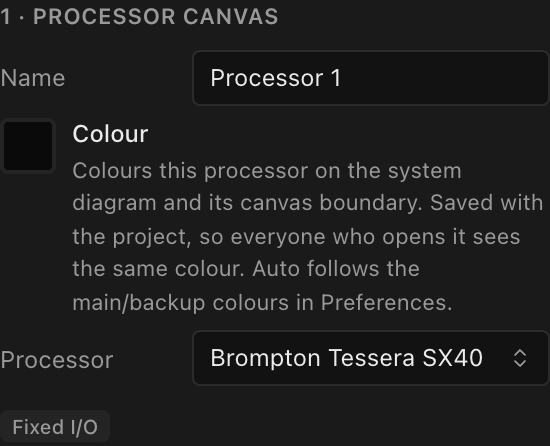
| Field | What it does | Default |
|---|---|---|
| Name | Free-text name, used everywhere: the tree, the processor switcher in 2D Mapping and Video, and your paperwork. | Processor N, continuing the project's numbering (Processor 1 → Processor 2) |
| Colour | The colour this processor is drawn in on the System Diagram and as its canvas boundary in 2D Mapping. See Giving a processor a colour. | Auto |
| Processor | The model, picked from the equipment library (see below). Once a model is set, a small badge under the picker reads Fixed I/O (built-in inputs and outputs) or Modular chassis (card slots; see Modular processors). | none (Choose processor…) |
| Layout | How many video sources tile into this processor's composite canvas: 1x1, 2x1, 1x2, 2x2, 3x1, 1x3, 4x1 or 1x4. Shown only while the inputs tile (Stitched); a processor showing one input at a time has no grid to lay out. See Outputs, canvases & multi-output. | 1x1 |
If this processor has been designated as another processor's backup, an amber note, Backup (mirror) of <primary>, appears at the top of this section (see Multi-processor screens).
Picking a model
Click the Processor field to open a searchable picker, grouped by brand. It lists every processor in scope: the built-in library, your own custom models, and (when you're signed in) your organization's and the community libraries. The built-in library ships 19 models:
| Brand | Models |
|---|---|
| Brompton | Tessera S8 · Tessera SQ200 · Tessera SX40 |
| Megapixel | Helios (modular) |
| Novastar | CX40 Pro · KU20 · MCTRL 660 Pro · MCTRL4K · MX20 · MX30 · MX40 Pro · MX2000 Pro (modular) · MX6000 Pro (modular) · UHD Jr · VX4S · VX400 · VX600 · VX1000 · VX2000 |
The three modular models are chassis you fit with input and output cards before they can take a video source or drive a panel; see Modular processors.
Several Novastar models expose a swappable fiber trunk rather than a fixed jack (CX40 Pro's 40G port, and MX40 Pro/MX30/MX20/KU20's 10G port), so the wiring picker offers both a multimode and a single-mode cable/SFP pair for that trunk, the same as the modular MX 1×40G/4×10G output cards. See Trunk cable types.
Missing a model? The + Create custom… row at the bottom of the picker opens Request a processor, pre-filled with what you typed in the search. Add a datasheet link and send it, and the LED.FYI team adds the model to the built-in library for everyone; see Requesting equipment. Only platform admins get the full processor form there. Custom processors you created before keep working: pick and wire them as usual.
Swapping models resets dependent settings
Changing a processor to a different model clears, in one undo step:
- its switches and every string-to-port assignment, since they were wired to the old model's ports;
- any fitted cards, the input mode and the active input, since they belonged to the old chassis;
- the receiver card on any screen this processor drives, when the card is a different brand from the new model (the same brand rule the receiver-card picker follows).
Bit depth and frame rate are kept if the new model offers the same combination; otherwise they re-seed to the new model's lowest published operating point.
The Signal section
The Signal section sets the processor's operating point and reads back its capacity. It needs a model assigned; until then it shows a hint instead of the controls (only the Canvas res read-out remains, since that depends only on the layout and the bound source).
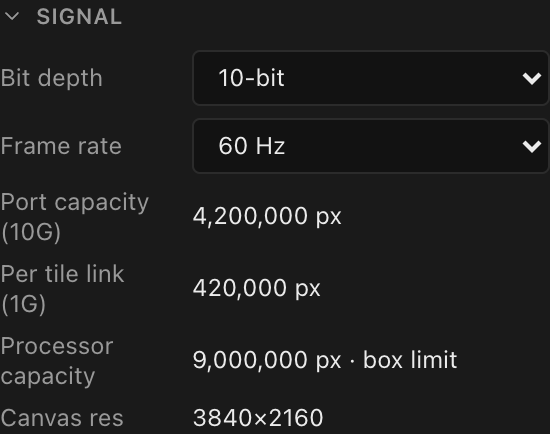
| Field | What it does |
|---|---|
| Bit depth | Color depth per channel. The options come from the model's published capacity table (typically 8/10/12-bit), or from its fitted output card's, on a modular processor. When the screens this processor drives have a receiver card set, only the combinations every one of those cards also publishes are offered. Higher depth lowers the per-port pixel ceiling. Changing it keeps your frame rate when the model offers that rate at the new depth; otherwise it snaps to the lowest rate that is offered. |
| Frame rate | Refresh rate, in Hz. The options are the rates the model publishes at the selected bit depth, including fractional NTSC rates like 23.976, 29.97 and 59.94 where the model supports them. |
| Port capacity (read-only) | The pixel ceiling of one of the model's output ports at the current bit depth × frame rate, stated at that port's own link speed. On a box with direct 1G outputs it is the per-1G figure; on a trunk-only box the label names the speed: a Tessera SX40 or a fibre-card Megapixel HELIOS reads Port capacity (10G), because those boxes have no 1G port. Shows - when the model publishes no row for the current combination. |
| Per tile link (1G) (read-only) | Shown only on a trunk-only box: what one 1G switch downlink delivers to a tile, which is the ceiling a string on that box is actually checked against. A fibre-card HELIOS at 12-bit/60 reads 4,019,000 px per 10G trunk and 401,000 px per tile link, the same figure its copper card, its card-less chassis and the PX1 receiver card publish. Hidden when the model's row does not vouch for a 1G figure. |
| Processor capacity (read-only) | The whole-box ceiling at the current bit depth × frame rate: the smaller of two figures, and the read-out says which: · port limit is every output port at its own speed's ceiling, added up (a Megapixel HELIOS with its 8× 10G fibre card at 12-bit/60 is 8 × 4,019,000 = 32,152,000 px); · box limit is the manufacturer's published load capacity for the whole controller, which does not move with bit depth or frame rate (a Tessera SX40 or a Novastar CX40 Pro / MX40 Pro is 9,000,000 px, an MX30 6,500,000, a HELIOS 35,000,000). A CX40 Pro's six 5G ports and 40G trunk add up to 41,316,800 px at 8-bit/60, so it reads 9,000,000 px · box limit (and still does at 12-bit/60, as the trunk keeps the port sum above the box); a box that publishes no load capacity, such as an MX2000 Pro with one 8× 5G card, keeps the port figure: 18,330,496 px · port limit at 10-bit/60. The String assignment section checks your design against it; see Processor capacity. Shows - only when the model publishes neither a box figure nor a capacity row for the current combination. |
| Canvas res (read-only) | The composite canvas resolution: the layout grid times the first bound video source's resolution (e.g. a 1x1 layout on a 3840×2160 source reads 3840×2160). |
How port capacity is checked
The per-tile 1G link is the leaf of a capacity hierarchy, processor → trunk (40G/10G) → 1G port, that LED.FYI verifies your wiring against:
- The ceiling for a port comes from the model's capacity row for the exact current bit depth + frame rate; there is no interpolation between rows. Where a model publishes per-speed ceilings (1G vs 2.5G ports, 10G trunks), the matching speed's figure is used; a 10G trunk without its own figure falls back to 10× the 1G figure. A manufacturer's table can carry all three in one line: the HELIOS manual's "Switch to Tiles" 1G and 2.5G columns and its "HELIOS to Switch" 10G column are stored together, so the trunk budget, the per-tile ceiling and the Signal read-outs all quote the same page. Novastar's 5G line works the same way: a CX40 Pro or an MX 5G / 40G output card carries the A10s/A8s per-1G matrix, the XA50 per-5G matrix, and a 40G figure equal to eight 5G ports (a 40G trunk feeds a CVT8-5G converter), so at 8-bit/24 a CX40 Pro reads Port capacity (5G)
7,378,000 px, its 40G trunk is budgeted at59,024,000 px, and a 1G receiver behind its switch is checked against1,649,306 px. - When no capacity row matches at all, a conservative default of
650,000px per 1G port applies. - A string is over capacity only when it exceeds the ceiling; landing exactly at capacity is fine.
There is no single industry figure for "pixels per gigabit port". Each manufacturer publishes its own. Brompton's Tessera range rates a 1G output at 525,000 px at 8-bit/60 Hz, NovaStar's controllers rate theirs near 660,000, and the numbers move with bit depth and frame rate in every case. That is why the ceiling always comes from the model you picked rather than from a house constant.
You see the result live in the processor's String assignment section: each assigned string shows a utilization bar and a read-out like 520,000 px · 80% of 650,000 px, turning amber above 85% and red with an · over flag beyond the ceiling. After an auto-assign, any offending ports also raise a Port over capacity warning toast with a Show processor shortcut. Assignment itself is covered in String-to-port assignment; per-screen pixel and panel-per-string limits that sit below this ceiling are covered in Per-screen power & string limits.
One thing these read-outs do not know about
Low-latency modes can halve a port. Brompton's Ultra Low Latency mode halves the per-port pixel capacity, and the rules differ from processor to processor. LED.FYI does not model low-latency operation at all: there is no switch for it anywhere in the app, and Port capacity always reads the normal figure. If you are designing for ULL, halve the port figure by hand.
The wizard's Processing step
File → New with wizard… builds a starter project in five steps. The second step, Processing, configures the project's single processor and video source. The wizard is covered end-to-end in New project wizard.
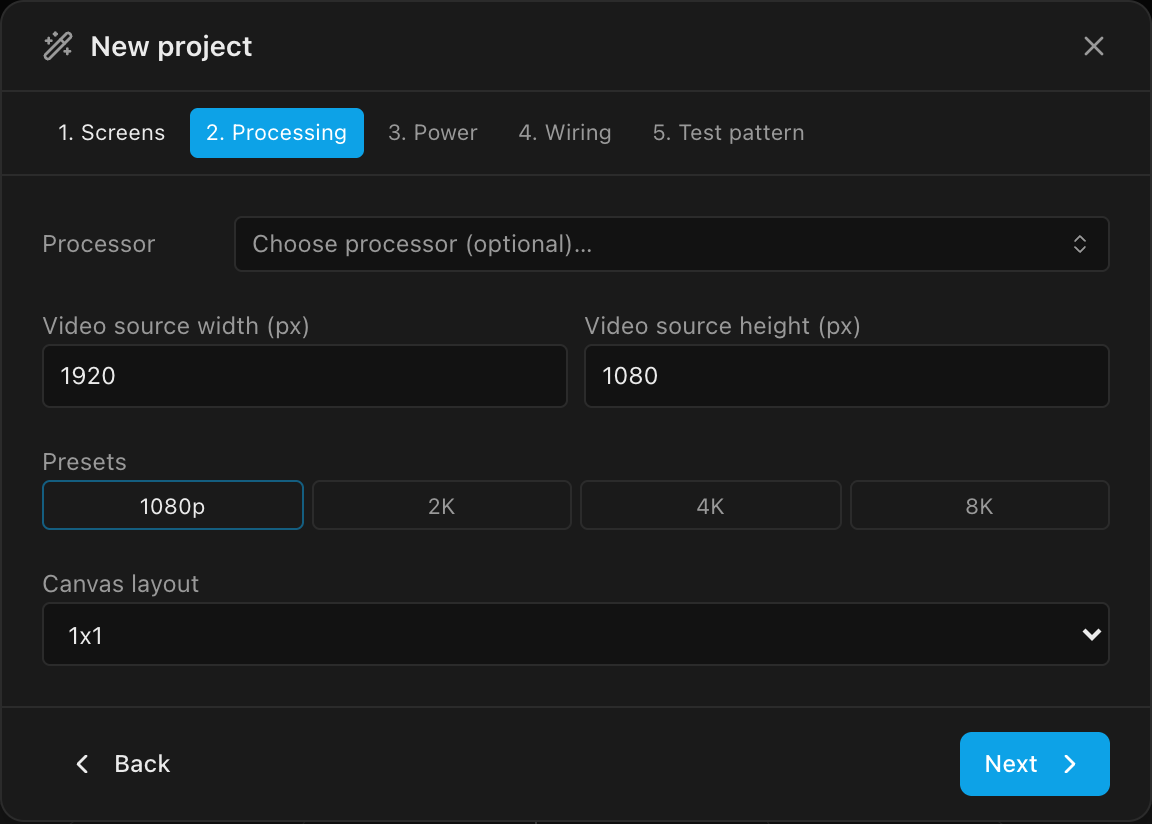
| Field | What it does | Default |
|---|---|---|
| Processor | Optional: pick any library processor, or skip and assign one later in the Inspector. With a receiver card chosen on the Screens step the list is narrowed to that card's brand, with a Show all processors escape (see Matching the receiver card). | none |
| Video source width / height (px) | Resolution of the one video source the wizard creates. | 1920 × 1080 |
| Presets | One-click 1080p · 2K · 4K · 8K sizes, the same list as the Video source inspector. | n/a |
| Bit depth / Frame rate | The canvas's operating point. Appear only once a processor is picked, and offer only the combinations that model publishes. | lowest offered |
| Canvas layout | Locked to 1x1 for now; multi-output canvases are authored afterwards in the Inspector. | 1x1 |
The wizard never auto-splits
Unlike V1's wizard, LED.FYI does not auto-create extra processors when a screen exceeds one processor's capacity. Build the project first, then add a processor, cut the screen's picture in the Video workbench and hand one slice to the new processor with Assign to processor in 2D Mapping; see Splitting a screen across processors.