

Appearance
Notes, leaders & block styling
Annotations are the text you add on top of the generated drawings: install notes, clarifications, callouts pointing at a specific panel. Unlike blocks, they never regenerate: what you type is what prints. This page also covers the per-block finishing touches: printed borders, title styling, and the drawing-label callout.
Text notes
Click Note in the Sheets toolbar to arm the tool (the cursor becomes a crosshair and the hint chip explains the gesture), then click anywhere on the sheet. An 80 × 16 mm multi-line text note drops at the click point (clamped into the drawable area so it can't land off the page or behind the title block) and is selected, ready to edit. Press Escape to cancel the tool without placing.
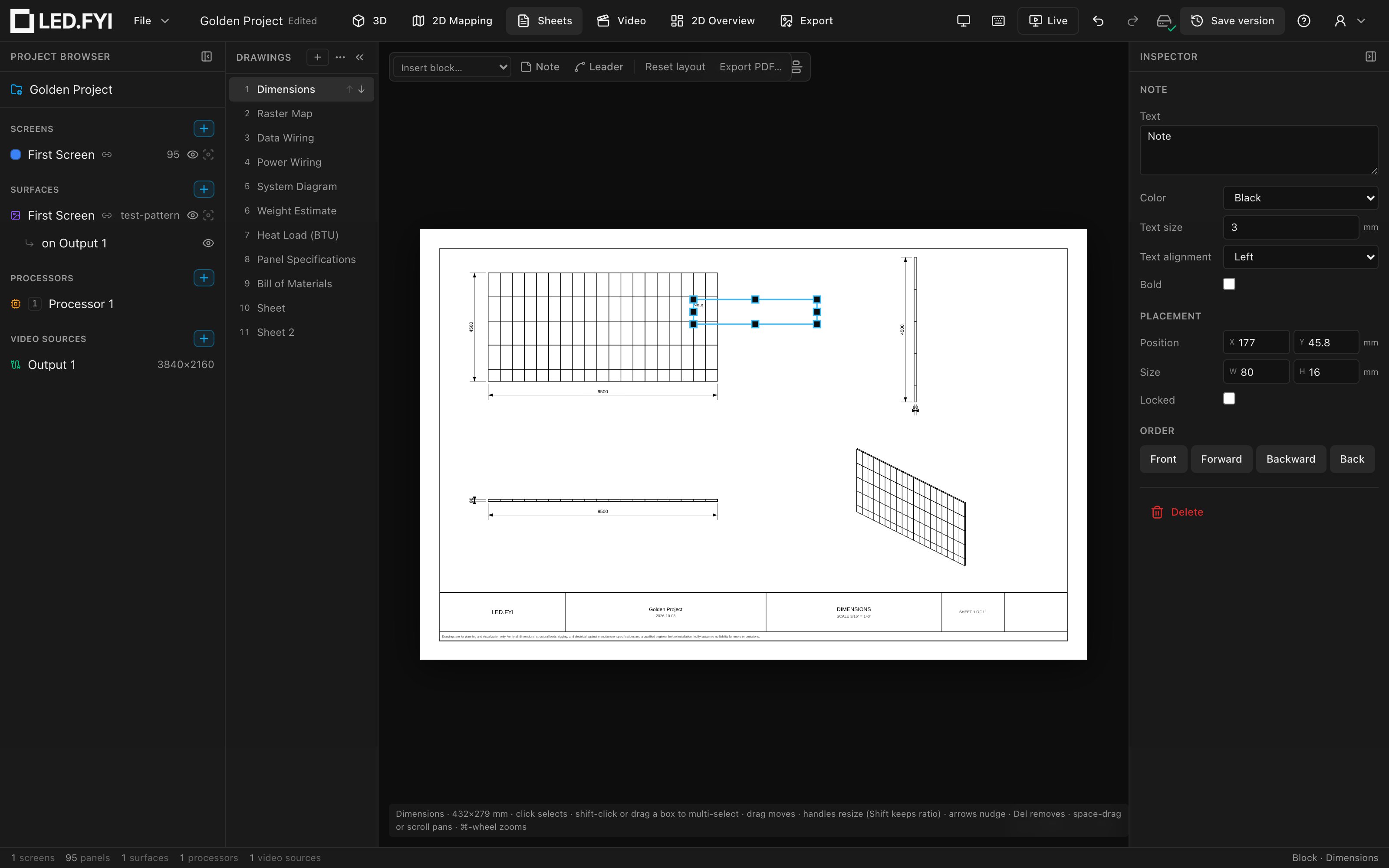
Edit the note in the Inspector:
| Option | What it does | Default |
|---|---|---|
| Text | Multi-line text (commits when you click away; Escape reverts your typing). Clear it and the note prints nothing | Note |
| Color | Drafting ink: Black or Red | Black |
| Text size | Printed letter height in millimetres, 1–12 (the spinner steps by 0.5; a typed value outside the range is pulled back into it); the same range as the title block's Size box | Your standard's note size: 3 mm on both ANSI and ISO sets |
| Text alignment | Left / Center / Right, inside the note's box | Left |
| Bold | Bold text; prints true in the PDF with the embedded bold font | Off |
Text wraps to the box. The note's width is a real margin: long lines flow onto the next line automatically, so resizing the box reflows the note (and alignment has something to align against). Press Enter where you want a break of your own; your typed line breaks are always kept, and each of those lines wraps on its own. A word wider than the box (a URL, a long part number) breaks mid-word rather than running past the edge. Line breaks are measured against the printed font's real letter widths, bold included, so capitals and bold text wrap where they actually end.
Only the width wraps. The box's height doesn't clip the text: a note with more lines than fit keeps printing below the bottom edge of its box, so make the box taller (or the text smaller) to keep it inside.
This applies to every note in every project, including ones written before wrapping existed: a line that already fits its box prints exactly as it always has, and a line that used to run out past the box edge now reflows inside it. Widen the box to get the single line back.
Size and alignment print identically in the on-screen sheet, the PDF and the DXF, because all three come off the same drawing engine. One exception, which has always applied: DXF text has no bold face, so a bold note opens as regular text in AutoCAD.
Notes move, resize, lock, nudge and stack like any sheet object (see the workbench page). Because they're annotations rather than blocks, Reset layout leaves them exactly where you put them.
Notes travel with drawing templates: save a sheet or drawing set that carries your standard general notes or an approval box, and every project you use it in gets them, text and styling included.
Leader arrows
A leader is a note with an arrow: the standard drafting callout. Click Leader in the toolbar, then click the thing the arrow should point at: the click places the arrow tip, and a 60 × 12 mm text box lands up-and-right of it. The rendered leader follows drafting convention: a short horizontal landing elbow off the text, a straight shaft, and a filled arrowhead at the anchor. The elbow automatically attaches to whichever side of the text box is nearer the arrow.
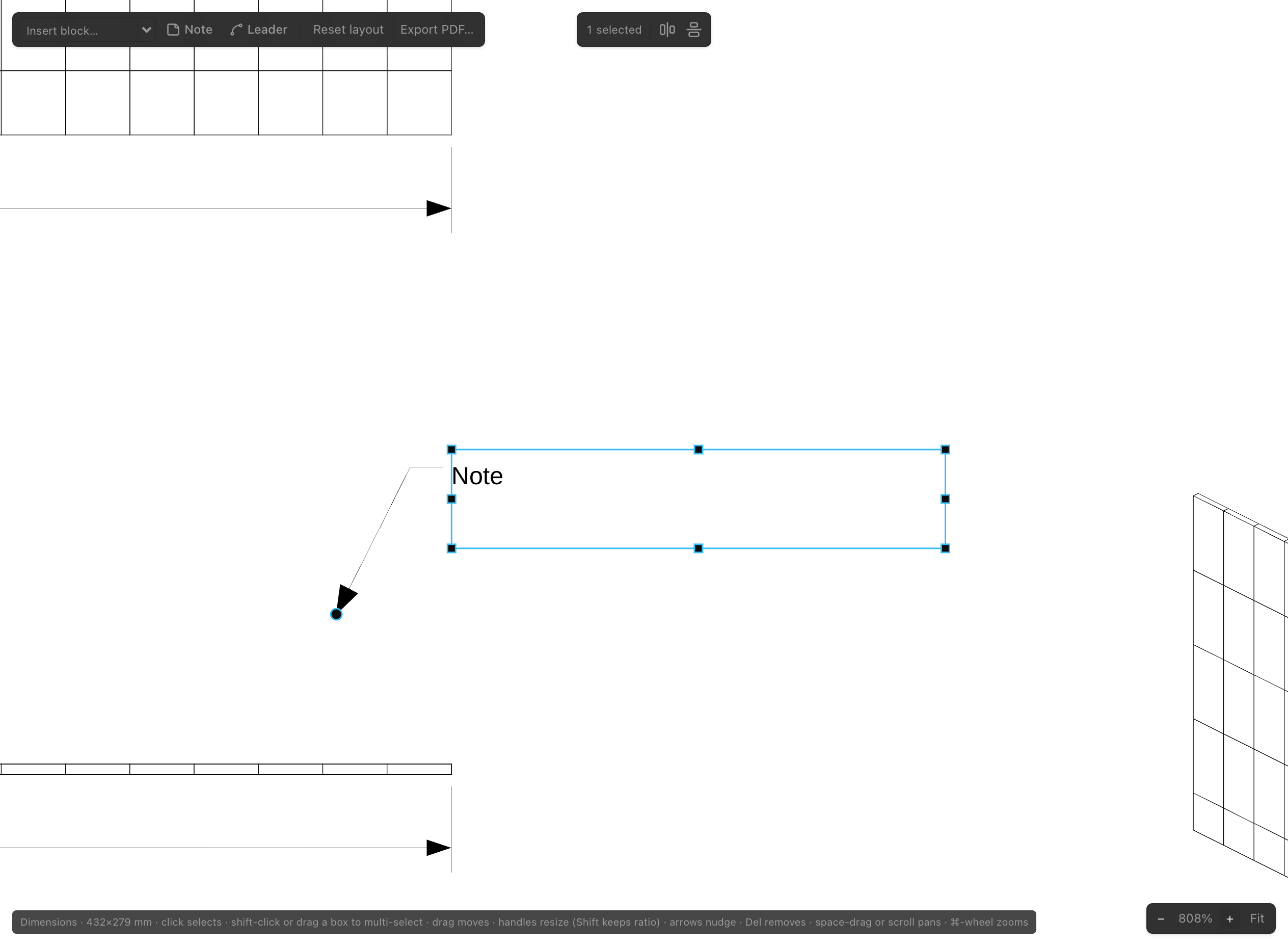
A selected leader shows one extra handle: a round grab point on the arrow tip (round so you can't mistake it for a square resize handle). Drag it to re-point the arrow without moving the text, and drag the text box to move the label without disturbing the arrow. Both stay clamped to the paper.
Leaders take the same Text, Color, Text size, Text alignment and Bold options as notes, and are equally untouched by Reset layout. Unlike notes, leaders are left out of drawing templates: they point at a particular spot on this project's drawing, which won't be in the same place in another project. The landing elbow follows the text: center or right-align a leader's label and the arrow re-attaches to where the letters actually are, not to the empty edge of the box.
TIP
Zoom in (⌘/Ctrl + scroll) before placing a leader: the arrow tip lands exactly where you click, so a close-up click puts it on the exact panel corner or cable you mean.
Block borders
Every block can print a frame around its box, useful for separating a table from a neighboring drawing on a dense sheet. Select the block and set Border in the Inspector:
| Value | Prints |
|---|---|
| None | No frame (the default) |
| Thin | A light rule |
| Thick | A heavy rule |
| Dashed | A dashed rule |
The border prints on paper and in every export. It's part of the drawing, not an editor decoration.
Block titles
Blocks that print generated title lines (the per-screen bands on wiring drawings and tables, and the Bill of Materials' section titles) expose three styling knobs:
| Option | Values | Default |
|---|---|---|
| Titles | Show or hide the generated title lines | On |
| Title alignment | Left · Center · Right | Left |
| Bold titles | Bold title lines | Off |
Title alignment and Bold titles only appear while Titles is on. The styling applies wherever that block prints titles: every screen band, every BOM section.
Drawing labels
Any block can carry a drawing label: the movable view-title callout drafters expect under a drawing: a numbered bubble, the drawing's title on a rule and, for scaled drawings, the printed scale beneath. Turn it on with the Drawing label checkbox in the block's Inspector (off by default). A Label title field then appears, seeded from the block's own name (or the screen it's scoped to), which you can overwrite.
- Labels number themselves in block order on the sheet (
1,2,3…). - The scale line prints the actual snapped scale the drawing renders at:
1:Non an ISO (metric) set, the architectural form such as1/4″ = 1′-0″on an ANSI (imperial) set. It's never a requested value it couldn't honor, and it hides itself mid-resize while the scale is stepping. Blocks with no drawing scale (tables, wiring grids, the bill of materials) print the numbered title without a scale line. - The callout sits just under the drawing's bottom-left corner by default; drag its violet handle on the sheet to move it anywhere.
This is the per-block companion to the title block's scale field, which shows the sheet's first scaled drawing; on a sheet with several drawings at different scales, give each its own label. See how drawing scales work.