

Appearance
Title blocks & branding
The title block is the identification strip on every sheet: your logo, the project and sheet names, the drawing scale, SHEET N OF M, the date, and the share QR. It's generated at print time from a template (never a floating object you could accidentally delete), and you can restyle it completely, from picking a preset to designing your own cell layout with your company branding.
Where the values come from
Three layers combine on every sheet:
- The template owns the layout: which cells sit where, and which field each shows.
- Live project data fills the bound fields: project name, sheet name and number, date, drawing scale.
- Branding supplies the company-level content: company name and logo, which belong to the title block, and the "Drawn by" default, shared across the whole drawing set.
Fields that resolve to nothing simply don't print: the scale line, for instance, only appears on sheets that carry a scaled drawing.
Picking a template
Select a sheet and open Inspector → Title block:
| Control | What it does |
|---|---|
| Template | Assigns the template to every sheet in the set and makes it the default for new sheets |
| Drawn by | The draftsperson name printed in the drawn-by/byline fields, set-wide (it will auto-fill from your signed-in profile later; this field stays the manual override) |
| Edit title block… | Opens the designer (below) |
Six built-in presets ship with the app. Your own title block templates appear as "Name (template)" in every project. A title block marked with a ★ is one only this project has, such as one a colleague made:
| Preset | Layout |
|---|---|
| Standard (4 cells) | The default. Bottom strip: logo · project + byline · sheet TITLE + scale · sheet number · QR cell, plus a full-width disclaimer band underneath |
| Minimal | Slim bottom strip: project + sheet on the left, number + date on the right |
| Detailed (6 cells) | Taller bottom strip: logo · company · project/byline · title/scale · note · number |
| Standard (right edge) | The Standard set, run down a full-height strip on the page's right edge |
| Minimal (right edge) | The Minimal set, right edge |
| Detailed (right edge) | The Detailed set, right edge |
The right-edge presets follow the architectural drawing convention: a vertical title strip the full height of the page, with the sheet number anchored at the bottom corner where both ANSI and ISO sheets reserve it. Note that a right-edge strip consumes page width, so the drawable area is narrower and taller; snapping and "center on sheet" adapt automatically.
The title block designer
Edit title block… opens a full-screen designer. The strip preview at the top is rendered by the same engine that prints it; the preview is the print output. Drag cells to move them, drag their handles to resize, or click a cell to edit it precisely:
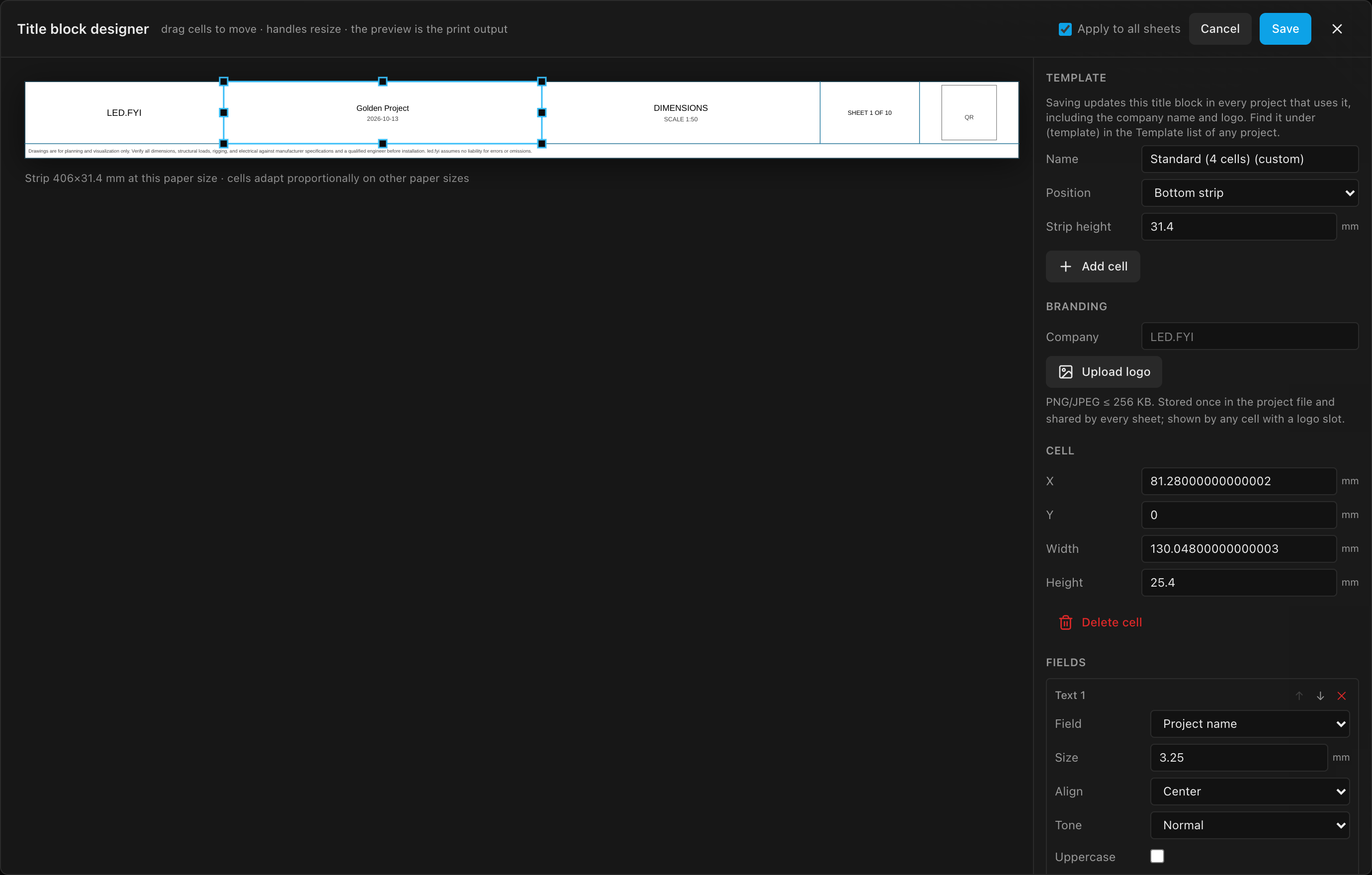
Template settings
| Control | What it does | Default |
|---|---|---|
| Name | The title block's name. Editing a built-in preset automatically works on a copy named "…(custom)"; saving never alters the built-ins | "Preset name (custom)" |
| Position | Bottom strip or Right edge (full height). Switching re-flows the cells proportionally onto the new edge | Bottom strip |
| Strip height (or Strip width on a right-edge strip) | The strip's thickness, 10–80 mm | Preset-dependent (Standard 31.4 mm including its disclaimer band, Minimal 18, Detailed 32; right-edge 34 / 22 / 36) |
| Add cell | Adds a 60 mm cell carrying a Project name field | n/a |
Cells are authored against the current paper and scale proportionally on other paper sizes: one template serves Tabloid and A3 alike. A selected cell exposes numeric X / Y / Width / Height (minimum 5 mm, clamped inside the strip) and Delete cell. Pressing Backspace or Delete removes the selected cell too, unless you are typing in a field.
Fields (slots)
Each cell stacks one or more slots, vertically centered, in list order. Reorder them with the ↑/↓ arrows, remove with ✕. A text slot offers:
| Option | Values | Default |
|---|---|---|
| Field | A bound field from the catalog below, or Static text… for your own fixed wording | varies |
| Size | Text height 1–12 mm in 0.5 steps, the same range a note's Text size accepts | 2.5 mm |
| Align | Left · Center · Right | Center |
| Tone | Normal · Muted · Strong | Normal |
| Uppercase | Print in capitals | Off |
| Wrap text | Wrap long values to the cell width as stacked lines; made for disclaimers in narrow cells | Off |
The bound-field catalog: Project name · Sheet name · Sheet N of M · Drawing scale · Date · Drawn by · Drawn by · date (the byline) · Company name · Project description · Disclaimer.
Beyond text, a cell can carry one Logo slot and one QR slot (the buttons disable once the cell has one). The logo aspect-fits its cell and falls back to the printed company name while no logo is uploaded. The QR fills its cell; in the designer it shows a positioning placeholder, but on real sheets it stays invisible until PDF export bakes in the scan-to-open share code. A finished page never prints a dead placeholder.
Branding
| Control | What it does |
|---|---|
| Company | The company name printed wherever a company or logo slot resolves (defaults to LED.FYI when empty) |
| Upload logo / Replace logo | Pick a PNG or JPEG, up to 256 KB. The button reads Replace logo once there is one. A larger file is refused with Logo too large and nothing changes |
| Remove | Appears once a logo is set; clears it, so logo slots fall back to the printed company name |
If the layout has no cell with a Logo field, the designer warns you that the logo won't print, so a logo never seems to vanish without a reason.
The note under the buttons sums it up: "PNG/JPEG ≤ 256 KB. Belongs to this title block and prints on every sheet that uses it; shown by any cell with a logo slot."
The logo travels inside the project file, so it works offline and everywhere the file goes, with no separate upload anywhere. Each distinct picture is stored a single time no matter how many sheets show it (every sheet points at that one copy rather than carrying its own), so adding sheets doesn't make the file any bigger. Replace or remove the logo and, once you Save, every sheet that uses this title block picks up the change; the old picture is dropped from the file as soon as no sheet uses it.
Each title block has its own Company and logo. They print on every sheet that uses that title block and nowhere else, so two sheets wearing two different title blocks show two different logos. They are saved with your title block template, so every project that uses it gets them without uploading the logo again. A built-in title block has no logo of its own: picking one shows no logo, and customizing one starts a new title block with Upload logo.
Older projects shrink on open
Projects saved before this change carried a full copy of the logo on every sheet, so a 20-sheet job with a 200 KB logo weighed over 5 MB. Opening such a project consolidates the copies automatically; the next save, autosave or share is around 80% smaller, with every title block printing exactly as before.
Saving
The Apply to all sheets checkbox in the header (on by default) assigns your title block to every sheet in the set and to future sheets; uncheck it to restyle only the current sheet. The company name and logo go to every sheet that uses this title block. Save commits everything (the layout, its assignment, and the branding) as one undo step; Cancel, or the close button in the header, shuts the designer without changing anything.
Title block templates
Every title block you save is one of your title block templates: there is one copy of it, saved to your account, and every project that uses it follows it.
- Save in the designer updates the template, so the change, a new name, and the company name and logo reach every project that uses it. A project you have open updates straight away; any other project picks up the latest version the next time you open it.
- Customizing a built-in preset and saving it makes a new template (named "…(custom)" until you rename it), offered in every project from then on.
- In any project, pick it from Inspector → Title block → Template, where it's listed as "Name (template)". It arrives with its logo and company name, so there is nothing to upload.
- You can keep as many title blocks as you like, and each has its own logo and company name: one for each company you work for, or one per logo variant. Switching a project to a different title block switches the logo with it.
- A project keeps its own copy of the title block too, so it still prints offline, opens for a colleague, and shows correctly in a share link.
The note at the top of the designer's Template section reminds you: "Saving updates this title block in every project that uses it, including the company name and logo."
To have new projects start with your title block, put it on your drawing set template: new projects start with your drawing set, and its sheets carry their title blocks.
Saved title blocks are also in the Templates library (Title blocks tab), where you can rename, duplicate or delete them, or make a new one from scratch with New title block. Edit opens it on a sample wall: open Edit title block… in the Inspector, make your changes, and Save saves the template and takes you back to your project. A new title block starts from the standard layout with no logo; to start from one you already have, pick it in Inspector → Template first. You get its layout, logo and company name, still under the new title block's name. Deleting a template leaves projects that used it with their last copy.
Title blocks saved before this change
A title block that was only ever saved inside one project (marked ★) isn't a template yet. Open that project, click Edit title block… and Save: it becomes a template, logo included, and appears in every project.
Projects shared with you
A project from a colleague keeps the logo its title block came with. Switch a sheet to another title block and back, and the logo returns. Open Edit title block… and it shows that logo, ready to keep; Save makes the title block one of your own templates, logo included.
The default disclaimer
The Standard presets include a muted liability line, printed as a full-width band under the bottom strip (or a wrapped cell on the right-edge variant):
Drawings are for planning and visualization only. Verify all dimensions, structural loads, rigging, and electrical against manufacturer specifications and a qualified engineer before installation. LED.FYI assumes no liability for errors or omissions.
It's an ordinary editable slot: open the designer, click the disclaimer cell, and reword it, restyle it, or delete the cell entirely. The stock wording follows your UI language, as does every other generated string on the sheet, including the estimate notes that flag a figure as approximate; once you edit the text it stays verbatim as you wrote it.
INFO
This printed disclaimer is separate from the acknowledgment checkbox you tick when exporting the drawings as a PDF or a DXF. Removing the printed line doesn't remove the export acknowledgment.