

Appearance
Mounting in 3D and on your paperwork
One computation drives everything: the 3D overlay, the Bill of Materials, the Weight Estimate and the elevation drawings all read the same per-screen hardware result, so they can never disagree with each other. Screens with Mode = None contribute nothing anywhere.
The 3D Mounting overlay
In the 3D workbench, the Mounting button in the top-left overlay group (next to Data and Power; tooltip Show mounting hardware) renders every screen's computed hardware as shaped, metal-shaded parts. Pieces mate to the cabinet the 3D view draws: the panel type's real depth, or the nominal 80 mm cabinet used for types with no depth on file; the counts and drawings below always use the project's own value. The hardware is drawn relative to the wall, not to the ground: a screen still at its default height straddles the solid floor, so its ground-stack feet hang below the deck and are hidden. Raise the screen until the feet stand on the floor, or make the floor translucent while you look. The view opens from a standing eye height (about 1.5 m, looking slightly down), so the deck and where the feet meet it are in perspective from the start. The deck itself is a finite 25 m square out of the box; a long ground-stack row on a wide stage can run past its rim, and the Floor size slider is how you put ground back under it.
| Piece | Drawn as | Color |
|---|---|---|
| Bars / profiles | Boxes at their real square cross-section | Aluminum gray |
| Trusses (vertical & ground) | Two-chord ladders with cross-rungs roughly every 250 mm | Steel gray |
| Hanging pickups | Half-coupler clamshells: closed collar, bolt ears, M12 rod, wing nut | Dark forged steel |
| Ground-stack bridges | Standoff tube ending in a half-coupler jaw on the truss chord | Dark forged steel |
| Leveling feet | Threaded shaft on a base disc | Dark gray |
| Wall feet | L-angle brackets with a wall plate | Dark gray |
| Panel hooks | Stem with an over-the-rail lip | Rust orange |
Truss geometry is topologically parametric: a taller tower gets more rungs. A Touring Frame system renders entirely amber.
The overlay resets each session
Mounting is off by default and not remembered between sessions; click it each time you want to see the rig. It's also available in the read-only shared-link presentation view, so clients can inspect the rigging too. More on the overlay buttons: Wiring & mounting overlays in 3D.
Bill of Materials: the Mounting hardware section
Any sheet with a Bill of Materials block (part of the default drawing set, or Insert block… → Bill of Materials in the Sheets workbench) automatically gets a Mounting hardware section listing every computed part, merged by description across all screens. The Detail column shows the part's SKU: blank for generic systems, filled in by future branded kits.
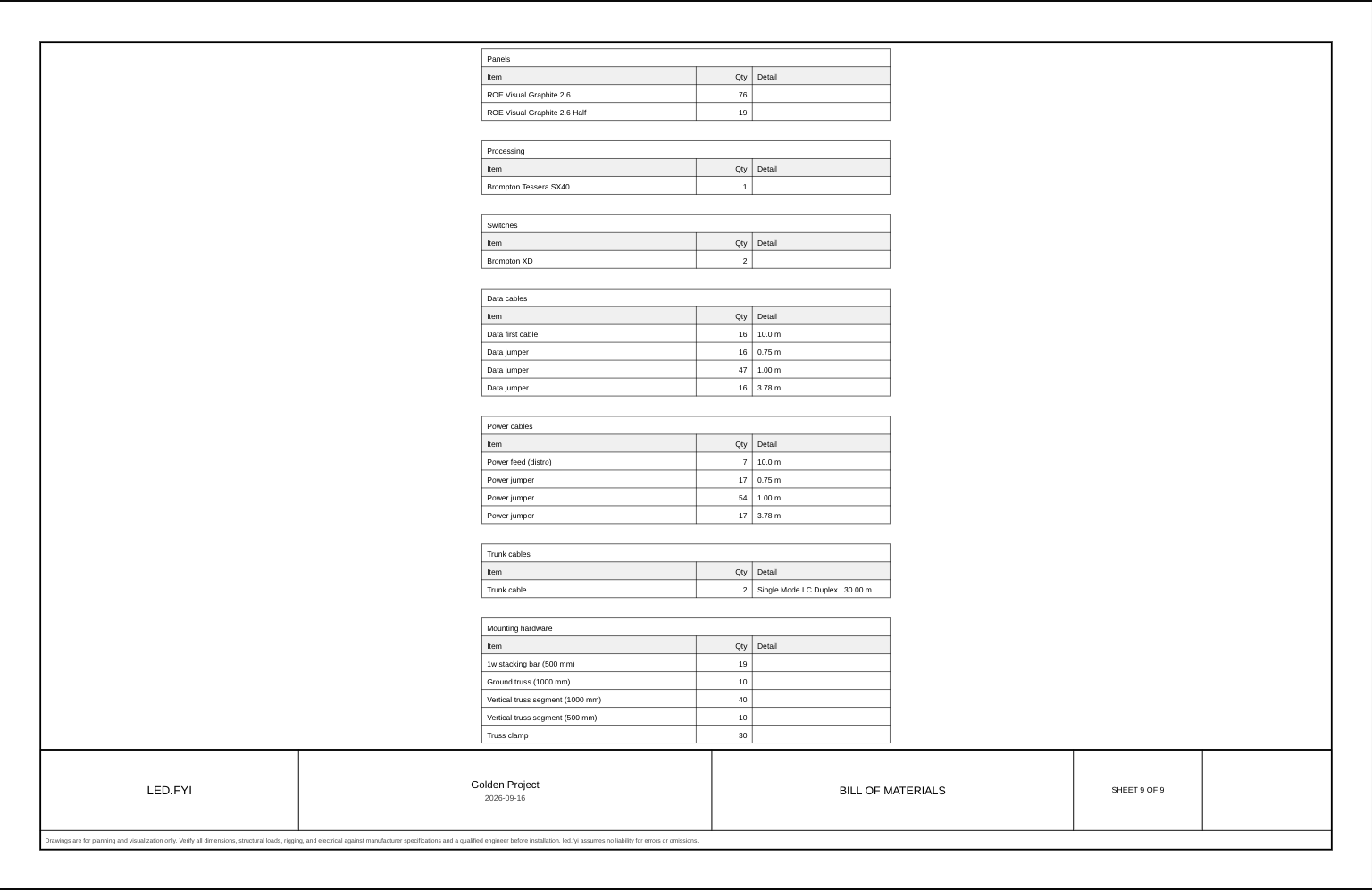
Bar and profile lengths on the BOM are nominal (span × panel width) even though 3D draws them at 95% length for a visual gap. Order from the paper, not the pixels. They print in the drawing set's pinned distance units: millimetres on a metric set, fractional inches to the nearest 1/16" on an imperial one (the graduation on a rule, since these are lengths somebody cuts). They stay in inches however long the part is, so a parts column never switches to feet halfway down. What each mode contributes is itemized on its page: hanging · ground stack · wall mount. For the block itself see Bill of materials.
Weight Estimate: mounting rows
The per-screen Weight Estimate tables append mounting-hardware rows after the panel and cable rows. Generic parts carry no weight data, so their "each" weight renders as - and they add 0 kg, so they never inflate the screen total. Branded parts will contribute real kilograms to the per-screen and grand totals.
Blank spacer panels appear as their own weight lines (Blank panel · <panel type>) at full panel weight, since they're real structure.
The panel rows above them split the same way: a half row or column is a different cabinet, so it gets its own line at its own per-panel weight rather than being counted as full panels.
Elevation drawings
Mounting hardware is drawn on all four CAD-style elevation blocks (see Drawing blocks reference):
- Wall Elevation (front view): dashed reference outlines, the hidden-line convention for hardware behind the panels.
- Side Elevation and Top / Plan View: each piece projected with its real depth, so behind-panel trusses and standoffs read in profile: dashed, drawn over the white panel profiles.
- Isometric View: mounting boxes drawn in the ~30° projection with a light-gray face fill and dashed edges, occluding correctly behind panels.
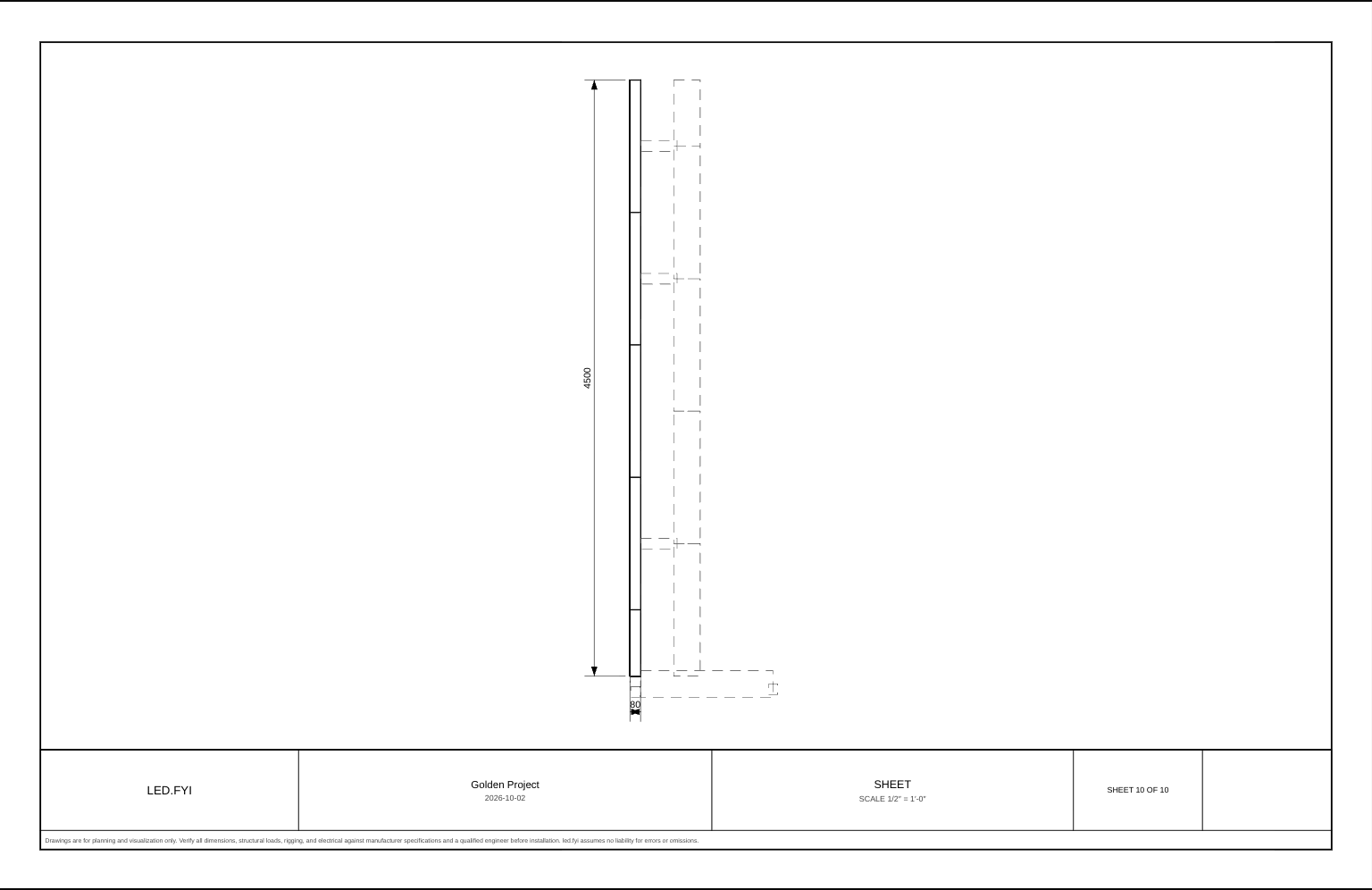
Mounting outlines are deliberately not folded into the dimension chains; you dimension the wall, not the rigging overhang. Hardware is projected from the same viewpoints the panels are, using each piece's full orientation, so on a curved screen the Top / Plan View draws each piece's real tilted footprint following the arc, and on a rotated screen the hardware turns with the wall instead of staying square to the page.
The per-block show/hide toggle
Select any elevation block on a sheet and its Inspector section carries a Mounting hardware checkbox (default on). Turn it off to declutter a dense drawing, per block:
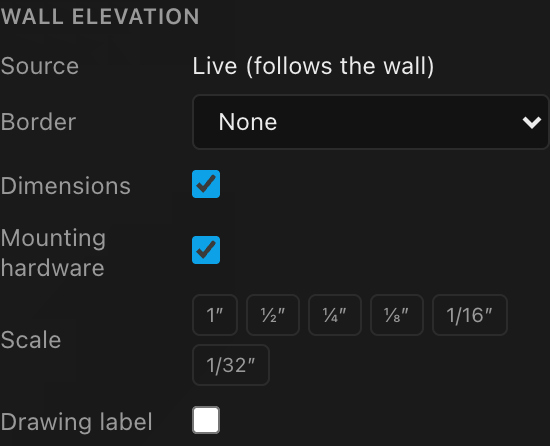
| Option | What it does | Default |
|---|---|---|
| Mounting hardware | Draw or hide the mounting outlines on this one block | On |
The toggle exists on all four elevation kinds; front-view dashed outlines on a dense wall are exactly what it's for.
PDF & DXF export
Everything the elevation blocks draw exports pixel-faithfully to PDF and as real vector entities to DXF. Mounting geometry lives on its own mounting CAD layer (alongside panels, dimensions, …), so riggers downstream can isolate or hide the rigging reference in AutoCAD with one click.
How counts and drawings respond to wall features
| Wall feature | Effect on mounting |
|---|---|
| Half-height rows | Real row heights move bars, truss segments and clamps to the true edges |
| Half-panel columns | Not specially handled; bar widths assume uniform columns |
| Blank spacer bottom row | Counts as one more structural row: lower base bars, taller towers, more clamps |
| Disabled panels (holes) | Excluded from mounting, BOM and weight entirely |
| Curving | 1-wide bars forced silently; pieces follow the arc in 3D and the top view |
| Corner panels | Hanging and stacking bars fold around the corner (own BOM line); no bar spans one |
Known issue on curved walls
On curved screens some mounting accessories don't align perfectly with the panels in 3D: parts can appear rotated about a slightly different center, across all three kit types. Counts and paperwork are unaffected.