

Appearance
Choosing equipment
One picker control is used everywhere you choose a library part: the panel type and receiver card on a screen, the processor on a canvas, switches in the wiring section, and cards in a modular chassis. Learn it once and you know it everywhere.
The equipment picker
The picker button shows the current selection (brand and model) or a placeholder like Choose panel…. Click it to open the dropdown:
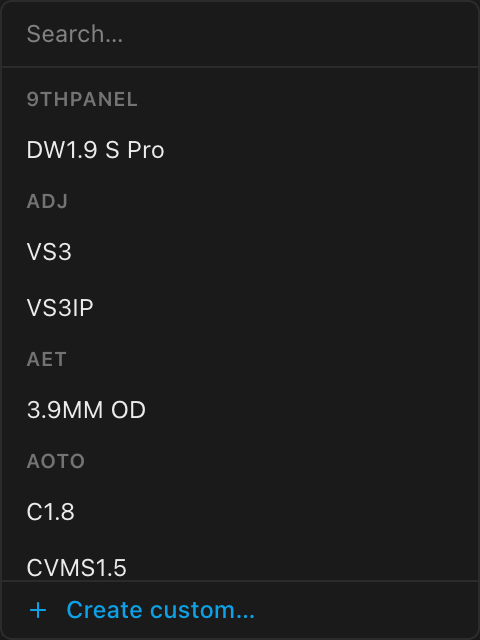
- Search: type to filter live; the search matches anywhere in the brand + model text.
- Brand groups: entries are grouped under bold brand headers. Entries without a brand collect under Other.
- Current selection: marked with a check.
- None (clear selection): on pickers for an optional part (the receiver card, a corner panel), the first row removes the current choice. It only appears while something is selected.
- + Create custom…: the footer row opens the custom-equipment form for that kind. It appears on the panel, receiver card, processor and switch pickers (including Add downstream switch), but not on card-slot pickers, the corner-panel picker or in the New Project wizard. On the processor, switch and receiver card pickers it opens a request card instead, pre-filled with what you typed in the search (only platform admins get those forms; the panel form is open to everyone).
Press Esc or click anywhere outside to close without picking.
The list never runs past the edge of your browser window: it is capped to the room below the button and scrolls inside that, and when only a sliver of room is left below, it opens upward instead, so the last row, + Create custom…, is always within reach, even on a short window.
Panel type on a screen
Select a screen in the left rail and open the Panel section of the Inspector:
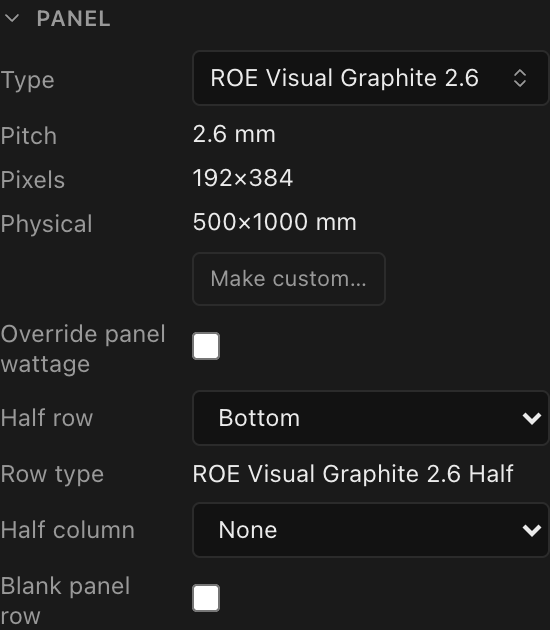
- Type: the panel-type picker. Picking a panel re-derives the screen's pixel and physical size and regenerates its panel grid.
- Pitch / Pixels / Physical: read-only readouts of the chosen panel's pixel pitch (mm), per-panel resolution, and cabinet size (mm).
- Make custom…: detaches the screen from the library so you can edit its size, resolution, wattage and weight freely. See Creating custom equipment.
- Corner type: appears only while the screen has both a half-panel row and a half-panel column, which quarter the cells where they meet. Name the real corner product here (the list offers only quarter-shaped library panels) and the parts list orders it by SKU at its own weight; it fills in by itself when the panel family has a quarter sibling in the library. Left unset it reads
Estimated from full panel, and the corners are counted and weighed as a quarter of the full cabinet, with the paperwork saying so. See Corner (quarter) panels.
Two things happen automatically when you change a screen's panel type:
- If the screen's mounting system is no longer compatible with the new panel (for example a touring frame that only fits specific tile types), it is swapped back to the mode's generic system in the same undo step, so your screen never keeps a mount its new panel can't use. See Mounting systems & touring frames.
- Any per-panel shaped-corner overrides from the old panel family are flattened, and the panel grid is rebuilt at the same size in panels.
Half rows and columns keep their old half panel
Changing the panel type does not re-pick the product for a half-panel edge row or column: the Row type or Col type read-out keeps naming the old family's half panel, and the parts list, weight and power keep using it. After you change the type, set Half row (or Half column) to None and back. LED.FYI then picks the new family's own half panel when the library has one, or derives one (shown as the model name followed by · auto).
For everything else about panels on screens, see Panel types & picking a panel.
Receiver card on a screen
The receiver card is the card inside the screen's panels. Its published loading figures set how many pixels one data string can carry, so once a card is installed the screen's Data limits section reads its base pixels per string from the card instead of a typed number (see Where the base limit comes from).
Select a screen in the left rail and unfold the Receiver card section of the Inspector. It starts folded; while folded, its header shows the card's link speeds (such as 1G/2.5G) or None.
| Control | What it does | Default |
|---|---|---|
| Receiver card | The receiver-card picker. It lists only cards of the same brand as the screen's processor (no processor yet: every brand), narrowed further to the cards the panel type declares compatible, when it declares any. None (clear selection) removes the card | none |
| Link speed (read-out) | The speeds the installed card's data port can run, such as 1G / 2.5G | from the card |
| Link speed (choice) | Shown only for a card that runs more than one speed: which speed this screen's cards run at | the card's lowest speed |
Changing the processor on a canvas to a different brand removes receiver cards of the old brand from the screens it drives, since that pairing no longer exists in the real world.
Processor on a canvas
Select a processor in the left rail and use the Processor picker in its first Inspector section, headed with the processor's tag (for example 1 · Processor canvas). Picking a different processor model resets what belonged to the old one:
- the canvas's switches and string-to-port assignments are cleared, since they were wired to the old processor's ports;
- any fitted chassis cards (they belonged to the old chassis's slots) and the input mode they drove are cleared;
- receiver cards of a different brand are removed from the screens this canvas drives;
- if the canvas's bit depth / frame rate pair isn't in the new model's capacity table, it snaps to the lowest pair the model supports.
The whole swap is one undoable step. See Choosing a processor & signal settings.
Switches and compatibility filtering
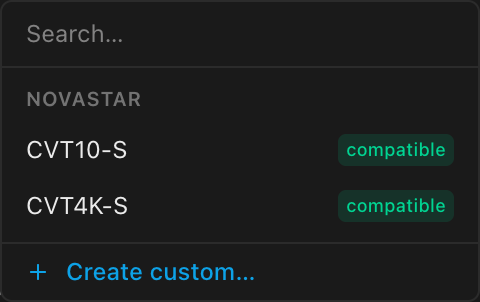
The Add switch picker in the wiring section checks every candidate against the selected processor's built-in manufacturer pairings and only lists the switches a pairing confirms:
| Badge | Meaning |
|---|---|
| compatible | A built-in pairing confirms this switch works with the selected processor (hover: Compatible with the selected processor). Sorted first within its brand. |
| not listed | Gray text on a switch no pairing confirms. You only see it on the two exceptions below; every other unconfirmed switch is left out. |
A switch that no pairing covers doesn't appear in the list at all. Two exceptions keep a switch pickable anyway, marked not listed:
- A switch you've already added stays pickable, even if a later processor swap means no pairing confirms it, so you can always see and change what's already assigned.
- Custom switch types already in your library or your organization's library always stay pickable. (New custom switches are admin-only now; request a model instead.) The built-in pairings only cover the built-in equipment catalog, so a home-made switch type is never confirmed either way, and it's never mistaken for a real incompatibility.
If nothing compatible is available for the selected processor, the picker reads No compatible switches instead of showing an empty dropdown.
The built-in manufacturer pairings (for example, Novastar MX-series processors with CVT-series switches) work even signed out and offline.
A second, independent filter sits behind the same picker: once the processor and a candidate switch both declare port-level cable data (see Trunk cable types), a candidate that could never physically connect to the processor (no shared connector or fiber medium at all, on either end) is excluded the same way, no badge needed. It's a hard block at the moment you'd pick it, not a warning you discover after wiring it up. Adding a switch off an existing one's spare port (a cascade) applies the identical check against that switch's downlink instead of the processor. For adding switches and trunk cabling itself, see Switches & trunk cables.
Fitting cards into a modular chassis
When a canvas's processor is a modular chassis (it declares card slots; in the bundled catalog, the Novastar MX2000 Pro and MX6000 Pro and the Megapixel Helios), the Inspector adds an Input cards and/or Output cards → wall section with one picker per slot:
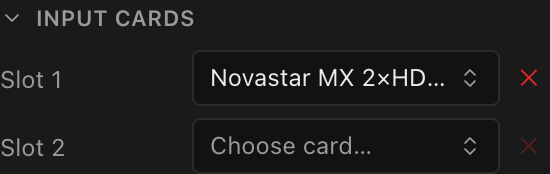
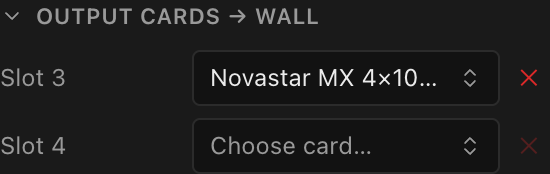
- Slots are numbered across the whole chassis: on the Novastar MX2000 Pro, slots 1–2 are input slots and slots 3–4 are output slots; on the Megapixel Helios, slots 1–3 are input slots (two VFMC slots and one SFP bank) and slot 4 is the output slot.
- Each Slot picker lists only cards that fit: the card's role must match (input vs. output) and its slot tags must intersect the slot's accepted tags. A card or slot with no tags fits anything of the matching role.
- A card that spans more than one slot (the Megapixel HELIOS 100G card takes both VFMC slots) claims the slot after it too: that slot reads N/A (hover it for
Used by the <model> in slot N (it spans both slots)), nothing can be picked into it, and the card's ports count once. The header'sfitted/totalcount only counts cards in slots they genuinely occupy. - The ✕ button next to a slot clears its fitted card (disabled while the slot is empty).
- Card-slot pickers have no + Create custom… row. Output and input cards are added to the built-in library by the LED.FYI team; if yours is missing, request it, then fit it here once it's added.
Until an output card is fitted, a modular processor has no wall ports: string assignment, switches and trunks stay unavailable and the wiring section says so. Likewise, no video source can be assigned until an input card is fitted. See Modular processors: cards & chassis slots.
Picks in the New Project wizard
The New Project wizard uses the same picker: step 1 assigns a panel type and, optionally, a receiver card per screen (together with panels wide/high), step 2 picks the processor, narrowed to the brand of the chosen receiver card, with a Show all processors escape (see Matching the receiver card). The wizard's pickers have no + Create custom… row; finish the wizard with a stand-in and author custom equipment from the Inspector afterward.