

Appearance
Arranging screens & panels in 2D
In the 2D Mapping workbench every panel is a window into the processor canvas's pixels. This page covers moving those windows around: selecting, dragging, snapping, nudging, locking, the right-click menu, and the auto-pack commands that keep screens from overlapping.
Get one screen out of the way
If screens are stacked on top of each other here, the hide button (the eyeball) on each screen row in the left sidebar takes one out of this view (and out of 3D) while you rearrange the rest; the isolate button beside it hides every other screen instead. Hidden screens keep their pixels on the processor canvas; outputs, surfaces, drawings and the parts list are all unaffected. See Show & hide screens.
Selecting
| Action | Result |
|---|---|
| Click a panel | Selects it (white outline). Selecting a screen anywhere in the app lights up all of its panels. |
Shift-click a panel | Toggles it in or out of a multi-selection. |
| Double-click a panel | Selects the panel's whole screen (a second click on the same panel within about a third of a second; a slow double-click just re-selects the panel). |
Click empty space (or press Esc) | Clears the selection. |
The selection here is the one app-wide selection: the Inspector and the left rail follow it, and vice versa.
Slices select as one
When a panel belongs to a video slice you cut, a plain click selects the whole slice, and Shift-click adds or removes the whole slice. Hold ⌥ to reach inside a slice: ⌥-click selects the single panel, and ⌥⇧-click toggles single panels across several slices.
Marquee selection: window vs. crossing
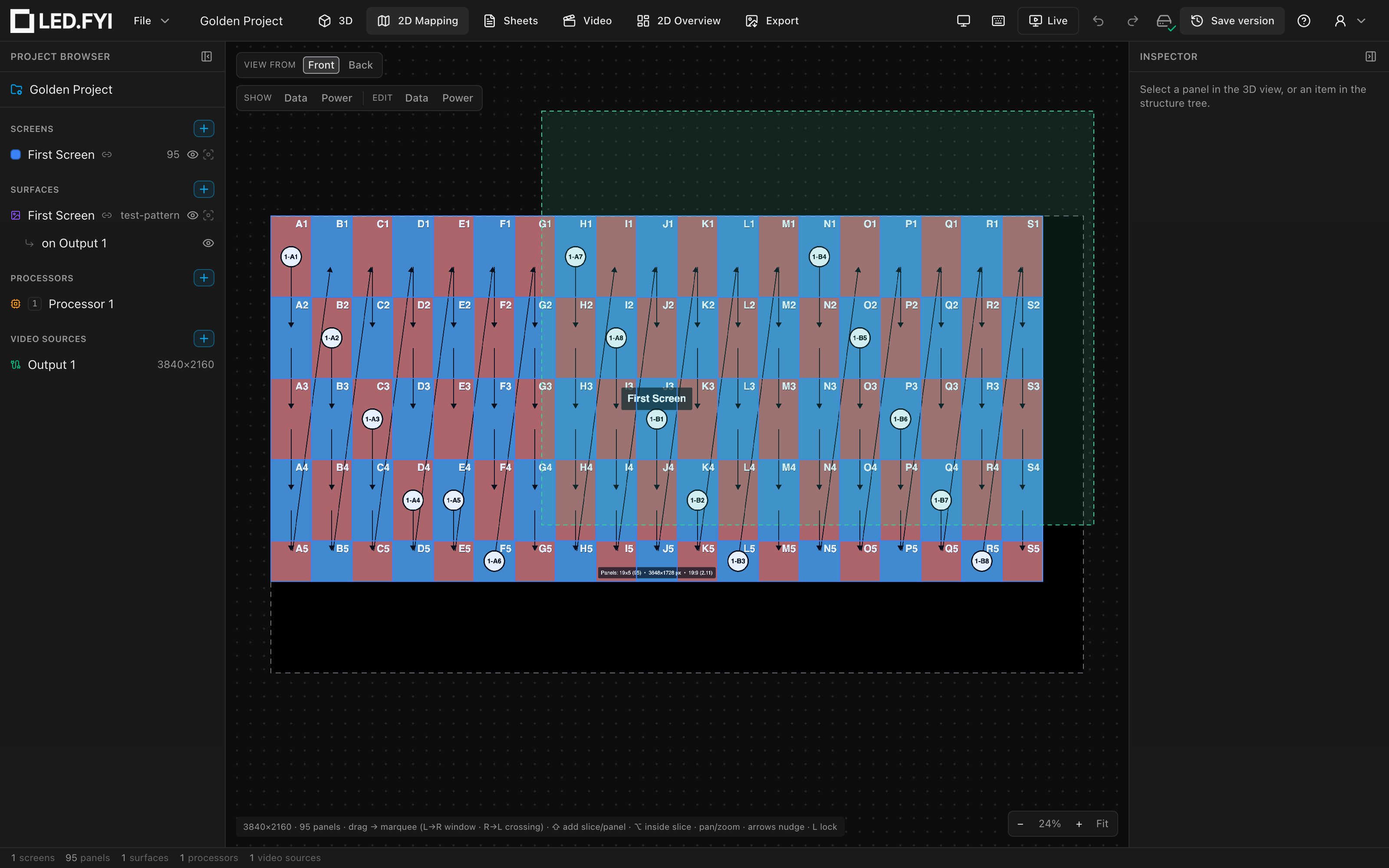
Left-drag on empty surface draws a selection box whose horizontal direction picks the mode, exactly like AutoCAD:
| Mode | How | Look | Selects |
|---|---|---|---|
| Window | Drag left → right | Solid blue box | Only panels fully enclosed by the box |
| Crossing | Drag right → left | Dashed green box | Every panel the box touches |
The direction is the one you drag on screen, so it's the same in Back view: left-to-right is always a window.
Hold Shift while dragging to add the marquee's hits to the existing selection instead of replacing it. A drag of just a couple of pixels counts as a click and clears the selection (unless Shift is held).
Dragging
Press and drag a panel to move its window. What moves depends on the current selection:
- The panel's screen is selected → the whole screen moves rigidly: the screen origin, every panel, and any linked surface placement stay co-positioned (the placement in the Video workbench mirrors the move).
- A multi-panel selection contains the panel → the whole set moves. If that set happens to be all of a screen's panels (say you marquee-selected the entire screen), the screen again moves rigidly.
- Otherwise → the pressed panel is selected and moves alone.
In Back view the panel still follows the mouse; the move is stored the same way, so the front shows the matching mirrored move.
Bound video slices follow their panels automatically, so a split feed stays in sync as you rearrange. A press without movement inside a selected screen "drills in" and selects just the pressed panel.
Drag distances are rounded to whole pixels when you release, and each release is a single undoable step (see Undo, redo & versions). Locked and disabled panels respond to selection but ignore drags; the cursor shows not-allowed over them.
Snapping
While you drag, the moving set's bounding box snaps to the other panels' edges and to the canvas bounds within an 8-pixel radius on screen, so the snap distance feels the same at any zoom. A cyan guide line flashes along the matched edge. Hold Alt to disable snapping for a free drag.
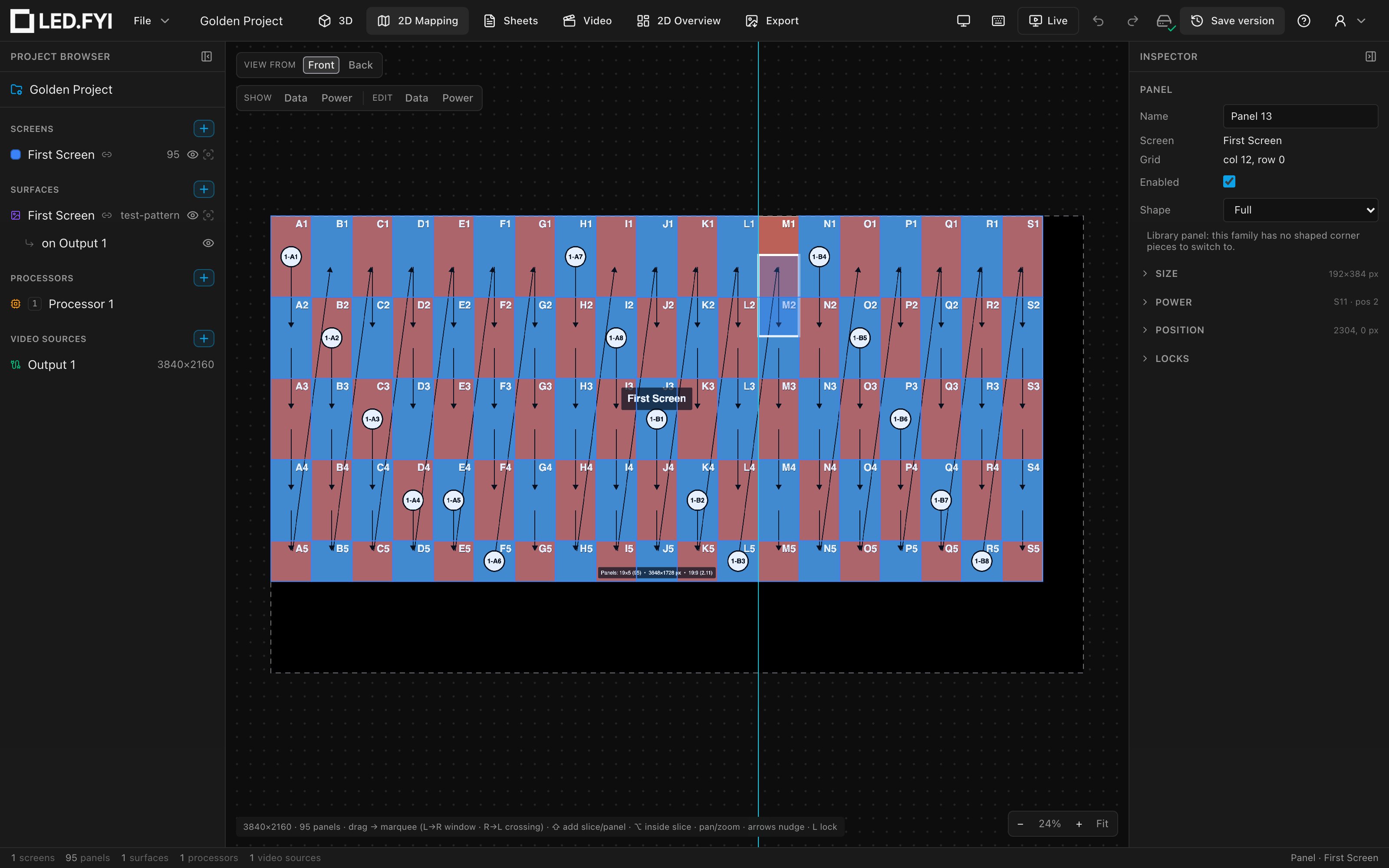
Snap targets are fixed the moment the drag starts (the non-moving panels' edges), so a long drag never chases moving targets.
Nudging with the arrow keys
With panels selected, the arrow keys move them 1 composite pixel; Shift+arrow moves 10. Nudging works on multi-selections too: every unlocked, enabled panel in the selection moves; locked and disabled ones stay put. Consecutive nudges collapse into one undo step. (Suppressed while you are typing in a field.) In Back view the arrows still move panels the way they point on screen, so ← moves a panel left as you see it.
Locking a panel's position
Press L with panels selected to toggle the mapping-position lock: drags and nudges skip a locked panel. On a mixed selection the toggle is group-wise: if any selected panel is unlocked, all lock; press again to unlock all. Locked panels draw an amber dashed outline. The same flag is the Lock map toggle in the panel Inspector. The default is unlocked.
Exact coordinates
For pixel-precise placement, use the Inspector instead of dragging:
- Panel → the 2D position fields set the panel's window origin in composite pixels.
- Screen → the screen's mapping X/Y moves the whole screen rigidly, exactly like a whole-screen drag.
Type a value or step it with the spinner. See Fields & numeric input.
The right-click menu
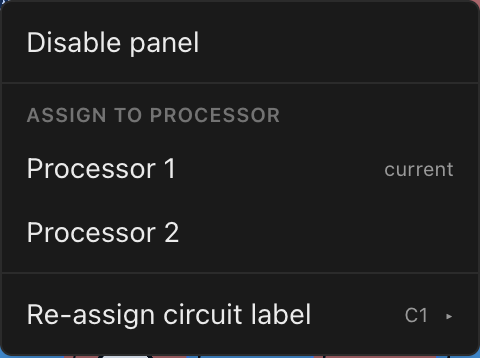
Right-click a panel to open its context menu. Right-clicking a panel that is not part of the current selection selects it first; right-clicking inside the current selection keeps it and targets the whole thing. That holds for a marquee or shift-click set, for a slice group, and for a whole screen you picked by double-clicking one of its panels. So double-click → right-click → Disable 84 panels acts on the entire screen. Hold ⌥ while right-clicking to reach inside and target the single panel under the cursor instead.
A screen split across two processor canvases is addressed one canvas at a time: right-clicking targets the screen's panels on the canvas you are looking at, the same set a whole-screen drag moves.
Enable / disable panels
Disable panel (or Disable N panels on a multi-selection) empties the panel position: a disabled panel renders dark grey here, drops out of all wiring and strings, and does not light in 3D. When the targets are a mix, the group action follows the majority rule: all currently enabled → disable all, otherwise enable all. See Panel layout, selection & overrides for what disabling means elsewhere.
Assign to processor
With two or more processor canvases in the project, the menu lists every canvas (the panel's current one marked current). Picking one re-homes the selected panel(s) to that canvas:
- The panel's video source re-anchors to the tile of the new canvas that covers it.
- If the panels wouldn't fit where they sit on the new canvas, they move there as one block, landing at its top-left corner.
- If that processor already drives another part of the same screen, the panels are laid out beside that part in wall order instead (never on top of it), and the joined block moves to the top-left corner if it doesn't fit on the canvas.
- Each moved panel is recorded as a manual pin on the screen, listed and clearable one by one in the screen's Processors Inspector section.
- If the whole screen ends up on one canvas, it is a clean move and the pins clear; a true split records every canvas the screen now spans.
- If the screen is linked to a surface, its slices regenerate so the split video stays in sync.
This is also how you split one big screen across two processors: cut its linked picture into slices in the Video workbench, then click one slice here (a plain click selects the whole slice) and assign it. See Multi-processor screens and the worked example.
Circuit rows
On the first panel of a power daisy-chain the menu also offers Re-assign circuit label (a submenu of the labels the project's labelling scheme can produce) and, in manual combine mode, the power-circuit combine rows. Both are covered in Power circuits in the mapping view.
Auto-pack commands
Both live in the command palette (⌘K):
- Auto-Pack Screens: re-arranges the screens on a processor canvas so none overlap, packing largest-area first. Each screen shifts rigidly to its packed slot; a screen spanning several canvases is packed by the bounds of its panels on this canvas, and only those panels move; a linked surface's video slices follow them, so the content stays registered to the panel outlines. Available with at least two screens; it acts on the canvas your selection points at (selected canvas, or the selected panel/screen's canvas, else the first).
- Auto-Pack Surfaces on Video Source: re-packs the visible surface placements on an output so none overlap in output pixel space. A placement linked to a screen drags the screen's panels along to keep the link in sync; bound slices are excluded (their position comes from their panel group). See Surfaces, placements & video sources.
"Nothing happened" means it doesn't fit
Neither command ever partially packs: if the set cannot fit the canvas or output, nothing moves. A silent no-op means the space is too full.
New screens never need packing on arrival: adding (or duplicating) a screen auto-places it clear of the existing screens: bin-packed into free composite space here, lined up left-to-right in 3D. A fresh screen defaults to a 4×4 grid of 128×128 px / 500×500 mm panels with U-Turn data and power paths starting top-left and running horizontally, and 220 V power with amps per string starting at the project's Circuit amps (16 A by default). See Adding & managing screens.
How panels look
| State | Appearance |
|---|---|
| Normal | Tinted with its screen's color (each screen has a distinct, editable color) |
| Selected | White outline, thicker stroke |
| Locked | Amber dashed outline |
| Disabled | Dark grey fill |
| Wire-edit mode active | All panel tints fade so nodes and wires stand out |
Shaped panels (the eight corner variants from Panel shapes) draw their true outline instead of a rectangle. Spacer (blank) panels have no pixels and never appear in this view at all; they exist only as physical structure in 3D, Sheets, and the BOM. See Half panels & blank panels.
Slice groups on the canvas
Video slices (the pieces you make by cutting a screen's linked picture on its panel seams in the Video workbench) render with a dashed violet outline and a Slice · N badge (N = how many of the slice's panels sit on this canvas), so each slice reads as one unit. The outline follows a drag live and fades in wire-edit mode. A slice whose panels sit on two processors outlines its members on each canvas separately, each side with its own count. (The automatic split of a screen spread across processors draws no outline.)
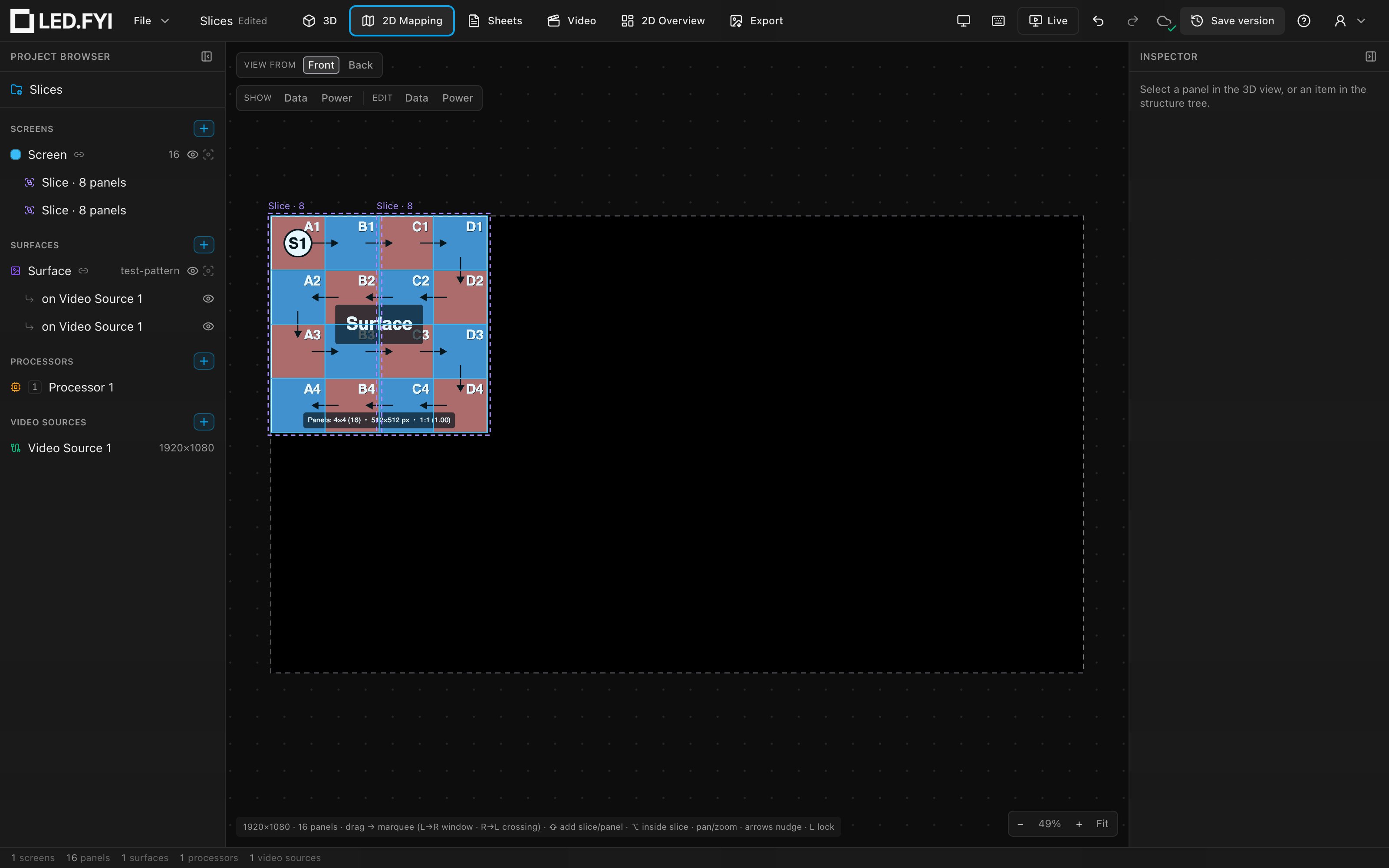
A plain click on any member selects (and a drag moves) the whole slice; Shift-click adds another whole slice, and ⌥-click reaches an individual member. Slices are only created by that cut; there is no command to group a hand-picked set of panels. To dissolve one, select it and press ⌘U, or use Ungroup slice in its Video slice Inspector section, where a slice's video source can also be re-pointed, which physically re-homes its panels to the processor carrying that source. All of this is covered in Feeding screens video: links & slices.