

Appearance
Languages & translations
The app ships in ten languages. The interface (menus, dialogs, the Inspector, workbench chrome, most notifications) switches instantly, with no reload, and the generated drawings and paperwork translate too.
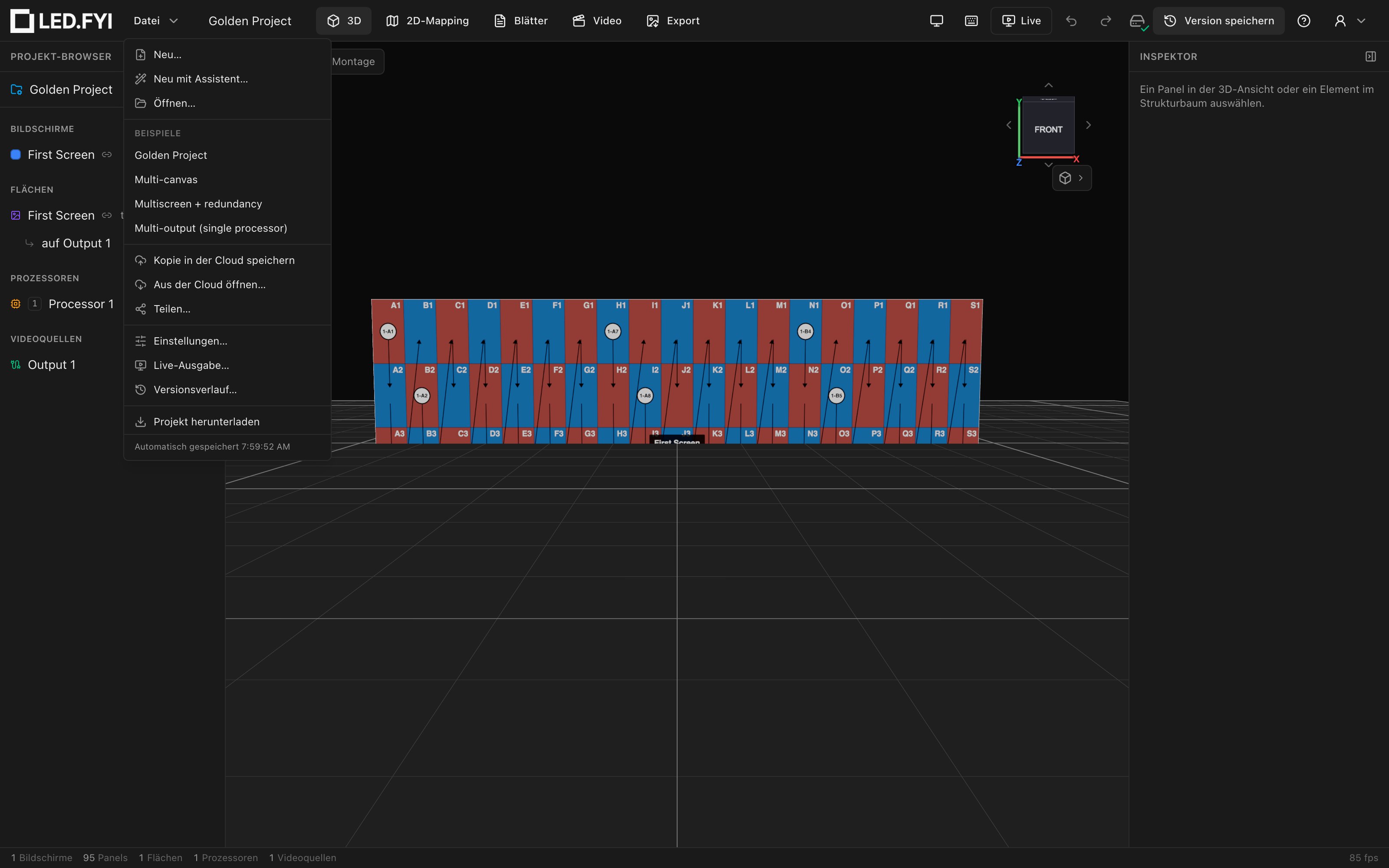
The languages
| Choice | Language |
|---|---|
Auto (browser) | Follows your browser (the default) |
English | English |
简体中文 | Simplified Chinese |
Español | Spanish |
Português | Portuguese |
Nederlands | Dutch |
Deutsch | German |
Norsk | Norwegian (Bokmål) |
Dansk | Danish |
Italiano | Italian |
日本語 | Japanese |
Languages are always listed in their own names: no flags, and the names themselves are never translated.
Switching language
- Preferences → Language: the segmented buttons at the top of the dialog. Available everywhere, including offline.
- The globe menu on the sign-in screens (cloud builds): every pre-app screen carries a globe chip top-right, since a signed-out visitor can't reach Preferences yet. The chip shows the language you're actually seeing; the check mark in the menu marks your stored preference, so
Auto (browser)stays distinguishable from an explicit pick. See Sign in & first run.
Both write the same preference, so a choice made anywhere persists in the browser and, once signed in, syncs to your account.
How Auto (browser) picks a language
The app walks your browser's language list and takes the first match:
- Exact tag: a browser set to
zh-CNgets Simplified Chinese. - Base language:
pt-BRandpt-PTboth get Português;es-419andes-MXget Español;zh-TWgets 简体中文;de-ATgets Deutsch;nb-NOgets Norsk. - Otherwise English: a browser in an unsupported language (French, Korean, …) gets English.
So a Brazilian or Portuguese browser opens the app in Portuguese on its very first visit, and a Spanish one in Spanish, with nothing to set up. Your browser's first language wins: a browser listed as English first and Portuguese second opens in English. An explicit choice you make in Preferences or the globe menu always beats the browser, on every device where you make it.
Any individual phrase missing from a translation renders in English, never blank.
The browser's own "Translate this page" is switched off
The app tells Chrome, Edge and Safari not to offer their built-in page translation, so you won't see the "Translate this page?" bar on app.led.fyi. Use the app's own languages instead: Preferences → Language or the globe menu.
Why the browser translator is blocked
A browser translator rewrites the text on the page underneath the app while the app is still drawing it. The next time something updates (you add a screen, change a wiring assignment, switch workbench), the app trips over the rewritten page: parts of the screen stop updating, and it can go blank until you reload. Chrome's translator caused exactly that for Portuguese-speaking users, which is why it is now blocked. Your work is never at risk (it autosaves), but the screen was.
The trade-off: if your language is not one of the ten above, the browser can no longer auto-translate the app for you and it opens in English. That is the case for adding more languages. If yours is missing, tell us through Help → Send feedback.
What stays as-is on purpose
- Your content. Screen names, notes, the project name: everything you type prints exactly as typed, in every view and export.
- Names stamped at creation. Default names written into the project when something is created (a new sheet's name, the drawing set's name, the first project's name) are stamped in whatever language is active at that moment and do not re-translate when you switch languages later. They're your data to rename.
- The one exception is the per-processor Raster Map sheets the app keeps in step with your processors. While you haven't edited one, the app rewrites its name whenever it updates those sheets (when you add, remove or rename a processor, or reopen the project), so it picks up the language active at that moment.
- Equipment and mounting hardware names. Library data is treated like brand names and never translated; see The equipment library.
- A few known English leftovers:
- the names of the automatic versions in version history, such as
Saved to cloudandNew project; - the notifications about saving, opening and restoring a project, such as Project imported, Saved to cloud and Autosave unavailable;
- the title-block designer's authoring preview (the delivered sheet does translate);
- in the 3D view menu, the Shading and Background option names and the Fill factor and Brightness slider labels.
- the names of the automatic versions in version history, such as
Names that live in the engine as stable identifiers do display in your language: the test-pattern picker (Solid color, SMPTE bars, Data path, …) and the sheet-block titles (Wall Elevation, Bill of Materials, Power Wiring, …).
Translated drawings, PDF & DXF
The generated drawing sheets (titles, table headers, SCALE tags, BOM and schedule columns, and the estimate notes) print in the active UI language on the Sheets workbench preview, the drawings PDF and the DXF export. Language and units are independent: a translated sheet still prints the units the drawing set is pinned to, and unit symbols (m, ft, kg, lb, mm, W) are never translated; they are symbols, not words. Every non-English language except Japanese is wired; English (and, for now, Japanese) uses the engine's built-in English labels (see the font note below).
Chinese & Japanese text and PDF fonts
The standard sheet font covers Latin scripts only. Whenever a sheet actually contains CJK text (translated labels in the Chinese UI, or a Chinese or Japanese screen name or note typed while working in any language), the PDF export automatically embeds a CJK-capable font (Noto Sans SC) so it doesn't render as empty boxes. The font (~2.4 MB) is only fetched when CJK text is present, and the on-screen preview uses the same font, so preview and PDF match.
That font is built for Simplified Chinese: it also covers Japanese kana and the kanji shared with Chinese, but not every Japan-only character, which is why the Japanese UI keeps English drawing labels for now. A fully Japanese-capable drawing font is planned.
Regional number & date formats
Numbers and dates follow the chosen language's regional conventions (1,000.5 vs 1.000,5). With Language on Auto (browser) your browser's own regional default applies; an explicit language choice pins formatting to that language.
Formatting is separate from measurement units: choosing Deutsch does not force metric, and vice-versa. See Units of measurement.