

Appearance
Multiple screens with switch redundancy
This tutorial builds a three-screen show from a blank project: two different panel models, all driven by one Novastar MCTRL4K, with a low 8-bit / 24 Hz signal that lets a whole 44-panel run fit on a single string, a primary CVT10-S switch carrying all four data strings, a second CVT10-S as a per-string backup, and all three screens stacked onto one 4K video source. It is the canonical workflow for a show with a main wall plus side screens on a single processor, with a backup data path to every string.
Along the way you will use:
- The new-project wizard for the first two screens
- Per-screen data-path patterns in the Screen inspector's Wiring paths picker
- Duplicate to clone a finished screen (adding screens)
- The bit-depth / frame-rate → per-string capacity relationship (data path & string splitting)
- Switches, string assignment, and the switch-redundancy tier (switches & trunks · string assignment · redundancy)
Part 1: Two screens from the wizard
- Click File → New with wizard…. The five-step New project wizard opens on the Screens step.
- Set Project name to
Multiscreen with redundancy. - In the first screen card, leave the name
Screen 1, click Choose panel…, search forUPAD III, and pick UPAD III (under the Unilumin brand group). - Leave Receiver card empty on both screens (this build installs no card). Set Panels wide to
12and Panels high to7: an 84-panel, 6.0 m × 3.5 m wall at2304×1344px. - Click Add screen. In the second card, leave the name
Screen 2, click Choose panel…, and pick AR 7.8 (INFiLED). Set the grid to9wide ×3high: 27 panels of the 500 × 1000 mm model, a 4.5 m × 3.0 m wall at576×384px.
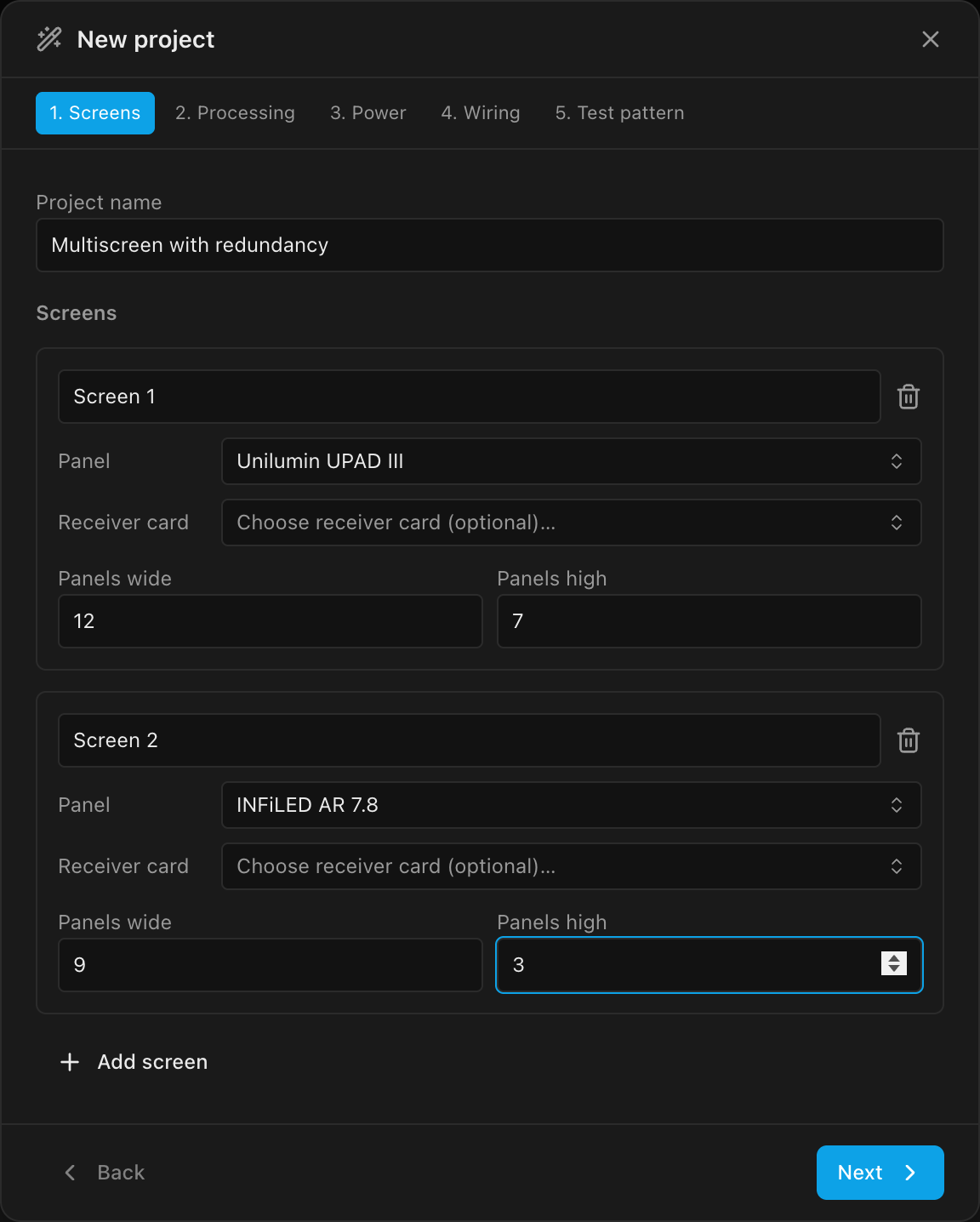
- Click Next. On the Processing step, click Choose processor (optional)… and pick MCTRL4K (Novastar). Set Video source width to
3840and height to2160(or click the 4K preset). One 4K source will feed all three screens. Bit depth and Frame rate appear once the processor is picked; leave them at their defaults. Leave Canvas layout at1x1.
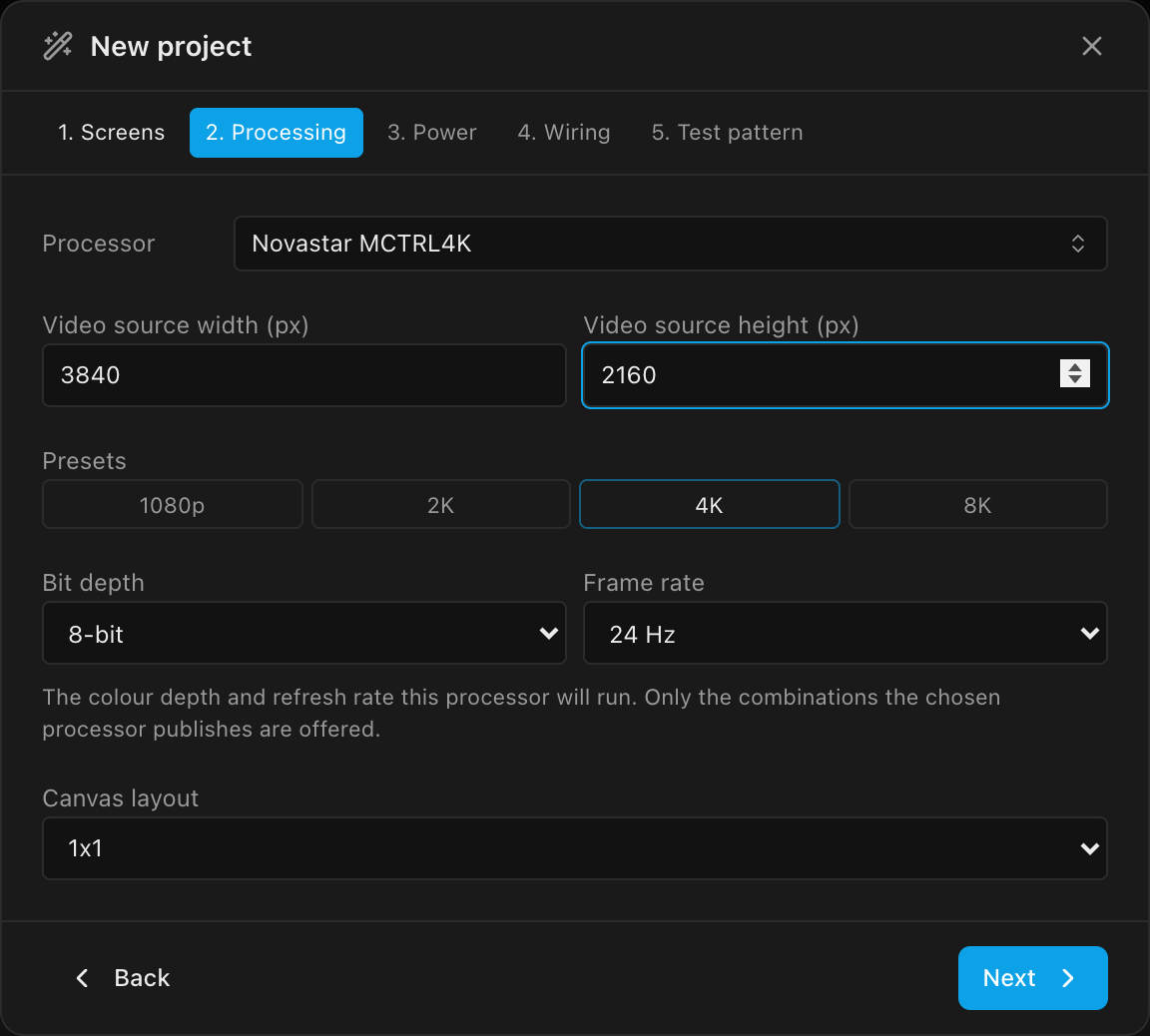
- Click Next through the remaining steps, leaving every default:
- Power: Working voltage
220V and Circuit amps16A. Circuit amps is the project's circuit limit: every screen starts at it, and you can lower a screen's amps per string later (power). - Wiring: each screen's card shows its Data and Power rows at U-Turn ·
Top-left·Horizontal. That serpentine route is exactly what this build uses on Screen 1, so there is nothing to change. - Test pattern:
Data path, so every screen arrives linked to a surface that lights it up immediately (test patterns).
- Power: Working voltage
- Click Create project, then Replace on the confirmation; creating a project replaces the document you have open.
What you should see: the status bar reads 2 screens · 111 panels · 2 surfaces · 1 processors · 1 video sources. The tree shows Screen 1 (chip 84) and Screen 2 (chip 27), each with its own color swatch and a linked test-pattern surface, and both walls are lit in the 3D view.
Part 2: Give Screen 2 its own data path
Each screen carries its own data path. This build runs Screen 1 as U-Turn / horizontal and both small screens as Zig-zag / vertical: mixed patterns in one project. Per-screen paths are set in the Screen inspector's Wiring paths picker (data path).
- Select Screen 2 in the tree.
- In the Screen inspector, open Wiring paths and click the green Data row. The grid of all 24 routes unfolds in place.
- Under Zig-zag, in the Vertical runs row, click the top-left route. Hover a route to check it: its tooltip reads
Top-left · Vertical · Zig-zag. The row now reads Zig-zag · Top-left · Vertical, and the arrows on Screen 2's panels redraw immediately: columns running top-to-bottom, all in the same direction. Click Done to fold the grid. - Open the 2D Mapping workbench if you want to watch the change on the grid. Switch View from → Back to see it the way the crew will when they wire Screen 2 from behind (see Back view).
Part 3: The third screen by duplication
- Select Screen 2 in the tree and click Duplicate at the bottom of the Inspector (or run Duplicate Screen from the command palette). A new screen named Screen 2 copy appears, already selected, with the same panel model, grid, power settings, and the Zig-zag data path you just set.
- In the Screen section, click the Color swatch and pick a distinct color for the copy. Every screen gets its own color; it tints the tree swatch, wiring overlays, and paperwork.
- The copy is created exactly on top of Screen 2 in 3D, so move it clear: in the Position section, set 3D
Xto8600mm. (The wizard placed Screen 2 at4050;8600puts the copy the same spacing further right.) - Stack its slice of the processor canvas below the others: set 2D to
0,1728px. Screen 1 occupies rows0–1344of the 4K composite and Screen 2 sits at1344(the wizard auto-packed them);1728 = 1344 + 384tucks the copy directly under Screen 2.
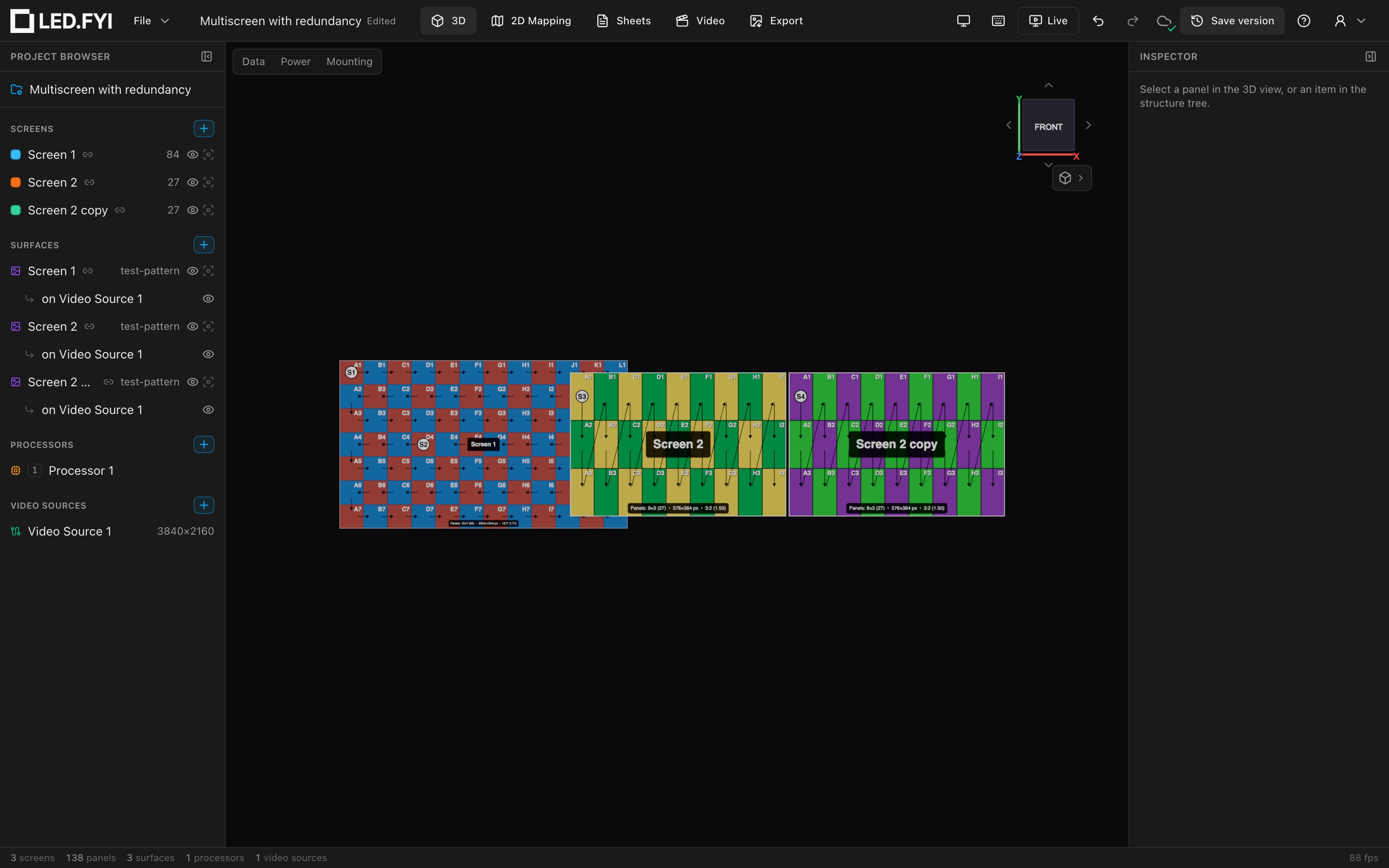
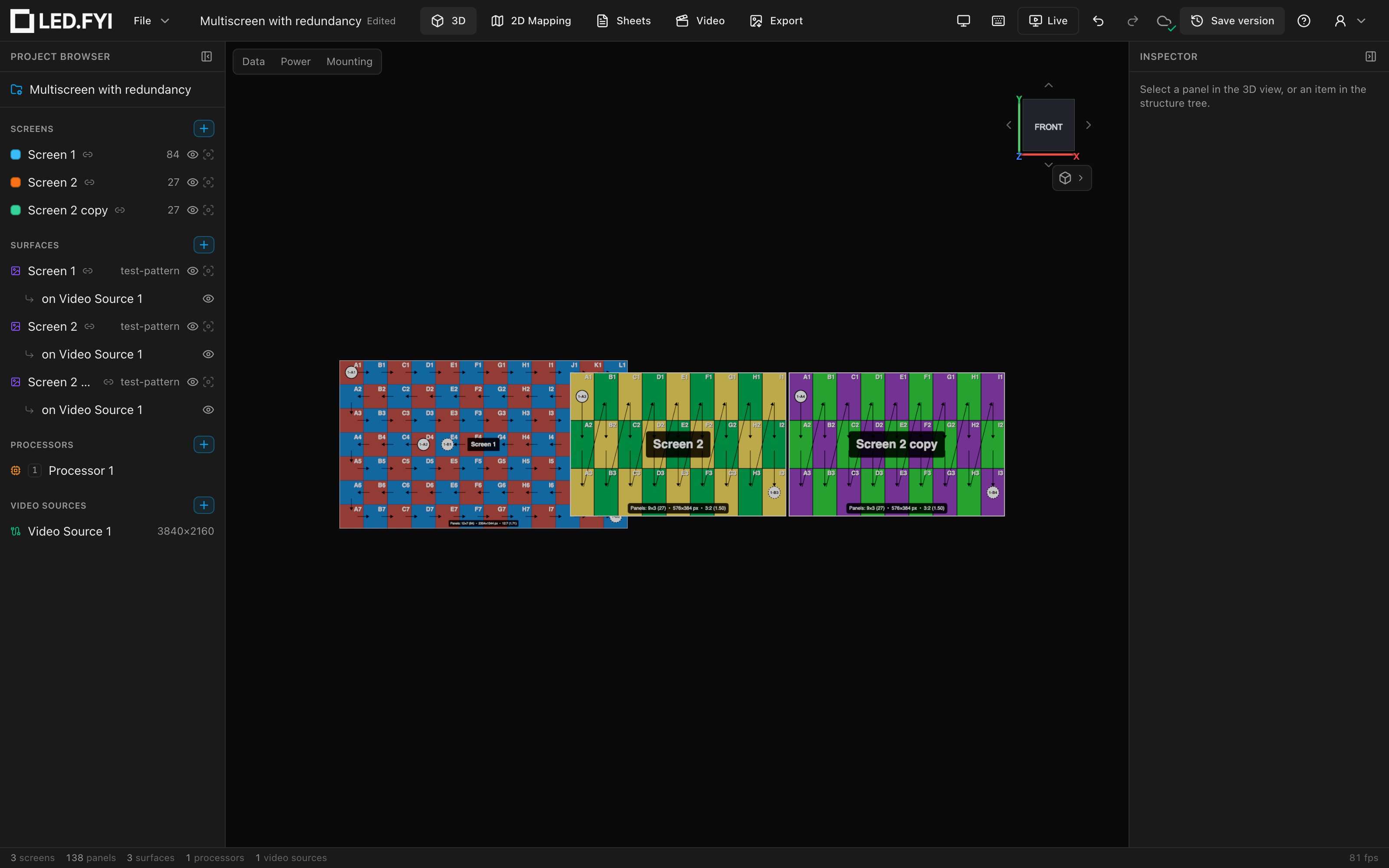
What you should see: three walls side by side in 3D, and the status bar now reads 3 screens · 138 panels.
Part 4: A surface for the copy
Duplicating a screen never duplicates its surface link (a link is 1:1), so the copy arrives dark. Give it its own linked surface:
- In the tree's Surfaces group, click + and choose From Screen → Screen 2 copy. A new linked test-pattern surface appears, with its placement already sitting at the copy's composite position
(0, 1728). - The new surface is named
Surface; rename it in the Surface section's Name field toScreen 2 copyso the tree and 3D labels stay readable.
Part 5: 8-bit / 24 Hz raises the per-string cap
How many pixels one 1G string can carry depends on the processor's signal: fewer bits and fewer frames per second mean more pixels per port. Once a screen has a processor model and no receiver card, its strings split at that processor's port capacity (where the limit comes from). This project runs a 24 fps show at 8-bit, which is what lets Screen 1's 84 panels wire as just two data strings.
- Select Processor 1 in the tree. The Processor canvas section shows the Novastar MCTRL4K; the Signal section shows Bit depth
8-bitand Frame rate24 Hz. Picking the MCTRL4K seeds its lowest table entry, which happens to be exactly this project's operating point. If yours differs, set both now.
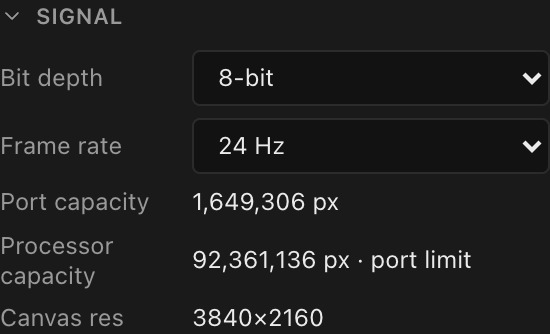
What you should see: Port capacity reads 1,649,306 px, the MCTRL4K's per-1G-port capacity at 8-bit / 24 Hz, straight from its capacity table (roughly 950 Mbps ÷ 24 fps ÷ 24 bits per pixel). For comparison, the same processor at 8-bit / 60 Hz caps at 659,722 px. Change Frame rate and watch the cap move, then set it back to 24 Hz.
- Select Screen 1 and look at its Wiring (computed) section.
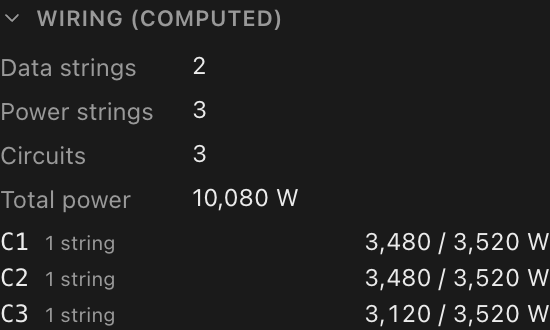
What you should see: Data strings reads 2. A UPAD III is 192×192 = 36,864 px, so 44 panels (1,622,016 px) fit under the 1,649,306 px port capacity and panel 45 would not, so the engine splits the 84-panel chain into strings of 44 and 40. (At 60 Hz the same wall would need 5.) Screen 2 and its copy are 221,184 px each, a single string either way, so the whole processor carries 4 data strings.
Part 6: The primary switch first
The MCTRL4K fans out through 10G trunks to network switches whose 1G ports feed the strings. This build puts all four strings on one CVT10-S, then adds a second CVT10-S purely as backup.
Add the primary switch and assign strings BEFORE adding the backup switch
Auto-assign treats every switch port on the canvas as a candidate. If both switches exist when you click Balance, the strings spread across the two switches (1-A1, 1-A2, 1-B1, 1-B2), so your "backup" switch is now carrying primary feeds, and the per-string backup pickers offer a scattered set of leftover ports instead of a clean matching bank. Do it in this order: one switch → assign strings → then the backup switch.
- Select Processor 1. In the Switches section, click Add switch…, search
CVT10, and pick CVT10-S. It carries acompatiblebadge next to the MCTRL4K. It lands on Trunk A with its 10 ports (CVT10-S · 10p), and the section notes3 of 4 trunks free. - In String assignment, click Fill. All four strings land on the first switch in order:
S1→1-A1,S2→1-A2,S3→1-A3,S4→1-A4. (Every port label starts with the processor's tag,1here; see labels.)
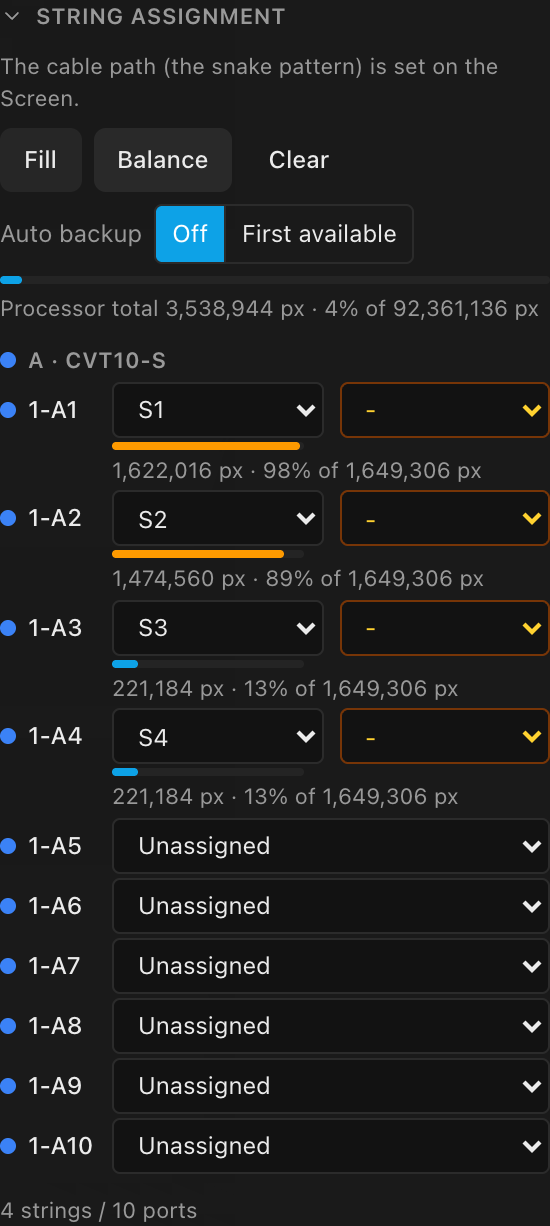
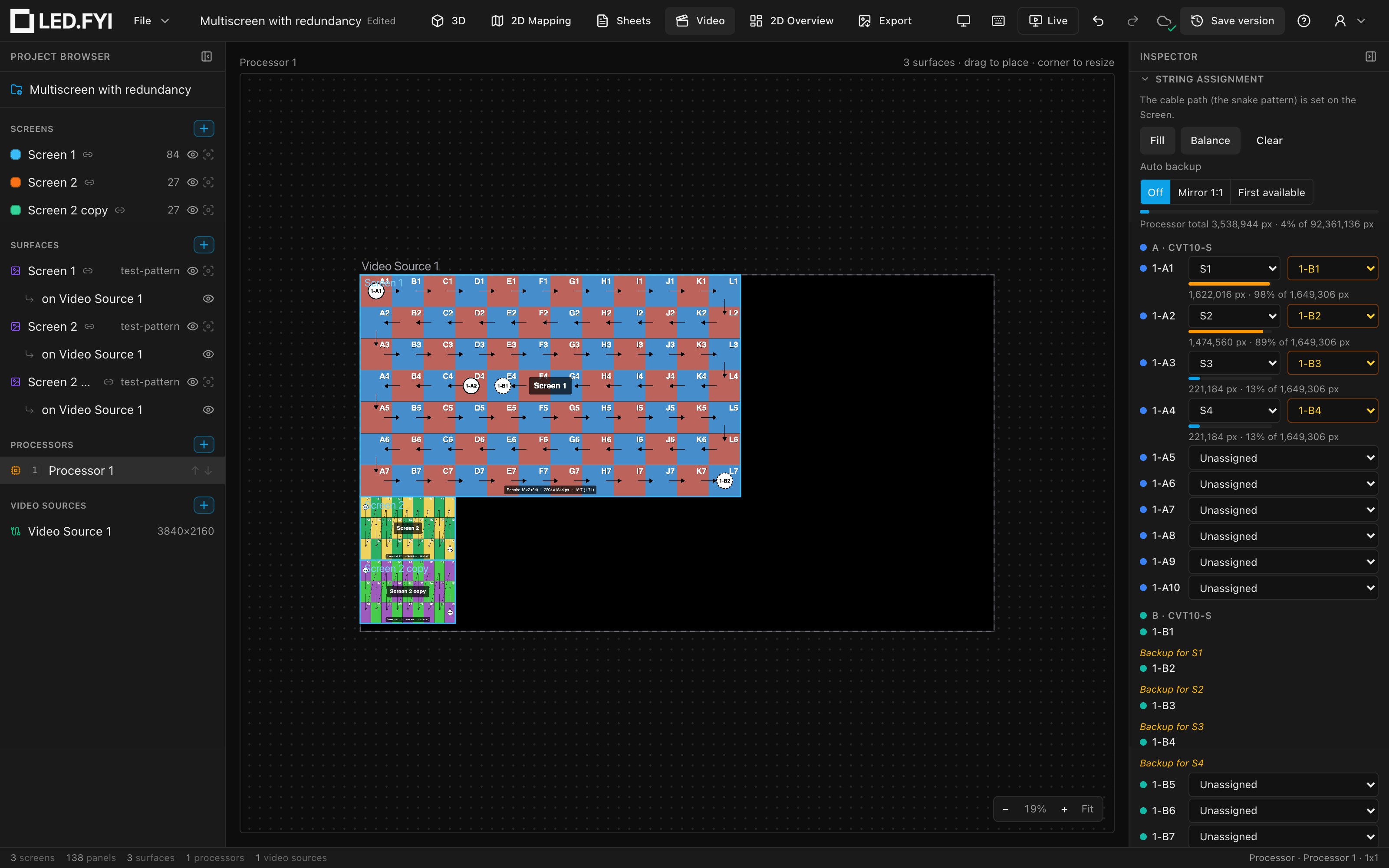
What you should see: each of the four port rows shows its string plus a live utilization bar: 1,622,016 px · 98% of 1,649,306 px and 1,474,560 px · 89% for Screen 1's two strings, 221,184 px · 13% for each small screen. Fill keeps the strings as the data path formed them and loads the ports in order. Balance would instead even the strings out, so Screen 1's two runs become 42 + 42 panels, and with more than one switch it splits the strings into equal blocks across the switches (string assignment).
Part 7: The backup switch and per-string backup ports
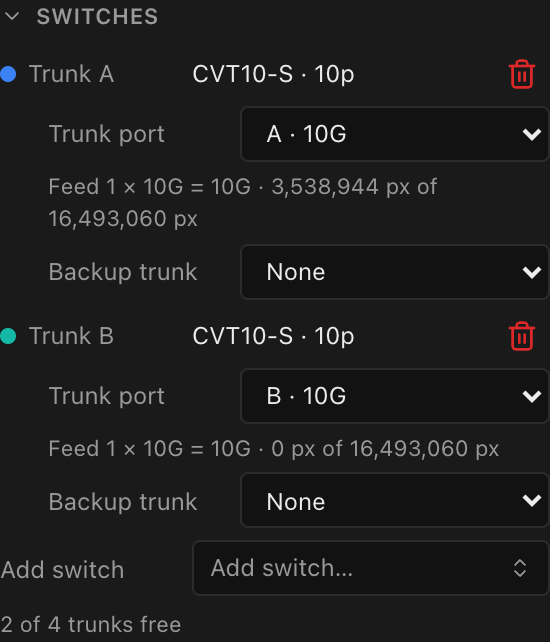
- Click Add switch… again and pick a second CVT10-S. It lands on Trunk B, a second 10G trunk from the processor. Leave both switches' Backup trunk dropdowns at
None; that control is a different redundancy tier (a spare trunk into the same switch; see redundancy).
- Ever since the strings got primary ports, each assigned port row in String assignment has shown a second, amber dropdown: the backup port for that string's final panel. Before the second switch it only offered the primary switch's spare ports (
1-A5–1-A10); now it also lists all of1-B1–1-B10. Set the matching port numbers on the second switch:S1→1-B1,S2→1-B2,S3→1-B3,S4→1-B4.
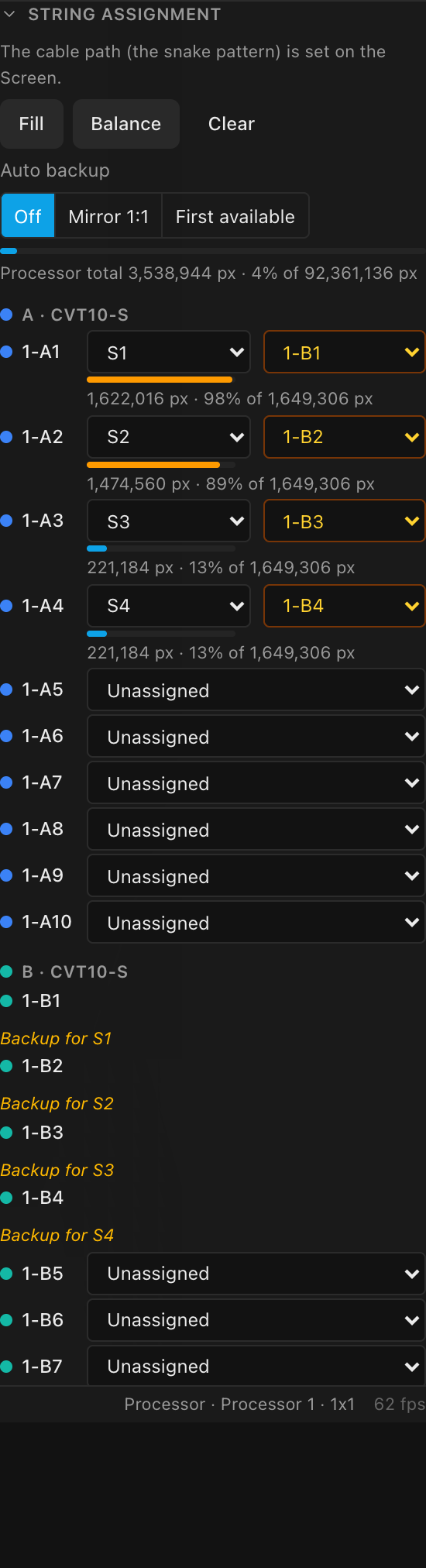
What you should see: all four amber pickers filled with 1-B1–1-B4, and switch B's first four rows read Backup for S1 to Backup for S4. Physically this is switch-level redundancy: data enters each string at its first panel from switch A, and a second cable runs from switch B to the string's last panel. If the primary feed dies anywhere along the chain, panels keep receiving data from the far end. In every wiring view the primary run draws solid and the backup draws dashed (seeing your wiring).
One click instead of four
With two switches on the processor, the header's Auto backup control now offers Mirror 1:1. Choose it and leave Mirror onto at Switch B on this processor, and every string is backed up on the same port number on switch B: exactly the four picks above. Mirror 1:1 also keeps the backups following the strings as you re-assign them, but it locks the per-string backup dropdowns. This tutorial picks by hand so you see how the dropdowns work. See Redundancy → Auto backup.
The pickers do conflict-resolution for you
The backup dropdown lists every workable candidate, including ports that need housekeeping first: an entry suffixed · +switch creates the needed backup switch for you (a toast confirms what was added and where), while · move switch (relocate a switch to a free trunk) and · move string (move a blocking primary string to a free port) explain the consequence and ask before changing anything.
- Leave the Redundancy section's Backup proc. at
None(the section is folded, and its header readsNone). That is the processor-level tier (a second MCTRL4K mirroring this one, Novastar's "Hot Backup"), which this build does not use.
Part 8: One 4K source feeding everything
- Open the Video workbench. The single
3840×2160source carries all three linked surfaces, stacked exactly as you positioned them: Screen 1 at(0, 0), Screen 2 at(0, 1344), the copy at(0, 1728). This is the frame your media server or playback system delivers: three screens' content in one 4K raster (video surfaces).
- Switch to the 3D workbench for a final check (press
Ffor a front view,0to fit). Three walls, each lit by its own pattern (Screen 1's horizontal zigzag, the two AR 7.8 screens' vertical Zig-zag paths), with port labels on the first panel of every string and the backup-port markers on the last.
What you built
| Screen 1 | Screen 2 | Screen 2 copy | |
|---|---|---|---|
| Panel | Unilumin UPAD III | INFiLED AR 7.8 | INFiLED AR 7.8 |
| Grid | 12 × 7 (84 panels) | 9 × 3 (27 panels) | 9 × 3 (27 panels) |
| Pixels | 2304×1344 | 576×384 | 576×384 |
| Physical | 6.0 m × 3.5 m | 4.5 m × 3.0 m | 4.5 m × 3.0 m |
| Data path | U-Turn · horizontal | Zig-zag · vertical | Zig-zag · vertical |
| Data strings | 2 (44 + 40 panels) | 1 | 1 |
| Primary ports | 1-A1, 1-A2 | 1-A3 | 1-A4 |
| Backup ports | 1-B1, 1-B2 | 1-B3 | 1-B4 |
One MCTRL4K at 8-bit / 24 Hz (per-string cap 1,649,306 px), two CVT10-S switches on trunks A and B (primary + backup), one 3840×2160 video source feeding three stacked surfaces.
Where to go next
- Screen too big for one processor? Split it across two canvases: Multi-canvas
- One processor, four 4K outputs: Multi-output (single processor)
- The other redundancy tiers (loop, trunk, hot-backup processor): Redundancy
- Screens close enough to daisy-chain? Run one cable straight from the last panel of one into the first of the next: running one cable across two screens
- Power runs and circuits for these screens: Power and Mapping power circuits
- Print it: wiring and rack drawings in Sheets, cable labels and the BOM under Export