

Appearance
The 2D Mapping workbench
The 2D Mapping workbench is where you decide which pixels each panel shows. It lays out one processor canvas's pixel space on an infinite pan/zoom surface: the live content renders underneath, every panel floats on top as a draggable window into those pixels, and the data and power wiring can be drawn over everything. It is also where you hand-edit daisy-chains and manage power circuits. See Arranging screens & panels, Wiring overlays & the wire editor, and Power circuits for those tools.
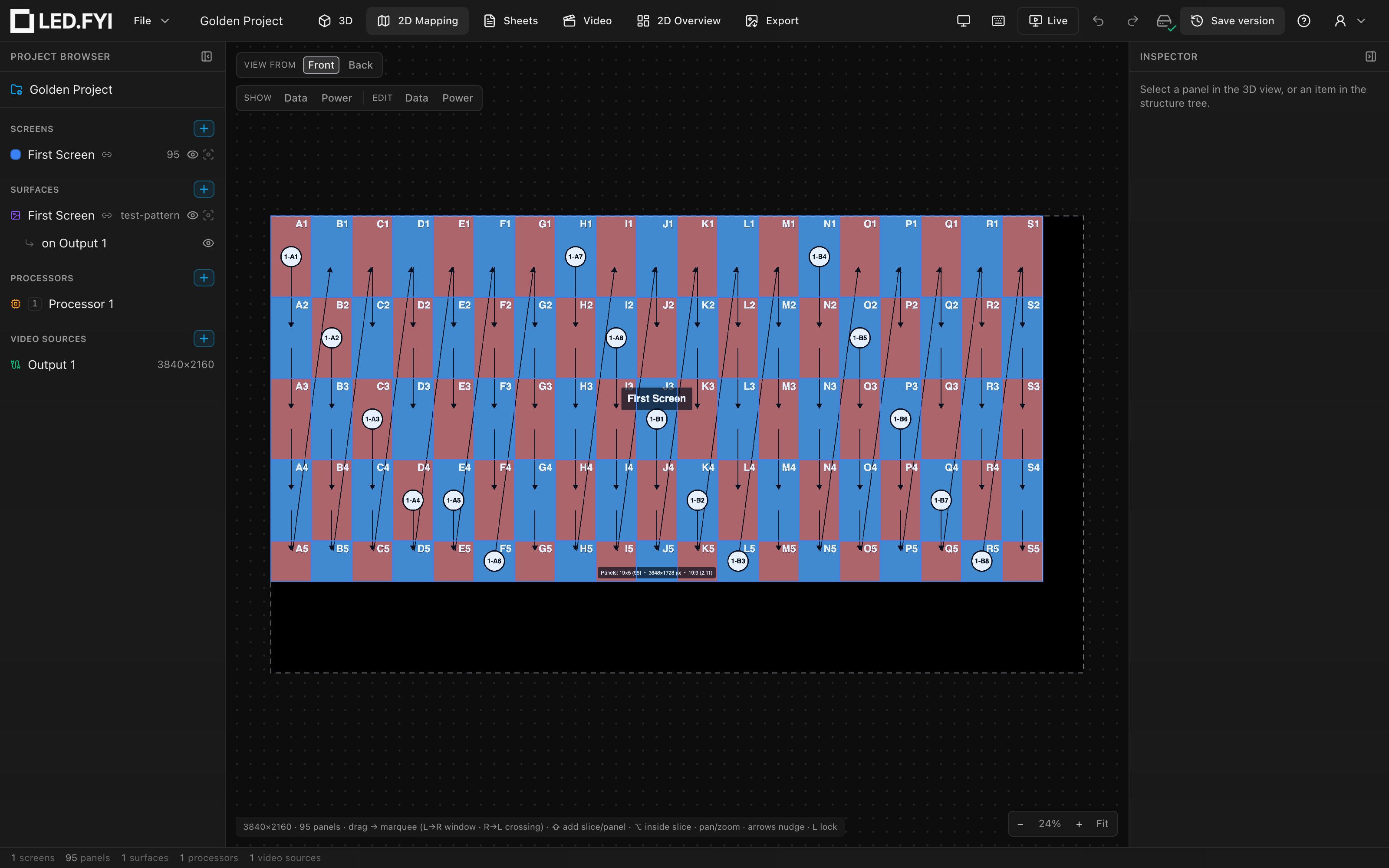
Opening the workbench
Three equivalent routes:
- Click the 2D Mapping tab in the top bar.
- Press the bare key
2(no modifier; it works from any workbench, except while you are typing in a field). - Open the command palette with
⌘Kand run Go to 2D Mapping.
The bare number keys switch workbenches app-wide:
| Key | Workbench |
|---|---|
1 | 3D: the initial workbench |
2 | 2D Mapping |
3 | Sheets |
4 | Video |
5 | Export |
One canvas, one pixel space
The view shows one processor canvas at a time. The canvas's composite is its pixel space: all of the processor's video sources tiled according to the canvas layout (for example 2×1 or 2×2; see Outputs, canvases & multi-output). A dashed grey rectangle marks the composite bounds, and the composite size appears in the status chip at the bottom-left (for example 3840×2160). When a canvas has no resolvable size yet, the view falls back to 1920×1080. On a modular processor in switched input mode, the composite sizes itself from the active input.
Every panel is a window: a rectangle in composite pixels that decides which pixels that panel samples. The exact same mapping drives the 3D wall's texture, the Video workbench, and every export: what you arrange here is precisely what the wall shows everywhere else.
A panel outside the boundary goes black
A panel dragged outside the dashed canvas boundary samples no source pixels, so it renders black in the 3D view and in exports. The mapping view still shows its outline, so if a wall panel is unexpectedly dark, check here whether its window has strayed off the canvas.
Live content
The actual content pixels (test patterns, images, video, whatever the Video workbench placed on the outputs) render live inside the canvas boundary, underneath the panel outlines. Animated test patterns animate here too. The raster is upscaled without smoothing, so individual content pixels stay crisp when you zoom in.
Switching processor canvases
When the project has more than one processor canvas, a canvas switcher appears at the top-left. With up to six canvases it is a pill bar: click a pill to show that canvas's composite; the click also selects the canvas in the structure tree.
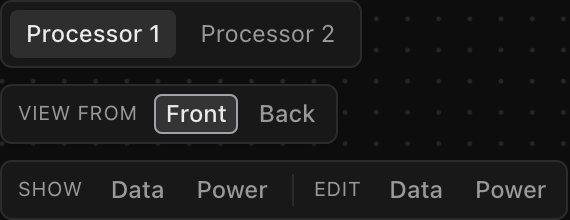
With seven or more canvases (a large show with a primary and a backup processor per zone easily reaches 18), a pill bar would run off the edge of the window, so the switcher collapses to a compact control instead: a drop-down naming the active canvas (open it to pick any canvas; inside it the arrow keys step and typing a name jumps), ◀ / ▶ buttons that go to the previous / next canvas in tree order (they grey out at the ends rather than wrapping), and an n of N position counter. Picking a canvas this way does exactly what a pill click does. The compact control is the same width whether the project has 7 canvases or 70, so the wiring toolbar beneath it always stays in reach.
The Video workbench uses this same switcher (same pills, same drop-down, same six-canvas threshold) at its top-left, so a processor is found the same way in both views.
The active canvas otherwise follows your selection: selecting a panel, screen, or canvas in the left rail jumps the view to that item's canvas, so picking a panel that lives on another processor silently switches the composite shown. Selecting a screen focuses a processor that actually holds its panels: if the canvas you are already looking at hosts part of that screen, the view stays put; otherwise it jumps to the first of the screen's processors in the project browser order. The choice is sticky: deselecting does not snap the view back. Switching canvases re-fits the zoom to the new canvas's content.
Front and back view
Crews wire a wall from behind, while you usually design it from the audience's side, so everything a crew looks at is left-right reversed. The View from pills at the top-left of the workbench switch between the two:
| Option | What you see | Default |
|---|---|---|
| Front | The canvas as the audience sees it. | ✓ |
| Back | The whole canvas mirrored left-to-right, as if you were looking through the wall from behind. An amber BACK VIEW (SEEN FROM BEHIND) badge sits at the top of the view the whole time it is on. |
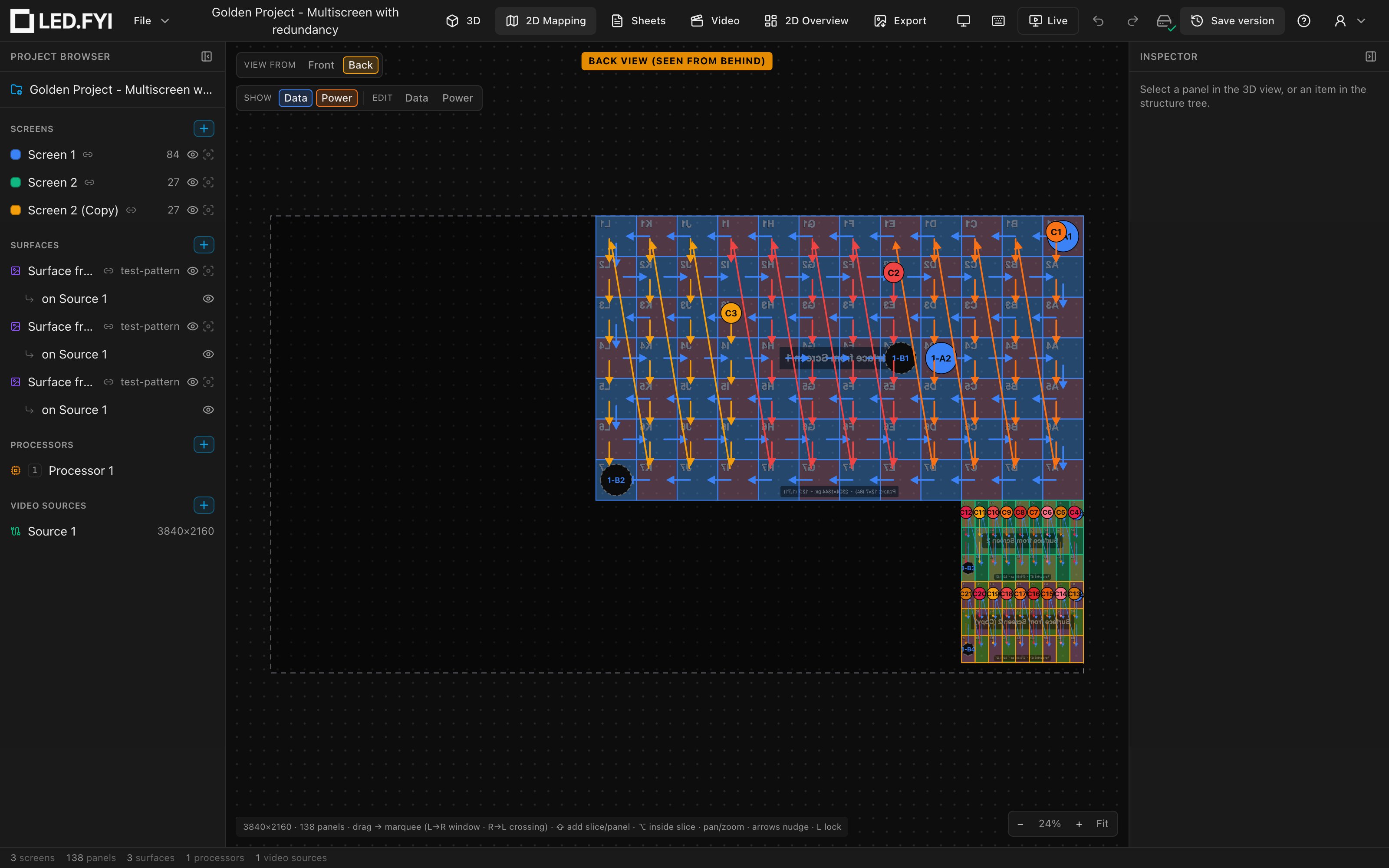
In Back view:
- Everything stays editable, and works the way it looks. Dragging a panel follows the mouse, the arrow keys move panels the way the arrow points on screen, and a left-to-right marquee is still a window selection. You can wire panels by hand with the wire editor exactly as on the front.
- Text stays readable. Port and circuit chips, the pin on a pinned circuit, and slice badges are drawn the right way round. Power wires still sit up-left of data wires.
- The content is mirrored and faded, because from behind you'd be looking at the back of the picture. It still shows which content lands on which panels, but it can't be mistaken for the front.
- Nothing in the project changes. It is only a way of looking at the canvas. Your choice is remembered on this computer and applies to every project until you switch back.
This is the processor canvas, mirrored
The 2D Mapping view shows the processor's pixel layout, not the physical wall. Mirroring it matches what the crew sees behind the wall when the panels are mapped in the same arrangement as they're built, which is the normal case. If you've rearranged panels on the canvas so they no longer sit like the wall, the mirrored canvas won't match the wall either. Wiring drawings are laid out from the physical panel grid, so a Back view there always matches the wall.
Navigating
The surface is an infinite dot grid (one dot every 64 composite pixels, scaling with zoom) that you pan and zoom like a design tool, with one deliberate difference:
| Gesture | What it does |
|---|---|
| Scroll wheel / two-finger scroll | Pans (both axes) |
⌘/Ctrl + scroll, or trackpad pinch | Zooms toward the cursor |
Middle-mouse drag, or Space + left-drag | Pans (the CAD idiom) |
| Left-drag on empty space | Marquee selection; see Arranging |
Wheel pans, not zooms
If you are used to apps where the wheel zooms, hold ⌘/Ctrl while scrolling (or pinch) to zoom here; a plain scroll moves the view instead.
The zoom control cluster sits at the bottom-right:
| Control | What it does | Notes |
|---|---|---|
| − / + | Step the zoom out/in about the viewport center | ×1.2 per click |
| % readout | The current zoom level | Clamped to 2%–800% |
| Fit | Frame the canvas plus all its panels, including any dragged outside | Runs automatically on open, on canvas switch, and when you switch between Front and Back |
The status chip
The chip at the bottom-left always shows the composite size, the panel count on this canvas, and a contextual gesture cheat-sheet:
- Normally:
drag → marquee (L→R window · R→L crossing) · ⇧ add slice/panel · ⌥ inside slice · pan/zoom · arrows nudge · L lock - In wire-edit mode:
click a node to start · sweep the mouse through nodes to chain · click a wire to delete · right-click / Esc cancels · ✕ exits
The Escape key
In wire-edit mode, Esc first cancels the chain you are drawing; a second Esc exits the mode (see the wire editor). Outside wire mode, Esc clears the selection, the same as clicking empty canvas.
Related pages
- Arranging screens & panels in 2D: selection, dragging, snapping, locking, the right-click menu, auto-pack.
- Wiring overlays & the wire editor: reading and hand-editing data/power chains.
- Power circuits in the mapping view: re-assigning circuit labels and manual combining.
- Panel layout, selection & overrides: the panel-level settings behind what you see here.
- Seeing & exporting your wiring: every place wiring appears, beyond this view.