

Appearance
The Live Output window
Live Output pops any video source into a black, chrome-less window you drag onto a second monitor, or onto the display feeding a real LED processor's input. It draws the real composite (playing video and animated test patterns included) at 60 fps, uncompressed. It works the same on the web and in the desktop app, and it's available on every plan.
Opening it
Any of these opens the Live Output dialog:
- The Live button in the top bar. It highlights with a pulsing green dot while the output window is open.
- File → Live output.
- ⌘K → Live output… or the shortcut
⌘⇧O(works from any workbench).
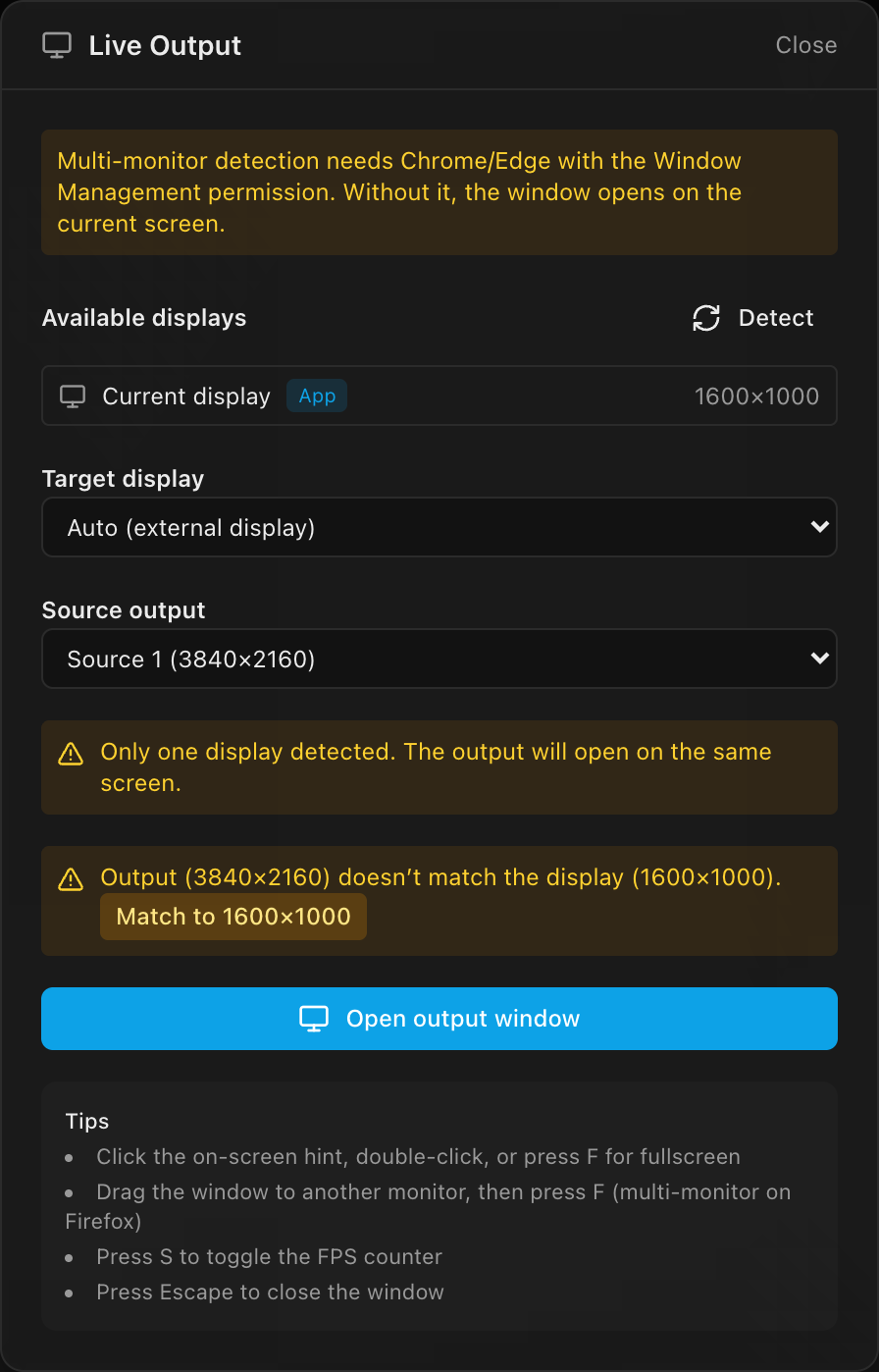
The dialog
| Control | What it does | Default |
|---|---|---|
| Available displays | Every detected monitor, with its label, resolution, an App badge on the display containing the app window, and a Primary tag. Detect re-scans (on Chrome/Edge this is what triggers the Window Management permission prompt). | detected when the dialog opens |
| Target display | Where the window opens. Auto (external display) prefers the first display that is neither primary nor showing the app; or pick a specific display. | Auto (external display) |
| Source output | Which video source to mirror, with its name and resolution. Only shown when the project has more than one. | the first video source |
| Open output window | Opens the window on the target display and starts the frame loop. Disabled when the project has no video sources (This project has no outputs yet…). | n/a |
While the window is open the dialog switches to its controls:
| Control | What it does |
|---|---|
| Showing: … | Which source the window is mirroring (shown when the project has several). |
| Fullscreen | Brings the output window forward and requests fullscreen. It's best-effort, because browsers only reliably honor fullscreen from a gesture inside the target window (Firefox always refuses it cross-window). The reliable controls are inside the window. |
| Close window | Closes the output window. |
| Show FPS counter | A green FPS readout in the window's top-right corner. The setting persists across reopens within the session. |
To switch the mirrored source or move to a different display, just pick the new option and open again; the old window tears down and a new one opens.
Warnings
The dialog warns inline (amber) when something needs attention:
- Only one display detected: the output will open on the same screen as the app.
- The selected display contains the app window: you're about to cover the app.
- Resolution mismatch: the output's resolution doesn't match the display's, e.g.
Output (3840×2160) doesn't match the display (1920×1080).A Match to W×H button fixes it in one click.
"Match to W×H" edits your project
The match button changes the video source's resolution in the document: the same edit as typing it in the video-source form, so it affects your mapping everywhere, not just this window. It's one undoable step (undo brings the old resolution back).
Inside the output window
The window is a black canvas with a click-to-dismiss hint. It tries to enter fullscreen automatically right after opening; if the browser blocks that, use any of these:
| Key / action | Effect |
|---|---|
Click the on-screen hint · double-click · F · F11 | Toggle fullscreen |
S | Toggle the FPS counter |
Esc | Close the window (when not fullscreen) |
If the output's aspect doesn't match the display, the picture letterboxes, and the bars take the output's background color, so a custom background carries through to the wall.
How it renders
The frames are the same per-output composite as the Video workbench and PNG export, drawn directly into the window every animation frame, with no compression and no re-encoding. Because the loop runs in the main app window's animation frame, heavy throttling of the app tab (for example, minimizing the browser) lowers the output window's frame rate with it. Keep the app visible during a show.
Platform notes
- Multi-monitor placement on the web needs Chrome or Edge with the Window Management permission (the browser prompts the first time displays are detected). Without it (e.g. on Firefox), only the current display is known and the window opens on your screen: drag it to the target monitor and press
F. (One exception: a monitor positioned to the left of the primary can still be inferred and offered as a target.) - Pop-ups must be allowed. If the browser blocks the window you'll get an error toast. Allow pop-ups for the site and try again.
- Desktop app: the same action opens a frameless native window on the target display and fullscreens automatically: no permission prompts, no pop-up blockers. See The desktop app.