

Appearance
Creating custom equipment
The library won't always have your exact gear: a brand-new tile, a processor or switch the catalog doesn't know, the receiver card inside a rental stock. Anyone can author a custom panel from scratch.
Processors, processor input/output cards, switches and receiver cards are different. Each ties together ports and their speeds, capacity or loading tables, backup options and what it's compatible with, and a spec that is only half right quietly produces wrong numbers. So the LED.FYI team adds them to the built-in library, and you request the model you need. Only platform admins can create or edit a custom processor, card, switch or receiver card.
There are two ways in, from quick to complete:
- Make custom… on a screen: detach the current panel and edit a handful of numbers directly in the Inspector.
- + Create custom… in the panel picker: the full authoring form for a complete, reusable spec.
For panels both are free, never behind a paywall, and work offline.
Requesting equipment
Open the processor, switch or receiver card picker in the Inspector, type the model you're looking for, and click + Create custom… at the bottom of the list. Unless your account is a platform admin, a request card opens instead of the authoring form. It explains that the LED.FYI team adds that kind of equipment so its numbers are right, and asks for:
| Field | What it is |
|---|---|
| Brand and model | Pre-filled with what you typed in the picker search (for example NovaStar VX4S). Required |
| Datasheet link (optional) | A link to the manufacturer's datasheet or product page |
| Anything else we should know? (optional) | Which outputs or features you rely on, a deadline, and so on |
The card's title and button follow the kind you asked for:
| Picker or library kind | Card title | Button | First line of the request |
|---|---|---|---|
| Processor | Request a processor | Request this processor | Equipment request: NovaStar VX4S (processor) |
| Output card or input card | Request a processor card | Request this card | Equipment request: <name> (output card) (or input card) |
| Switch | Request a switch | Request this switch | Equipment request: <name> (switch) |
| Receiver card | Request a receiver card | Request this receiver card | Equipment request: <name> (receiver card) |
Click the button. The Send feedback dialog opens with your request filled in. Read it over, add anything else, and click Send feedback. "Include a copy of my current project" starts unchecked for a request, since we don't need your design to add a model. Once the model is in the built-in library it shows up in every picker.
The same request card appears in the Equipment library dialog when you choose any kind other than Panel under Create custom equipment, and behind Request one in the community library when it shows anything other than panels.
Signed out or offline
Requests go through Send feedback, which needs an account. Signed out or offline the card only says "Sign in to request a processor." (or a switch, a receiver card, a processor card).
Custom processors, cards, switches and receiver cards you already have keep working: they stay in your projects and in the pickers, and they wire exactly as before. You just can't edit them, so their pencil icon is gone from your library.
Quick custom panel (Make custom…)
On a screen's Panel section, click Make custom… ("Detach from the library and edit size / resolution / wattage / weight freely"). The read-only spec readouts become editable fields:
| Field | What it is | Values |
|---|---|---|
| Pixels | Panel resolution, W×H | whole numbers ≥ 1 |
| Physical | Cabinet size, W×H (mm) | ≥ 1 mm |
| Wattage | Peak power draw (W) | ≥ 0 |
| Weight | Per-panel weight (kg) | ≥ 0 |
Pixel pitch is not typed in; it's derived from cabinet width ÷ pixel width and shown as, for example, 2.6 mm (derived). While detached, the Type picker reads Custom panel; the values start from whatever panel was assigned before (falling back to 400 W / 8 kg when there was none).
A detached panel lives only in this document; it is not saved to any library. It also gets generic mounting systems only; touring frames are granted per library panel type.
The Create custom form
Open the panel picker in the Inspector and click + Create custom… in its footer (platform admins get the same form from the processor, switch and receiver card pickers). A card titled Create custom panel opens over the app, with Brand and Model (both required; the submit button stays disabled until both are filled) plus the spec fields for that kind.
The panel form is long (and so is the admin-only processor form). The card never grows past your browser window: its title stays pinned at the top and the fields scroll underneath it, so on a short window you scroll to the end of the form to reach Cancel and the submit button. Click outside the card to close it without saving; Esc does the same once you've clicked into one of its fields.
The submit button tells you where the spec will live:
| Button label | When | What happens |
|---|---|---|
| Save to your library | Signed in with cloud configured | The spec is saved as a private, reusable row in Your library and assigned to the current screen, processor or switch |
| Add to document | Offline or signed out | The spec is embedded into this project only; no account needed |
Submitting runs the same validation the library itself uses; any issues appear inline in red so you can fix them before saving.
Blank means absent
In every authoring form, an optional field left at 0 or blank is omitted from the spec entirely rather than stored as zero. That's why an untouched field shows 0 again when you re-edit the spec later: nothing was saved for it.
Panel fields
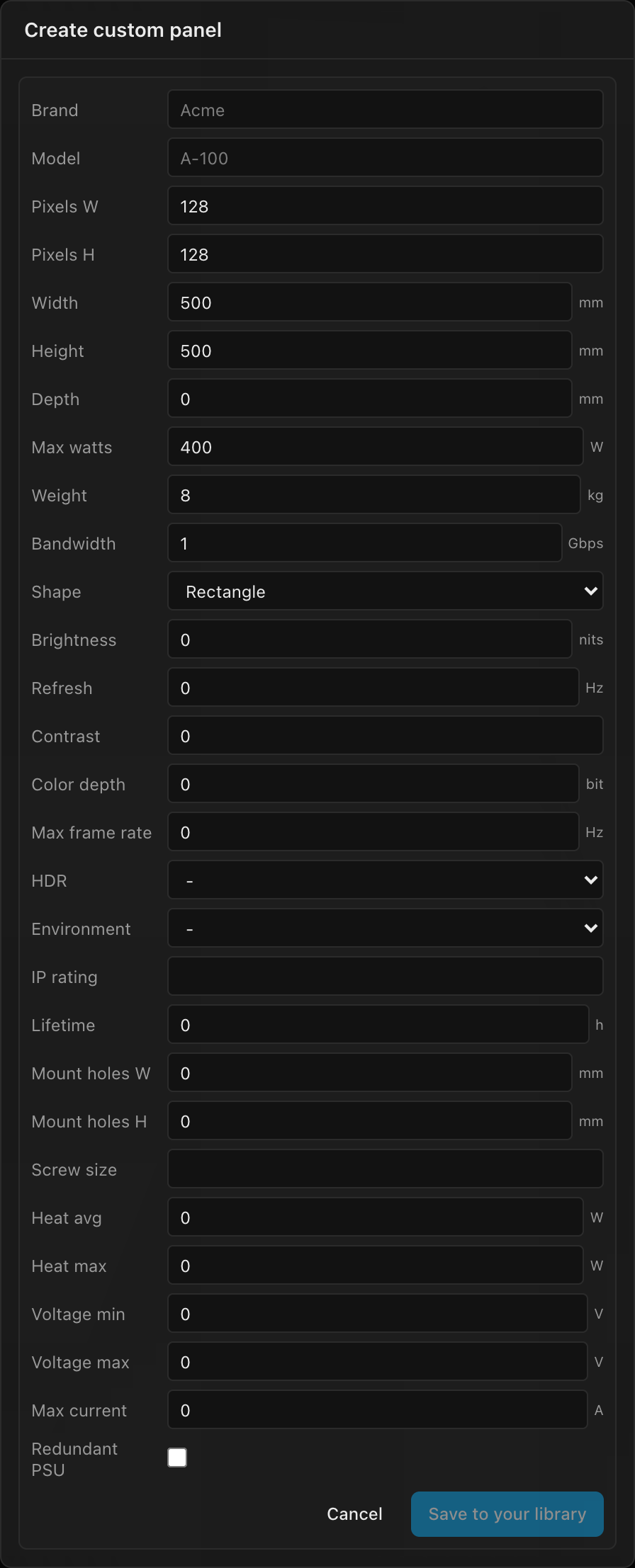
Core geometry and power:
| Field | What it is | Default |
|---|---|---|
| Pixels W / Pixels H | Panel resolution | 128 × 128 |
| Width / Height | Cabinet size (mm); pitch is derived from width ÷ pixels W | 500 × 500 mm |
| Depth | Cabinet depth (mm); 0 = omitted | 0 |
| Max watts | Peak power draw (W) | 400 W |
| Weight | Per-panel weight (kg) | 8 kg |
| Bandwidth | Data bandwidth (Gbps) | 1 Gbps |
| Shape | Rectangle · Half (horizontal) · Half (vertical) · Quarter · 90° corner | Rectangle |
| Parent panel | Shaped panels only: the family's standard panel this piece belongs to | none |
Optional datasheet rows (leave 0 / - / blank to omit):
| Field | Unit / values |
|---|---|
| Brightness | nits |
| Refresh | Hz |
| Contrast | ratio |
| Color depth | bit |
| Max frame rate | Hz |
| HDR | - · None · HDR10 · HDR10+ · HLG · Dolby Vision |
| Environment | - · Indoor · Outdoor · Semi-outdoor |
| IP rating | free text |
| Lifetime | hours (steps of 1,000) |
| Mount holes W / H + Screw size | rigging hole pattern (mm) + screw size text; saved only when both W and H are set |
Thermal and electrical (also optional):
| Field | What it is |
|---|---|
| Heat avg / Heat max | Thermal transfer (W) |
| Voltage min / Voltage max | Input voltage envelope (V) |
| Max current | Maximum current draw (A); cabinets-per-circuit is derived live from your project voltage, never stored |
| Redundant PSU | Dual-power-supply checkbox |
Parent panel links a half, quarter or 90° corner to its family. Walls built from that standard panel then use it automatically: a half for a half row or column, a corner for the next corner column you bend (walls that already have a corner product keep theirs). For a 90° corner, the form checks the fit as you type. It must be as wide as its parent (in mm and pixels), and its height must match the parent's or divide it evenly. The form says how many stack to fill one parent panel, or why it doesn't fit.
A 90° corner made from a screen's panel picker becomes that wall's corner product (when its parent is the wall's panel). It never replaces the wall's own panel, and corner products aren't offered as a wall's panel.
Shapes you can't author
Triangle-corner and round-corner panels exist in the bundled catalog but cannot be authored here.
Processor fields
Admins only
Only platform admins see the processor form; everyone else gets Request a processor. The fields are listed here so you know what a complete processor spec covers (and what to put in a request).
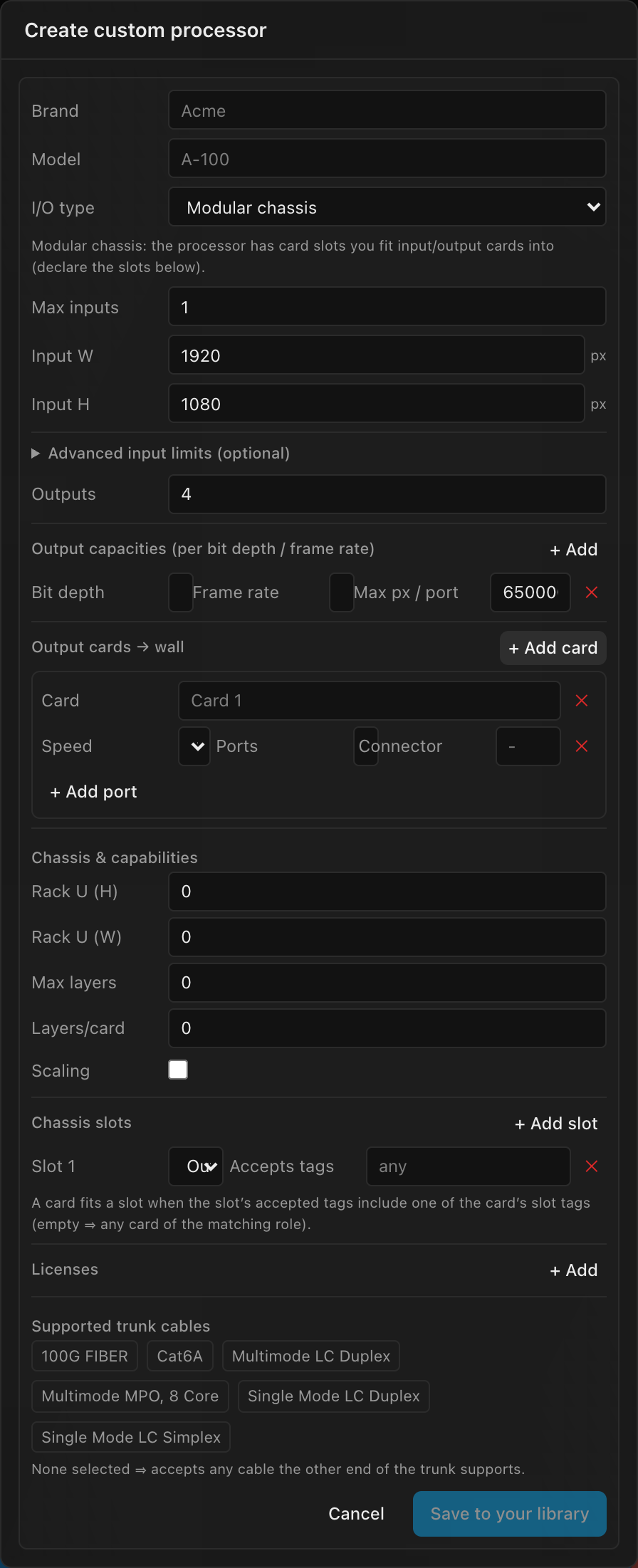
A processor is one of two kinds, and the first field, I/O type, picks which:
| I/O type | What it is | Default |
|---|---|---|
| Fixed I/O | Permanent, built-in inputs and outputs, like a Brompton Tessera SX40. The form shows Built-in inputs; outputs are the flat Outputs count | ✓ |
| Modular chassis | Card slots you fit input and output cards into. The form shows Output cards → wall and Chassis slots instead of Built-in inputs |
Switching to Modular chassis adds one output slot to start you off and clears any built-in inputs; switching back to Fixed I/O removes the slots.
| Field / group | What it does | Default |
|---|---|---|
| Max inputs | Simultaneous video inputs | 1 |
| Input W / Input H | Maximum resolution per input (px) | 1920 × 1080 |
| Advanced input limits (optional) | A fold with the whole-box caps, separate from the per-input resolution above: Input canvas W / Input canvas H (px), Max input px (area), Max input px/s (rate) and Input bit depths (comma-separated, e.g. 8, 10, 12) | all 0 / empty (omitted) |
| Built-in inputs (Fixed I/O only) | The processor's permanent typed inputs: rows of Transport, Ports count and Connector text, added with + Add. Leave it empty for a plain input count with no typed ports | none; a new row defaults to HDMI 2.0 × 1 |
| Outputs | Flat data-output count; authoritative when no output cards are declared. On a Fixed I/O processor each output is a 1G port a string plugs straight into, listed in Inspector → String assignment | 4 |
| Rectangle loading | Tick it when the processor charges each port for the whole rectangle around a string's panels on the canvas, gaps included, rather than just the panels' pixels (as the NovaStar MCTRL 660 Pro and MCTRL4K do). Changes every port load, the processor total and how strings split; see Rectangle loading | off |
| Output capacities | Rows of bit depth / frame rate / max px per 1G port: the pixel-ceiling table the wiring engine reads. Rows with a 0 ceiling are dropped; with no rows at all, the canvas keeps its current bit depth / frame rate | one row: 10-bit / 60 Hz / 650,000 px |
| Output cards → wall (Modular chassis only) | Built-in modular output cards, each with a label and port groups (Speed 1G/2.5G/5G/10G/40G, Ports count, Connector text). When any card is present, the cards drive the wall-port count instead of the flat Outputs number | none ("the flat Outputs count above is used") |
| Chassis & capabilities | Rack U (H) / Rack U (W) (steps of 0.5), Max layers, Layers/card, Scaling checkbox (reveals Max scale and Scale per input) | all 0 / off (omitted) |
| Chassis slots (Modular chassis only) | The modular slots: each has a role (Input / Output) and comma-separated accepted card tags (blank = any) | one output slot, accepting any card |
| Licenses | Software/feature licenses: Name, Scope (blank saves as per-processor), Req. checkbox | none |
| Supported trunk cables | Toggle chips over the trunk-cable catalog (100G FIBER, Cat6A, Multimode LC Duplex, Multimode MPO, 8 Core, Single Mode LC Duplex, Single Mode LC Simplex). None selected = accepts any cable the other end of the trunk supports | none (unconstrained) |
The transports offered for built-in inputs (and for input cards below) are HDMI 1.3, HDMI 1.4, HDMI 2.0, HDMI 2.1, DisplayPort 1.1, DisplayPort 1.2, DisplayPort 1.4, DisplayPort 2.1, DVI, 3G-SDI, 6G-SDI, 12G-SDI, ST 2110 (IP) and Fiber.
A modular chassis's canvas shows the card slot pickers and per-port input binding. A card fits a slot when the slot's accepted tags include one of the card's slot tags (either side blank = unconstrained).
Switch fields
Admins only
Only platform admins see the switch form; everyone else gets Request a switch. Custom switches you already have keep working.
| Field | What it is | Default |
|---|---|---|
| Inputs | Trunk input count | 2 |
| 10G uplinks | 10G uplink port count | 2 |
| Outputs | 1G downlink port count | 8 |
| Max px/port | Optional per-downlink-port pixel ceiling; 0 = omitted | 0 |
| Supported trunk cables | Which cable types the uplink ports accept (same chips as processors) | none (unconstrained) |
One switch shape
Custom switches always publish as 1G downlink ports under 10G uplinks; the form says so beneath the fields. Switches with other port layouts (mixed-speed downlinks, for example) exist in the catalog but can't be authored.
Receiver card fields
A receiver card is the card inside each panel. Its published loading figures set how many pixels one data port can carry, before any processor or switch limit, so a screen with a receiver card installed takes its base pixels per string from the card. Platform admins create one from the Receiver card picker on a screen (see Choosing equipment); everyone else gets Request a receiver card there.
| Field | What it is | Default |
|---|---|---|
| Link speeds | Toggle chips for the speeds the card's data port can run: 1G, 2.5G, 5G, 10G. Pick more than one and the screen's Inspector offers a Link speed choice | none |
| Loading matrix | Rows of bit depth / frame rate / max px per port, the vendor's published pixels-per-port ceiling at each operating point, added with + Add (a new row starts at 8-bit / 60 Hz / 659,722 px). Processor and switch limits can only lower it | empty |
| Notes | Optional free text | empty |
Output card fields
Output cards are first-class library items for modular processors. Like processors, input and output cards are authored by platform admins only, in the Equipment library dialog; everyone else requests them.
| Field | What it is | Default |
|---|---|---|
| Ports → wall | Port groups: Speed (1G/2.5G/5G/10G/40G), Ports count, Connector text | empty; add at least one to make the card useful |
| Pixel capacity | Optional per-card capacity rows (bit depth / frame rate / max px per 1G port); empty = the fitted chassis's capacity applies | empty |
| Max px/port (flat) | Optional flat per-port ceiling; 0 = omitted | 0 |
| Slot tags | Comma-separated tags (e.g. brompton-tessera, novastar-mx); the card fits a chassis output slot whose accepted tags include one of these. Empty = fits any output slot | empty |
Input card fields
| Field | What it is | Default |
|---|---|---|
| Video inputs | Port groups: Transport (the list under Processor fields), Ports count, Connector text | empty; a new row defaults to HDMI 2.1 × 1 |
| Input limits (optional) | Max total px, Min total px, Max width, Max height; each 0 = unconstrained on that axis. The tightest cap applies on top of the transport's own bandwidth | 0 |
| Frame rates | Comma-separated rates the card locks to (e.g. 24, 30, 60); empty = unconstrained | empty |
| Advanced limits (optional) | A fold with the finer model; see the table below | all 0 / empty (omitted) |
| Slot tags | Comma-separated; fits a chassis input slot whose accepted tags include one. Empty = fits any input slot | empty |
Inside Advanced limits (optional):
| Field | What it is |
|---|---|
| Pixel budget (px/s) | The pixels-per-second pool a source can reshape (width × height × fps). 530,841,600 covers both 4096×2160 at 60 and 8192×1080 at 60. Leave 0 to rely on the transport's bandwidth |
| Width step | The source width must be a multiple of this: 2 = even widths only, 4 = multiples of four. 0 = any width |
| Color / bit-depth pairs | Rows of Color sampling (RGB, YCbCr 4:4:4, YCbCr 4:2:2, YCbCr 4:2:0) and Bit depth, added with + Add color mode. Empty = any sampling and bit depth; add rows to restrict (12G-SDI, for example, is 4:2:2 10-bit only) |
| Plug-and-play (EDID) ceiling | PnP max width, PnP max height, PnP max total px, PnP max px/s: what a normal source reaches without a custom timing. A source inside the hard caps but past this is flagged "needs forced timing", not blocked. Leave 0 for no split |
Input limits drive the per-port warnings shown on the processor canvas (over bandwidth, over width, unsupported frame rate, and so on); see Inputs & input modes.
Editing a saved spec later
Custom equipment saved to a library isn't frozen. In the Equipment library dialog, the pencil icon on a personal or org row reopens this same form seeded with the saved spec. Processor, output card and input card rows have no pencil unless you're a platform admin. Save changes bumps the row's version (shown as · v2, · v3, …) and re-anchors the project you currently have open onto the new version, as a single undoable step. Projects that aren't open keep their embedded snapshot until you next edit them.
Saving only changes what you edited. Anything the form doesn't show (for example a processor's 5G / 10G / 40G pixel limits, its redundancy options or its compatible switches) is kept exactly as it was.
Document-only custom equipment (created offline or via Make custom…) has no library row to edit, but it appears in the dialog's In this document list, from which a team member can publish it to the org library and make it reusable (non-panel kinds need a platform admin). Receiver cards are the exception: they aren't listed there, so an admin authors a reusable receiver card while signed in.