

Appearance
Mounting systems, touring frames & compatibility
A mounting system is the kit of hardware that fulfils your chosen mode. It determines the part names on the BOM, and (for future branded kits) SKUs, weights, spacing rules and 3D models. You pick it in Inspector → Mounting → System, visible once a mode is set.
The five built-in systems
| System | Mode | Contents |
|---|---|---|
| Generic Hanging | Hanging | 1w–4w hanging bars (plus coupler parts reserved for a future option) |
| Generic Ground Stack | Ground stack | 1w–4w stacking bars, 1000 mm ground truss, truss clamp |
| Generic Wall Mount | Wall mount | 1w–4w wall profiles, wall foot, panel hook |
| Generic Hanging (Touring Frame) | Hanging | Same parts as Generic Hanging, flagged as a touring kit |
| Generic Ground Stack (Touring Frame) | Ground stack | Same parts as Generic Ground Stack, flagged as a touring kit |
All five are fully parametric: sized to your panel on the fly, with no SKUs, weights, load ratings or manufacturer 3D models. That's why the BOM's Detail column and the Weight Estimate's per-piece weights are blank for mounting today.
No in-app authoring yet
You can't create or edit mounting systems in the app in this release, and there's no community-submission path for mounting kits; the five generics are the full catalog. Authoring branded kits is on the roadmap.
Touring frames
A touring frame (panels pre-hung in a wheeled frame that flies or stacks as a unit) is a second axis on Hanging and Ground stack, not a fourth mode: you keep the same Mode and choose the Touring Frame entry in the System picker instead. Wall mount has no touring variant.
The panel type owns which mounting options it gets. Generic systems are universal: every panel type, including your own custom panels, can use them. Touring systems appear in the picker only for panel types explicitly granted touring compatibility. In the shipped library that's:
- ROE Visual Graphite 2.6
- ROE Visual Graphite 2.6 Half
When the selected panel has a touring option, the Mounting section's hint adds: "This panel offers a Touring Frame option. Its 3D hardware is a generic placeholder for now." Custom panels never see touring kits, and there's no in-app way to grant touring to a panel type yet; the grant list is curated with the equipment library.
Touring is always opt-in: choosing a mode never auto-selects a touring kit, only the generic one.
The amber placeholder look
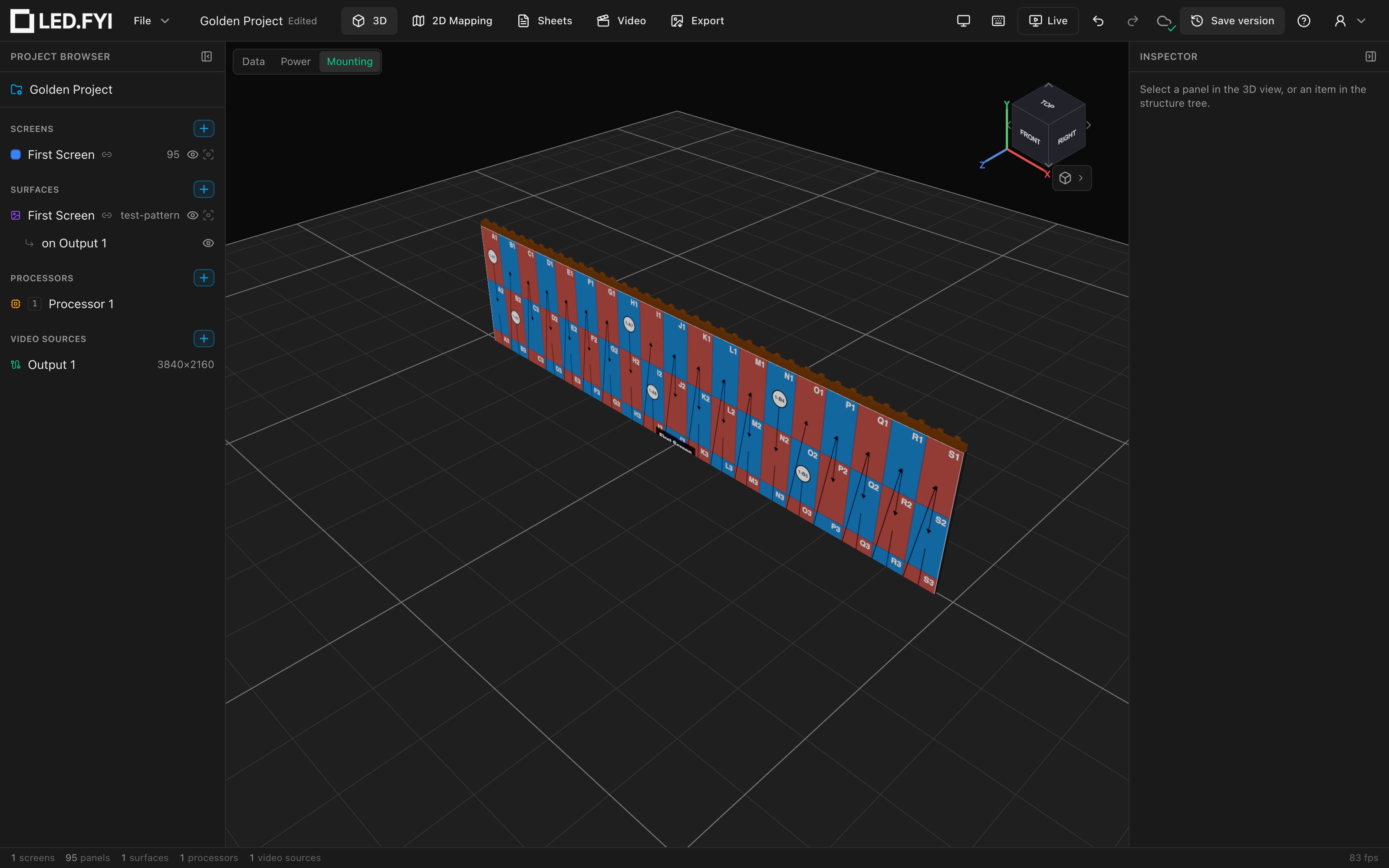
Touring kits currently reuse the standard kit's placement geometry. They're fully functional (selectable, counted on the BOM and Weight Estimate, drawn in 3D and on sheets), but the true touring-frame shapes haven't been modeled yet. To make that unmistakable, every piece of a touring kit renders in a single amber color in 3D:
Switching a screen's panel type
Changing a screen's panel type (Inspector → Panel → Type) re-checks the mounting system in the same edit. If the previously chosen system is no longer offered to the new panel (say, a touring kit when the new panel isn't touring-granted), the screen falls back to the mode's generic system. The mounting mode always survives; only the ineligible kit selection drops. One undo step reverts both the panel change and the mounting fallback.
Example: a screen on ROE Graphite 2.6 with Generic Hanging (Touring Frame) switched to a different panel brand resets to Generic Hanging, and the touring entry disappears from the dropdown.
A stored selection never vanishes from the dropdown on its own, though. If a project arrives with a system its panel wouldn't normally be offered, the picker still lists it so you can see (and keep) what the document uses.
Branded kits (what's coming)
The picker, document format and engine are already built for manufacturer kits. Each part in a branded system can carry:
- SKU → fills the BOM's Detail column.
- Weight (kg) → real per-piece and total weights on the Weight Estimate.
- Placement offsets per panel type.
- A manufacturer 3D model → replaces the parametric shape; when a bar, profile or ground truss carries one, the drawn companion pieces (pickup clamps, leveling feet, the ground truss's rear foot) are suppressed, since the model is assumed to integrate them.
Branded systems can also declare spacing rules and ratings the engine enforces automatically:
- Force a vertical-truss spacing (e.g. every column once a screen is 5 or more panels high).
- Clamp the allowed Bar span range per screen size or curvature; your setting is snapped to the nearest allowed span, biased toward the larger bar.
- Validate against load ratings: maximum panels-high per bar span, a system-wide maximum panels-high, and a maximum screen height in mm.
Rule triggers can key on curvature, panel counts or physical size, and adjustments produce plain-language warnings naming the system and the reason. A curvature trigger reads the wall's real angle, so a screen whose curve is set to 0° counts as flat.
Rules don't bite yet, and warnings aren't shown
All five generic systems ship with empty rules, so nothing is forced or clamped today. The engine's warnings (rule adjustments, rating violations, curved-screen 1-wide forcing) are computed but not yet displayed anywhere in the app or on sheets, so don't expect a banner when a constraint kicks in.