

Appearance
The 2D Overview workbench
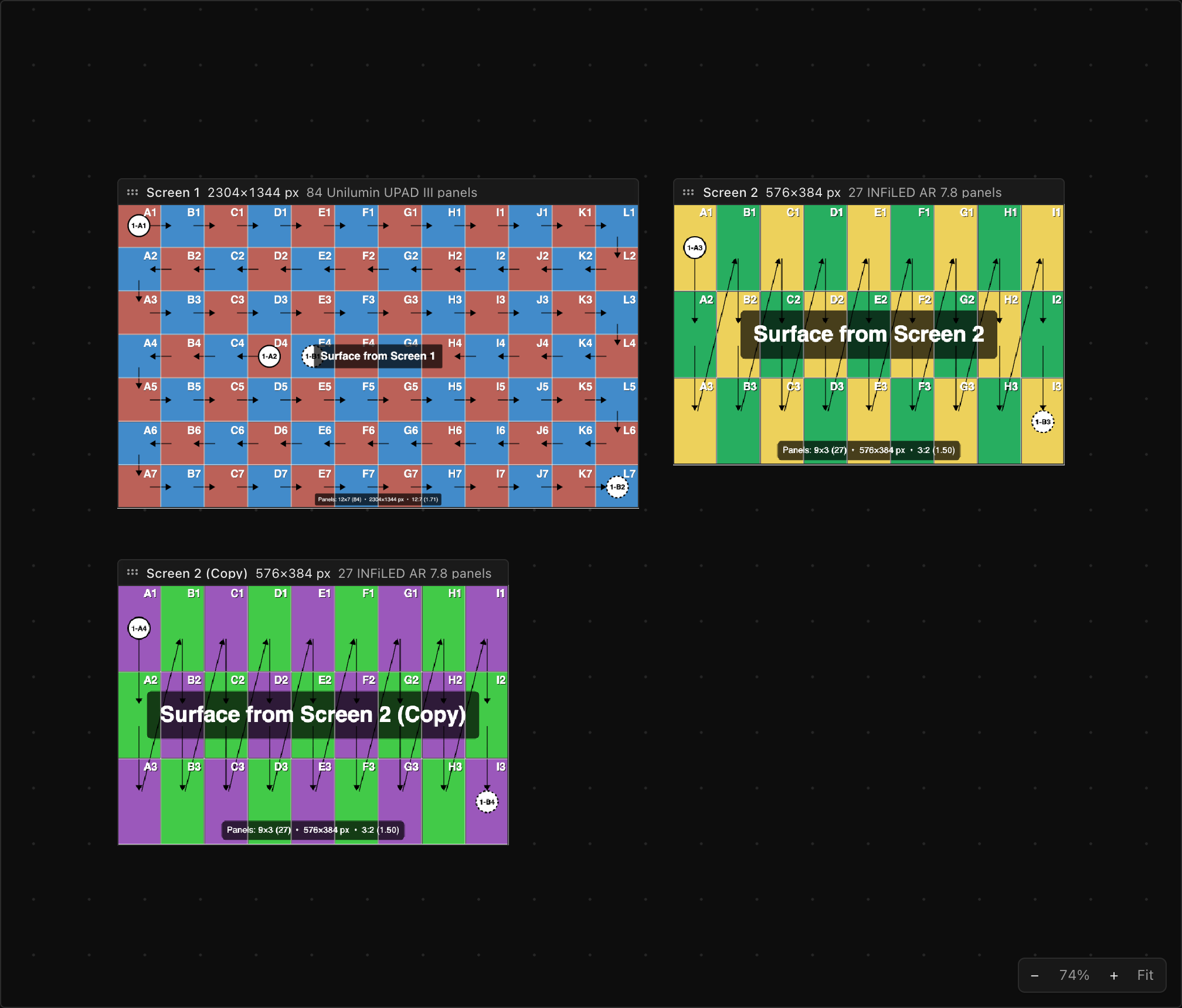
The 2D Overview shows every screen in the project at once, each one laid out flat as its grid of panels, with every panel showing the video it is actually playing. Switch to it with the 2D Overview tab in the top bar or by pressing 6.
It is deliberately simple: just the screens. There are no processors, switches or cables on this board. For signal flow, use the printed System Diagram or Wiring. What the Overview is for is seeing all your walls side by side, and switching panels on and off across them.
What you're looking at
Each screen is one tile:
- The picture is the wall, flattened. Any curve or 3D rotation is ignored (a curved wall is drawn as if it had been unrolled onto a table), and each panel shows exactly the pixels it plays in the 3D view, the Video workbench and a PNG export. A screen split across several processors is still one tile: the board shows the wall, not the halves.
- The title bar above it carries the screen's name and its full pixel resolution (for example
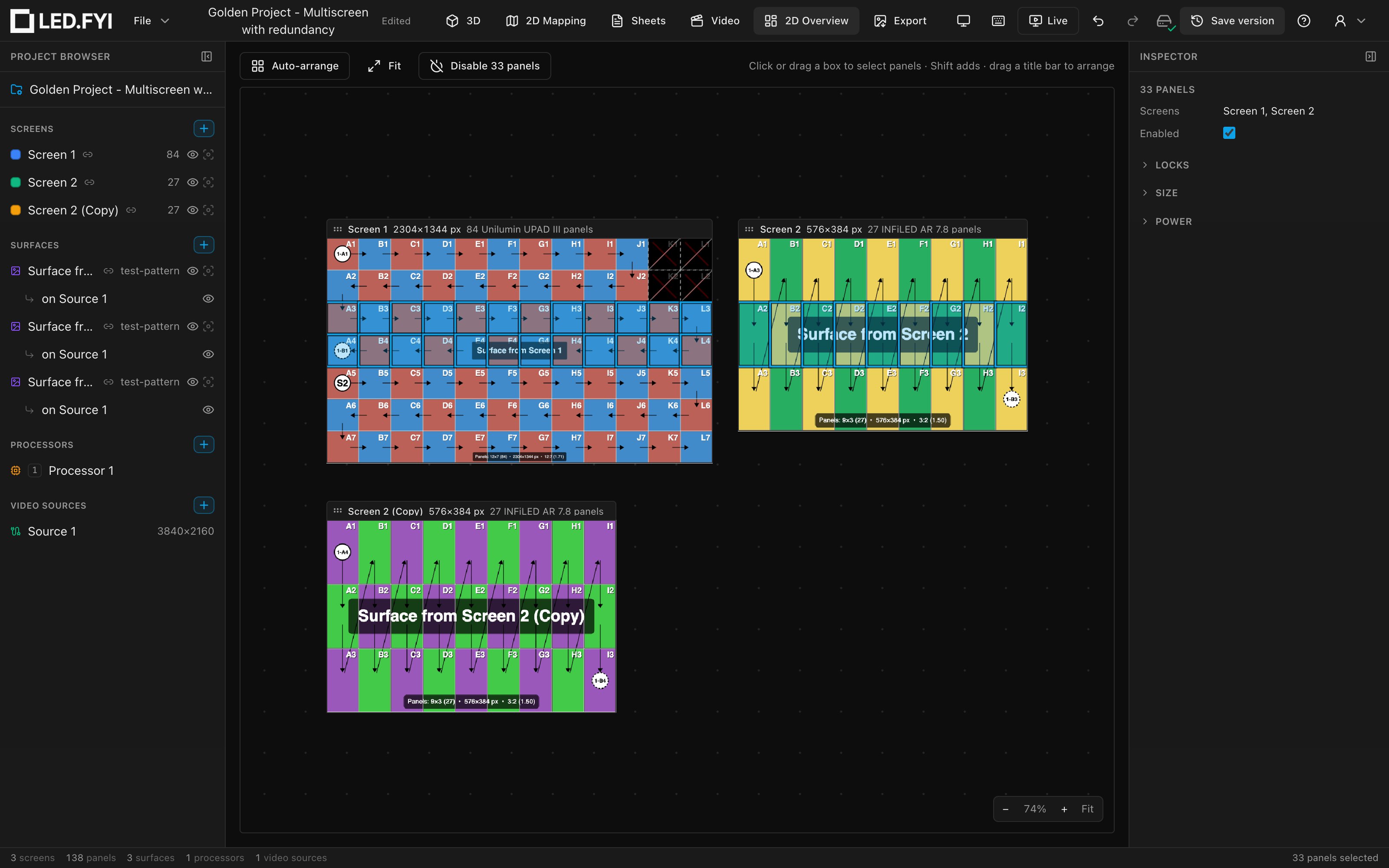
2304×1344 px), which is never cut off. When there's room it also shows the panel count and type. On a very narrow screen the title bar is wider than the picture, so the resolution still fits. - A disabled panel is dimmed almost to black with a slash through it, so you can see at a glance which panels are off.
- Blank panels are left out, as they are in 2D Mapping: they have no pixels to show.
Zoom out far enough and the panel outlines drop away and the title bars shrink along with the board, leaving the pictures; zoom back in and they return.
Arranging the board
The board is free-form. Where a tile sits here has nothing to do with where the screen is in 3D: dragging a tile never moves the wall, and moving the wall never moves its tile. Arrange the board however reads best to you.
- Drag a tile by its title bar to move it. (Dragging on the picture selects panels instead (see below), so a screen can't be nudged by accident while you're picking panels on it.)
- Auto-arrange (in the toolbar, or from the command palette) throws away every position you've set and lays the screens out again in project order. (Until you've moved a tile there's nothing to throw away, so it does nothing.) It leaves room for every title bar, so an auto-arranged title bar never covers another title bar or a neighbouring screen, however far you zoom out.
Tiles can't be resized, on purpose. Every screen is drawn at the same scale, set by its real physical size, so a 6 m wall is always twice as wide as a 3 m one and the board shows your walls in true proportion to each other. (A very small screen is drawn a little larger than true scale, so it's still big enough to find and click.) To look closer, zoom: the picture sharpens as you go, up to the wall's own pixel resolution (8192 px across at most), and past that you see the wall's actual pixels rather than a blur.
Positions are saved with the project, so the arrangement travels with the file and everyone who opens it sees the same board. They are ordinary edits too: ⌘Z undoes a drag or an Auto-arrange like anything else. Simply opening the tab changes nothing; the default layout is computed fresh each time and never written into the project.
Selecting panels
Panels are selected on the picture, the same way as in 2D Mapping:
- Click a panel to select it.
- ⇧-click to add a panel to the selection, or take it back out.
- Drag a box to select a group. Drag left to right to take only the panels the box fully encloses; drag right to left to take every panel it touches. One box can span several screens. Hold ⇧ to add to what's already selected.
- Double-click a picture to select the whole screen; click a title bar to do the same.
- Esc, or a click on empty board, clears the selection.
The selection is the ordinary one the rest of the app uses, so the Inspector on the right shows the panel (or the group) exactly as it would anywhere else, including its locks, size and power.
Enabling and disabling panels
With one or more panels selected, a button appears in the toolbar. It reads Disable panel (or Disable 3 panels and so on) when everything selected is on, and Enable panel / Enable 3 panels when any of it is off. It follows the same rule everywhere in the app:
- If every selected panel is on, it turns them all off.
- If any selected panel is off, it turns them all on, so selecting a mix and pressing it once brings the whole group back.
A disabled panel stays on the board, dimmed, and stays selectable: click it and press Enable panel to bring it back. You can also use the Enabled checkbox in the Inspector, or Toggle Panel Enabled in the command palette.
Disabling a panel is a real change to the design, not a view setting: the panel drops out of the data and power wiring, and the strings re-route around it. ⌘Z undoes it.
Going to 2D Mapping
Double-click a title bar to jump to 2D Mapping with that screen selected, for the moment you spot something on the board and want to go work on it.
Panning and zooming
The same gestures as the other canvas workbenches:
| Gesture | Does |
|---|---|
| Space + drag, or middle-mouse drag | Pan the board |
| Scroll | Pan |
| ⌘ + scroll (Ctrl on Windows) | Zoom toward the pointer |
| Zoom pill, bottom-right | Zoom out / in, and Fit |
| Fit, in the toolbar | Frame the whole board |
The board is framed to fit when you open it, and again when you open a different project. Pan and zoom are not saved with the project; only the tile positions are.
When the board is empty
With no screens in the project there is nothing to draw, and the workbench says so. Add a screen (the SCREENS group in the left sidebar, or the first-wall wizard) and its tile appears.
Related
- 2D Mapping: one processor at a time, where panels are placed on the raster and wired.
- The Sheets workbench: the printed System Diagram sheet is where processors, switches and cables are drawn.
- The Video workbench: the per-processor view of what each output carries.