

Appearance
Port, string & cable labels
Every feed in the project gets a human-readable label that matches how physical gear is labeled in the field. The same labels appear everywhere (the port pickers, the 2D/3D overlay chips, the on-wall test patterns, the wiring sheets and schedules, the block diagram, and the cable-label CSV), so the wall, the paperwork, and the tape on the cable always agree.
The default grammar
Every port label is <processor tag>-<port>: the processor's tag, then the same trunk-letter/port grammar V1 used. The tag is always there, even on a single-processor project, so a label alone always tells you which processor it belongs to.
| Feed | Label | Example |
|---|---|---|
| String on a switch port | tag + trunk letter + port number | 9-A1, 9-A2, … 9-B1 |
| String on a direct processor output | tag + bare port number | 9-1, 9-2, 9-3 |
| Any string (its own name) | project-wide S-number | S1, S2, S3 |
| Backup feed on the SAME processor | same grammar, on the dashed chip at the string's last panel | 9-C3 (a loop backup on trunk C) |
| Backup feed on a DESIGNATED backup processor | the backup processor's own tag | 9B-A3 (primary 9's backup, trunk A) |
| Backup feed on a designated backup processor's 1G output | the backup processor's tag + bare port number | 9B-3 |
Trunk letters A, B, C, D follow the processor's output order and are locked one-to-one to the link colors (A = blue, B = teal, …). See Switches & trunk cables.
S-numbers name every string
Every data string has one number, and every surface shows that same number for that same cable: the 2D and 3D canvas chips, the String assignment dropdowns, the panel Inspector's Data str readout, the on-wall data-path test pattern, the block diagram, the wiring sheets and Data Schedule, and the cable-label CSV.
The number is a project-wide string number: one sequential 1-based counter, no gaps, running across every screen in the project browser's screen order (reorder screens with the browser's up/down arrows to change it). Within a screen it carries on from one of that screen's processors to the next, so a screen split over two processors gives each of its cables its own number rather than repeating the same one on both halves.
A port label (9-A1, 9-B3) and the S-number are not two names for the same thing: the port label names the port a string is plugged into, the S-number names the string. A string with no port has no port label, so it draws gray with its S-number alone; the trunk letter and cool color only appear once a port is assigned. This is why Clear in String assignment visibly greys the overlay: the wiring is intact, it just lost its port identity.
A run that crosses onto another screen is one cable, so it takes one number. The screen it starts on owns it, and the same label appears on both halves.
The processor tag
Every label's processor part is a small tag you didn't choose: it's the processor's position in the project browser (the left rail's Processors list, where a processor's name is also edited). Reordering processors there renumbers every label that reads off them; that's the accepted trade-off for a number that's always visible rather than a name that might be blank.
- Primaries are numbered 1, 2, 3…, counting only primary processors; a designated backup processor never inflates the count. (A customer's 9th processor once read "18" because its backup was being counted as the 18th processor in the list; it's fixed now.)
- A designated backup processor (an auto-created or hand-picked "Processor 9 Backup") takes its primary's number plus
B:9B. If its primary is later deleted, the orphaned backup keeps its own tag rather than losing one. - The tag shows everywhere, including the project browser itself (as a small badge before each processor's editable name:
9 · Processor 9,9B · Processor 9 Backup) and in the processor's Inspector panel header, right where its ports are configured. - A cross-processor backup takes the backup processor's own tag (
9B-A3); a same-processor loop or paired-trunk backup keeps the primary's tag (9-C3), since it's still the same box. The one exception: when the two processors physically share switches (a Brompton SX40 XD chassis), the backup label carries the primary's tag too, because the port already names shared gear rather than a second box. See Redundancy.
Coming from V1?
V1 only prefixed a label once a project had more than one processor, and used 2:A1. V2 always shows the tag (even on a single-processor project it reads 1-A1) and uses 2-A1. V2 also shows the backup on its own dashed chip rather than V1's combined A1/B3 label.
Labeling schemes
The grammar itself is data, not code. A labeling scheme in the equipment library carries a pattern with {letter} and {number} tokens plus a configurable start letter and start number, so {letter}{number} yields A1, A2… B1 while {number}{letter} yields 1A, 1B… 2A, matching whatever convention the brand prints on its hardware.
For each processor the scheme resolves in precedence order:
- an explicit scheme set on the processor (imported documents),
- the assigned switch type's default scheme,
- a scheme matching the processor's brand,
- the built-in default (
{letter}{number}fromA/1).
Per-port custom label overrides stored in the document beat everything: an imported project's hand-renamed ports survive intact.
INFO
There is no V2 interface yet for editing labeling schemes or per-port custom labels; they come from equipment library data and imported projects. The defaults cover the major brands' conventions.
Where labels appear
- The processor tag itself, as a badge before each processor's name in the project browser, and in that processor's Inspector panel header
- The port and backup pickers in String assignment
- The solid start chips and dashed backup chips on the 2D and 3D overlays
- The data-path test pattern in its Port labels mode
- The Data Wiring / Power Wiring sheets, the Data Schedule and Circuit Schedule tables, and the Block Diagram. See Seeing & exporting your wiring
- The cable-label CSV, below
The cable-label CSV
Export workbench → Cable labels generates a printable label list: one row per cable, two labels per cable: the From and To columns are the two labels to print, one for each end of the cable. The tab shows the actual first rows of the file before you download it, and each cable type carries its own count, so you can check the labels read right before printing several hundred of them.
That list tags the cables. To order them, the bill of materials downloads as a spreadsheet from the same workbench; its cable rows are grouped by type and length out of this same enumeration.
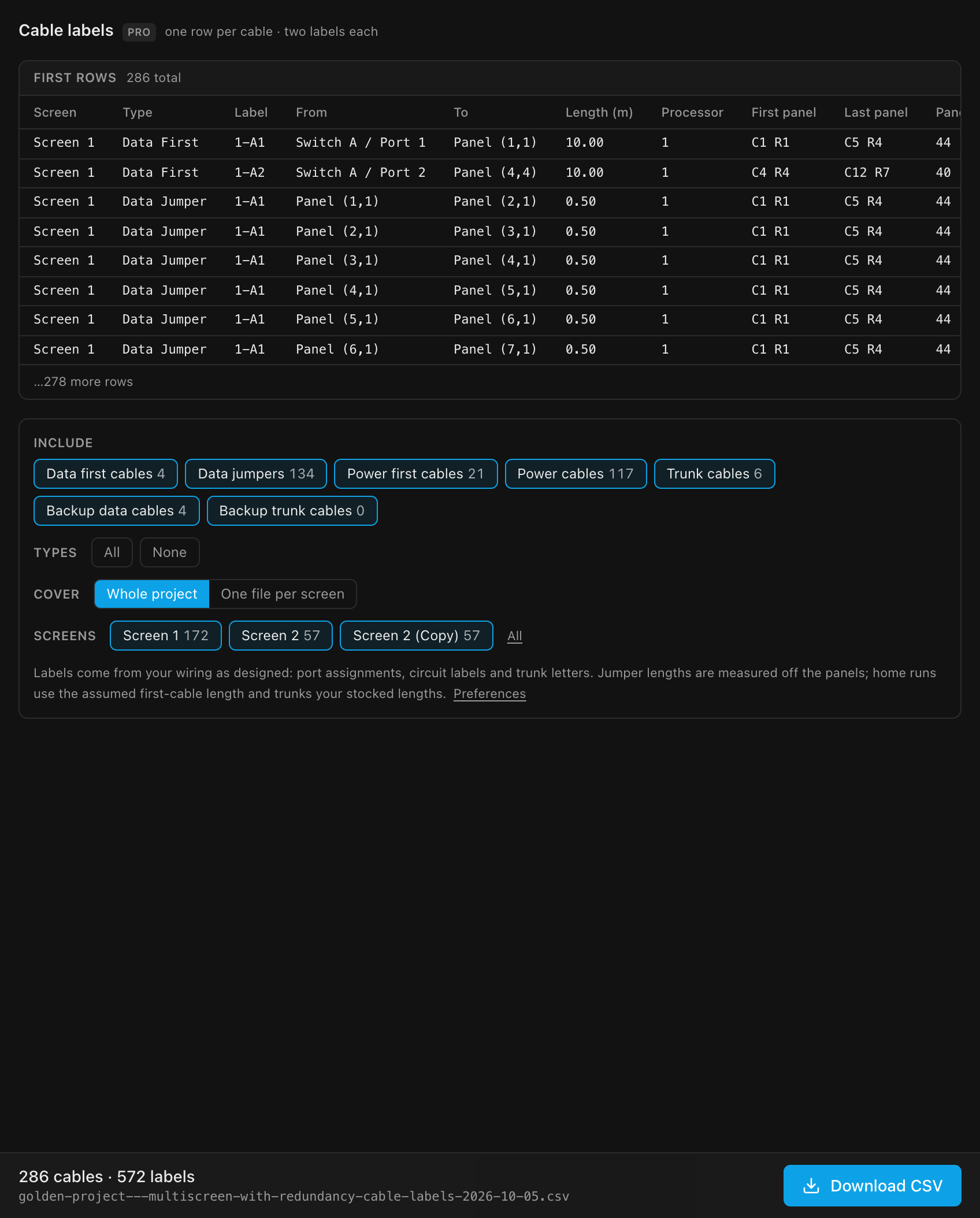
Seven cable types toggle independently (all on by default; All / None buttons flip the whole set). A live count in the header tracks your selection: (286 cables · 2 labels each).
| Cable type | From → To |
|---|---|
| Data first cables | Switch/processor port → first panel of each data string |
| Data jumpers | Panel → panel data, along each string, with an estimated length in metres |
| Power first cables | Distro → first panel in each circuit |
| Power cables | Panel → panel power, along each run, with length |
| Trunk cables | Processor → switch: one row per cable, so a bonded switch fed by two trunks gets two rows, each labelled by the output it leaves from |
| Backup data cables | Backup port → the last panel of each backed-up string |
| Backup trunk cables | Backup processor / spare output → switch |
Jumper lengths are the 3D distance between panel centres, so manually placed panels get honest lengths, not grid guesses. Every label carries its processor tag (9-A1) as described above.
A Processor column follows Length. It names the tag of whichever processor the From end belongs to, so a "Switch A / Port 3" From text (and a project can have several "Switch A"s) is never ambiguous. After it come First panel, Last panel and Panels: where the whole data string a row belongs to starts and ends on the wall, and how many panels it feeds (blank on power and trunk rows). New columns are always added at the end, so a label-printer template built against the existing columns' positions still works unchanged. The full column list is in Cable label export (CSV).
A cable that runs from one screen into the next is exported once, as the single cable it is: the jumper that actually crosses the seam gets its own row, and the Screen column names both ends of the journey (Main Wall → Side Wall).
Download CSV writes the file; see Cable label export (CSV) for the export-side details.