

Appearance
Wiring & mounting overlays in 3D
Three toggle buttons at the top-left of the 3D canvas draw your project's real wiring and rigging over the wall: Data (sky blue when on), Power (orange) and Mounting (emerald). All three are read-only views: they show what the wiring engine and mounting engine have computed; editing happens elsewhere.
The overlay toggles are per-session view state: they reset to off when you leave and re-enter the workbench. They are also available on read-only share links, so a client can inspect the wiring without being able to change it. All three draw in the same scene as the solid floor: whatever sits below ground level (the lower runs of a wall still at its default height, ground-stack feet) stays hidden until the screen is raised or the floor is made translucent. Because a project opens from a standing eye height looking slightly down, that floor line, and where an overlay disappears under it, is in perspective straight away. The floor is a 25 m square by default (there is no deck beyond its rim); the Floor size slider enlarges it for a wall wider than the square.
Data & Power wiring overlays
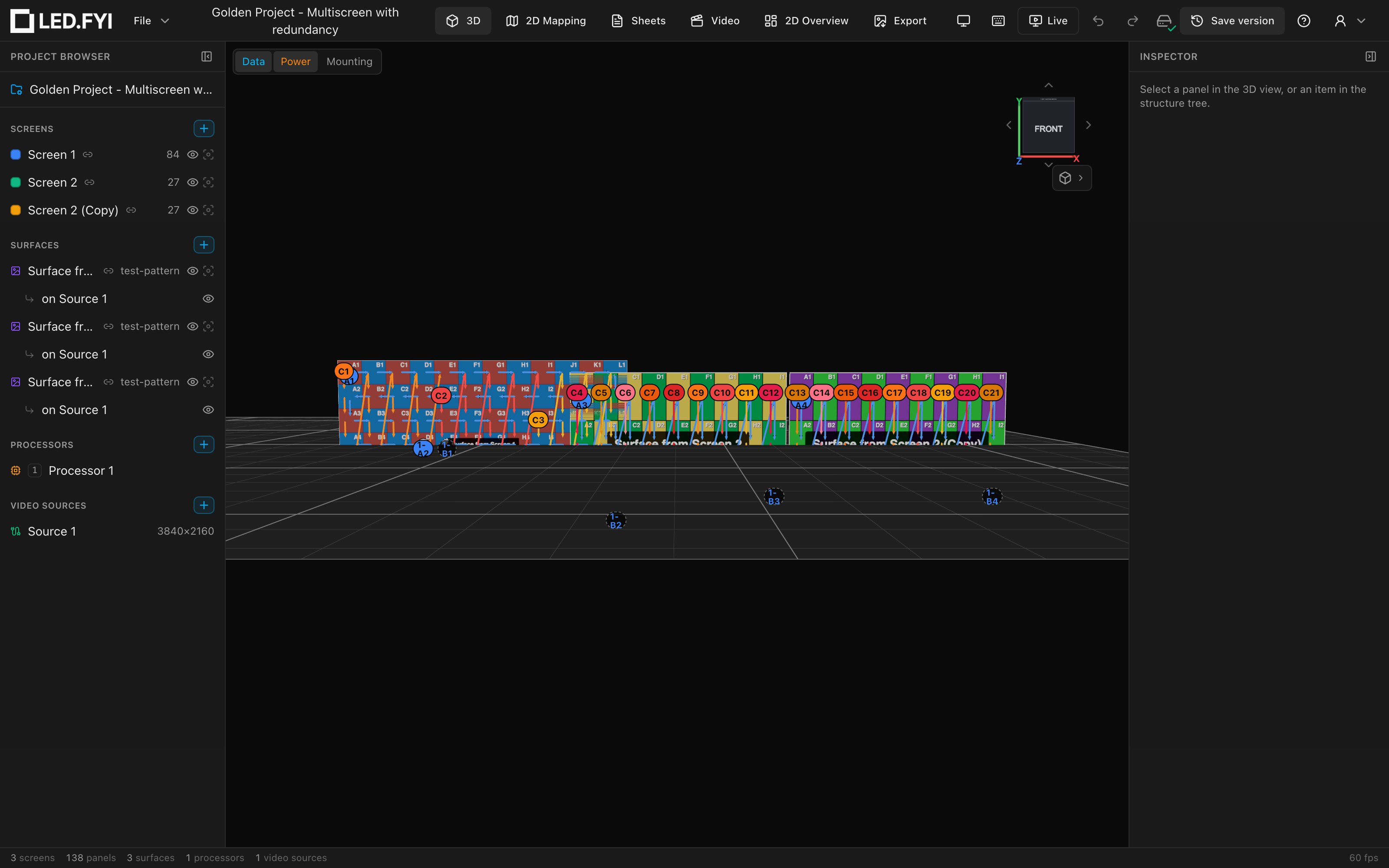
Each data string and power daisy-chain is drawn as a run of discrete arrows through the panels' physical centres: one arrow per hop, in signal/power order. Power runs are offset up-and-left from data runs so both overlays can be read at once, and every wire is lifted slightly off the panel face, so runs stay readable on rotated and curved screens.
How to read a data string:
- Colour: a string assigned through a switch draws in its trunk's colour; a string plugged directly into a processor port draws grey; an unassigned string (e.g. after clearing assignments) also draws grey.
- Start chip: a solid coloured chip at the string's first panel carries its port label (e.g.
9-A1: the processor's tag, then the port). An unassigned string shows its project-wide string number (S1,S2, …) instead (the same number the Inspector, the sheets and the test pattern give that cable) until a port is actually assigned. - End chip: a dashed-outline chip at the last panel appears only on strings with redundancy, carrying the backup port's label. Its ring is drawn in your backup colour, just as the start chip's is drawn in the main one, the same pair the 2D overlay and the printed sheets use.
- Across screens: a run drawn from one screen into another is one cable, so it threads on through the wall in one colour under one label instead of stopping at the gap.
How to read a power chain:
- Colour: each run is coloured by its circuit, from the warm power-circuit palette. Panels on the same circuit share a colour.
- Start chip: a solid chip at the chain's first panel carries the circuit label (e.g.
C7). On a combined circuit, two or three strings sharing one circuit through a two-fer, each chip carries its own leg letter instead:C7a,C7b.
One wiring picture everywhere
The 3D overlay, the 2D mapping overlay and the wiring on your sheets are all drawn from one shared view of the wiring engine: colours and labels can never disagree between views, though the exact line styling varies per view. (PNG exports are plain content and never carry wiring.)
The Mounting overlay
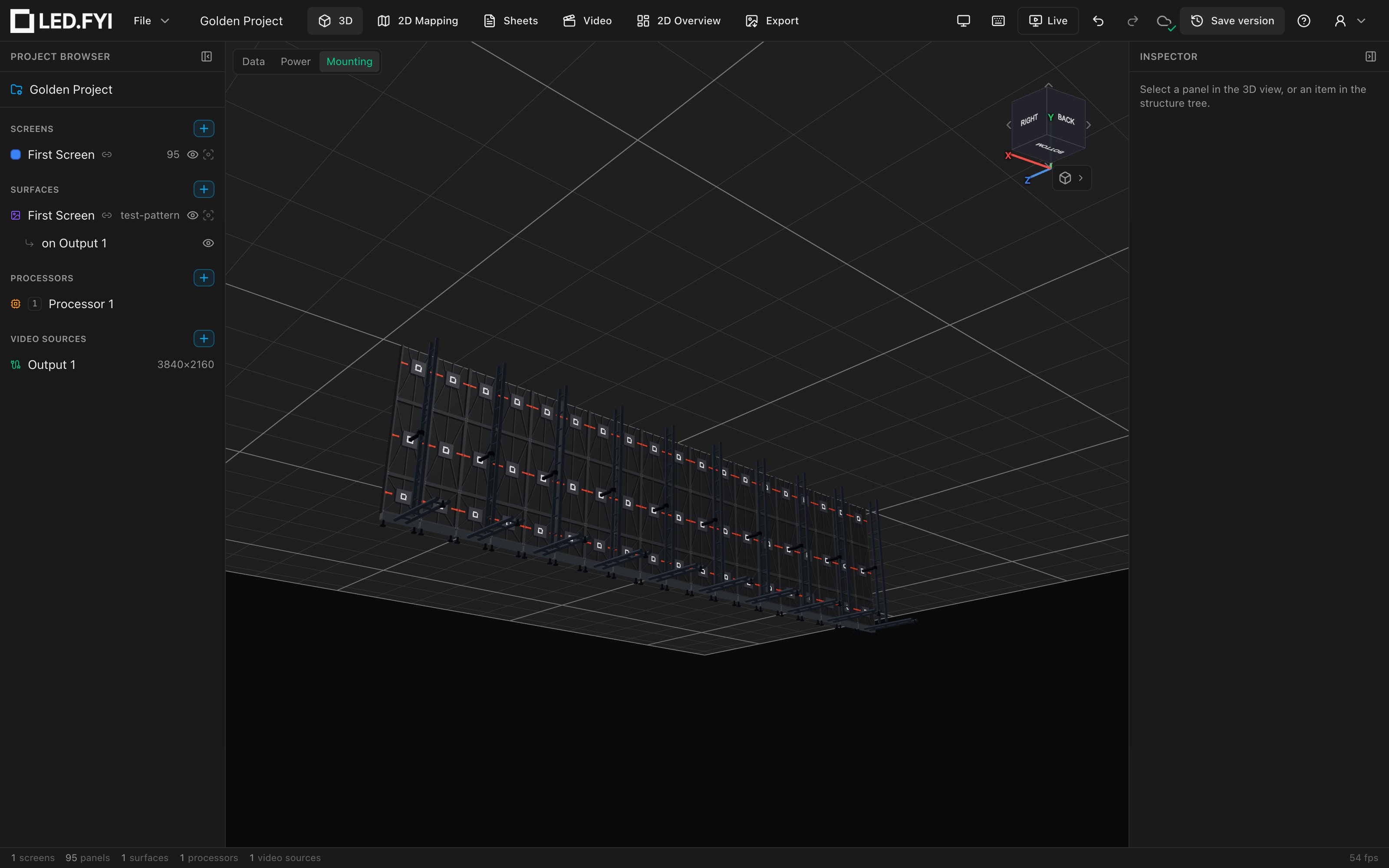
Toggle Mounting (tooltip Show mounting hardware) to render each screen's computed rigging as recognisable 3D shapes:
Nothing showing?
The overlay only draws screens whose mounting mode is configured. Select the screen and set Inspector → Mounting → Mode (Hanging, Ground stack or Wall mount). Every screen starts with mounting set to None.
Where the hardware sits
Pieces are placed against the cabinet you see: the panel type's real depth, or the nominal 80 mm cabinet the 3D view uses for types with no depth on file (see The back of a panel). The BOM, weight estimate and drawings compute from the project's own value.
What each piece looks like:
| Hardware | Rendered as | Colour |
|---|---|---|
| Vertical / ground truss | Two chord tubes with cross-rungs; a taller or longer truss grows more rungs | Truss steel |
| Hanging clamp / pickup point | A Pro-Clamp-style clamshell: closed collar around the tube, bolt ears, M12 threaded rod, wing nut, hinge knuckle | Dark forged steel |
| Ground-stack bridge clamp | A horizontal standoff tube from the panel backs, ending in a clamshell jaw gripping the vertical truss chord | Dark forged steel |
| Leveling foot | Threaded shaft over a wider base disc | Dark bracket grey |
| Wall foot / drop bracket | An L-angle bracket with a wall plate | Dark bracket grey |
| Wall hook | A stem on the cabinet back with an over-the-rail lip | Rust |
| Hanging bar / ground-stack bar / wall profile | A box at the bar's real square cross-section | Aluminium grey |
The geometry is parametric, generated from the mounting engine's real computed sizes and positions, the same hardware that drives the BOM and weight estimates. Blank (spacer) panels count as structure, so trusses and base hardware extend under them.
Touring frames
A touring-frame system currently reuses the standard hardware geometry painted solid amber, a deliberate "placeholder geometry" marker until dedicated touring meshes land. Generic systems render parametrically; branded manufacturer geometry is a future path.