

Appearance
Data path & string splitting
A string is a chain of panels daisy-chained to a single output port. The data path defines the route that chain takes through a screen's panel grid: which panel is #1, which comes next, and where the chain turns. LED.FYI then splits the path into strings automatically wherever the next panel would blow the per-string pixel budget.
Data and power each have their own, independent path per screen. This page covers the data side; the power path works identically and is covered in Power: strings, circuits & buffers.
Where to set the path
- Screen inspector → Wiring paths: the quickest way. Two rows, Data (green) and Power (orange), each showing that screen's current method at a glance. Click a row and the full grid of 24 methods unfolds in place; click one to pick it. It opens in place rather than as a floating panel on purpose: the wall itself is the preview, and a popover would cover it. Each pick is a single undoable edit.
- 2D Mapping workbench: enter a wire-edit mode (Edit: Data or Edit: Power in the top-left control bar) to see the path live and to rewire panels by hand. Its toolbar carries Reset and Disconnect for the resolved screen; the pattern itself is set from the inspector picker above. Switch to Back view to see the path mirrored, as the crew sees it from behind the wall. A
top-leftstart then appears at the top-right, where the crew will actually find it. - New project wizard: the Wiring step shows this same picker, one card per screen, so each screen the wizard creates starts with its own Data and Power route (default: U-Turn /
top-left/horizontal). See New project wizard.
Both editors write the same two settings, so whichever you use, the other reflects it immediately.
Hand-drawn wiring wins over the pattern
A panel that has been wired or cut by hand keeps that connection no matter which pattern you pick; the pattern only routes the panels that have no override. When a screen carries any, the Wiring paths row shows how many links and cuts are overriding it and offers Reset to automatic wiring; click it and the whole screen follows the pattern again. If picking a new method seems to do nothing, that notice is the reason.
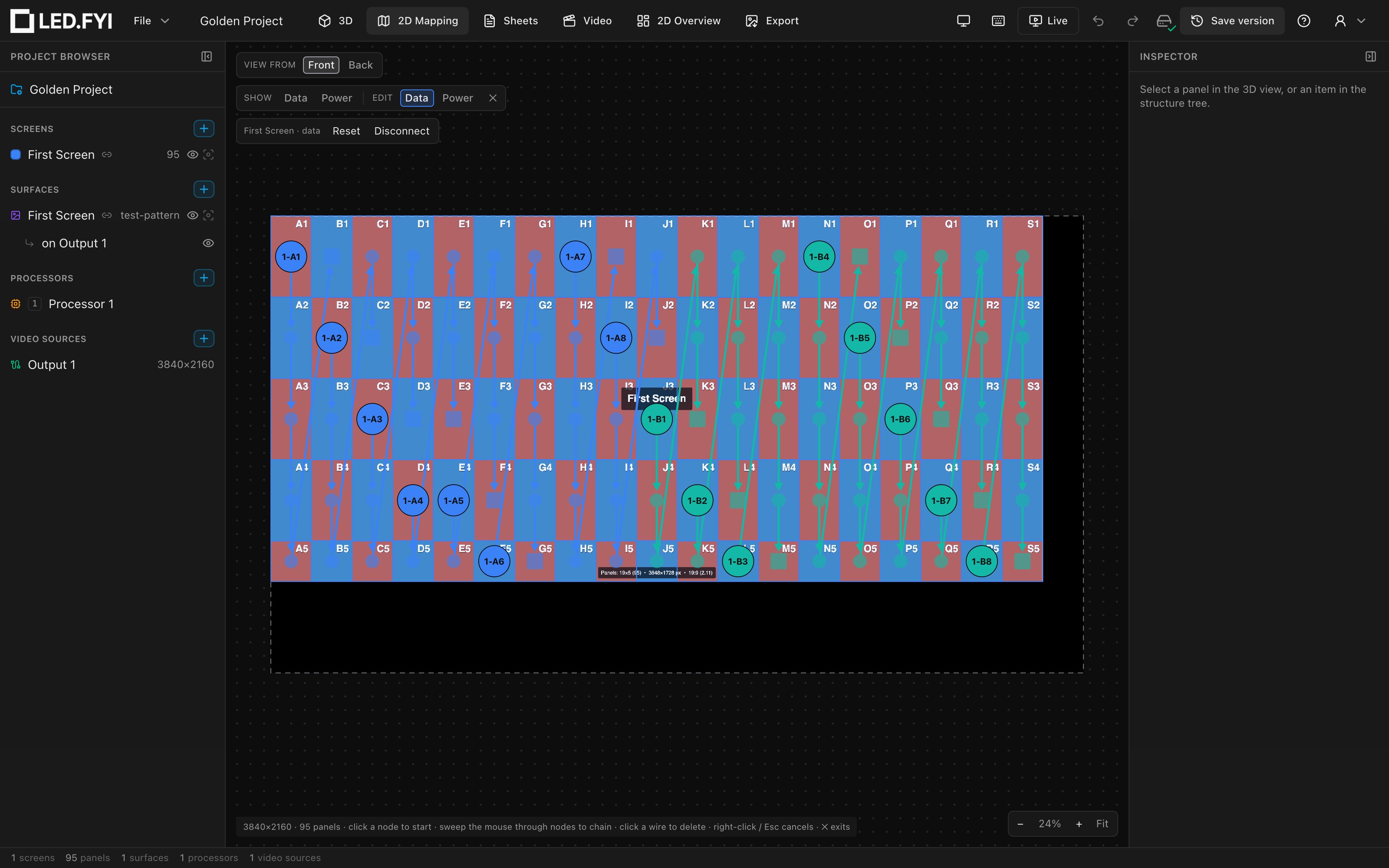
The wire toolbar's Reset and Disconnect act on the screen(s) on the processor canvas you are viewing. The button names the screen when there is one, and opens a picker when the canvas hosts several (see Reset vs Disconnect).
Pattern
| Pattern | What it does | Default |
|---|---|---|
| U-Turn | Serpentine: the chain alternates direction every row (or column): left→right, then right→left, and so on. Minimizes jumper length. | ✓ |
| Zig-zag | Every row runs the same direction; at the end of a row the chain jumps back to the start side of the next row. | |
| Isolated | Every row (horizontal) or column (vertical) is its own independent string; nothing connects across rows/columns. Use it when each row has a dedicated port. |
U-Turn and Zig-zag are easy to mix up
U-Turn is the serpentine one: the chain turns back on itself at the end of every row. Zig-zag, despite the name, does not alternate: every row runs the same way and the chain jumps back to the start side. If a wall's jumper runs come out far longer than you expected, this is usually why.
These are V1's names, kept deliberately so a V1 drawing and a V2 drawing describe the same routing with the same word. The inspector's picker draws an icon of each route, which is the quickest way to be sure.
Start corner and direction
| Option | Values | Default |
|---|---|---|
| Start corner: where panel #1 sits | top-left · top-right · bottom-left · bottom-right | top-left |
| Direction: whether the chain runs across rows or down columns | horizontal · vertical | horizontal |
Pattern × corner × direction gives 24 possible routes, so the on-screen path can match almost any physical cabling plan. Where it can't, wire it by hand.
A cell holding two stacked corner panels is wired through both before the chain moves on: top one first when the chain is heading down the wall, bottom one first when it's heading up.
Automatic string splitting
The engine walks the path and starts a new string whenever adding the next panel would exceed the screen's effective pixel limit or its panel-count cap (if one is set). Splits never happen before a chain's first panel, so every string contains at least one panel.
- Disabled panels are skipped entirely: they join no string and the automatic path routes around them. Blank spacer panels never participate in wiring at all. See Half panels & blank panels.
- Orphan panels (panels you have manually cut off from everything) become their own one-panel string.
- Manually wired chains that exceed the limit are not rejected: the engine simply splits the chain at the overflow point. (V1 refused the connection with an error; V2 does not.)
String numbers are project-wide: one counter runs across all screens in the project browser's screen order (the order the screens are listed in the left rail), with no gaps, and within a screen it carries on from one of that screen's processors to the next, so a screen split across two processors never gives two cables the same number. Reorder screens with the browser's up/down arrows to change which screen numbers first. That number is the string's name everywhere (S1, S2, S3…) on the canvas, in String assignment, on the test pattern and throughout the paperwork. See Port, string & cable labels.
The engine itself now forms strings screen by screen in that same browser order, so reordering the left rail also decides which screen's strings are offered (and packed by Fill) first. It never changes which port feeds which run of panels: an assignment is remembered by the run's first panel, so it follows the panels wherever the numbering goes (see String assignment).
The automatic path always stops at the edge of its own screen. A run only continues onto another screen because you drew that cable by hand, and then it splits on the stricter of the two screens' effective limits, with the screen doing the limiting named for you.
Rectangle-loading processors
On a processor that uses rectangle loading (the NovaStar MCTRL 660 Pro and MCTRL4K), a string's load is the area of the tightest rectangle around its panels on the processor canvas, not the sum of the panels' pixels. The engine splits on that rectangle: it starts a new string whenever adding the next panel would grow the string's rectangle past the limit, so a string it forms for you never comes out over capacity (unless a single panel is already over on its own).
That changes how many strings a screen needs:
- A string that stays inside one row or column of panels loads exactly its own pixels, the same as on any other processor.
- A string that wraps part-way onto the next row or column is charged for the whole box it spans, gaps included, so the engine cuts it sooner.
- Panels you drag apart on the 2D Mapping workbench leave blank canvas inside the box, which counts too, so spreading a screen out can raise its string count.
Balance still evens out the strings' pixel loads, but only keeps that even split when every resulting rectangle fits the limit; otherwise it falls back to the Fill split, which always does. To see each port's rectangle on the canvas, turn on port rectangles.
The per-string pixel limit
The limits that trigger splits live on each screen, in Inspector → Data limits (select the screen in the left rail). The section sits directly under Receiver card, because the card is what sets the base limit:
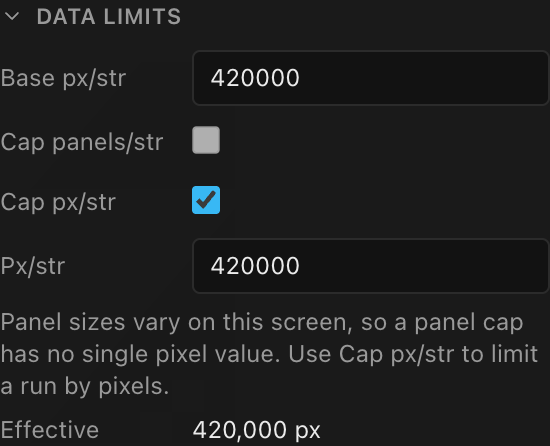
(This screen is finished with a half-height row, so it carries two panel sizes and the panel cap is unavailable on it. See Screens that mix panel sizes below.)
| Field | What it does | Default |
|---|---|---|
| Base px/str | The screen's base pixels-per-string limit. With a receiver card installed it is a read-only live figure, marked (auto, from receiver card). Without a card it is a number you type, which applies only while the screen's processor has no model chosen. See Where the base limit comes from. | from the card, the processor, or the typed value |
| Cap panels/str | Adds an optional hard cap on how many panels a string may carry: "no more than 9 tiles per run", regardless of pixels. Unavailable on a screen whose panels are not all the same size. | off |
| Panels/str | The panel cap itself (shown only while Cap panels/str is on). Seeds at however many whole panels the base pixel limit already allows, so ticking the box changes nothing until you lower it. | seeds at the base |
| Cap px/str | Adds an optional artificial pixel cap below the base limit. Turning it on seeds the cap with the current base value. | off |
| Px/str | The artificial pixel cap itself (shown only while Cap px/str is on). | seeds at the base value |
| Effective | Read-only: where a string actually breaks: the smallest of the base, the pixel cap, and what the panel cap works out to in pixels. Shown only when a cap is active. | n/a |
The engine always splits at the effective limit, and never puts more panels on a string than the panel cap allows. Both caps can only tighten the base limit, never raise it. Use them to keep cable runs short, hold to an install standard, or leave headroom for changes.
Effective counts the panel cap too. Cap a run at 5 panels on a screen of 192×192 panels and that is 184,320 pixels, so that is what Effective reads, even though Base px/str is 1,649,306. The panel cap bites first, and the read-out shows the limit the engine is really using rather than the one it started from.
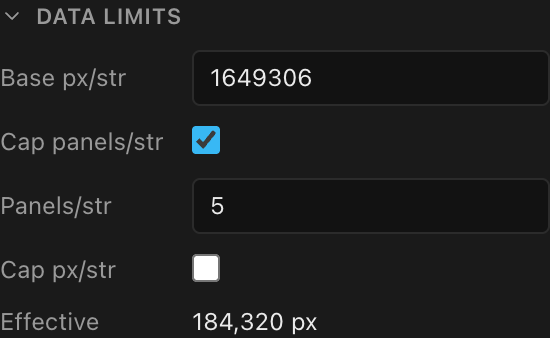
Screens that mix panel sizes
Cap panels/str is offered only when every LED panel on the screen carries the same pixel count. Finish a wall with a half-height row, override one panel's type, or use a masked corner shape, and the screen now holds two different panel sizes, so "5 panels" no longer names one pixel figure, and the cap is greyed out with a note saying why. Use Cap px/str to limit those runs by pixels instead.
Blank (spacer) panels are ignored by this test: they carry no pixels and never join a data string, so a blank row does not make a uniform screen count as mixed.
A cap that was already set before the screen became mixed keeps working and stays editable: it is still splitting your strings, so it is not hidden. You just cannot turn a new one on.
Two controls share the name "Cap panels/str"
The one here, in Data limits, caps a data string. The identically-named one in Power → String limits caps a power string. They are independent; the section you are in says which you are setting.
Fill vs Balance change how strings are formed
The split above is the Fill behavior: each string is filled to the effective limit and the last one is a short tail. Running Balance in String assignment instead forms the same number of strings but shares the panels out so every string carries an even pixel load (16 identical panels at a 10-per-string limit become 8 + 8, not 10 + 6). Both still respect the effective limit as a hard cap.
Imported V1 projects
V1 had a separate Override checkbox on its data limits, which wrote its own pair of caps. That override survives import and still governs the split, and Data limits now shows you those caps as Px/str / Panels/str rather than reading "off" beside a limit you cannot see. The first time you change either one, the screen quietly moves onto V2's own fields; the effective limit is unchanged by that move, and from then on the caps behave like any other screen's. Turning them off finally turns the limit off.
Where the base limit comes from
The base a string splits at comes from the most specific hardware the screen has. The first match wins:
| The screen's panels have… | Strings split at |
|---|---|
| A receiver card | The card's loading at the canvas's Bit depth and Frame rate, never more than the processor's per-port capacity. Base px/str shows this figure read-only. |
| A processor model, no receiver card | The processor's per-port (1G) pixel capacity at the canvas's Bit depth and Frame rate. The processor's Signal section shows the same figure as Port capacity, or as Per tile link (1G) on a box whose outputs are trunks. |
| No processor model | The number typed in Base px/str. |
In the first two cases the strings follow the signal live: change Bit depth or Frame rate on the processor and every screen on it re-splits. A lower frame rate carries more pixels per port, so it gives fewer strings. Cap px/str and Cap panels/str still apply on top, so use them when you want strings shorter than the hardware allows.
Typing a Base px/str on a screen with a processor
Without a receiver card, Base px/str stays editable even after you choose a processor model, but the strings ignore the typed number and split at the processor's port capacity. The Data limits read-outs, including Effective, still work from the typed number. Read Wiring (computed) for the real string count, and use Cap px/str to split earlier.
Separately, every output port has a pixel ceiling from the processor's capacity table at the same Bit depth and Frame rate (Port capacity and Processor capacity in the processor's Signal section). String assignment checks every assigned string against that ceiling and warns when a port is oversubscribed. See String-to-port assignment and Choosing a processor & signal settings.
Multi-processor screens
When one screen's panels are split across several processors, each processor's panels form their own strings, at that processor's own limit. A data cable leaves one processor output, so a string never runs from one processor's panels onto another's.
The S-numbers still run on across the split. The screen's strings on one processor take the next numbers in the project, and its strings on the next processor carry on from there, so every cable on the screen has its own number. Port labels name the processor too (1-A1, 2-A1). How to split a screen's panels across processors is covered in Multi-processor screens. How the labels name the processors is covered in Port, string & cable labels.