

Appearance
Projects, saving & autosave
There is no Save button in LED.FYI, and that's deliberate: your work autosaves continuously, locally in the browser and (for signed-in users on a paid plan) to the cloud. The top bar always tells you where your work stands, so you never have to go looking. This page covers that readout, the File menu, how autosave actually works, the one warning dialog you'll meet, and how project links behave.
The File menu
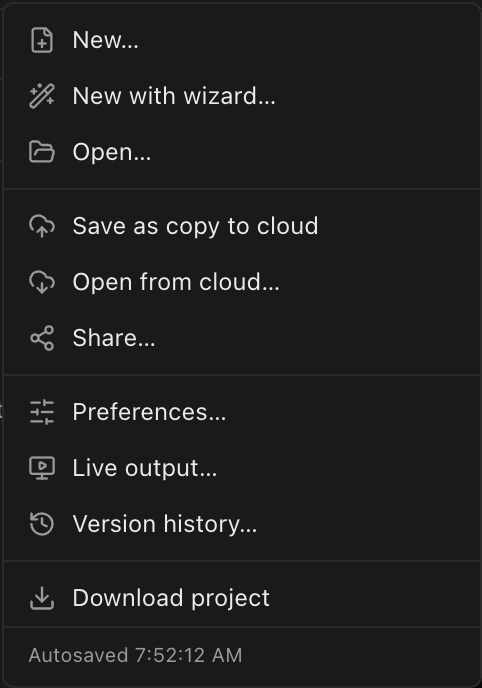
| Item | What it does |
|---|---|
| New… | Asks for a project name (default Untitled project, confirm with Create) and opens a new project. Once you've saved a drawing set template, it also asks which Drawings the project starts with: The built-in drawings or one of your sets (set in advance to your New projects start with choice). |
| New with wizard… | Opens the guided New project wizard instead of the blank flow. |
| Open… | Opens a local .ledproj or .json project file with your system's file picker. Projects from LED.FYI V1 import automatically. |
| Save as copy to cloud | Forks the open document into a new cloud project named <name> (copy) and switches you onto it. Counts against your plan's cloud-project quota. Cloud builds only; needs sign-in and an open document. |
| Open from cloud… | Opens the cloud project picker; see below. Cloud builds only; needs sign-in. |
| Share… | Opens the Share dialog for shareable links; see Sharing projects. Cloud builds only; needs sign-in and an open document. |
| Preferences… | The global settings dialog (language, units, wiring-sheet colors). Works offline and signed out. See Preferences. |
| Live output… | Opens the Live Output dialog. Disabled with no document open. |
| Version history… | Lists the project's saved versions, newest first, each with a restore button. Disabled with no document open. See Undo, redo & versions. |
| Download project | Saves the live document as a .ledproj file; see below. |
| Footer | A live save-status readout: Autosaved <time> in the browser, or Saved to cloud <time>, Saving to cloud…, Offline (will sync when back online) and so on for a cloud project. See Reading the save status. |
INFO
The three cloud items only appear in cloud-configured builds (LED.FYI production). In an offline build the menu simply doesn't show them.
There is deliberately no "Save" or "Save to cloud" item. Work saves itself; the manual action that exists is Save version in the top bar, which records a named restore point; see Undo, redo & versions. Pressing ⌘S doesn't open anything: it flushes any pending autosave and confirms with a All changes saved… notification.
How saving works
Locally, always
- The live document autosaves to the browser about
0.8seconds after every edit. This is a single slot: one autosaved project per browser, last writer wins. - The project's full version history (your saved versions) persists in durable browser storage and survives reloads.
- On the next visit the project comes back exactly as you left it: saved-version history at its tip, plus any later edits re-applied from the autosave slot (the Edited marker comes back too), with a
Restored your projectnotification. - If nothing has been saved locally yet (your very first visit, or a new browser), the app opens a blank
Untitled project, ready for File → New with wizard… or your first screen.
While you're editing a drawing template, autosave, cloud sync and versions pause for your project (it's set aside, unchanged), and the template you're editing is never saved as a project. Everything resumes, exactly where it was, when you save or discard the template.
If autosave can't run
A corrupt autosave is cleared with a warning notification instead of blocking the app from starting. If browser storage is unavailable (private/incognito mode, or a full quota), a one-time Autosave unavailable warning appears; use File → Download project to keep your work in that situation.
Reopening where you left off
Opening the app (the desktop app on any platform, or app.led.fyi without a project link) reopens the project you last had open:
- A cloud project comes back from the cloud with an
Opened from cloudnotification, and the address bar shows its project link. Edits that hadn't reached the cloud yet are recovered as usual. - A local project (after File → New…, Open… or a sample, on a plan without cloud projects) comes back from this computer, as described above.
- If the cloud project can't be opened (it was deleted, or you no longer have access), you see
Couldn't reopen your last projectand the app opens your local project instead; use File → Open from cloud… to pick another. If you're simply offline, the app opens your local project and tries the cloud project again next time.
The app remembers this per account, so someone else signing in on the same computer never lands in your project.
To the cloud, when signed in on a paid plan
INFO
Cloud autosave requires a cloud-configured build, a signed-in account, and a plan that includes cloud projects; see Plans & billing. Free-tier and signed-out users stay local-only.
- Edits push to the cloud about
2.5seconds after you stop, with a 30-second background sweep catching anything a failed write missed. - A local project is auto-promoted to a cloud project on its first real edit (never an empty one), so you may notice a new project appear in your cloud list without pressing anything.
- Autosave never creates versions. Restore points stay manual; that's the Save version button.
- Closing the tab can't lose the last edit. The browser copy is written immediately when the page is hidden, and anything the cloud hadn't received yet is recovered the next time you open the project (
Restored your unsynced changes). - Reconnecting after going offline pushes straight away rather than waiting for the next sweep.
Two machines, one project
If the same project is edited on two machines, the second save is refused rather than silently overwriting: cloud saving pauses, the readout shows Changed elsewhere, and you're asked whether to reload their version, save yours as a copy, or overwrite. See Cloud projects, history & autosave.
Reading the save status
The top bar carries a live save indicator at all times, immediately left of Save version, so you never need to open a menu to check whether your work is safe. It's a small icon rather than text, so it never changes width or nudges the buttons beside it; hover it for the detail, including the exact time of the last save.
It reads in two parts. The main icon says where your work lives: a cloud when it's backed up, a drive when it's only in this browser. The corner badge says how it's going:
| Icon | Meaning |
|---|---|
| Cloud + green check | Saved to the cloud. All clear. Hover for the time. |
| Drive + green check | Saved in this browser (signed out or an offline build). Hover for the time. |
| Cloud + spinning arrow | A save is in flight. |
| Slashed amber cloud | No connection. Changes are held here and sync when you reconnect. |
| Cloud + amber warning | The last save errored and is being retried. Your work is still in this browser. |
| Cloud + red warning | Changed on another device; cloud saving is paused until you choose what to do. |
| Drive + amber warning | Your plan has no cloud projects: this project is not backed up. |
| Plain drive, no badge | Nothing has been autosaved yet this session. |
Colour is the signal
Grey and green mean "nothing to do". Amber means "worth knowing". Red means "this one is stuck until you act". The indicator never nags while everything is working.
The File-menu footer shows the same state as a longer sentence, for when you're already in the menu.
The replace guard
Because the browser autosave is a single slot, anything that replaces the open document (New, the wizard's Create project, Open, Open from cloud, even browser Back/Forward to a different project) first asks Replace current project?:
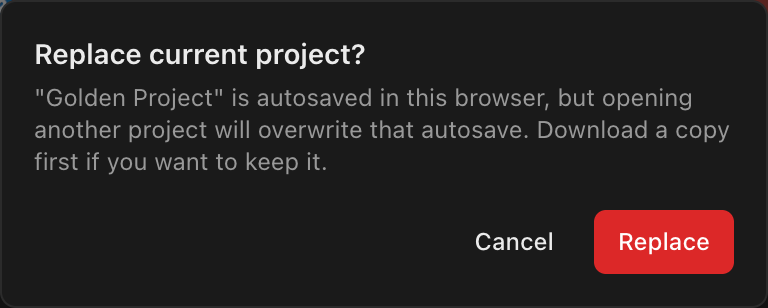
Replace proceeds: the next edit in the newly opened project overwrites the old project's autosave.
If the open project is a cloud project, the app first pushes any pending edits. Once the cloud has them, you see Switch projects? instead: a calm note (with a plain Continue button) that the project will close and you can reopen it any time from File → Open from cloud. Nothing needs downloading. If the latest changes can't reach the cloud (you're offline, the save failed, or it conflicts with another copy), you get the red Replace current project? warning instead, saying those changes are only in this browser. Cancel keeps everything as it was (and, if a Back/Forward triggered it, restores the address bar).
TIP
If the current project only exists in this browser and you want to keep it, choose Cancel, run File → Download project first, and then switch.
Download project: your file on disk
File → Download project serializes the open project to a .ledproj file (named after the project, e.g. my-wall.ledproj) and hands it to your browser's save flow (in the desktop app, a native Save dialog). It's the durable, portable copy: re-open it anywhere with File → Open…, or share it with a colleague. Project-file details, including V1 import, are in Project files. Project downloaded appears only once the file is actually written. Cancel the desktop dialog and nothing is saved or announced; if the file can't be written you're told why instead (see When a file can't be written).
INFO
Downloading runs the JSON-export check on your plan; see Plans & billing.
Cloud projects
File → Open from cloud… lists your cloud projects newest-first, each with its last-updated time. Picking one runs the replace guard, then opens the project at its live autosaved head, so nothing autosaved since your last version is lost. If this browser holds edits the cloud never received (you closed the tab moments after editing, or worked offline), those are restored on top and pushed straight away. The one case where they aren't: if the project was changed on another device after those edits, the cloud copy wins and you're told so rather than silently overwriting the other machine's work. The dialog closes on Esc or a click outside.
The same dialog also deletes cloud projects, singly or in bulk: tick one or more rows (or hover a row and click its trash icon) and confirm in the footer. Deleting frees your plan quota immediately, and the currently open project can't be deleted from under itself. Full details in Cloud projects, history & autosave.
Save as copy to cloud is the explicit fork: a brand-new cloud project named <name> (copy), which the app switches onto. More on cloud history and quotas in Cloud projects, history & autosave.
Project links & browser navigation
The address bar always reflects what's open:
| URL | Meaning |
|---|---|
#/local | The browser-local project |
#/p/<id> | A cloud project, bookmarkable and shareable with teammates |
#/s/<code> | A public, read-only share view (works without signing in) |
#/connect/spectacle | The Spectacle account-linking page; signed-in only |
/ar/<code> | An AR hand-off page (works without signing in) |
Opening a #/p/… link while you're signed out shows the sign-in page first. Signing in with email and password carries straight on to that project; a sign-in link or Google / Apple brings you back to the app's start instead, so open the project link again once you're in. Browser Back/Forward switch between projects through the same replace guard; declining restores the URL. Share and AR links are covered in Sharing projects.
Two Spectacle addresses drop the #, because something outside LED.FYI opens them. An AR link has no # at all (an iPhone can only recognise a link as belonging to the Spectacle app by its plain path), and older #/ar/<code> links still open the AR page in a browser. The linking page answers at both #/connect/spectacle and the plain path /connect/spectacle, since that is the address the iPhone app opens; either one lands on the same page, and the link keeps working whichever version of Spectacle you have.
While a project loads
During an open or import, a centered Importing project… indicator overlays the workbench; success raises a Project imported notification. If some V1 equipment can't be matched to the current library, a warning notification reports N unresolved equipment item(s); those parts stay as snapshot-only placeholders (see Project files). The project still opens and still draws correctly: it carries its own copy of every part it uses, so this never depends on the library being reachable. A failed load shows Failed to load with the reason.