

Appearance
Drawings PDF export
The Drawings PDF tab of the Export workbench, the second row of its Documents rail, turns the drawing sheets you built in the Sheets workbench into one multi-page vector PDF: the exact scenes the workbench previews, flattened to print-ready pages. By default it also bakes in a scan-to-open QR code, so a printed set links back to a live documentation page for the crew.
Sheets are the document; the PDF is a view of them
Everything a page contains is configured per drawing set in the Sheets workbench, not at export time: which blocks are on each sheet, paper size, orientation, standards profile and print units (mm/in and kg/lb), and the title block, logo and branding. The tab only chooses which sheets go into this particular file. But it now names those settings in one line, each linking to where it's set, so nothing shapes the file silently.
Changing paper re-flows every page and can shrink blocks, which is why it stays a property of the drawing set rather than an export-time switch. A project has one drawing set, so every page in it shares one paper size; if you genuinely need a second paper size, change it in a copy of the project.
If the project has no sheets yet, the tab links you to the Sheets workbench to create them first.
You pick pictures, not names
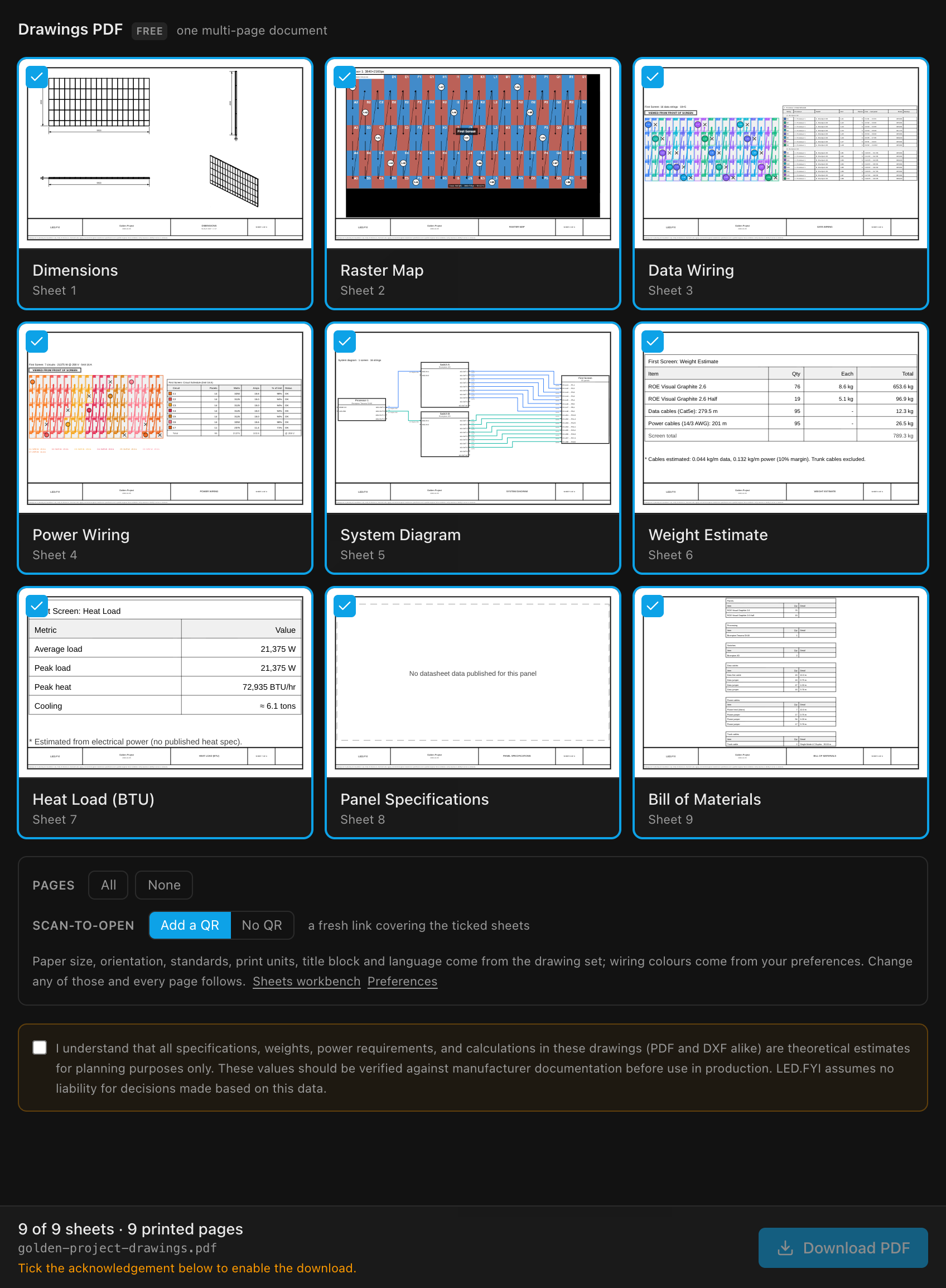
Every sheet appears as a thumbnail of the actual page, and ticking the picture is how you include it. The thumbnail is rendered through the same step that draws the page you edit in the Sheets workbench and the same one that prints the PDF, so it cannot disagree with what prints; it isn't a second picture to keep in step. Pages arrive one at a time so a big set doesn't stall the tab.
| Control | What it does | Default |
|---|---|---|
| Clicking a page | Includes or excludes that sheet | All on; new sheets auto-include |
| Pages: All / None | Select or clear every sheet in one click | n/a |
| Sheet count | Live "x of y sheets · N printed pages" in the export bar and the rail | n/a |
| Download PDF | Exports the picked sheets; disabled until at least one sheet is picked and the acknowledgement is ticked | n/a |
Exporting a subset is how you make a client packet from a full set, and page numbering always counts against the full drawing set, so a partial export still reads "Sheet 2 of 5". The set is the document of record; the export is a view of it.
By default the DXF tab follows this same selection, so you tick your client packet once rather than twice; the DXF tab has a Choose separately switch when you want a different set.
The liability disclaimer
Above the Download button sits a required acknowledgment:
I understand that all specifications, weights, power requirements, and calculations in these drawings (PDF and DXF alike) are theoretical estimates for planning purposes only. These values should be verified against manufacturer documentation before use in production. LED.FYI assumes no liability for decisions made based on this data.
Download PDF stays disabled until it's ticked, and the export bar says why, as does Download package, which names the PDF as excluded until the acknowledgement is given rather than slipping an unacknowledged document into the archive. The tick is remembered per project on this machine, so it no longer resets every time you leave the workbench, but it is still a per-export acknowledgement you can clear at any time.
It is one acknowledgement, shown on both drawings tabs. A DXF carries exactly the same theoretical figures the PDF does (it is the same drawing set, written out twice), so there is one thing to understand, not two. Tick it here and the DXF tab shows it ticked; untick it there and this tab shows it cleared. Both downloads, and the package, follow that single tick.
The automatic scan-to-open QR
With Scan-to-open set to Add a QR (the default), the export creates a frozen documentation share link for exactly the sheets you picked and bakes its QR code into every page. A crew member scanning a printed sheet on site lands on a mobile-friendly page with the project's specs, the bill of materials, and a download of this same PDF. The success notice shows the link the QR opens.
Choose No QR and the export skips the whole share step: no link is minted, nothing is uploaded, and no quota is consumed. It used to happen silently on every export, which you only discovered afterwards.
- Where the QR appears: in the QR cell of the sheet's title block. Both Standard presets (bottom strip and right edge) ship with a QR cell, and a custom template can add one to any cell; Minimal and Detailed don't have one, so with those place a dedicated QR code (share) block anywhere on the sheet. It renders as a placeholder square in previews, and the real code appears in the exported PDF.
- Each export is its own snapshot. Re-exporting mints a new link; older printouts keep working until their link expires (90 days) or is revoked.
- Quota recycling: the minted link counts toward your plan's active-share quota. If you're at the cap, the oldest auto-export link for this same project (titled "Drawing-set export") is revoked and replaced. Links you created by hand in the Share dialog are never touched.
If a QR can't be created, a focused prompt offers a way through instead of blocking the export:
| Situation | Prompt |
|---|---|
| You're offline | "You're offline": Export without QR or Cancel |
| You're signed out | "Sign in to add a QR": Sign in or Export without QR |
| Project not saved to cloud | "Save to the cloud to add a QR": Save to cloud or Export without QR |
Any other failure degrades to a plain export with an error notice rather than failing the download. In an offline/unconfigured build there's nothing to link to, so exports simply proceed without a QR.
Fidelity & fonts
The PDF is a pixel-match of the on-screen sheet preview: both render from the same flattened vector scene, and the PDF embeds the same fonts the preview uses (Liberation Sans, plus its Bold face when any sheet uses bold block titles or annotations, embedded and subset), so geometry and text metrics agree exactly. That includes how a note wraps: its lines are broken once, before either output is drawn, so a note never reflows differently on paper than on screen, and its text size and alignment print as set.
Chinese text is handled automatically. If any sheet contains Chinese characters (because the app language is set to Chinese, or a screen name or note uses Chinese in any language), a pan-script Noto Sans SC font is fetched and embedded for the whole document so nothing renders as tofu (▢). A Chinese-bearing PDF is roughly 1.5 MB larger, and because that pan-script font has a single weight, bold titles and annotations print at regular weight in it. If the font can't be fetched (e.g. connection drops mid-export), the export still completes with the Latin font rather than failing.
Drawing labels follow the app's UI language (File → Preferences… → Language). Every language renders correctly in the PDF (Japanese currently prints the English labels). See Languages & translations.
Wiring sheet colours are your preference
The colour cycles used to label data strings and power circuits on wiring sheets, and therefore in the exported PDF, come from File → Preferences… → Wiring sheet colours, which is a per-user setting, not part of the project file. Changing them re-colours existing sheets and exports at render time.
WARNING
The same is true of the Main and backup pair that inks marker rings and device-block borders. What is not personal is a processor's own colour: that one is stored in the project, so it prints the same for whoever exports it.
Because the palettes are personal, two teammates exporting the same project can get differently coloured wiring sheets. Agree on palettes (or leave the defaults) if colour consistency across the team matters. See Preferences.
The DXF export honours the same palettes, so the two files of one wiring sheet now match. (They didn't always; that was a bug, fixed and pinned by a test.)
Raster Map pictures
A Raster Map sheet with Show picture on embeds each processor canvas's actual picture into the PDF: the exact pixels its own PNG export would produce, at native resolution, so the file stays pixel-perfect. The page thumbnails on this tab use a lighter, reduced-resolution copy so they paint quickly; only the file gets the full-resolution picture. Moving content (video, an animated test pattern) prints as a single still frame.
That picture is generated fresh at export time; it is never stored in the project, so it costs nothing until you actually export. A 4K test-pattern picture typically compresses to a few hundred KB per canvas; real camera/video content can run larger. Turn Show picture off on a Raster Map block to go back to the plain outline (smaller file, layout only). The DXF export never carries the picture.
Watching it work
A nine-page set is a real wait: nine drawings are flattened, a share link may be minted and a copy uploaded, then the PDF is written. The export bar shows the stage and, while pages are flattening, page N of M.
Filename & plan
The file downloads as <project>-drawings.pdf (lowercased, non-alphanumerics replaced by -). The success notice reports the page count, and the share URL when a QR was baked in. It appears only once the file is written: re-exporting over a copy that's still open in a PDF viewer fails on Windows with "That file is open in another program" and a Save as… link instead. See Where the file goes.
INFO
PDF export is available on every plan tier, including free.