

Appearance
Split a big screen across two processors
Some walls are simply too many pixels for one processor output. This tutorial builds a 20×8 wall of AOTO C1.8 panels (5120×2048 px, too wide for a single 4K canvas), split down the middle across two Brompton Tessera SX40 processors, fed as one surface spanning two 4K video sources, with a two-switch data fan-out on each processor and 240 V power.
The split itself is two moves you can use on any oversized screen: cut the screen's picture into two slices in the Video workbench, then hand one slice's panels to the second processor in the 2D Mapping workbench.
What you'll end up with:
| Part | Spec |
|---|---|
| Screen | Screen 1: 20×8 = 160× AOTO C1.8 (1.88 mm, 256×256 px, 480×480 mm) |
| Total pixels | 5120×2048 px · 9.6 m × 3.84 m |
| Processors | 2× Brompton Tessera SX40, 10-bit / 60 Hz, 80 panels each |
| Video sources | 2× 3840×2160, one per processor |
| Data | 28 strings (14 per processor), 2× Brompton XD switches per processor |
| Power | 240 V, 16 A per string / circuit |
Build the wall with the wizard
1. Start the wizard
Click File → New with wizard…. The five-step New project wizard opens on the Screens step.
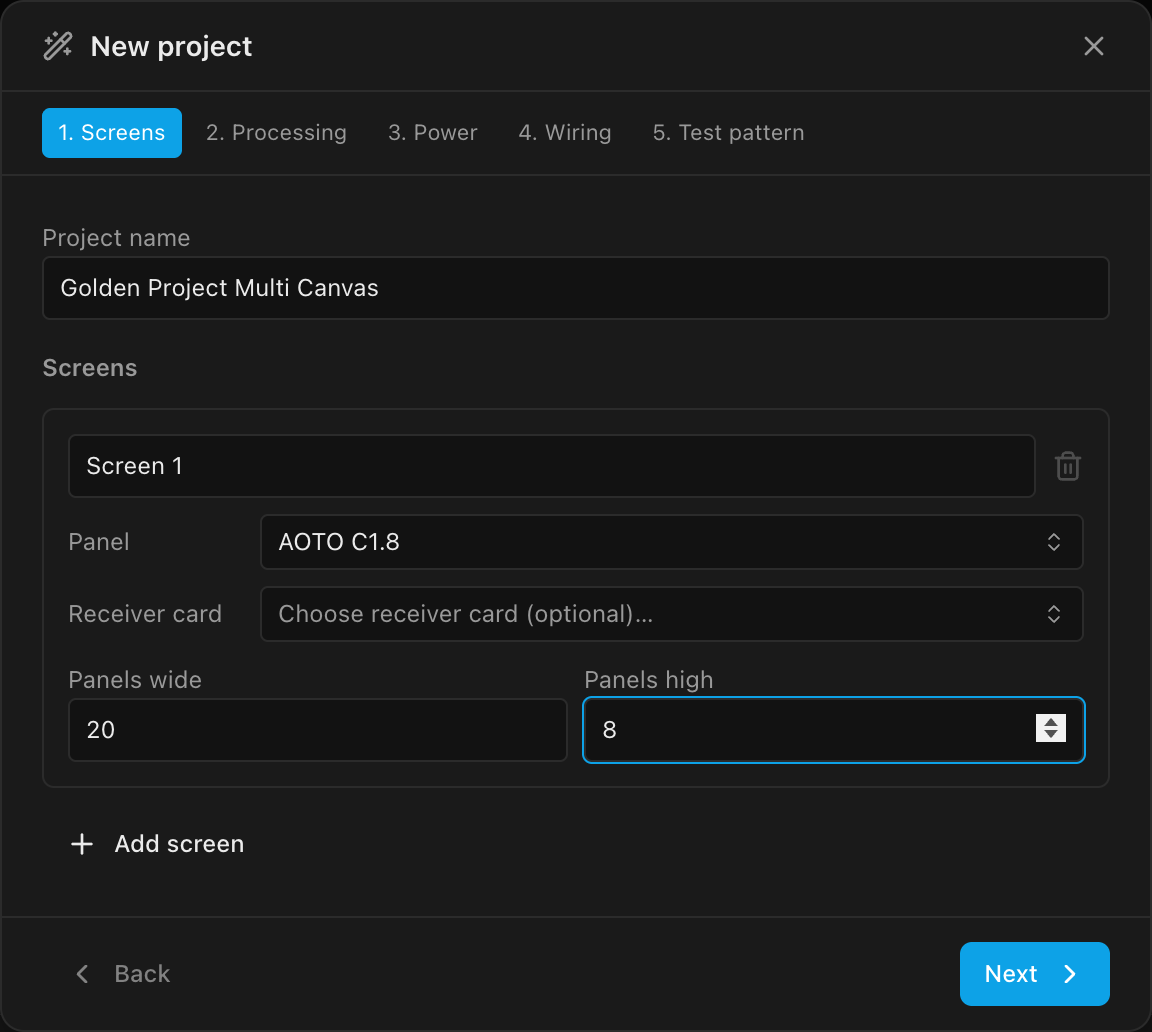
2. Name the project and size the screen
On the Screens step:
- Project name:
Golden Project Multi Canvas - Leave the screen named
Screen 1 - Panel: click Choose panel…, search for
C1.8, and pick AOTO C1.8 - Receiver card: leave empty; this walkthrough installs no card
- Panels wide:
20· Panels high:8
3. Pick the processor and output resolution
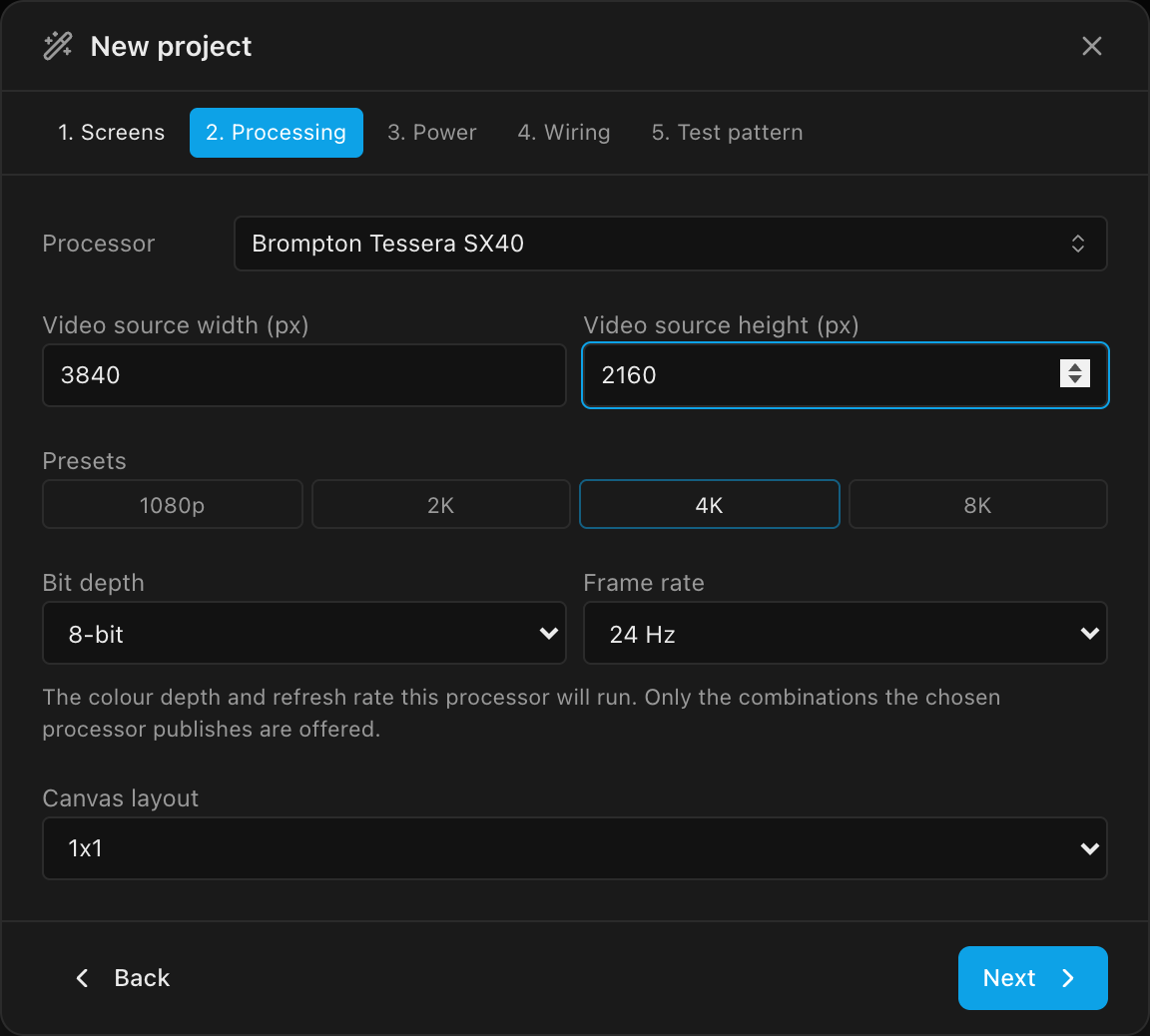
Click Next to reach the Processing step:
- Processor: click Choose processor (optional)…, search for
SX40, and pick Brompton Tessera SX40 - Video source width / height:
3840×2160, a 4K source (or click the 4K preset) - Bit depth / Frame rate: these appear once the SX40 is picked. Leave them at
8-bit/24 Hzfor now; the signal plan is set on both canvases in step 10 - Canvas layout: leave
1x1(the wizard authors a single output; the second processor comes later)
4. Set power
Click Next to reach the Power step and set Working voltage (V) to 240. Leave Circuit amps (A) at 16. Every screen starts at that project-wide limit, so each power string gets a 240 × 16 = 3,840 W budget; you'll see it later as Max W/str on the screen.
5. Set the data path
Click Next to reach the Wiring step: the Screen inspector's route picker, one card per screen. On the Screen 1 card, click the green Data row and pick the Zig-zag route that starts top-left and runs vertical (its tooltip reads Top-left · Vertical · Zig-zag), then click Done. Do the same on the orange Power row. See Data path for what each pattern means.
6. Create the project
Click Next once more to reach the Test pattern step. Keep Data path (it links each screen to a surface showing the wiring pattern, so the wall lights up immediately). Click Create project and confirm Replace when asked.
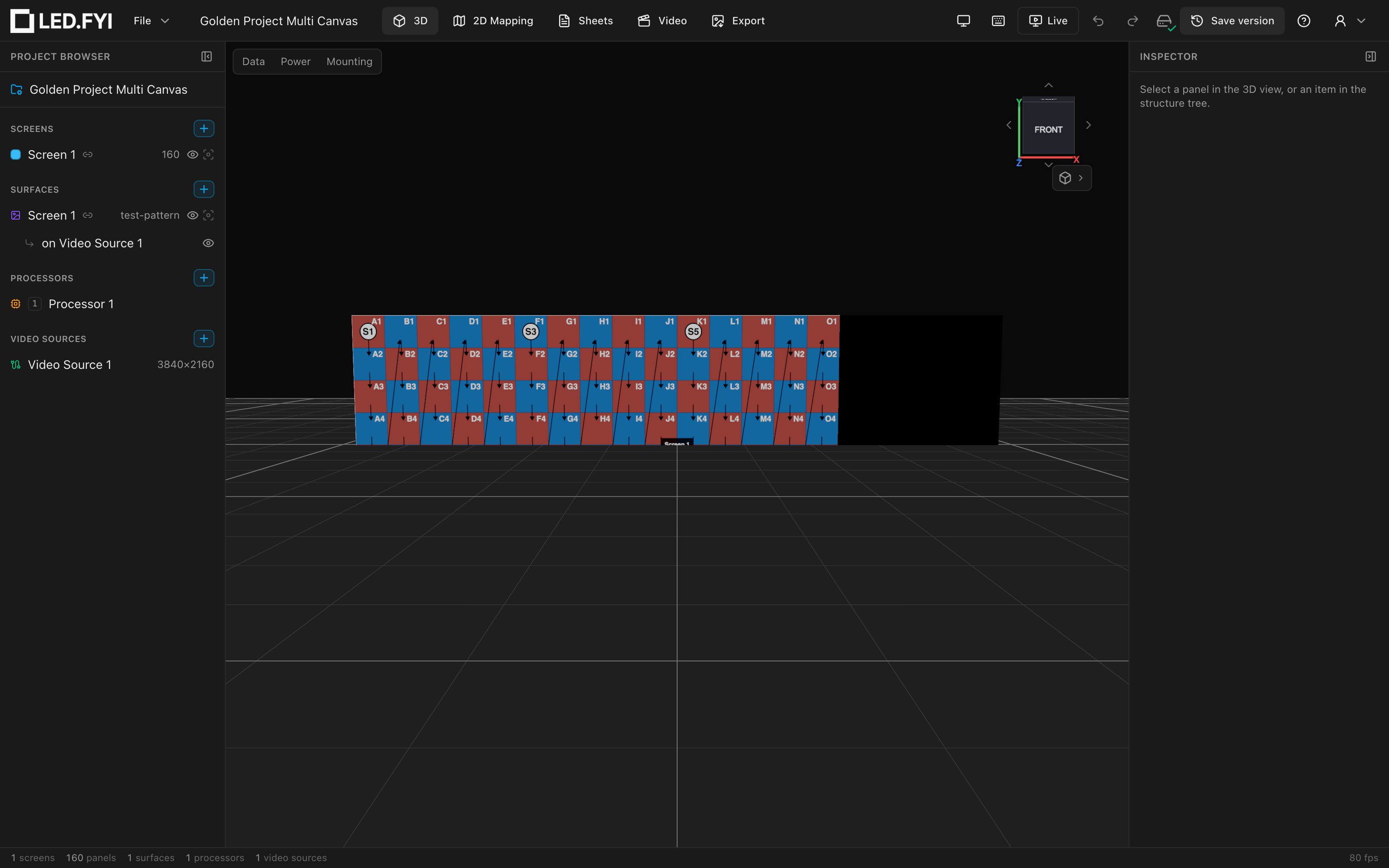
You should see the 20×8 wall lit with the data-path test pattern in the 3D view, and the status bar counting 1 screens, 160 panels, 1 surfaces, 1 processors, 1 video sources.
Cap the strings and spot the overflow
7. Know where the per-string pixel cap comes from
Click Screen 1 in the left sidebar. This design wants at most 6 panels per data string: each C1.8 panel is 256×256 = 65,536 px, so 6 panels are 393,216 px and a seventh would pass 420,000.
There is nothing to type for that. Once a screen's processor has a model, the per-string ceiling is the processor's own Per tile link (1G) figure at its bit depth and frame rate; the screen's Base px/str in Data limits is only used while the processor has no model. That's why step 10 sets both processors to 10-bit / 60 Hz, where each tile link carries exactly 420,000 px. See String assignment for how the limit drives string splitting.
8. Read the overflow warning
Near the bottom of the screen's Inspector an amber warning is already telling you the real problem:
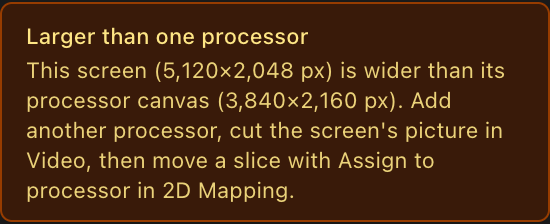
The screen is 5,120×2,048 px but one SX40 canvas is only 3,840×2,160 px: the wall is wider than any single output. The fix is what the warning says: add another processor, cut the screen's picture in the Video workbench, and assign one slice to the new processor in 2D Mapping (the rest of this tutorial).
Add the second processor and its output
9. Add Processor 2
In the left sidebar, click the + next to Processors. A new canvas is created and selected, already named Processor 2; new processors continue the numbering from the ones you have. (Rename it in Inspector → Processor canvas if you want something else.)
Its Video sources section reads Tile 1 · None: a processor you add never picks a video source for itself, so it can't end up sharing Processor 1's feed by accident. You'll give Processor 2 its own source in steps 11–12.
10. Give it a Tessera SX40
Still on Processor 2, click Choose processor…, search for SX40, and pick Brompton Tessera SX40. The Signal section fills in from the processor's capacity table:
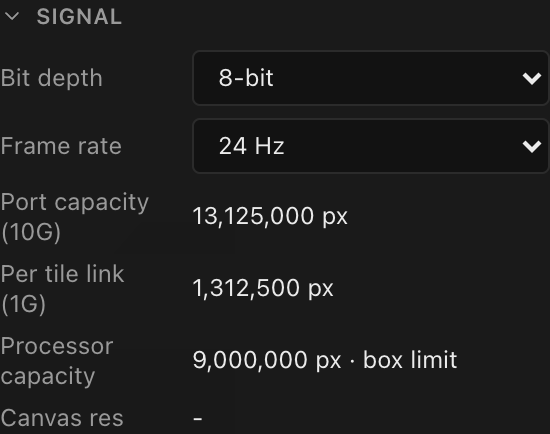
| Read-out | Value | Meaning |
|---|---|---|
| Bit depth | 8-bit | A freshly picked SX40 lands on the first row of its capacity table |
| Frame rate | 24 Hz | Likewise; set both to match your signal plan (10-bit / 60 Hz below) |
| Port capacity (10G) | 13,125,000 px | Pixel ceiling of one 10G trunk at 8-bit / 24 Hz (the SX40 has no 1G port) |
| Per tile link (1G) | 1,312,500 px | What one 1G switch downlink delivers to a tile: the per-string ceiling |
| Processor capacity | 9,000,000 px · box limit | Brompton's published limit for the whole SX40, smaller than its four 10G trunks (4 × 13,125,000) |
| Canvas res | - | Resolution of the source feeding this canvas; blank until you wire one in (step 12) |
Both canvases have to match your signal plan. Processor 1 is sitting at 8-bit / 24 Hz too, the wizard's default (the lowest point the SX40 publishes). Set Processor 2's Bit depth to 10-bit and Frame rate to 60 Hz, then click Processor 1 in the sidebar and do the same. The port read-outs drop to 4,200,000 / 420,000 px; Processor capacity stays at 9,000,000 px · box limit, because the box figure does not move with the signal. That 420,000 px per tile link is what holds each data string to 6 panels (step 7). See Choosing a processor.
11. Add a second video source
Click the + next to Video Sources in the sidebar. The new source arrives named Video Source 2; in the Inspector, click the 4K preset so it becomes 3840×2160.
12. Wire the source into Processor 2
Click Processor 2 in the sidebar. In Inspector → Video input ports, set Input 1 · HDMI 2.0 #1 to Video Source 2. It's the Active input, so it's what Processor 2's canvas renders. Each processor canvas now has its own 4K source. See Inputs & input modes.
The amber bandwidth note
At 10-bit / 60 Hz, both processors' inputs show "Source exceeds the port bandwidth." under their 3840×2160 source; the SX40's 12G-SDI input says the same. It's a check on the incoming feed and doesn't change anything this tutorial builds.
Split the screen across both processors
All 160 panels are still on Processor 1: select Screen 1 and its Processors section (just under the warning) reads Processor 1 · 160 panels. That section only reports where panels are (its Move screen to picker moves the whole screen to another processor; see Multi-processor screens); it has no split button. You make the split in two moves: cut the screen's picture in half, then give the right half's panels to Processor 2.
13. Cut the screen's picture in half
- Click the Video tab along the top of the window.
- Click Processor 1 in the left sidebar. Its canvas shows
Video Source 1, with the screen's linked placement laid across it, wider than the source, because the wall is. - Click the placement to select it. Amber scissors appear on its top and left edges, and the caption reads
click a scissors to split on panel seams · right-click for options. - Click the scissors on the top edge (Split into left / right). A dashed cut line appears and the caption switches to
click to cut · esc cancels. The line follows your pointer but only ever sits on a panel seam. Move it to the seam between the 10th and 11th columns,2560px in. - Click to cut.
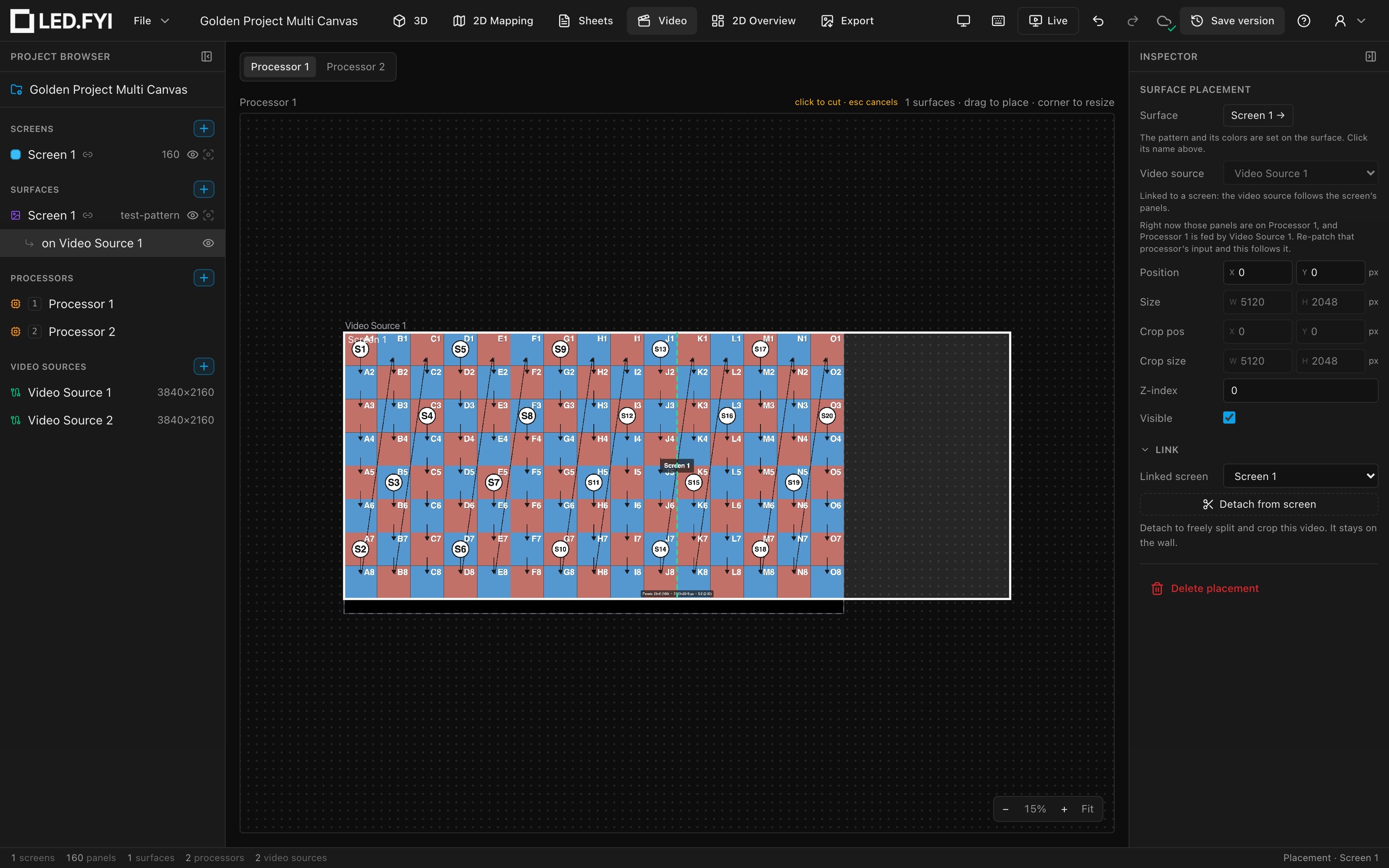
The screen now has two Slice · 80 panels rows under it in the sidebar, and Surfaces lists two placements on Video Source 1: the picture is in two pieces, both still on Processor 1. See Splitting a linked placement.
Where to cut
Any seam works as long as each side fits a 3840-px-wide canvas; on this wall, anywhere from 5 to 15 columns in. The middle gives each processor 80 panels.
14. Assign the right half to Processor 2
- Click the 2D Mapping tab and make sure the Processor 1 pill at the top-left is selected. The whole wall is here, its right side running past the edge of the
3840×2160canvas. - Click any panel in the right half. A plain click selects the whole slice; the Inspector reads
80 panels. - Right-click the same panel. The menu reads Disable 80 panels and, under Assign to processor, lists
Processor 1(markedcurrent) andProcessor 2. - Click Processor 2.
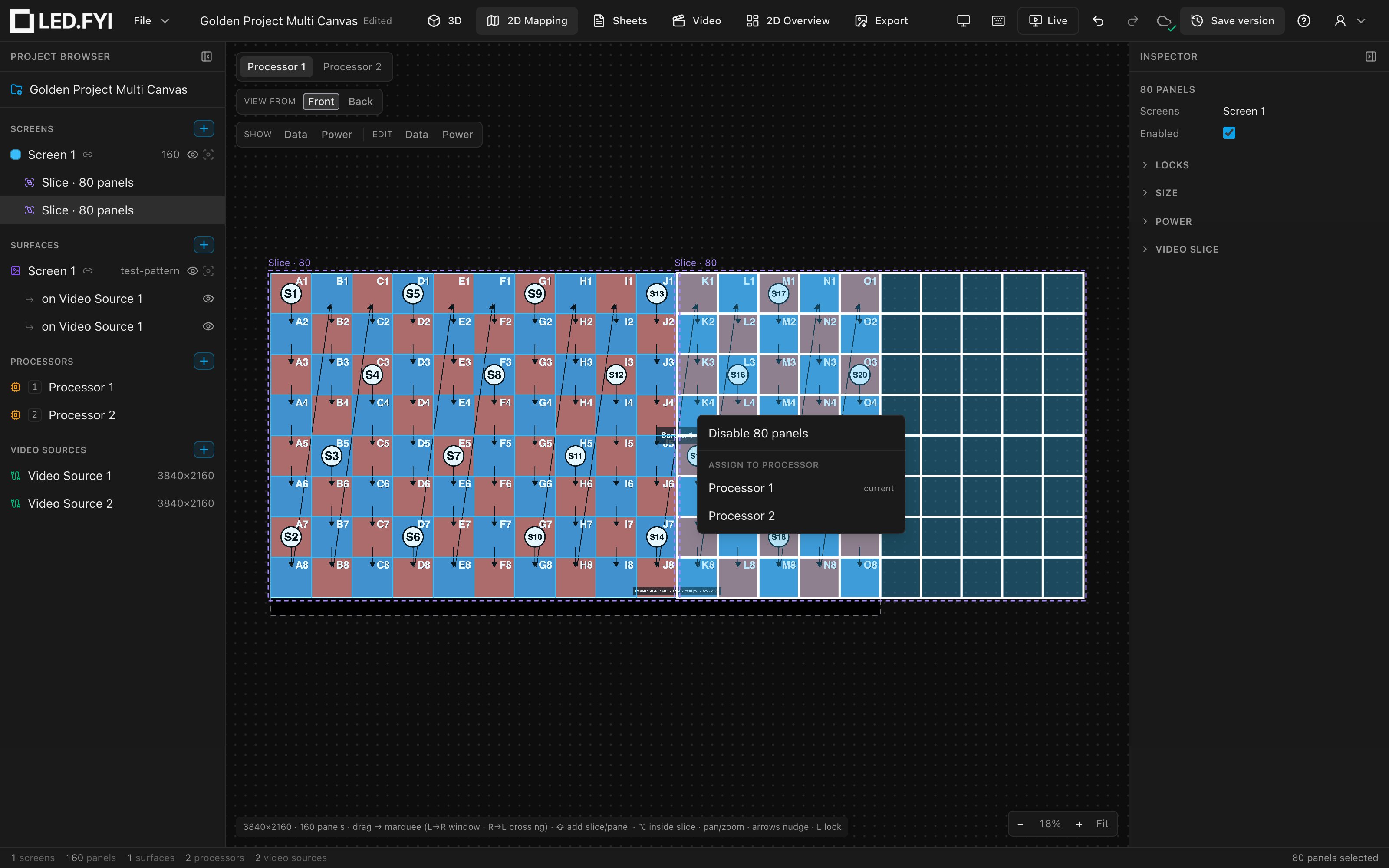
The right half's 80 panels move to Processor 2's canvas, landing at its top-left corner, and their placement follows onto Video Source 2. The Larger than one processor warning is gone, and the screen's Processors section now reads Processor 1 · 80 panels and Processor 2 · 80 panels, with the 80 moved panels listed under Manual pins. See Assign to processor.
Why cut first
Cutting first turns the half you want to move into one slice, so a single click selects exactly those panels. The same two moves split any screen; see Multi-processor screens.
Fan out the data on each processor
15. Add two switches to Processor 1
Click Processor 1 in the sidebar. In Inspector → Switches, use Add switch… to add a Brompton XD, then add a second one. They land on the SX40's 10G trunks A and B, and the section reads 2 of 4 trunks free:
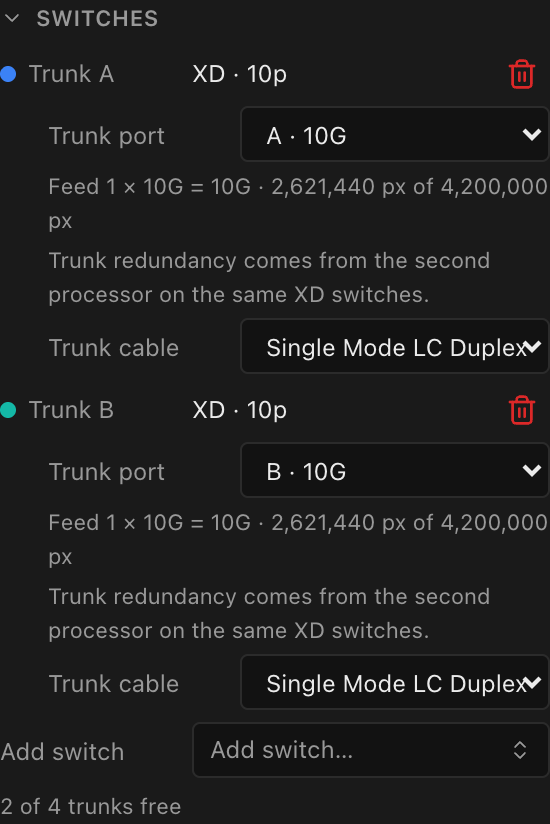
See Switches & trunks for the trunk → switch → 1G-port model.
16. Auto-assign the strings
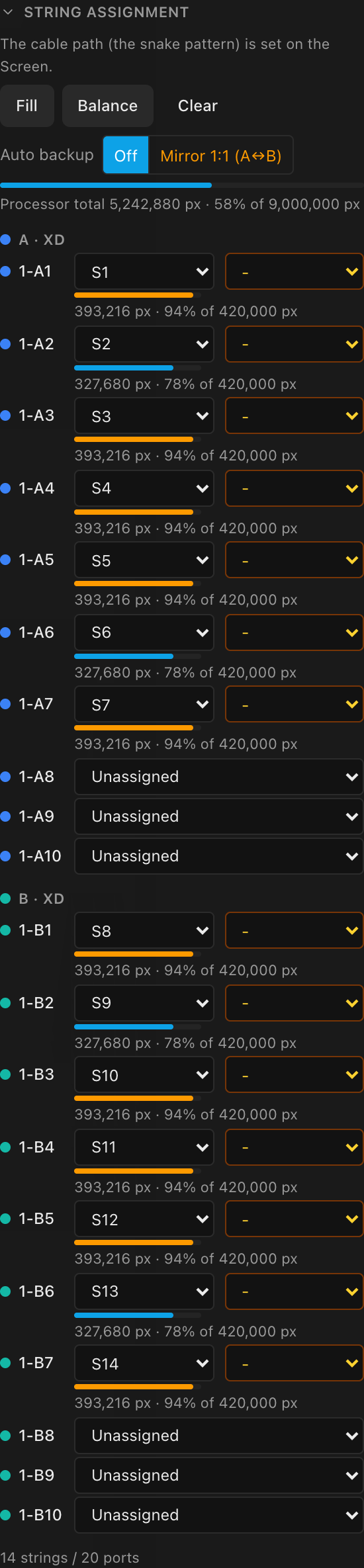
In Inspector → String assignment, click Balance. The canvas's 80 panels wire as 14 strings, balanced to even lengths (ten strings of 6 panels at 393,216 px each and four of 5 at 327,680 px), spread evenly across the two switches: S1–S7 on ports 1-A1–1-A7, S8–S14 on 1-B1–1-B7. Every port label starts with the processor's tag, 1 here (see the processor tag).
17. Repeat on Processor 2
Click Processor 2 and do the same: add two Brompton XD switches, then click Balance under String assignment. The project now has 28 data strings, 14 per processor, and because the string numbering continues across a screen's processors, Processor 2's strings are S15–S28, not a second S1–S14, on ports 2-A1–2-A7 and 2-B1–2-B7. Every cable in the project has its own number, and every port label says which processor it's on.
Verify the span
18. Inspect the slice placements
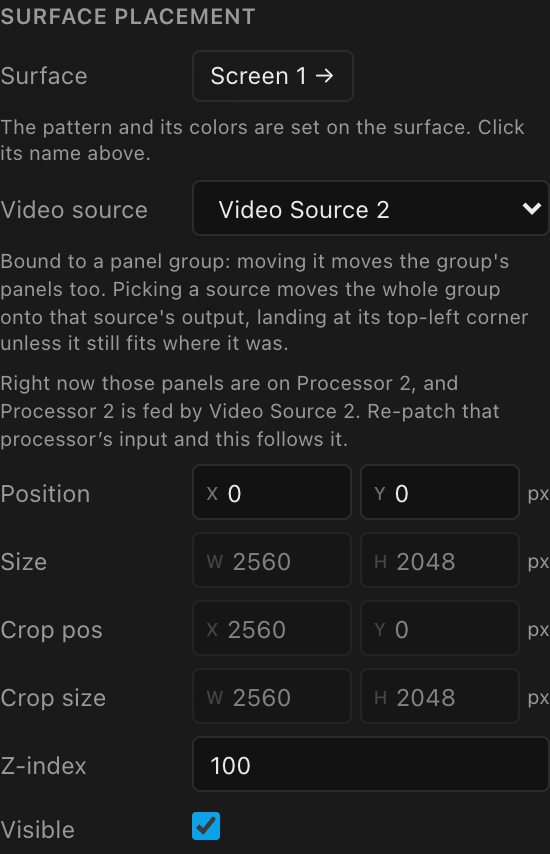
Under Surfaces in the sidebar, click the placement on Video Source 2. The Surface placement section shows the right-hand slice:
- Position
(0, 0)and Size2560×2048px: the right half's pixel footprint, at the top-left of Processor 2's source - Crop pos
(2560, 0)and Crop size2560×2048: it shows the surface's right half
The hint "Bound to a panel group: moving it moves the group's panels too." explains why: the slice follows its panels, so you never have to keep these numbers in sync by hand, and the line under it spells out the chain: "Right now those panels are on Processor 2, and Processor 2 is fed by Video Source 2." The Video source dropdown stays live: picking another source moves the slice's panels onto the output carrying it, the same move as Assign to processor in the 2D Mapping view. The placement on Video Source 1 shows the matching left half (crop pos (0, 0)). See Feeding screens video.
19. Check the 2D Mapping workbench
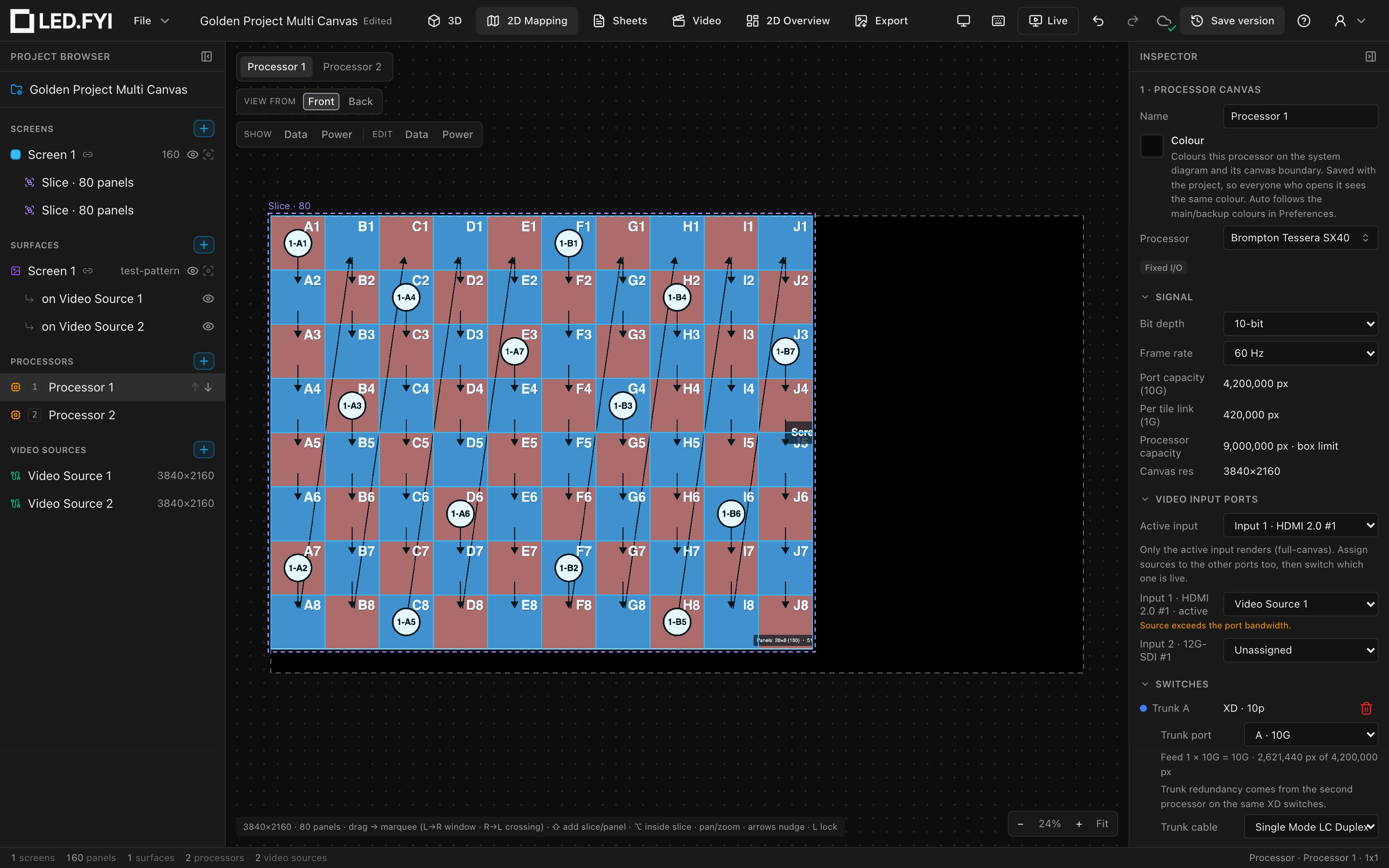
Open the 2D Mapping tab. The canvas pills at the top-left switch between Processor 1 and Processor 2; each shows its own 3840×2160 frame with its 80 panels and their string runs (the footer reads 3840×2160 · 80 panels). Each half wears the dashed violet outline and Slice · 80 badge of the slice you cut in step 13:
See The 2D Mapping workbench for arranging and wire-editing here.
20. Confirm the seam in 3D
Open the 3D tab. The full 9.6 m wall renders one continuous test pattern. There is no visible seam where the feed changes processors, because the two slices reassemble the surface exactly. (The port labels in the pattern change processor at the seam: the left half's strings start at 1-A1, and at column K the right half's first string reads 2-A1, the same port on Processor 2.)
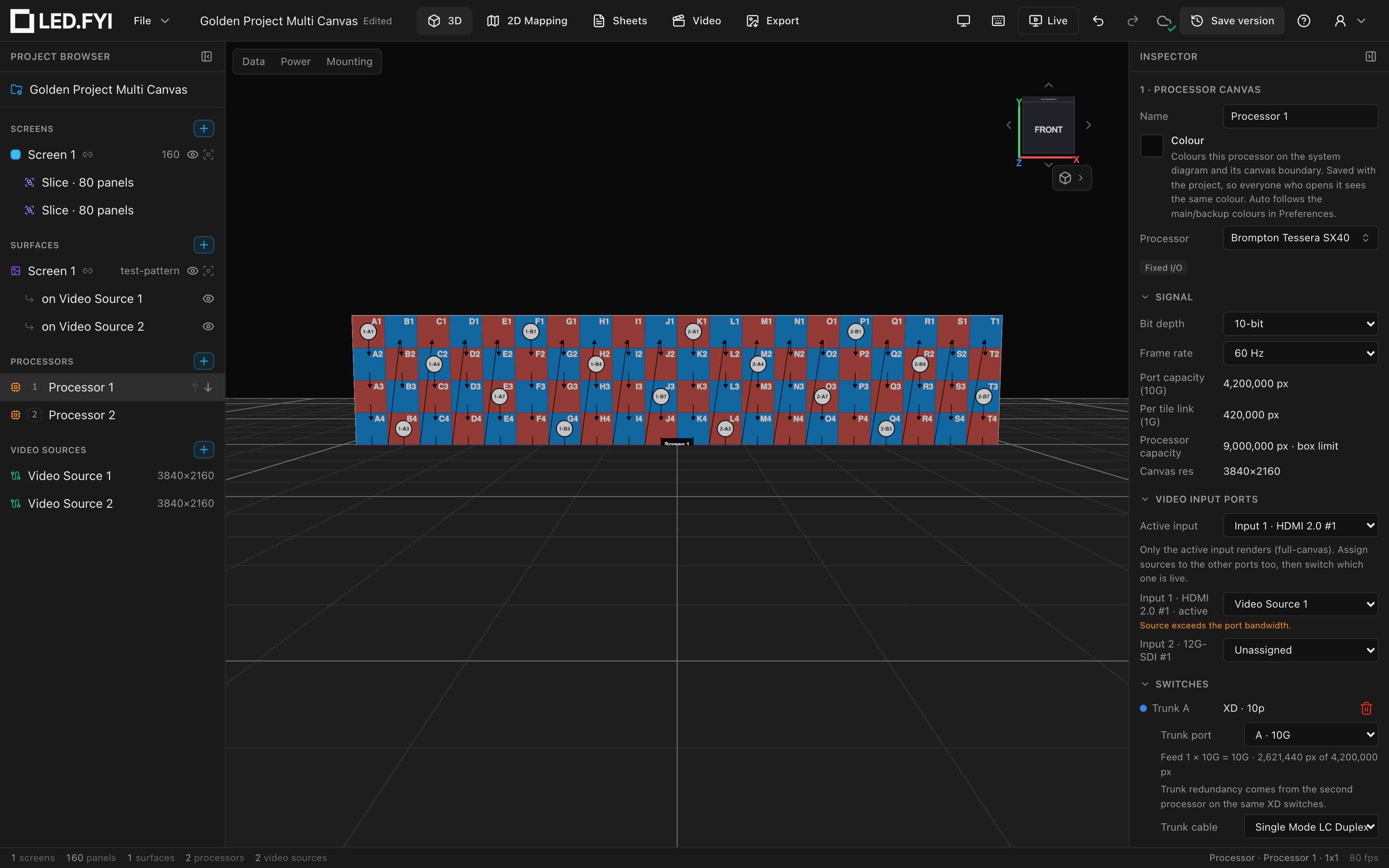
The status bar now counts 2 processors and 2 video sources alongside the one screen, its 160 panels, and its one (split) surface.
What you built
- A 160-panel screen (
5120×2048px) that exceeds any single 4K output. - Two SX40 canvases at 10-bit /
60 Hz, each with its own3840×2160video source. - One linked surface cut into two slices (
0–2560px and2560–5120px), with the right-hand slice's 80 panels assigned to Processor 2, so each processor drives 10 columns. - 28 data strings of at most 6 panels (
420,000 pxper tile link), fanned out through four Brompton XD switches, two per processor, on trunks A/B. 240 V/16 Apower on every string (3,840 Wbudget).
Exporting the wall
The split is an internal detail of the design, not of what you hand over. In the Export workbench the screen has one tile reading 5120 × 2048 · 2 processors, and downloading it gives you one PNG of the whole wall: the same image you would get if a single processor drove all 160 panels, with nothing in it to show where the two halves meet. The two 3840×2160 video-source images are still there beside it, for the operator who wants what each processor is fed. See PNG export.
Where to go next
- Multi-processor screens: splitting a screen, manual pins, and navigating a split screen.
- Redundancy: add backup switches, ports, or a whole backup processor to this design.
- Power: power strings, circuits, and the
240 Vmath this build uses. - Back view: check each processor's canvas mirrored, the way the crew sees it while wiring from behind.
- Drawing sets and the bill of materials: turn the finished design into paperwork.
- One processor, four outputs: the inverse trick: a 2×2 canvas layout driving an 8K wall from a single processor.