

Appearance
Troubleshooting
Symptoms you may hit, what they mean, and how to fix them. Every message the app shows appears as either a notification toast (bottom-right) or a modal dialog, and there is one rule worth knowing up front: red (error) and amber (warning) toasts never disappear on their own. They stay until you dismiss them with the X. That is deliberate; it is not the app hanging. Success and info toasts dismiss themselves after about 5 seconds. Some toasts carry one action button (View plans, Show processor, Show screen) that jumps you straight to the fix.
"Replace current project?" appears when I open something
What it means: your work-in-progress is autosaved into a single slot in this browser. Opening anything else (File → New, File → Open…, a cloud project, or even navigating with the browser's Back/Forward buttons to a different project) will overwrite that slot on the next edit. The dialog is the app checking that you meant to do that. (For a cloud project that has finished syncing you see a calm Switch projects? note instead, because it can be reopened from File → Open from cloud. If you're seeing the red warning on a cloud project, its latest changes haven't reached the cloud yet.)
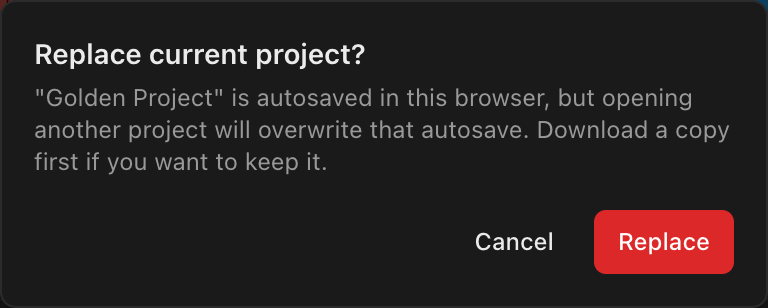
What to do:
- If you see Switch projects?, your cloud project is safe: click Continue.
- If you see the red Replace current project? on a cloud project, its latest edits haven't reached the cloud yet: click Cancel, check the save status in the top bar (reconnect, or resolve a conflict), then try again, or use File → Download project first.
- If you don't need the current project, click Replace.
- If it exists only in this browser and you want to keep it, click Cancel, then File → Download project to save a
.ledprojcopy first (see Project files).
Declining the dialog after a browser Back/Forward also puts the URL back, so the address bar never shows a project that isn't actually open.
Local autosave is one slot per browser
There is exactly one local autosave slot. Loading another project overwrites it; there is no local "recently closed" list to recover from. If a project only exists in this browser, download a copy before opening anything else. Also avoid editing in two tabs at once: both tabs write the same slot and the last writer wins. Keep local-only work in a single tab, or save it to the cloud (see Cloud projects).
My project won't open or import
File → Open… accepts .ledproj files from both V1 and V2. Three outcomes:
| Outcome | What you see | What it means |
|---|---|---|
| Clean import | Toast Project imported | Everything resolved; you're done. |
| Unresolved equipment | Sticky warning N unresolved equipment item(s): "Some library parts could not be resolved; they are snapshot-only placeholders." | The project still opens and renders fully from the specs embedded in the file; those parts just aren't linked to a live library record, so library updates won't reach them. See Choosing equipment. |
| Rejected | Error screen Failed to load: … | The file can't be imported at all; see below. |
Rejection reasons:
- "v5.0 legacy epoch is out of scope": the file comes from a very old V1 (v5.0-era) format that is not supported. Re-save it from a current V1 install first, then import that file.
- "unrecognized project structure": the JSON isn't a project the app recognizes (wrong file, or a truncated/corrupted download).
- Any other parse error: the file isn't valid JSON (often a partially transferred file; re-download or re-copy it).
Older V2 saves open silently; they are upgraded to the current format automatically, both from files and when reopening an autosave.
Two V1 import differences are by design: a surface that V1 placed on multiple video sources with different scale modes per placement keeps just one scale mode, and V1 panel presets are not yet resurfaced in the library.
My work didn't come back after a reload
On startup the app restores your local revision history at its newest point and re-applies anything autosaved since; you'll see a toast Restored your project (or Restored autosaved project when only the autosave slot is available). If instead you see:
- Autosave could not be restored: "The saved data was invalid and has been cleared." The stored data was unreadable; it has been removed and the default sample loads. If you have a downloaded
.ledprojcopy, open it with File → Open…. - Autosave unavailable: "Could not write to browser storage. Use File → Download to keep your work." The browser refused to store the autosave (storage full, or private-browsing restrictions). This warning appears once per session.
If autosave is unavailable, nothing is being saved
While the Autosave unavailable warning is up, edits live only in the open tab. Use File → Download project regularly, or free up browser storage / leave private browsing and reload. The File menu footer always tells the truth: Autosaved time means the last write succeeded; Not autosaved yet means it hasn't.
I can't save to the cloud
Cloud saving is available on LED.FYI when you're signed in on a plan that includes cloud projects. The File menu footer is the live status read-out:
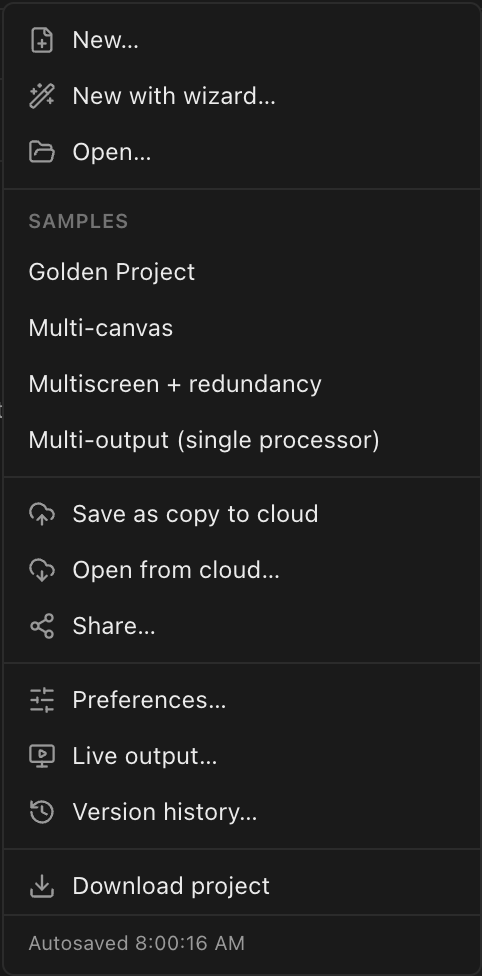
| Footer says | Meaning |
|---|---|
| Saving to cloud… | A push is in flight. |
Saved to cloud time | The live project is in the cloud as of that time. |
| Offline (will sync when back online) | You've lost connectivity; a background check every 30 seconds picks the sync back up automatically. |
| Cloud save failed (will retry) | The last push failed (you also get one sticky Cloud save failed toast, not one per edit). The same 30-second sweep retries. |
Autosaved time / Not autosaved yet | The project is local-only; see the checklist below. |
If your project stays local-only when you expect cloud sync:
- Are you signed in? An explicit File → Save to cloud while signed out shows Sign in to save to cloud. See Accounts and sign-in.
- Does your plan include cloud projects? Free-tier accounts see "Cloud projects are not available on your plan." Cloud projects start on Pro. See Plans and billing.
- Are you at your quota? "You have reached your plan's limit of
Ncloud projects." Pro allows 50; Studio is unlimited. Deleted projects don't count. Both a first save and Save as copy create a new cloud project against the quota; updating an already-saved project does not. - Opened a cloud link while signed out? You'll see Sign in to open this project: the link points at a cloud project, so the app opens your local project instead until you sign in.
"This project changed somewhere else"
If the same cloud project is open in another tab, on another device, or on a teammate's machine, the first save wins and the second is stopped rather than silently overwriting it. Autosave pauses and a dialog asks how to continue:
| Choice | What happens |
|---|---|
| Reload their version | Takes the newer saved version. Discards your unsaved edits. |
| Save as a copy | Forks yours into a new cloud project. Keeps both versions, nothing lost. |
| Overwrite with mine | Replaces their changes with yours. |
The dialog can't be dismissed, and nothing autosaves until you pick, so a project can't drift into a half-saved state. If you're unsure, Save as a copy is the choice that loses nothing.
Co-editing still isn't live collaboration
Two people can't edit one project at the same time and see each other's changes; the guard above just makes sure neither of them loses work. Make a restore point before a risky session; see Undo, redo and history.
A feature is locked / "Upgrade to … to unlock this"
Any action your plan doesn't include shows a warning toast Upgrade to plan to unlock this (or Not available on your plan), with the message "Your plan does not include feature." When the block is a cap, the message goes on to say where each bigger plan stops (for example "Pro allows up to 300 panels per screen. Studio has no limit."). On LED.FYI the toast carries a View plans button that opens the billing dialog. The common gates:
| You tried to… | Needs | Notes |
|---|---|---|
| Add a 2nd screen / surface / video source | Pro | Free allows 1 of each; Pro allows 12 screens, 12 surfaces, 4 video sources; Studio is unlimited. Duplicating past the cap is blocked too, and the new-project wizard checks the whole project's screen count up front. |
| Make a screen bigger than 32 panels | Pro | Pro allows up to 300 panels per screen; Studio is unlimited. Blank (spacer) panels don't count, and a project with an over-limit screen won't open. |
| Export CSV (e.g. cable labels) | Pro | JSON, PNG, and PDF exports are free. |
| Export DXF | Studio | |
| Save a cloud project | Pro | Free = 0 cloud projects, Pro = 50, Studio = unlimited. |
| Create a share link | Pro | Free = 0 active shares, Pro = 50, Studio = unlimited. |
| Publish to the team library | Pro | Browsing the community library just needs sign-in. |
PDF export is free in V2
If you remember PDF export being a paid feature, that was V1. In V2, PDF drawings are included on the free tier; CSV needs Pro and DXF needs Studio.
If you've just subscribed and paid features still look locked, give it a moment and try again; entitlements refresh automatically after checkout. If they still don't appear, sign out and back in; a team admin can also re-sync a member's subscription from the team dialog.
Why is everything unlocked in my self-hosted / offline build? A build with no cloud backend configured has no accounts and no plans: every feature is available and these toasts never appear. That's expected. See Working offline.
My panels show no signal
Content reaches a wall through a chain: a screen shows a surface, the surface sits on a video source, and the video source has media or a test pattern assigned. If a screen renders black, check in order:
- The screen is linked to a surface; see Video slices and Surfaces.
- The surface has a source assigned (not "No source"): media or a test pattern.
- The surface placement actually lies within the video source's bounds in the Video workbench.
String count or port capacity looks wrong
String counts are not fixed per processor; they depend on the processor's pixel capacity at the selected bit depth and frame rate, the pixels per panel, and the wiring pattern. Changing bit depth or frame rate changes the per-port pixel ceiling and therefore how many panels fit per string. See String assignment.
Select a processor and open Inspector → String assignment to see the live per-port read-out (used vs. ceiling pixels per string):
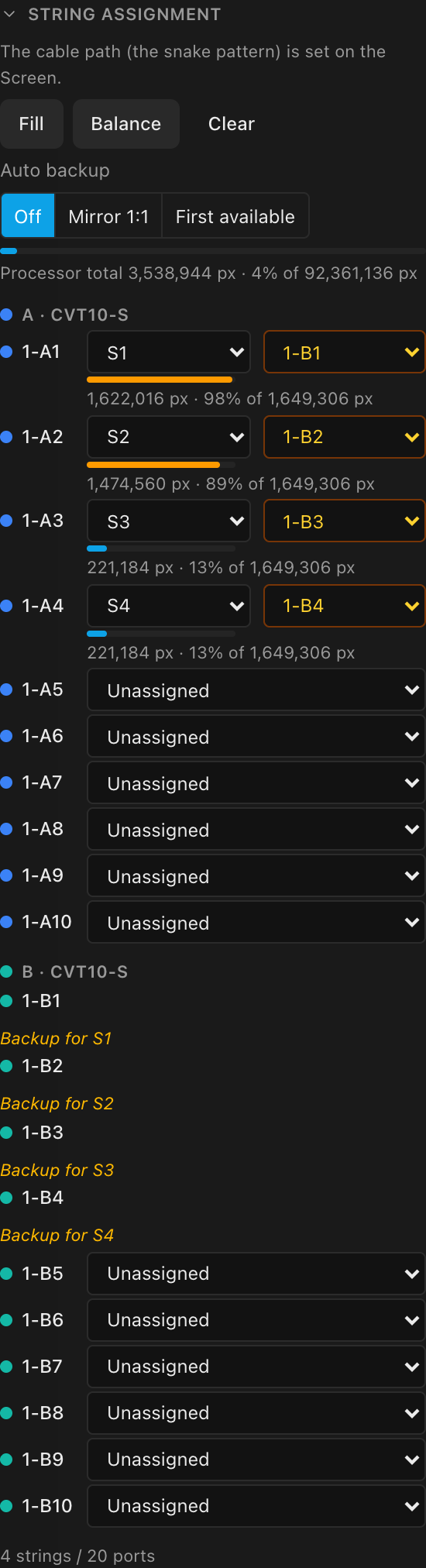
Two things to know:
- A backup does not reduce a port's usable capacity; it costs you a whole second port instead. If a string fit before you added redundancy, it still fits. See Redundancy.
- If an assignment oversubscribes a port, the edit is allowed: you get a sticky warning toast Port over capacity ("
Nports are over their pixel ceiling onprocessor.") with a Show processor button that selects the offending processor. The warning is advisory; fix it by moving panels to another string, adding a port, or lowering bit depth / frame rate.
My BOM or weight total changed and I didn't touch the project
If the screen has a half row or half column, it will have. Half cabinets used to be counted as full ones on the parts list and the weight estimate, so a 19 × 5 wall with a half bottom row listed 95 of the full model and weighed ~817 kg of panels where it actually weighs ~750 kg. The parts list now shows the half product on its own line, and the weight uses its real per-panel figure.
The wall did not change; the old number was wrong, and it was wrong in the dangerous direction on a figure used to size a hang. Anything derived from a pre-correction total (a rigging plot, a quote, a truck load) is worth re-checking. Screens with no half row or column are completely unaffected.
Where a screen has a half row but no half product to name it, the halves are estimated at half the full cabinet's spec, and the sheet says so in a note. Give the screen a Row type / Col type to make it exact; see Half panels & blank panels.
A screen won't split across processors
There is no Distribute button any more. The screen's Processors section reports which processors its panels are on, and its Move screen to picker moves the whole screen onto one processor; it never splits one. You split a screen in two moves: cut its linked picture into slices in the Video workbench, then move a slice's panels to the other processor with right-click Assign to processor in the 2D Mapping workbench. The worked example walks through it.
If a step won't cooperate:
- No scissors on the picture. Click the placement first; the scissors only appear on the selected placement. On a placement linked to a screen, a scissors is only offered for a direction that has a full-span panel seam (a line no panel straddles), so a staggered layout may have no cut that way. If the screen has no placement at all, it isn't linked to a surface yet. Add one with Add Surface ▸ From Screen.
- No Assign to processor in the right-click menu. That group only appears once the project has two or more processors.
- Only one panel moved. A plain click selects the whole slice and a right-click inside the selection acts on all of it, but a
⌥right-click reaches inside and targets just the panel under the cursor. - The Larger than one processor warning went away, but part of the wall is dark. The warning only checks a screen whose panels all sit on one processor, so it clears the moment any of them move to a second one, whether or not each side fits. If one side of your cut is wider or taller than its processor's canvas, the panels past the edge get no picture. Undo (
⌘Z) and cut at a seam where each side fits.
My modular processor won't let me wire anything
A modular (slot-based) processor with no output card fitted has zero output ports; the wiring sections show an explanatory message instead of controls until you install a card. See Modular processors.
On the input side, each port shows a short verdict when the bound source exceeds the fitted card's limits: "exceeds the port bandwidth", "exceeds the port's max resolution", "exceeds the card's max width" / "max height" / "max resolution", "below the card's min resolution", or "frame rate not supported by the card". Fix the source's resolution or frame rate, or fit a more capable card. In stitched input mode all tiled inputs must share one resolution; the pickers only offer matching sources, and a pre-existing mismatch flags red. See Inputs and input modes.
"Combine blocked: over amp limit" when combining power circuits
Combining two power strings onto one circuit is refused when the combined load would go past the circuit's limit (watts = amps × volts), because on site that trips a breaker. Nothing changes, and a red toast says why: Combine blocked: over amp limit: "Combining would put this circuit at N W, over its amp limit. Blocked to prevent a tripped breaker." Its Show screen button selects the screen so you can read its circuits.
The limit is the screen's amps per string, which can never be higher than the project's Circuit amps. Combine smaller strings instead, or raise the amps if the real-world feed allows it, on the screen, and on the project if the screen is already at the project's limit. See Power and Screen power settings.
The app opened on 2D Mapping, and the 3D tab says "3D can't start in this browser"
What it means: your browser could not start the graphics feature (WebGL 2) the 3D workbench is drawn with: hardware acceleration switched off, an old graphics driver, a remote-desktop session, or a browser that has fallen behind. The app opens on 2D Mapping instead so you can keep working; every other tab is unaffected, and so is your project.
What to do: work through the fixes on 3D can't start in this browser, then click Try again on the card. The 3D workbench appears as soon as the browser can draw it.
A view says "This view hit a problem"
What it means: that one workbench ran into an unexpected error while drawing. The card replaces just that view; the tabs, sidebar and Inspector keep working.
What to do: click Try again to reload the view, or switch to another tab. If it keeps happening, Reload restarts the page; your project is autosaved. Unfold Technical details and paste the message into a problem report. Details on 3D can't start in this browser.
The Live Output window is black or won't open
- Won't open: sticky error Couldn't open the output window ("Allow pop-ups for this site, then try again."): your browser's popup blocker stopped it. Allow pop-ups for LED.FYI and retry.
- Opens but shows black: usually no content is assigned to the surfaces on that video source. Work through the no-signal checklist above.
- Won't go fullscreen from the main window: browsers only honor fullscreen requests made inside the window itself (Firefox always rejects cross-window fullscreen). Use the controls inside the output window: click the hint, double-click, or press
F/F11.Stoggles the FPS counter;Escapecloses the window when not fullscreen. The desktop app fullscreens natively on open.
See Live output.
My drawing is unreadable, or blocks overlap
Dense walls can render illegibly small when an entire project is squeezed into one sheet block. The sheet Inspector offers the two built-in remedies:
- Paginate: "This screen is too large to read on one sheet. Break it across sheets with match lines."
- Split here: replace one block with one block per screen/processor, tiled in its box.
Multi-screen wall elevations draw screens at their raw positions, so overlapping screens can draw over each other; scope the block to a single screen, or use Split here / Split to sheets. Elevation blocks don't paginate yet (wiring grids do). See Sheet blocks and Paper and scale.
Uploading a title-block logo over 256 KB is refused with Logo too large; resize or compress the image first. See Title blocks.
Drawing templates
"Finish editing the template first": you're in the template editor (the bar across the top reads Editing … template or New … template). While it's open, anything that would leave or replace your project (File → New / Open, opening a cloud project, Save version, version history) waits. Choose Save template / Create template or Discard / Cancel in that bar, and your project comes back exactly as you left it.
"Couldn't save the template": you've reached the limit for that kind (10 drawing sets, 30 sheets, 30 title blocks, 50 blocks). Delete one you no longer use in the Templates library and save again.
A template shows every screen, not just one: expected. Templates keep layout and settings, never your screens, so a block you'd narrowed to one screen shows all screens when the template is used. Use the block's Split buttons afterward.
Version history isn't in the ⋯ menu: it appears only when you're signed in and your templates are saved to your account. Templates still work without it.
I changed a template, but an old project's drawings didn't change: by design. Using a template copies it into the project, so issued drawings never move under you. To pull the new version into a sheet or block, select it and choose Reset to template; for the whole drawing set, use ⋯ → Reset to template at the top of the Drawings list.
See Drawing templates.
A screen's PNG tile can't be ticked
A screen split across several processors exports normally: one image of the whole wall. The only tile that can't be ticked is one whose image would be more than 16,384 pixels on a side, which is more than a browser can make in one go; the caption says so. Export the video sources instead; between them they carry every pixel. See PNG export and Multi-canvas projects.
The desktop app says "That file is open in another program"
You saved or exported over a file that another program still has open. On Windows, a PDF open in a viewer or a spreadsheet open in Excel is locked. Close it there and click Save as… in the notice, or save under a different name. The same notice explains No permission to save there (pick another folder) and Not enough space on the drive. See When a file can't be written.
A share link shows old data, or says it's invalid
Share links are frozen snapshots taken at the moment you create them; they never update. To share the current state, create a new link. A visitor who sees "This link is invalid, has expired, or was revoked." is hitting one of exactly those three things: links expire after 90 days, and you can revoke them from the Share dialog. See Sharing.
The desktop app shows a license or update banner
- Amber banner: "Connect to the internet to refresh your license (
Nday(s) left).": paid features work offline against a cached license, but it must be refreshed online within the grace window (30 days by default). Connect and click Refresh. If the window lapses ("License refresh required. Connect to the internet to verify your subscription."), the app runs as free tier until it can re-verify; your projects are untouched. See Licensing. - Blue banner: "LED.FYI
X.Y.Zis available.": click Download to fetch it, then Restart when the banner says it's ready. Nothing installs until you click Restart. See Updates. - No banner, but you expected an update? Check whether Check for updates when LED.FYI opens is off in Preferences. On 2.0.4 and 2.0.5 an update could also download before the workbench appeared and show no banner. Either way, Check for Updates… says whether one is available or ready.
- Blue banner: "Version
X.Y.Zis available. Download it to update this portable copy.": you are running the Windows portable.exe, which doesn't update itself. Click Download to get the new version from led.fyi/downloads. See The portable version.
Equipment is missing from the picker
If a panel, processor or switch you expect isn't offered:
- It belongs to your organization, and you're offline. Gear published by your team or added to the community library is saved on the machine the first time you load it online; after that it's there with no connection. If you've never loaded it on this machine, or the app hasn't reached LED.FYI in about a month (at which point the saved copy is dropped), you'll only see the catalog built into the app. Connect once and it comes back. See Working offline.
- You're signed out. Your own custom equipment and your organization's library are tied to your account; sign in to see them. See Accounts & signing in.
- Nobody has published it yet. The picker only shows published gear. See The community library.
- It's a processor or processor card we haven't added yet. Processors and their input/output cards are added by the LED.FYI team, not built by hand. Click + Create custom… in the processor picker and then Request this processor. See Requesting equipment.
An already-saved project is never affected: it carries its own copy of every part it uses, so it opens and draws correctly regardless of what the picker is showing.
The app is slow
- Make sure hardware (GPU) acceleration is enabled in your browser; the 3D view depends on it.
- Close unused tabs and other GPU-heavy applications.
- On the desktop app, keep your GPU drivers current.
- Reduce the number of animated test patterns running at once.
- Rendering quality options in the 3D view cost frames on integrated GPUs; see 3D display settings.
Known issues
Current open quirks, with workarounds:
- Curved screens: mounting hardware doesn't follow the curve yet; parts render misaligned on curved walls for all kit types. The BOM and weights are unaffected. See Screen curving.
- Sheet-block 3D views render as wireframe line art rather than shaded panels.
- Custom panels created as document-only records can appear as a generic "Custom panel" in the panel picker. See Custom equipment.
Reporting a problem
The Support & feedback button (the question-mark icon near the right end of the top bar) opens a short menu:
| Item | What it does |
|---|---|
| Join our Discord | Opens the LED.FYI community server. Shown when the build has one set up. |
| Read the docs | Opens this site. |
| Send feedback | Opens a form to report a bug or suggest an idea. Cloud-connected builds only. |
| About led.fyi | Shows which build you're running: the first thing to check, and to quote, when something looks wrong. |
About led.fyi lists three things:
- App version: the version you're running, such as
2.0.4. - Build: where the build was made and a short code for the exact release, such as
production · 51f5235. Two installs can show the same version number, so this line is what tells us precisely which build to check. - Project version: the app version that created the project you have open (
No project openwhen there isn't one).
In the desktop app the native About panel shows the build too.
Send feedback
Describe what's wrong or missing and click Send feedback; a Thanks, feedback sent toast confirms it arrived. Include a copy of my current project is ticked by default, so we can open exactly what you were looking at; untick it to leave your design out. Either way the report carries your app version and build, the page address, your browser and its language, so you don't have to type them. It needs an internet connection; if it can't send, a Couldn't send feedback toast says why and your message stays in the form.
A processor request opens this same dialog with the request already written (Equipment request: <brand> <model> (processor), the datasheet link and your note) and Include a copy of my current project unticked. You can edit the text before sending.
Platform requirements and where your data lives
Browser: LED.FYI runs in a current version of Chrome, Edge, Firefox, or Safari on a desktop or laptop. The 3D view requires working GPU (WebGL 2) support; without it the app opens on 2D Mapping and the 3D tab explains what to fix (see 3D can't start in this browser); if 3D renders extremely slowly, enable hardware acceleration in the browser's settings. The Live Output window needs pop-ups allowed for the site.
Desktop app: installers for macOS, Windows, and Linux; see Install. Once signed in, the desktop app keeps working fully offline (see Working offline).
Where your data is stored:
- In the browser: the single autosave slot plus your local revision history live in the browser's site data for LED.FYI, on that machine and browser profile only.
- In the cloud: projects you save to the cloud, share links, and your equipment contributions live in your account and follow you across machines.
- As files: File → Download project writes a self-contained
.ledprojfile, the portable backup format. See Project files.
Clearing browser data deletes local projects
Clearing cookies/site data for LED.FYI (or using a private-browsing window) wipes the local autosave and revision history for that browser. Anything not saved to the cloud or downloaded as a .ledproj file is gone. See Device data for the full picture of what is stored locally and how to clear it deliberately.