

Appearance
Feeding screens video: links & slices
A screen shows video by being linked to a surface: an image, video, or test pattern. Once linked, the app keeps the video and the panels in lockstep: the feed is sized to the screen's exact pixel footprint, follows the panels when they move, and splits itself automatically when the screen is spread across several processors. When you need finer control, you can cut the screen's picture into slices along its panel seams, or cut free placements apart pixel-by-pixel.
Linking a screen to a surface

Link from either side; the result is identical:
- Screen side: select the screen → Inspector → LINK → Linked surface (choose a surface;
Noneunlinks). - Placement side: select a surface placement in the Video workbench → Inspector → LINK → Linked screen.
- Pre-linked creation: the sidebar + menus offer Add Screen ▸ From Surface and Add Surface ▸ From Screen, which create the pair already linked (From Screen also sets the new surface to the data-path test pattern so the wall lights up immediately).
A screen holds exactly one link, and so does a placement. Linking either to something new breaks the previous link on both sides.
What a link does
- The placement's size is forced to the screen's exact pixel footprint, and the panels sample from wherever the placement sits. Move the screen in mapping space and the placement follows, and vice versa.
- On the linked placement, size and crop are locked, with the hint
Linked to a screen: the video source follows the screen's panels.Its Video source is a read-out rather than a setting: it names whichever input feeds the processor the panels sit on, and a line beneath spells out the chain:Right now those panels are on Processor 2, and Processor 2 is fed by Video Source 1. Re-patch that processor's input and this follows it. - Both rows in the left sidebar wear a small link chip after their names (always, not only while selected), whose tooltip states the contract (
Linked to surface "Surface 1": its position, size and video source are kept in step with this screen automatically.). See the sidebar. - The data-path test pattern on a linked surface draws the screen's real panels, string membership, and cable labels, not a synthetic grid. See Test patterns.
Automatic bound slices (screens spread across processors)
Whenever a surface-fed screen's panels sit on more than one processor, the app splits the feed into one bound slice per processor on its own: the moment you link the surface, or the moment you move part of the screen to another processor, with no extra steps. Each slice crops exactly the part of the surface its processor's panels show. See Multi-processor screens.
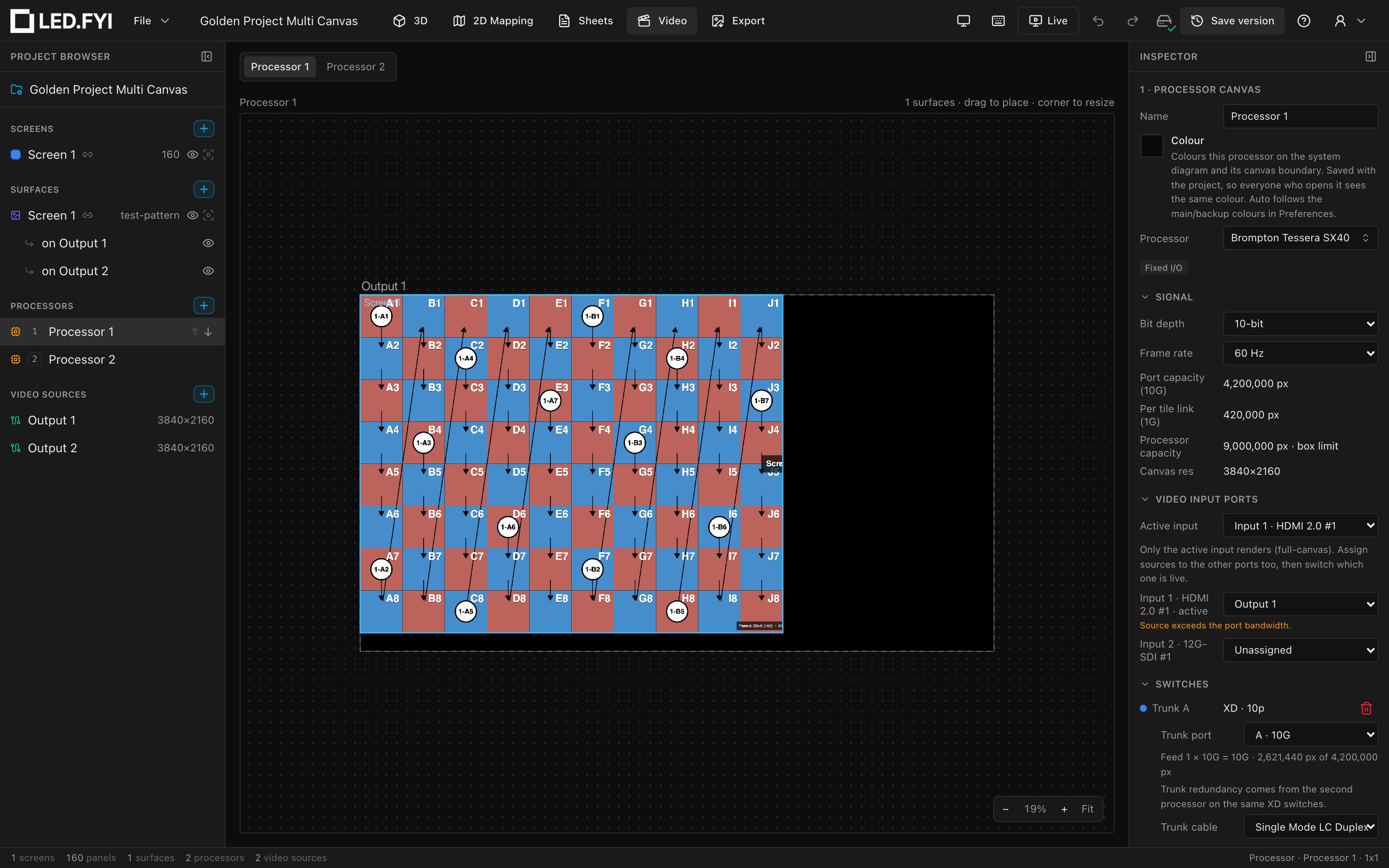
The split follows the hardware. Which processor a panel belongs to is yours to choose. Set it with right-click Assign to processor (or Move screen to for the whole screen). The slices follow: crops track the panels, and everything re-derives whenever panels move, are dragged, reassigned, or the grid is resized. When the whole screen is back on one processor, the split collapses back to a single whole-screen link.
Which inputs carry a slice is not a split at all. A processor that stitches several inputs into one canvas (Layout 2x1, 2x2, …) makes one seamless picture surface, so a screen on it keeps one placement covering the whole composite, and each input draws the part of it that lands on its tile. You never place the same picture once per input.
A panel can be fed by two inputs at once
On a stitched processor a panel lying across an input seam draws its top from one feed and its bottom from the next, exactly what the processor does, and invisible on the wall. That's the point of stitching: the inputs assemble one seamless canvas, so where the joins fall doesn't have to line up with your panel grid.
The same holds for content that isn't tied to a screen at all. A free placement (a logo, a lower third, a holding slide) laid on a stitched canvas is likewise one picture across the whole composite: drag and resize it over the seams and the inputs sort themselves out. See On a stitched canvas, a placement covers the whole wall.
Details worth knowing:
- Dragging a bound slice moves its panels. A slice and its panel group are one thing: drag the slice in the Video workbench and the group's panels move in the mapping to match (locked or disabled panels stay put). Dragging never re-homes a slice to another source; for that, use the picker below or the screen's processor assignment. To move the view rather than a slice, hold
Spaceand drag, or drag with the middle mouse button. That pans from anywhere, including from on top of a slice (see Navigating). Every slice is labelled with its surface's name at a size that stays readable however far out you're zoomed, and on a show with many processors the workbench's canvas switcher, the same pills / drop-down as in 2D Mapping, keeps the processor carrying a slice one pick away. - Bound slices are excluded from
⌘K → Auto-Pack Surfaces on Video Source; they sit wherever their panels are. - A bound slice can be re-routed: its Video source picker in the placement inspector is enabled, with the hint
Bound to a panel group: moving it moves the group's panels too. Picking a source moves the whole group onto that source's output, landing at its top-left corner unless it still fits where it was.The list offers only sources some processor actually carries. Picking one moves the slice's panels as one block onto the chosen source, then re-homes them to that processor's canvas (the same operation as right-click Assign to processor in the mapping view). On a processor that stitches several outputs into one canvas (Layout2x1,2x2, …), that group move is what makes the pick land on the source you chose: the panels are what decide a slice's source, so a group that didn't move would keep whatever output it was already sitting over.
Where a re-routed slice lands
A bound slice's Position is measured across its processor's whole canvas. On a stitched 2x2 of 1920×1080 inputs that's a 3840×2160 space, so a slice on the bottom-right sits at something like X 1920, Y 1080. Move it to a different processor and that offset means nothing there: a canvas only 1080 tall has no Y 1080 row to put it on.
The rule: if the region still fits exactly where it was, it stays; otherwise it lands at the destination's top-left corner. The one exception is a spot already taken by another part of the same screen on that processor: then the slice is laid out beside that part, in wall order, so the two never stack. Assigning each quarter of a big screen to its own output always takes the corner branch: every quarter fills its own output from the corner, which is almost always what you want. A placement you positioned deliberately inside its output keeps that position when you move it to a same-size output.
The slice's Crop pos / Crop size never change; it keeps showing exactly the same region of the surface, so the right pixels still reach the right panels.
When a processor's input changes
A linked screen's picture is fed by whichever video input feeds its processor; that's what the read-out on the placement says. So the one edit that quietly reaches across the link is re-patching a processor's input (Inputs & input modes): change which source sits on a slot and every linked screen on that processor moves onto the new feed. On a real job that is a media-server change (whoever builds the new feed now has to carry that screen's region too), so the app asks first:
This moves a linked screen onto another feed
Screen 2's surface placement moves from Video Source 1 to Video Source 2. A linked screen's surface follows whichever video input feeds its processor, so the picture lands where the screen sits on the processor canvas.
Cancel · Change the input
The question only appears when a linked screen's feed genuinely moves; the app tries the edit on a scratch copy and compares before and after. Picking the source that's already there, filling an empty slot, or re-patching a processor with no linked screen on it stays silent.
- The picture lands on the panels (where the screen sits on the canvas) and overlaps whatever else that feed already carries there. That's faithful to the rig: one cable carries one frame. If two pictures now sit on top of each other, give one of the processors a different source.
- Unplugging an input (setting it to
None) is not a move, so it isn't asked about: the processor simply goes dark. The link survives it: a hand-sliced screen keeps its surface and its regions, and they come straight back when you bind a source again.
Moving a whole screen to another processor
When you move a whole screen to another processor (Move screen to in the screen's Processors section, or right-click → Assign to processor on all of its panels) and it wouldn't fit where it was, the panels are re-based to that canvas's top-left corner, and the screen's origin and its whole-screen placement travel with them, so the picture lands on the panels rather than a screen-height away. Files saved by earlier versions could carry a placement stranded like that; opening such a file now moves the picture back onto its panels (the panels themselves never move).
Cutting a screen's picture into slices
Sometimes the automatic per-processor split isn't the cut you want: you need this part of the wall fed as its own piece, most often as the first step of splitting a screen across two processors. You make that piece by cutting the screen's linked placement in the Video workbench: select the placement, click an amber scissors (or right-click → Split into left / right / Split into top / bottom), and click to cut. The cut only ever lands on a full-span panel seam (a line no panel straddles), so each side is a clean rectangle of whole panels. Cut a side again to make more slices.
Slices are only made this way. There is no command that groups an arbitrary hand-picked set of panels into a slice.
Once cut:
- Each slice appears in the left rail as an indented
Slice · N panelsrow under its screen; clicking it selects the slice's panels. - In the 2D mapping view each slice wears a dashed violet outline and a
Slice · Nbadge (readable in Back view too), and selects and drags as one unit on a plain click.⇧-click adds another whole slice (or panel) to the selection;⌥-click reaches inside a slice to grab one member, and⌥⇧builds a selection of individual members across several slices. - A slice whose panels end up on two processors gets one placement on each.
- Slices self-heal: a panel you disable drops out of its slice, and a slice with no panels left dissolves itself.
- Where you put the pieces sticks. Once you've moved a slice away from the rest of the screen, that arrangement survives curving the screen. The pieces keep their offset rather than snapping back together.
A cut screen's layout is locked
Slices are pinned to exact panel seams, so while a screen has any, its Grid, Half row / Half column and panel Type are disabled, with the note This screen is cut into slices, so its layout is locked. Clear the slices to change its size, half-panels, or panel type. Ungroup the slices (below) to change them.
The Video slice section
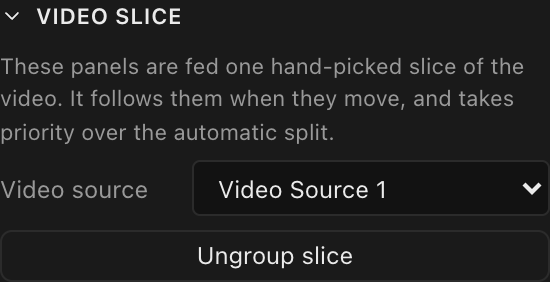
Select a whole slice (a plain click on any of its panels) and the multi-panel inspector shows a VIDEO SLICE section (folded by default):
| Control | What it does |
|---|---|
| Video source | Re-routes the slice by moving its panels onto the picked source's processor (same rule as bound-slice re-routing above). Lists only sources some processor carries. |
| Ungroup slice | Dissolves the slice; its panels are re-absorbed into the screen's automatic split and snap back into the screen's contiguous layout. If you had moved the slice to its own spot, the app asks first (Recombine into the screen?), because that position is discarded (Recombine / Cancel). |
The section's note reads These panels are fed one hand-picked slice of the video. It follows them when they move, and takes priority over the automatic split.
⌘U (Ungroup Video Slice in the command palette) does the same as the button, on the selected slice, or on the slice that holds the panels you have selected.
Pixel surgery: splitting free placements
An unlinked placement can be physically cut in two. The classic use is folding a too-wide banner (say, one 7680-wide strip) onto a 16:9 output as stacked halves.
Select a free placement in the Video workbench: two amber scissors buttons appear on it, one on its top edge (cut left/right) and one on its left edge (cut top/bottom), or right-click it for Split into left / right and Split into top / bottom. Clicking one arms a dashed cut line across the placement (click to cut · esc cancels), which snaps to panel edges on that canvas and to the placement's midpoint (the line turns green when snapped):
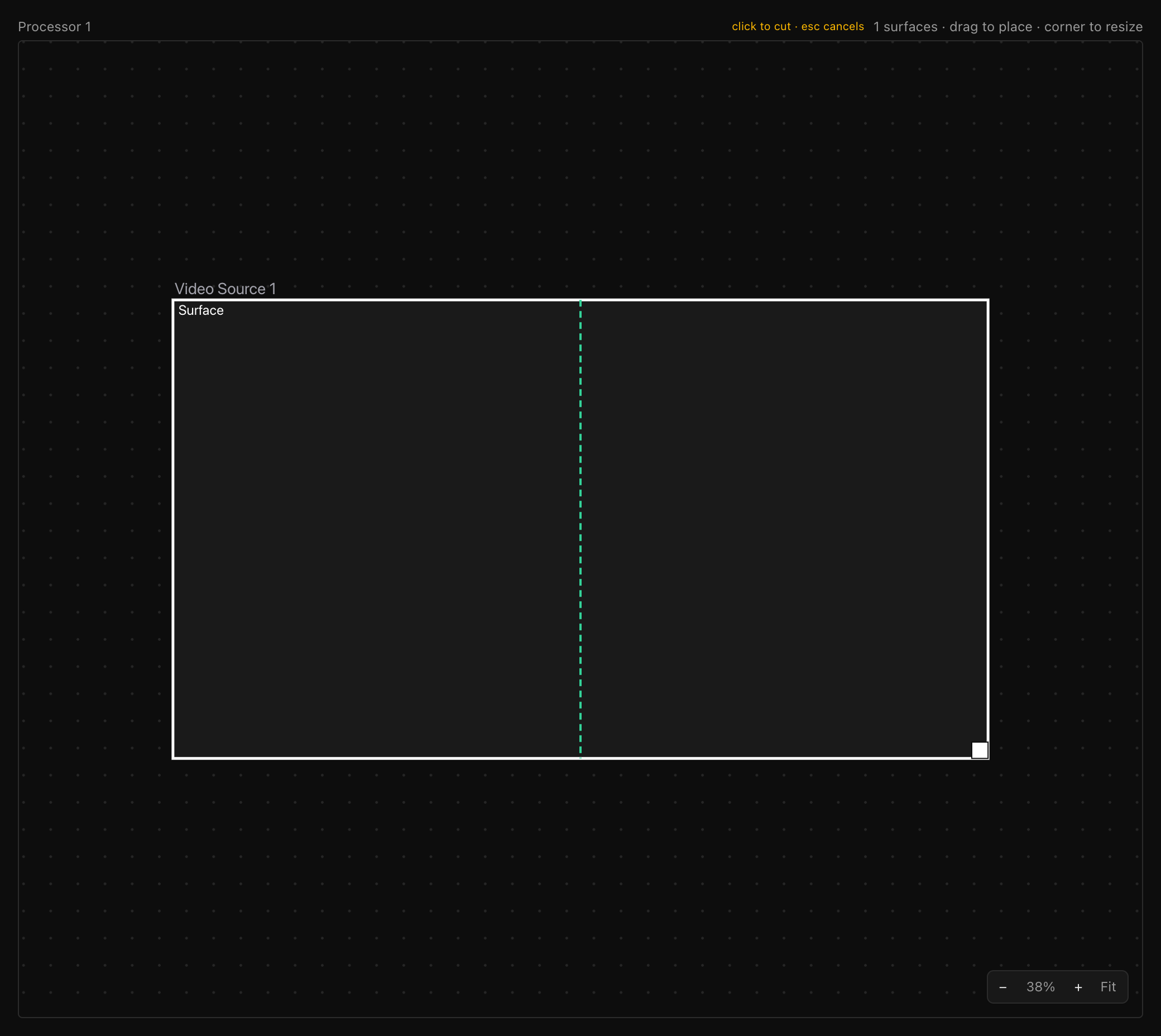
Click to commit. Both the destination rectangle and the source crop split proportionally, so each half keeps showing exactly the pixels it did before. Each half is then a normal free placement:
| Control | What it does |
|---|---|
| Video source | Move the placement to another output, or just drag it onto the other output's canvas (a ghost pill names the target). |
| Crop pos / Crop size | Which region of the surface's buffer this placement shows (px); Full resets to the whole buffer. |
| Z-index | Stacking order among placements on the same output. |
| Visible | Hide/show the placement. |
A placement linked to a screen splits too, but only on the screen's panel seams: the cut locks to the nearest seam no panel straddles, and each side becomes its own linked slice, exactly as described above. Nothing detaches. To turn a linked placement back into a free one, right-click it and choose Detach from screen. The full gesture is described in Splitting a placement; placement editing in Surfaces, placements & video sources.