

Appearance
Power circuits in the mapping view
The mapping view is where you see your power circuits on the wall and make two kinds of hands-on edits: re-assigning a circuit's label, and combining adjacent circuits onto one breaker. How circuits are computed (strings, watt budgets, buffers) is covered in Power: strings, circuits & buffers; this page covers the mapping-view controls.
Reading the power overlay
Toggle Show → Power in the top-left toolbar (see Wiring overlays). Each power daisy-chain draws in a warm color, one color per circuit, with a solid circle chip at the head of each chain carrying the circuit label: C1, C2, and so on, using the prefix and numbering style from the project's power-distribution settings (see Labels).
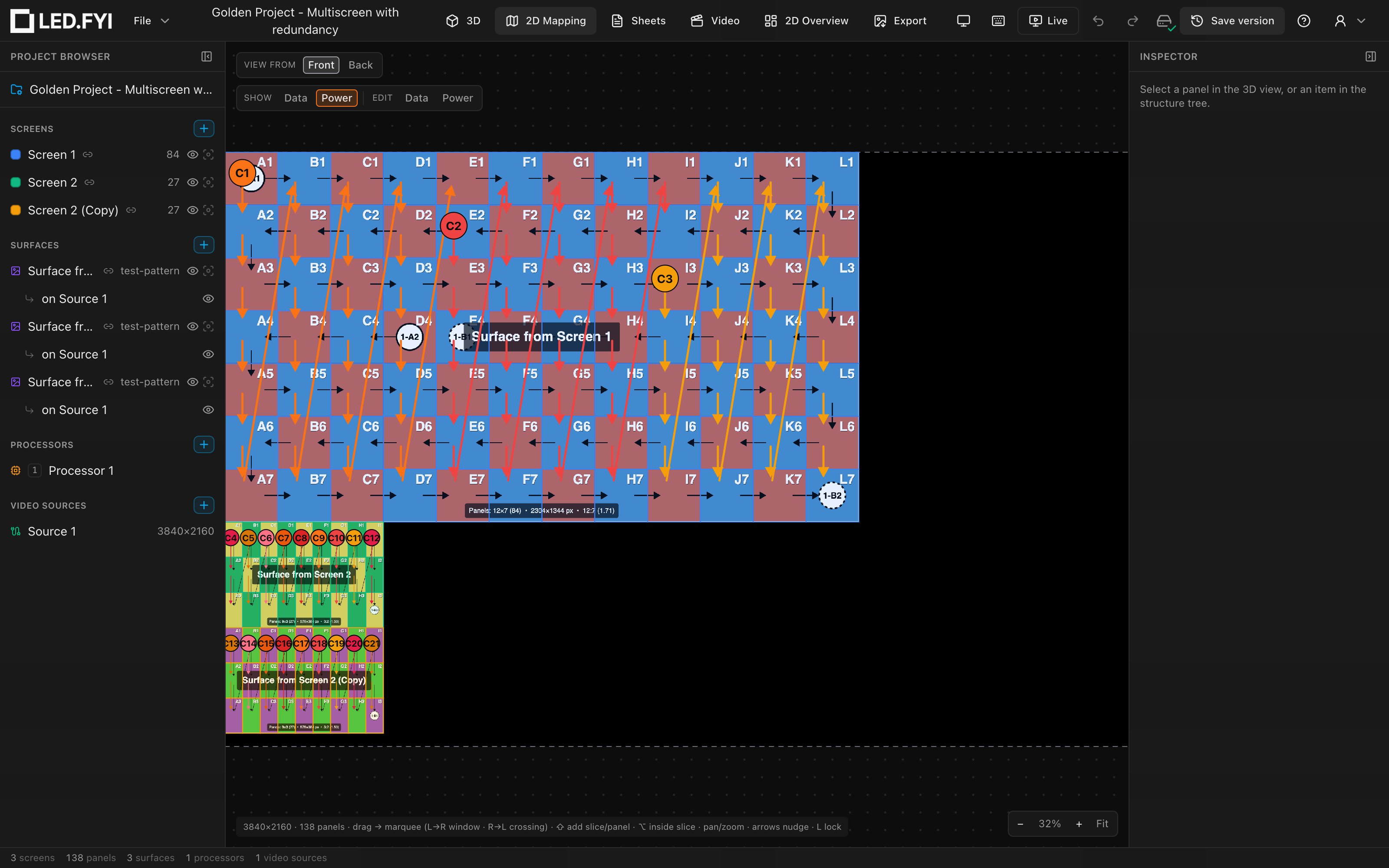
Power anchors are offset up-and-left from the data anchors, so both overlays stay readable together. They stay up-left in Back view too, and the circuit chips still read the right way round. Disabled panels and spacer panels are never part of a chain.
Re-assigning a circuit label
Right-click the first panel of a power chain (a single panel; the rows are hidden for multi-selections and for panels that don't head a chain). The menu row Re-assign circuit label shows the circuit's current label (for example C1) and opens a submenu of every label your project's labelling scheme can produce, with the current one ticked.
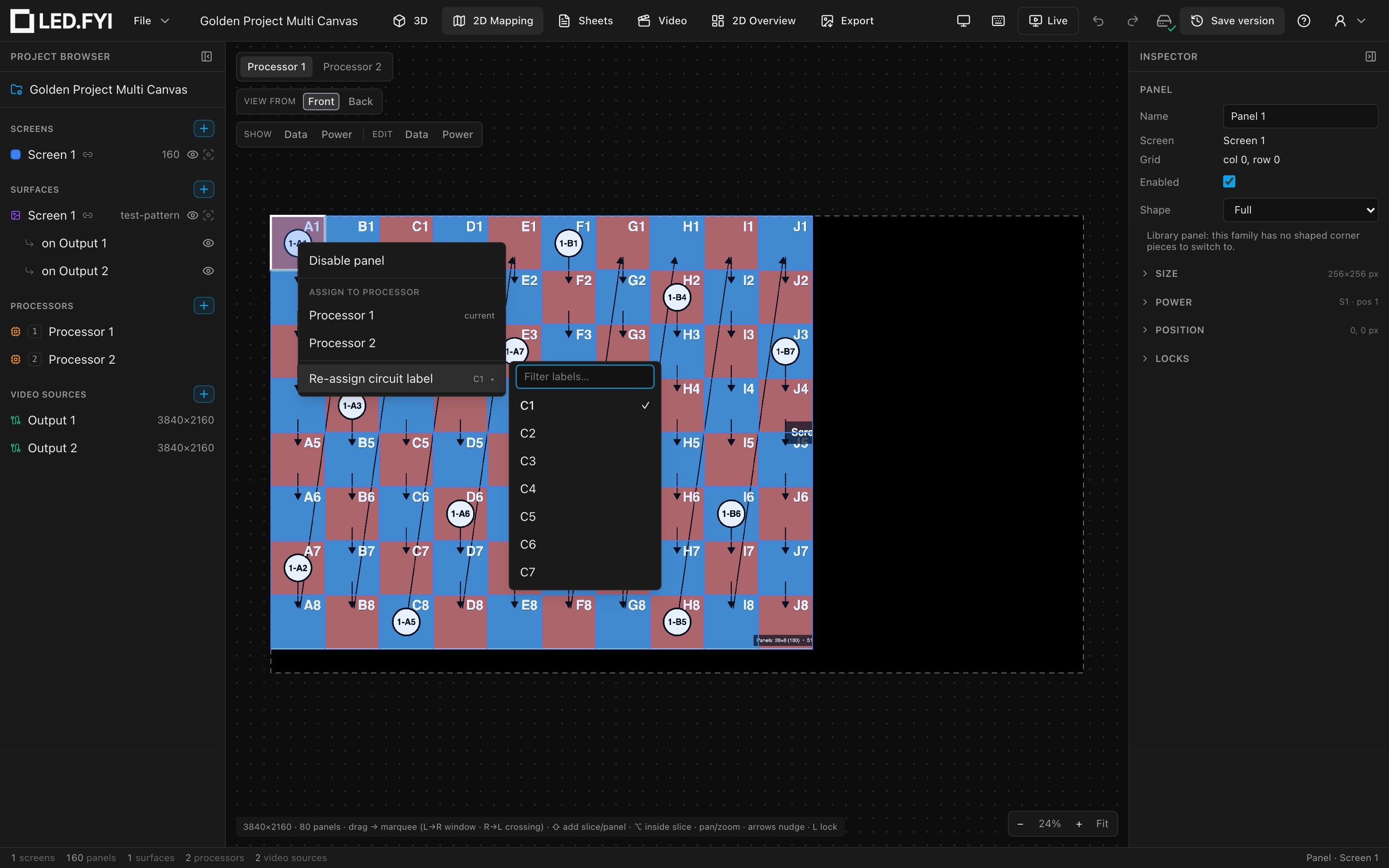
You pick a label; you never type one. A circuit's identity is a project-global number, and its label is always re-derived from that number through your labelling settings: C7 and A.3 are two renderings of the same circuit. A label the scheme cannot produce means nothing to the engine, so the list is generated from the scheme rather than typed:
| Distribution type | Offered labels |
|---|---|
| Single | C1, C2, C3, … |
| Multi (grouped) | A.1 … A.6, B.1 … B.6, … (one per circuit) |
| Multi + distro | A1.1 … A2.6, then B1.1 …, one distro after another (one per circuit) |
The prefixes, the group size and numeric-vs-alpha group labels are all yours to set. See Where the budget comes from. A multi-cable list always runs to the end of a whole cable group, so you never see half a cable. A multi-distro list runs to the end of a whole distro. The separator, distro letters or numbers and first distro all follow your settings too.
Filter labels… at the top of the submenu narrows the list as you type: B. jumps to the second cable, C12 goes straight to it.
The number is global to the project, so the automatically numbered circuits renumber themselves around your pick. Two things follow:
- A label another circuit has pinned by hand is greyed out and marked in use (hover it to see which screen holds it). It isn't offered because the engine would refuse it. Pick a different one, or reset that circuit to automatic first.
- A label an automatically numbered circuit happens to be showing right now is not blocked. That circuit simply moves aside.
Once a circuit is pinned, the menu adds Reset circuit number (auto) to return it to automatic numbering.
Spotting a pinned circuit
A re-assigned label is a pin: that circuit keeps the number you chose and every automatically numbered circuit skips it. So you can always tell the two apart on the canvas: a pinned circuit's start chip carries a small pin mark on its shoulder, and the same mark sits beside the label on the Re-assign circuit label row of the right-click menu. Automatic chips have no mark.
Pins are per screen, and the Screen inspector's Power section shows an amber notice with a Clear pins button whenever a screen holds any. To put the whole project back in order in one go (regardless of pins), use Renumber all circuits in the project's Power distribution section (or the ⌘K palette). It clears every pinned number and start number and lets the engine count C1 onward again; string sizes and combines are untouched, and it is one undo step. Details: Circuit numbers: pinning and overrides.
Combining circuits
When the project's combine mode is Manual, right-clicking a power-chain head also shows a Power circuit combine section, offering Combine with <circuit> for each adjacent power string, the same adjacency rule as V1: only the strings immediately before and after (±1) this one can join it.
Each candidate row shows a live wattage readout: the load the combined circuit would carry, against the per-circuit budget:
| Readout | Meaning |
|---|---|
<n> W (grey) | The combined load fits the budget |
<n> W over (red) | The combined load exceeds the budget |
Joining a string that is already in a combined group adds your string's watts to the whole group's total, not just the neighbor's.
Over-budget combining is refused
This is the one place the app says no rather than warning you. A combine that pushes the shared circuit past its amp cap would trip the breaker mid-show, so the row is refused with a Circuit over limit message naming the combined wattage, and nothing is changed. Free up headroom (or raise the screen's Max A/str, up to the project's Circuit amps) and try again.
What the overlay shows after a combine
The power overlay re-labels a combined circuit's feeds as soon as you join them. Where an uncombined circuit's chain head reads P3, a two-string circuit's heads read P3a and P3b, the legs of the two-fer that circuit now needs. Three strings give you P3a/P3b/P3c.
Those leg labels are the same ones that reach your cable labels, the label CSV and the drawing set, so what you read on the canvas is what gets printed and taped to the cable. The splitter itself is added to the bill of materials automatically. See what combining does to your labels and your parts.
Uncombine from <circuit> appears on a chain whose circuit spans more than one string, and pulls that string back out into its own circuit.
Combining across two screens
Adjacency only reaches as far as the screen you're on, but a breaker doesn't care which screen a run belongs to. Below the adjacent candidates, an Other screens block lists the circuits on every other screen you can share a plug with, each row named for its screen (Combine with C4 on Side Wall) and carrying the same fits/over readout, with the same refusal when the shared circuit wouldn't fit.
The result reads exactly like any other combine: one circuit, one number, and per-leg labels (C1a on one screen and C1b on the other) that carry through to your cable labels, drawing set and bill of materials. The circuit takes the number of the screen it was combined from, and Uncombine on either side breaks it apart again.
Combining circuits this way is independent of running a power cable across screens; you can do either, both, or neither. For the cable, see running one cable across two screens.
Where the budget comes from
A circuit's watt budget is:
the screen's amp limit (its Max A/str, capped at the project's Circuit amps) × the screen's working voltage (for a circuit shared across two screens, the stricter screen)
Both halves are editable:
- Circuit amps: the project-wide ceiling for every screen's Max A/str, in the Inspector's Power distribution section (select the project name at the top of the left rail). The same section holds the Combine mode and the circuit Labels configuration.
- Working voltage: set per screen in the screen's power settings; see Per-screen power & string limits. New screens start at
220 V, with Max A/str at the project's Circuit amps (16 Ain a new project).
The combine mode governs whether the menu appears at all:
| Combine mode | Effect |
|---|---|
| Off | No combining: every power string is its own circuit |
| Auto | The engine combines circuits for you within budget |
| Manual | You combine by hand; the Power circuit combine menu rows appear |
New projects start with combining Off, so switch the project to Manual before looking for the menu. For the full circuit model (including buffers and how circuits land on paperwork), see Power: strings, circuits & buffers and Seeing & exporting your wiring.