

Appearance
Drawing blocks reference
A block is a live drawing placed on a sheet: an elevation, a wiring diagram, a schedule, a table. Blocks regenerate from the wall design on every change. You place and size the box; the app keeps the content current. This page lists all 16 block kinds and every option they expose.
How blocks work
- Insert blocks from the Insert block… menu in the Sheets toolbar. Blocks you've saved with Save block as template… are listed under My block templates (see Drawing templates). The new block lands near-filling the drawable area (stacked inserts cascade by 8 mm so they don't hide each other) and is selected, ready to move or resize.
- The menu is data-gated: a block only appears when your project has the data it needs. Curving Plan is only offered when at least one screen is curved, Heat Load when the project has powered panels, and Panel Specifications when a screen's panel type carries datasheet specs, so on some projects a few of the kinds below are absent from the menu.
- Blocks are either scaled drawings (physical geometry printed at a standard drawing scale; see drawing scales) or paper-space content (tables, maps and diagrams that simply fit their box, since no physical ratio applies).
- A saved sheet always renders: if a block's data disappears later (say, the last curved screen is straightened), the block shows a labeled "… (unavailable)" placeholder instead of failing, so you can fix or delete it.
Selecting a block shows its options in the Inspector:
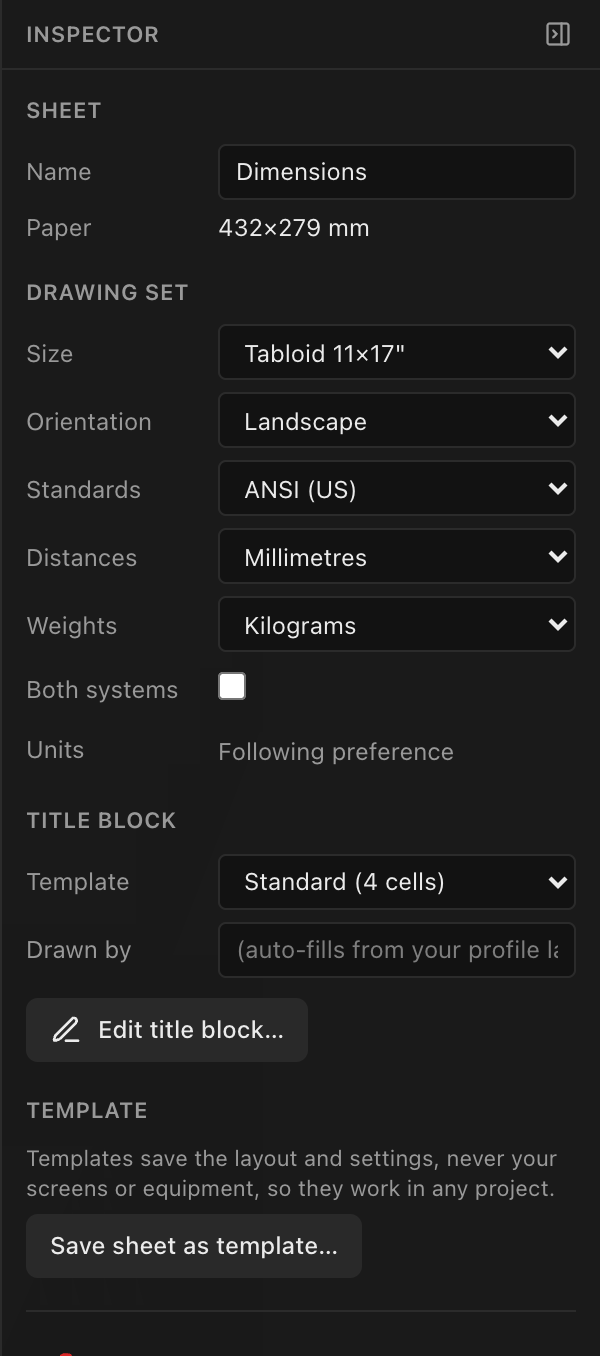
Options common to many blocks (Titles, Title alignment, Bold titles, Border and the Drawing label callout) are covered in Notes, leaders & block styling. Placement, locking and stacking order are covered in the workbench page.
The block catalog
| Block | Type | Available when |
|---|---|---|
| Wall Elevation | Scaled drawing | Always |
| Side Elevation | Scaled drawing | Always |
| Top Elevation | Scaled drawing | Always |
| Isometric View | Scaled drawing | Always |
| Bill of Materials | Table | Always |
| Raster Map | Diagram | Always; one sheet per canvas by default |
| Data Wiring | Diagram | Always |
| Data Schedule | Table | Always |
| Power Wiring | Diagram | Always |
| Circuit Schedule | Table | Always |
| Weight Estimate | Table | Always |
| Panel Specifications | Table | A screen's panel type has datasheet specs |
| Heat Load (BTU) | Table | The project has powered panels |
| Block Diagram | Diagram | Always |
| Curving Plan | Scaled drawing | A screen is curved |
| QR code (share) | Paper-space | Always |
Elevations
All four elevation blocks are true projections of the wall as it stands in 3D, from the same viewpoints as the 3D workbench's Front / Right / Top / Isometric presets. Rotated screens are drawn rotated: a floor screen (tilted so its face points straight up) reads as its full panel layout in the Top view and as a thin edge-on line in the front elevation; a screen swung 45° about the vertical axis reads foreshortened in the front elevation and angled in the plan, exactly what you see in 3D. The Top view uses the drafting convention: what is nearest the viewer in the front elevation sits at the bottom of the plan.
Wall Elevation
The front elevation: one rectangle per panel at true physical size (mm), with panel shapes honored, dashed mounting-hardware reference outlines behind the panels, and overall width/height dimension chains. It prints at a snapped standard drawing scale, shown in the title block as SCALE 1:N.
A rotated screen is drawn as the outline the front view actually shows, and its dimension chain reports that projected size, so a screen at 45° dimensions narrower than its true width. To dimension a screen's real face, look at the view it faces (a floor screen dimensions true in the Top Elevation).
With several screens and no scope set, each screen is laid out side by side (a near-square flow, bottom-aligned per row) with its own dimension chains and a name label:
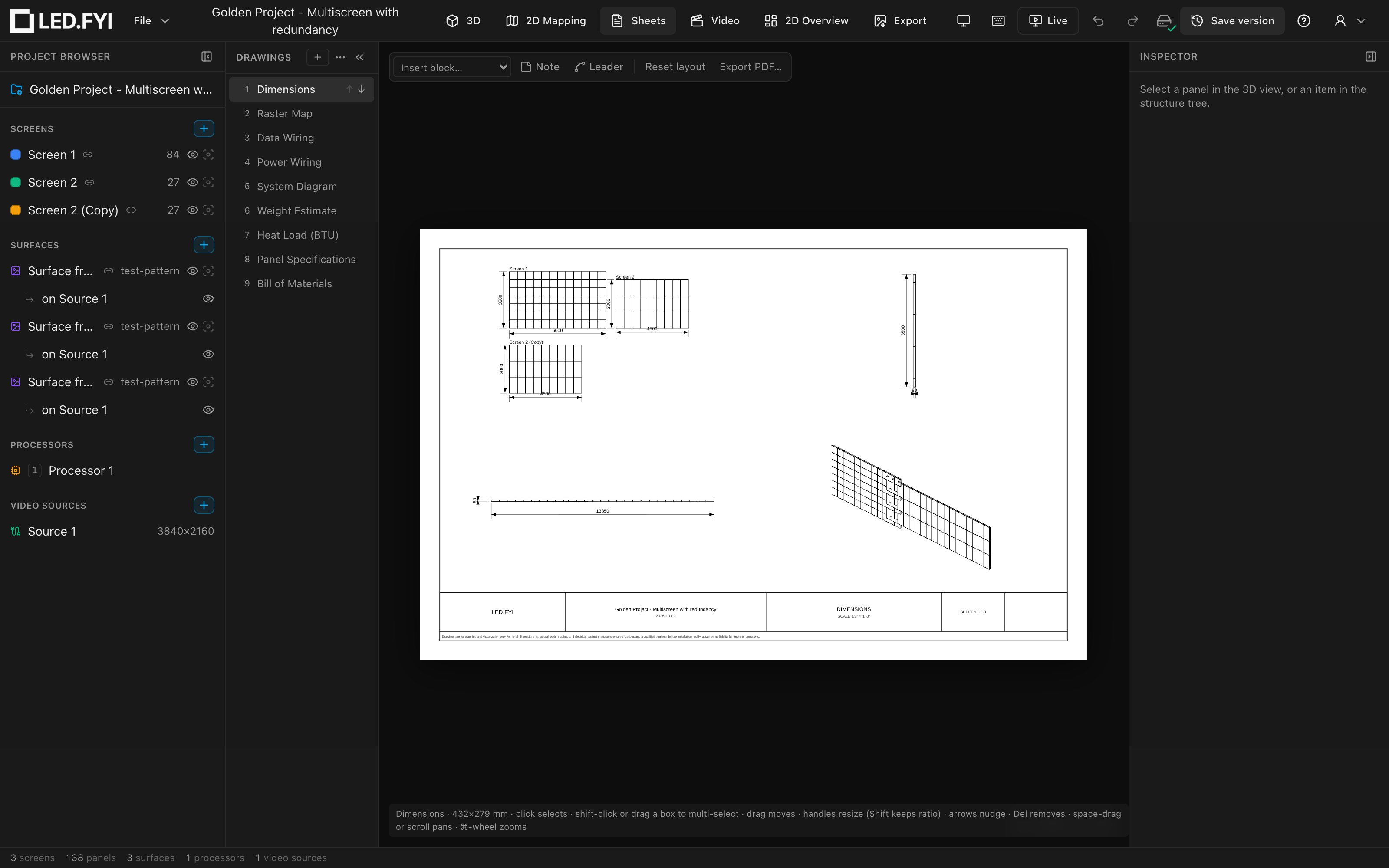
| Option | What it does | Default |
|---|---|---|
| Dimensions | Show the width/height dimension chains | On |
| Mounting hardware | Show the dashed behind-panel truss/clamp outlines (see Mounting on your paperwork) | On |
| Scope | All screens, or one screen | All screens |
Dimension values print in the sheet's print units: unitless millimetres on a metric set, architectural feet and inches (31' 2-1/4") on an imperial one. If a screen is too large to print readably, the elevation supports match-line pagination.
Side Elevation & Top Elevation
Orthographic side and top projections with real panel depth, mounting hardware in profile, and dimension chains, shaded so panels read as solid boxes (white faces, grey mounting fills). Same Dimensions / Mounting hardware / Scope options as the wall elevation.
The Side Elevation looks at the wall from the right (the 3D Right preset), and the Top Elevation looks straight down (the 3D Top preset). Tilted panels draw their real angled footprint rather than a square box, so a curved wall's arc, a floor screen's face and a screen swung off-axis all read correctly in plan.
Isometric View
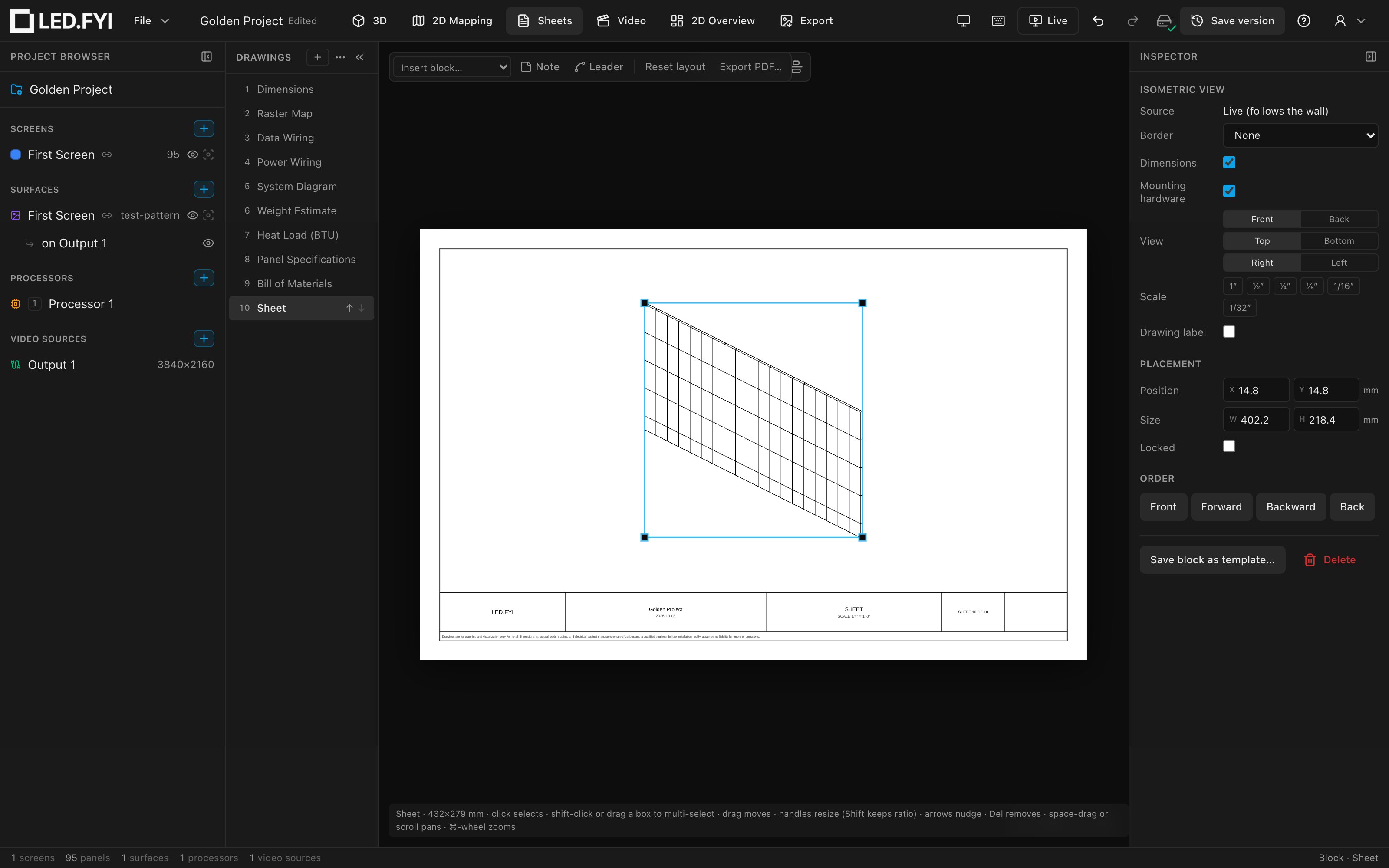
An isometric 3D projection of the wall: panels plus mounting, correctly occlusion-sorted at any screen rotation, with an overall W × H × D size note. The View row in the Inspector has three toggles (Front/Back, Top/Bottom, Right/Left) so you can look at the wall from any of the 8 corners; occlusion stays correct in every station. Also offers Dimensions, Mounting hardware and Scope.
Wiring diagrams
Data Wiring & Power Wiring
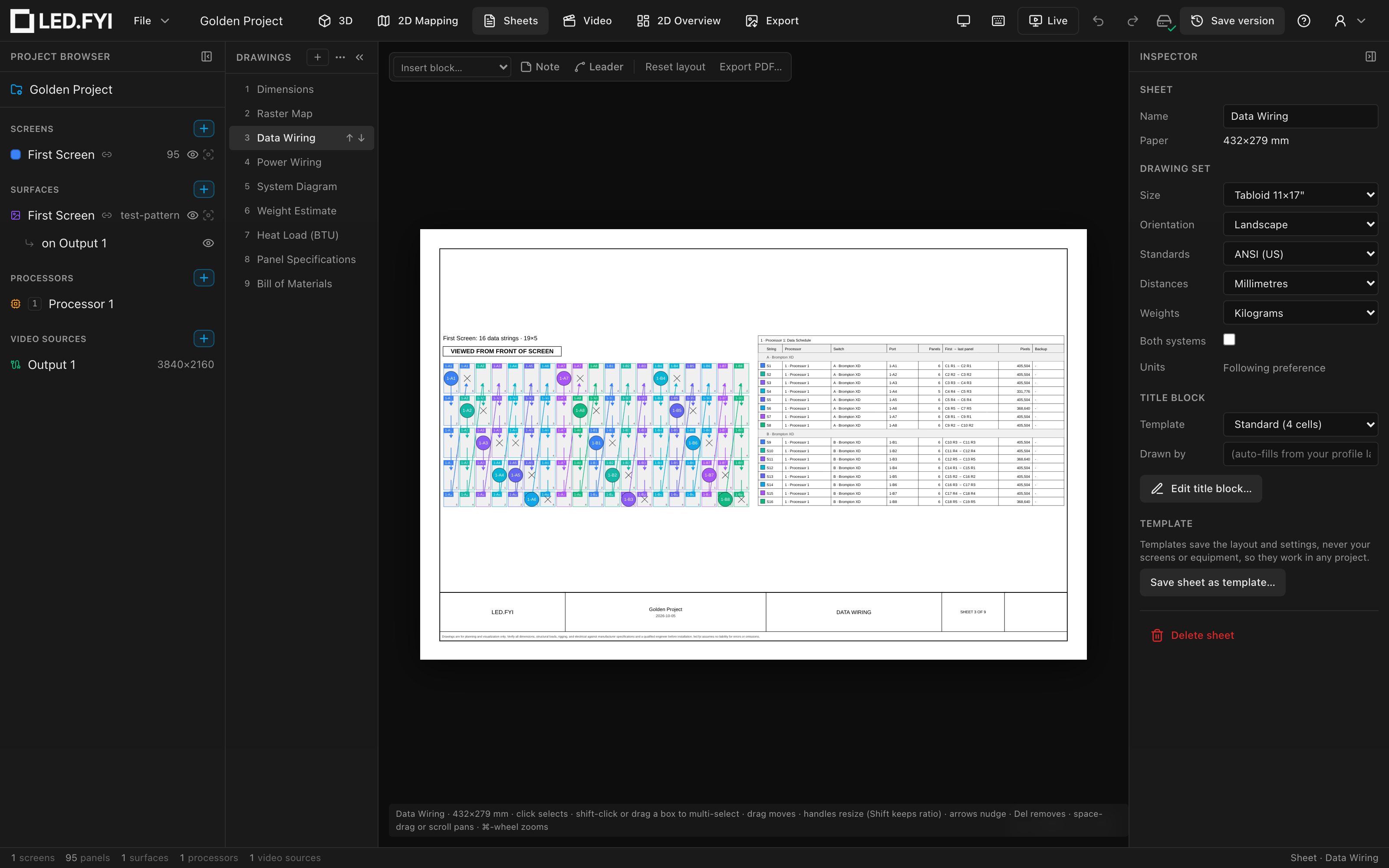
The on-grid wiring drawings: the panel grid with colored string/circuit borders, directional path arrows, start markers, an X at each end of chain, string/circuit badges, backup-port indicators on the data drawing (see Redundancy), and a legend: the same visual grammar as the wiring overlays in the 2D Mapping workbench.
| Option | What it does | Default |
|---|---|---|
| Scope | All screens (one band per screen), or one screen | All screens |
| Titles | Show the per-screen band title lines | On |
| Viewed from | Front or Back: which side of the wall the drawing shows. See Front and back views | Front |
| Combined circuits | Power Wiring only: how a combined circuit's fan-out is drawn | Splitter junctions |
String and circuit colors come from your Preferences color sets and re-color the drawing (and its exports) live. They're a personal setting, not project data, so two people can print the same project with different string colors. Colors are assigned per run across the whole project, so one cable is the same color on every sheet it appears on.
Front and back views
You design a wall from the front, but crews wire it from behind, so a front-view drawing is mirror-reversed from what they're looking at. Viewed from → Back draws the wall as it looks from the rear: the panel that's on the far left from the front is on the far right, and every string or circuit runs the other way across the page.
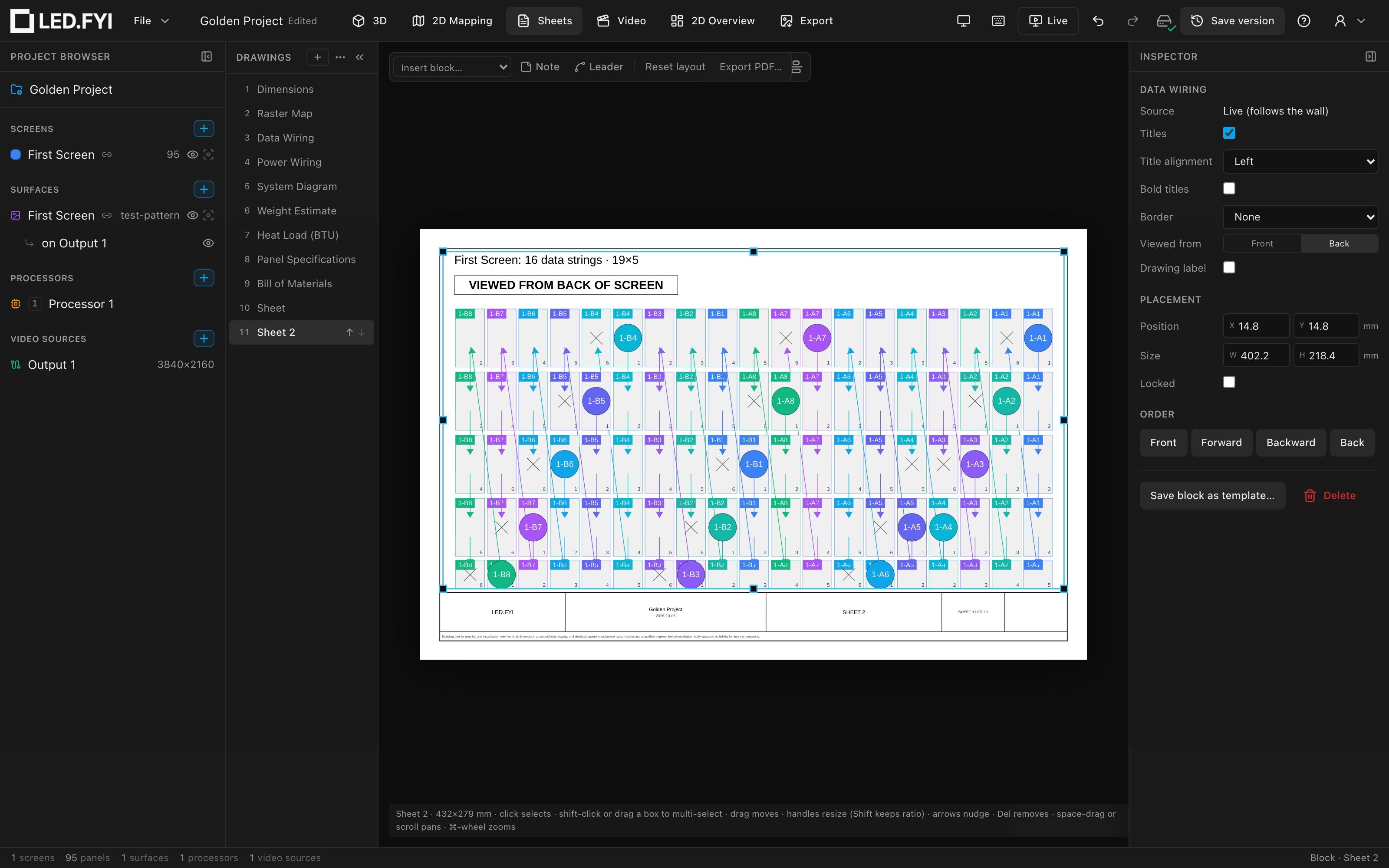
- Only the layout flips, never the text. Panel labels, position numbers, start badges and the legend all stay readable. Arrows, link flags and splitters follow the flipped panels, and a shaped (triangle or rounded-corner) panel shows its mirror image, because that's what you see from behind.
- Every wiring drawing says which side it shows. Each band carries a boxed tag above the grid (VIEWED FROM FRONT OF SCREEN or VIEWED FROM BACK OF SCREEN) in the same place and style, even with Titles switched off, so nobody wires from a back sheet thinking it's the front (or the other way round).
- To print both views, use two blocks. Insert a second Data Wiring or Power Wiring block (on the same sheet or a new one) and set it to Back. Each block keeps its own setting.
- Paginated screens flip as a set. On a screen split across several sheets, changing Viewed from on any page changes every page of that set. The match lines swap sides with the drawing, so SEE SHEET n still points at the page that really sits on that side. If you paginate a block that's already set to Back, the pages are numbered left to right as seen from behind.
A run that crosses onto another screen
Each screen's band draws only its own stretch of a cable drawn across a screen boundary, but nothing pretends the cable ends there:
- the panel where the cable leaves carries a pointed link flag naming the screen it goes to, in place of the
X; - the panel where it arrives carries the matching notched flag naming the screen it came from, in place of the port-feed circle;
- the chain numbering carries on across the seam (…39, 40, then 41 on the next screen) instead of restarting at 1.
The point and the notch are each other's negative, so the two halves read as one cable rather than two dead ends.
Drawing combined circuits
When you combine strings onto one circuit, the Power Wiring drawing has to show that a two-fer or three-fer sits in the run. Combined circuits picks how:
| Mode | What it draws |
|---|---|
| Splitter junctions (default) | A splitter box with a drop-line to each leg. When the legs enter at adjacent panels it sits right at the seam between them; when they're scattered (serpentine wiring puts the legs far apart) it moves out to the top edge, clear of the panels, with straight drops to each leg. |
| Circuit outlines | No box; instead each combined circuit gets a closed outline traced around its actual panels, color-matched to the circuit and tagged C3 · 2-fer. It follows the true footprint jog for jog, so an L-shape or a staircase is outlined as it really is, not squared off into a bounding box. |
Outlines handle awkward circuits honestly: a circuit whose panels come in separate clusters draws one loop per cluster, each carrying the label, and a circuit forming a ring draws the hole as its own loop. Uncombined (single-string) circuits get no annotation in either mode. A project that never combines prints identically whichever mode is set.
If the grid would print below a readable size, an amber on-sheet banner appears ("Grid below readable size: scope to a screen and paginate") and a scoped block offers match-line pagination.
On Power Wiring, a screen whose panels are calculated below their rated maximum wattage also prints a red warning under its grid; see the reduced-draw warning below.
A filled arrowhead on these drawings means flow, and nothing else uses one. So where pagination cuts a string or circuit, the chain ends in a short stub and a hollow hexagon tag naming the panel it continues to on the next sheet, never an arrowhead, which pointing back at the previous sheet would read as the signal running backwards. See Paginating an oversized screen.
Block Diagram
The engineering signal-chain schematic: processors → switches → screens with full port-level I/O, primary and backup connections, per-port routed lines, cable types and labels. A cable running from one screen into the next is a link in the chain like any other: the screen it leaves gains an OUT port naming the panel, the screen it reaches gains a matching IN port at the top of its input list, and the line routes out the right edge, down its own lane and back into the left edge, so it never crosses the port fan feeding that screen. A modular processor shows its real video inputs, each labelled by its transport (HDMI 2.0, 12G-SDI, DP 1.4, ST-2110…) from the input cards fitted into its slots, so the diagram reflects the actual input mix rather than a generic HDMI count. Its outputs follow the fitted output cards the same way: each port is labelled at its own speed (a 1×40G QSFP+ card reads 40G, an 8×5G Base-T card reads 5G), so swapping cards changes both the number of ports drawn and what each one says. Where a port is actually wired, the speed of the link it carries wins. Every block is outlined in your main or backup colour (a mirror device in the backup ink, plus its [BKP] tag and dashed feed lines), and a processor you gave a colour of its own is outlined in that instead, with a matching solid tab in its header so the colour survives a hairline plot. Offers Scope and Titles. See Seeing & exporting your wiring for the whole family of wiring views.
Raster Map
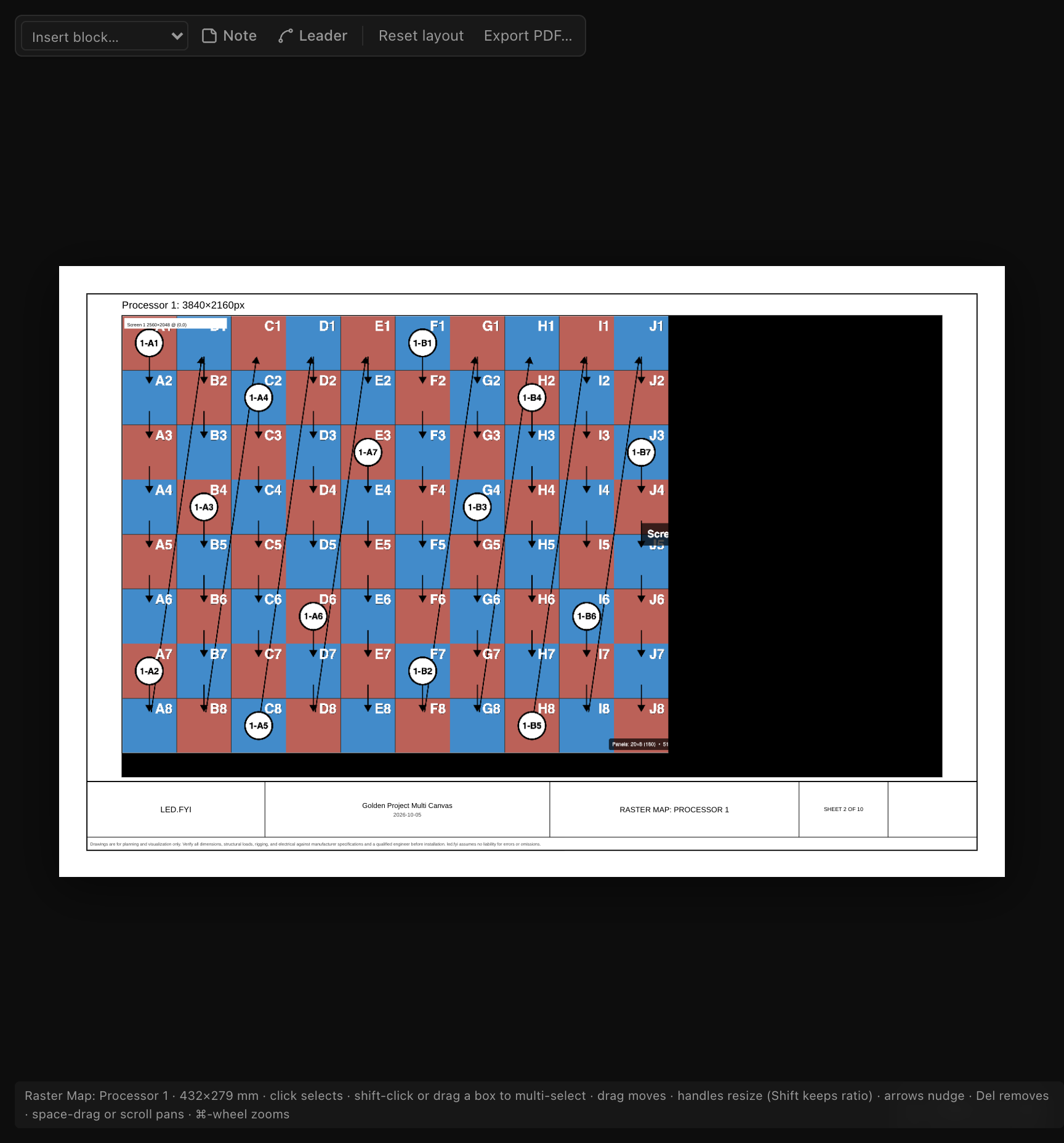
Each processor canvas's pixel space, drawn to scale: output-tile boundaries (dashed, when a canvas has more than one), every surface placement outlined and labeled with its size and pixel offset from the canvas's top-left corner (Screen 1 2560×2048 @ (0,0)): the V1 operator convention for lining up content on a processor.
Show picture draws the canvas's actual picture (the same pixels its PNG export produces) inside the composite rectangle, underneath the tile/placement outlines, instead of leaving it empty. The surface and tile labels sit on a see-through white box, sized to the text with even margins, so they stay readable over the picture without hiding it. A very long surface name is shortened, but the size and pixel offset are always shown in full. Turn it off to go back to the plain outline-only rectangles (useful for a smaller PDF, or when you only need the layout, not the content).
Surface labels turns the surface labels (Screen 1 2560×2048 @ (0,0)) on or off. Turn it off when the labels cover content you want to see in the picture; the surface outlines and the output tile names stay.
Source labels does the same for the output tile names (Source 1, Source 2) printed in the top-right corner of each output tile. The dashed tile outlines stay. A processor with a single output has no tile names, so the checkbox only appears when the block shows a processor with two or more outputs.
| Option | What it does | Default |
|---|---|---|
| Scope | All canvases (stacked), or one canvas; see Scoping & splitting a block | All canvases for a block you insert; one canvas on each seeded Raster Map sheet |
| Titles | Show each canvas's name/resolution header line (Processor 1: 3840×2160px) | On |
| Show picture | Draw the canvas's actual picture inside the composite rectangle | On |
| Surface labels | Print each surface's label (name, size and pixel offset) at its top-left corner | On |
| Source labels | Print each output tile's name at its top-right corner | On |
What the picture is, exactly:
- A still. Moving content (video, or an animated test pattern) prints as a single frame. The picture is captured when the sheet is drawn and only re-captured after you next edit the project, so it doesn't flicker along with playback.
- Lighter on screen than on paper. The Sheets workbench and the Export tab's page thumbnails show a reduced-resolution copy so sheets open quickly (the picture swaps in a moment after the outline). The PDF export embeds it at the canvas's full native resolution.
- PDF only. The DXF export carries the Raster Map's outlines and labels but no picture.
INFO
The picture is generated fresh for each preview or export; it is never saved into the project file, so turning it on doesn't grow your project's file size. A canvas that hasn't rendered a frame yet (nothing assigned, or the picture hasn't loaded) falls back to the plain rectangle for that canvas only.
Schedules & tables
Data Schedule
A lookup table a crew reads from either end: from a port, find the panels it feeds; from a panel's wall position, find its port. Both directions live in the same table (every row carries the port and the panels), so there's no mode to switch; you just start from whichever column you're holding.
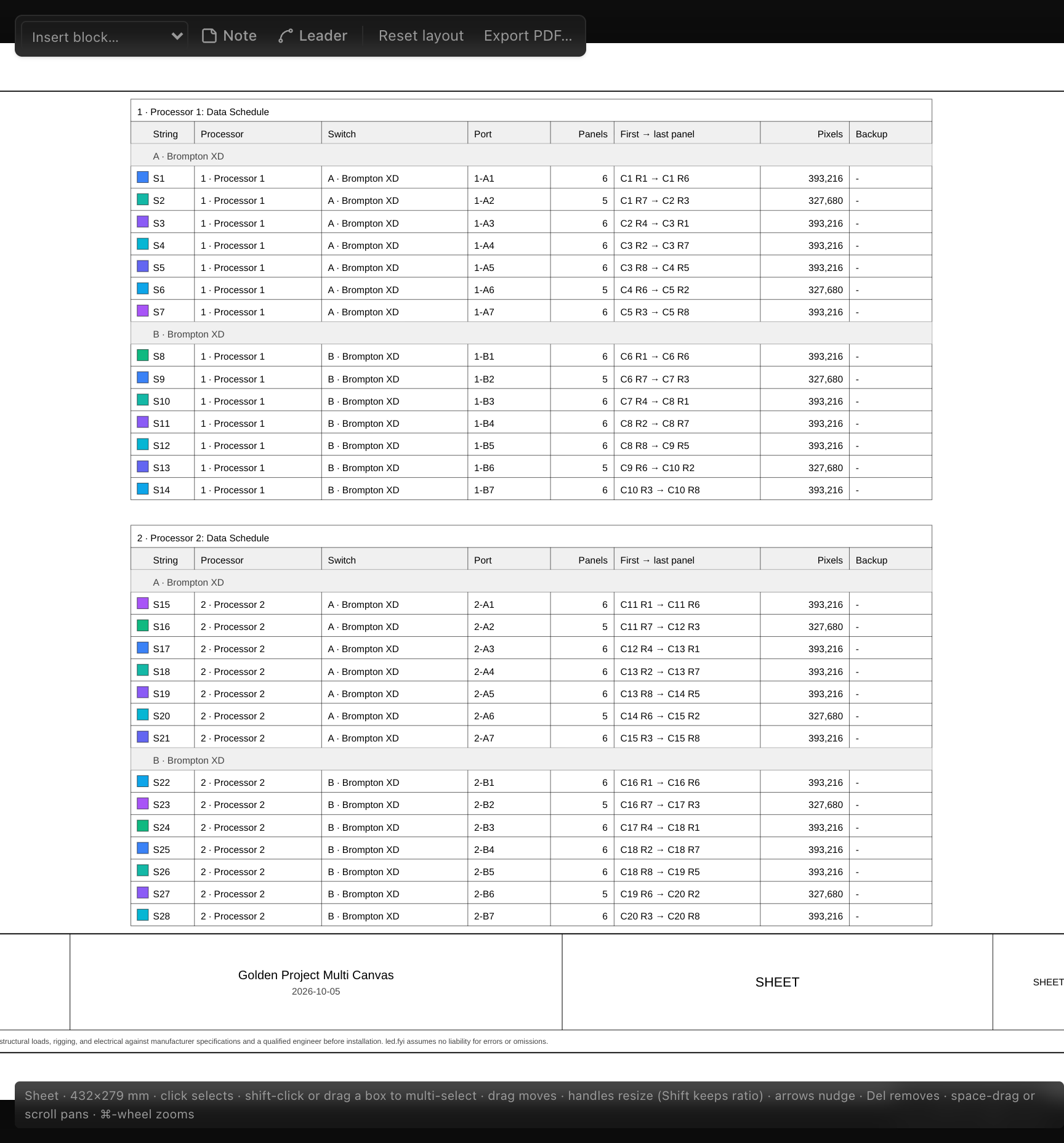
There is one row per data string, with a color swatch matching the string's color on the Data Wiring drawing:
| Column | What it shows |
|---|---|
| String | The string's project-wide S-number (S15), always the S-number, even once a port is assigned |
| Processor | The processor tag and name, e.g. 2 · Processor 2 |
| Switch | The switch's trunk letter and model, e.g. A · Brompton XD; Switch (type not set) after the letter if no model is picked, blank for a direct processor output |
| Port | The full port label, e.g. 2-A1, or Unassigned for a string with no port yet |
| Panels | How many panels the string feeds |
| First → last panel | The wall positions of the string's first and last panel, as column and row, e.g. C11 R1 → C11 R6; just one position for a one-panel string; stacked corner panels add a letter, C4 R1a |
| Pixels | The string's total pixel load, e.g. 393,216 |
| Backup | The backup port label (1-B3, 1B-A3), or - when the string has no backup |
How the rows are arranged:
- One table per processor, in project-browser order, titled with the processor, e.g. "2 · Processor 2: Data Schedule".
- Inside each table, a shaded header row starts each switch group: Direct outputs first, then each switch by trunk letter (
A · Brompton XD,B · Brompton XD…). - Within a group, rows run in port order. Strings with no port yet read
Unassignedand sit at the end of the Direct outputs group. - A screen split across processors puts its strings in the table of each processor that hosts them, not in one table per screen.
- A cable run across two screens is still exactly one row, spanning every screen it touches.
Reading it from a port. Find the processor's table, then the switch group, then the port. Panels and First → last panel tell you how many panels that cable feeds and where the run starts and ends on the wall.
Reading it from a panel. On the Data Wiring drawing, every panel's cell carries its run's label (the port label once one is assigned, otherwise the S-number) and its position in the string. Look that label up in the Port or String column. If you only know where the panel sits, scan First → last panel for the run that starts or ends there.
First → last panel names a run's two ends only. The panels in between aren't listed here; read them off the Data Wiring drawing, which prints each panel's position-in-string in the bottom-right corner of its cell. A run that snakes back on itself still shows only its first and last panel, so follow the drawing for the turns.
| Option | What it does | Default |
|---|---|---|
| Scope | All screens, or one screen. A scoped block keeps only the strings with panels on that screen, still in one table per processor that carries them | All screens |
| Titles | Show each processor table's title line (plus the shared title styling) | On |
The cable-label CSV carries the same first panel, last panel and panel count on every data-string row, so a puller holding one printed label can find a run's extent without the schedule sheet in hand. See also string-to-port assignment and labels.
Circuit Schedule
One row per power circuit: label, panel count, wattage, amperage, percent of the circuit limit, and an OVER/OK status column. The band title prints the limit ("Screen: Circuit Schedule (limit N A)"), which is the screen's amps per string, capped at the project's Circuit amps. A total row sums the load at the feed voltage. Offers Scope and Titles. See Power: strings, circuits & buffers.
For a circuit shared with another screen (whether by a cable that runs across or a combine), Panels and Watts are this screen's share, so the screen total never double-counts, while Amps and % of limit read the whole circuit: that's what the breaker actually carries, measured against the stricter of the two screens' limits. The row names the other screen, and the wiring drawing's legend spells the split out as "270 of 3390 W".
The reduced-draw warning
Crews sometimes fit more panels on a circuit than the rated wattage allows, because they plan to cap output in the processor. You model that with a wattage override set below the panel's rated maximum, and the circuits are sized for the lower draw. The paperwork then has to tell the crew the circuits only hold while that cap is in place, so under the screen's Circuit Schedule table, and under its grid on the Power Wiring drawing, a red warning like this one prints (with your screen's numbers):
Power calculated at 175 W per panel (70% of the 250 W rated max). Limit output in the processor so panels stay at or below this draw, or these circuits will overload.
- It names the lowest share on the screen: if different panels are overridden to different values, the warning quotes the one furthest below its rating.
- The percentage is rounded down, never up, so a 69.6% calculation prints as
69%. - Nothing prints when the override is at or above the rated maximum, when there's no override, or when the panel type doesn't publish a maximum wattage to compare against.
- The text wraps to the width of the table or grid, and prints identically on screen, in the PDF and in the DXF.
It talks about power, not brightness, on purpose: receiver cards, power supplies and fans draw a fixed amount, so a 70% brightness cap usually draws more than 70% of rated power.
Bill of Materials
The full BOM as sectioned tables (panels, processing, switches, data/power/trunk cables, mounting hardware) with quantities and details. Every length on a row (cable runs, the trunk assumption, the length inside a mounting part's description) follows the sheet's pinned distance units. Section titles take the shared title styling options. The full story of what's counted lives at Bill of materials.
Weight Estimate
Per-screen weight tables (panels, then estimated data and power cable runs, then mounting hardware) with screen totals and a grand total. Cable rows print the total run and are footnoted with the per-length profile used; processor-to-switch trunks are excluded. Weights follow the sheet's print units (kg or lb), cable runs follow its distance units (metres or feet), and the footnote states the profile in both (0.044 kg/m or 0.03 lb/ft). Offers Scope and Titles. See Weight estimate.
Panel Specifications
A per-screen datasheet table (Specification | Value): pitch, resolution, brightness, refresh, color depth, environment/IP rating, power, weight, dimensions and more: the spec sheet a client packet usually has to copy in by hand. A row appears only for a datasheet field the panel actually publishes; when the selected panel carries no datasheet numbers, the block shows "No datasheet data published for this panel" rather than the generic unavailable placeholder. It isn't part of the standard drawing set, so add it to a sheet yourself when a client packet needs it.
Heat Load (BTU)
The HVAC roll-up: per-screen and whole-installation heat output in BTU/hr with approximate tons of cooling, for venue climate planning. Figures derived from electrical power (rather than a published heat spec) carry a footnote saying so. The Average load row appears only when the screen's panel type lists an average wattage; otherwise it is left out rather than estimated. Offers Scope and Titles.
Each screen's table also lists its Supply voltage (the working voltage from the screen's power settings) and the Maximum current it draws at that voltage, so one page covers both the electrician and the HVAC contact. The current is the screen's full-white electrical draw divided by the voltage, the same figure as the Total row of the Circuit Schedule block. When every screen runs at the same voltage, the installation headline adds a line with the whole installation's maximum current. The current assumes single-phase power.
Curving Plan
A top-down plan of curved screens: the panel layout from above, junction angles, a curving-block summary (4-way / 2-way counts by angle), and radius/diameter for simple-mode curves. Only offered when a screen is actually curved; see Screen curving. Scaled drawing; offers Scope and Titles.
QR code (share)
A placeable scan-to-open QR square. In the editor it stays a light placeholder; when you export the PDF, the app mints a share link for exactly the exported sheets and bakes the real QR in. Crews scan the printed page to open the current documentation. A finished PDF or DXF never prints a dead placeholder: when no share can be created the block is simply suppressed.
INFO
The baked QR needs a cloud-configured build, sign-in, and a cloud-saved project at export time. The full flow, including what happens offline or signed out, is on Drawings PDF export; how share links behave is on Sharing projects.
Scoping & splitting a block
Any multi-subject block (the per-screen elevations, wiring drawings and tables, or the per-canvas Raster Map) can be narrowed to one subject with the Inspector's Scope select:
| Option | What it does |
|---|---|
| All screens (n) / All canvases (n) | One band or layout section per subject (the default) |
| A single screen / canvas | The block draws only that subject |
| (missing entity) | Shown when a block is scoped to something that was deleted, so you can re-point or remove it |
On a single-screen project the Scope select is hidden entirely (there's nothing to choose), but the lone screen still counts as scoped for pagination.
An unscoped block on a multi-subject project additionally offers two one-click splits:
- Split here: replaces the block with one block per screen/canvas, tiled inside the original box on the same sheet.
- Split to sheets: one sheet per subject. The current sheet is renamed for the first subject, and each remaining subject gets its own new sheet (named "Block: Subject") inserted right after, inheriting the set's paper, standards, units, branding and template.
The Raster Map is the one block scoped by processor canvas rather than screen, handy on multi-canvas rigs. On a project with more than one processor canvas, the standard drawing set already seeds one Raster Map sheet per canvas for you (a backup canvas shares its primary's), automatically. Scope and Split to sheets here are for building that same layout by hand on another multi-subject block, or for putting every canvas back onto a single sheet (set Scope to All canvases).
The estimated-values note
Where a figure on a sheet is an estimate rather than a product's published number, every table presenting it (BOM, Weight Estimate, schedules, Heat Load) automatically prints a one-line warning. There are four, for four different reasons, and a sheet prints whichever apply; a screen can carry more than one:
- "Estimated: N shaped panels use area-ratio estimates (no measured pixel count) for data, power & weight.": a masked corner panel whose figures come from the shape's area ratio. It disappears once every panel carries a measured pixel count.
- "Estimated: N half-size panels have no half-size product in the library. Data, power & weight are scaled down from the full panel.": a half panel the screen has no half Row type / Col type for. It disappears once the screen names one.
- "Estimated: N corner panels have no quarter-size product in the library. Data, power & weight are scaled down from the full panel.": a quarter panel, where a half row meets a half column, with no Corner type named. It disappears once the screen names one.
- "Estimated: N 90° corner panels have no corner product in the library. Data, power & weight are taken from the flat panel.": a 90° corner panel column on a screen with no Corner product named. It disappears once the screen names one in Inspector → CORNERS.
Each line reads correctly for its own count ("1 corner panel has…", "2 corner panels have…"), and a wall with a half row and a half column prints the half line and the corner line separately, so you can see which is which.